
Manage article groups
Here's how to create article groups for printing, kitchen monitor, and reports.
Item groups control which printer prints which orders and what a kitchen monitor displays, and they structure statistics and reports. They are different from the categories on your menu. You can find them in the Web desk under Settings → POS, map Item Groups.
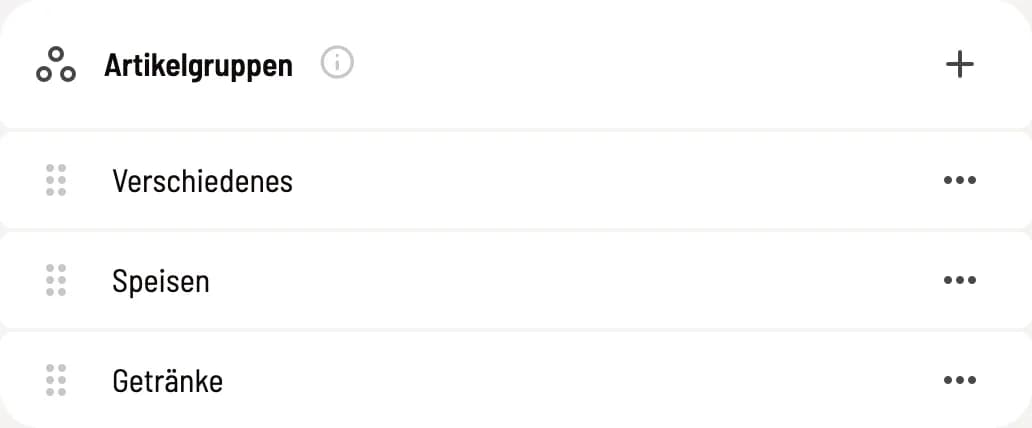
List of article groups
The standard groups Drinks, Food, and Miscellaneous cannot be deleted. + creates a new group, ⋯ opens Edit, and for custom groups, Delete.
Create and edit article groups
Name: This is the name of the group in the item, in discounted items, and in the Z-report.
Type: Drinks, Food, or Miscellaneous. This determines which print setting the cash register uses for kitchen and counter receipts. Miscellaneous prints a separate receipt for each item . If the group has its own print setting in the cash register, that setting applies. For standard groups, the type is fixed.
Assign and delete
You select the group on the item; it's mandatory there. It doesn't determine the tax rate. You can change the group for multiple item using " Edit multiple item at once." If you delete a group of articles, select a target group under "Assign item to" and confirm with "Move & Delete." Discounts that exclude the group will lose this exclusion.
You can activate the sales per group on the X and Z-report in the Reports tab using Print article groups.