
Register your cash register with the tax office
This is how you register your cash register with TSE according to §146a AO directly from the Web desk to the tax office.
You must notify the tax office of every cash register equipped with a TSE ( Technical Security Equipment) within one month of purchase. Servire will transmit the notification electronically to the tax office via the TSE provider fiskaly. You can find it in the Web desk under Settings → TSE in the Cash Register Registration tab.
Prerequisite: A paid subscription (Pro or higher) and a configured TSE ( Technical Security Equipment). With the Solo plan, you register your cash register yourself via Mein ELSTER. The required information is explained in "Completing the Cash Register Report in ELSTER". Enter your actual business details; the images show sample data.
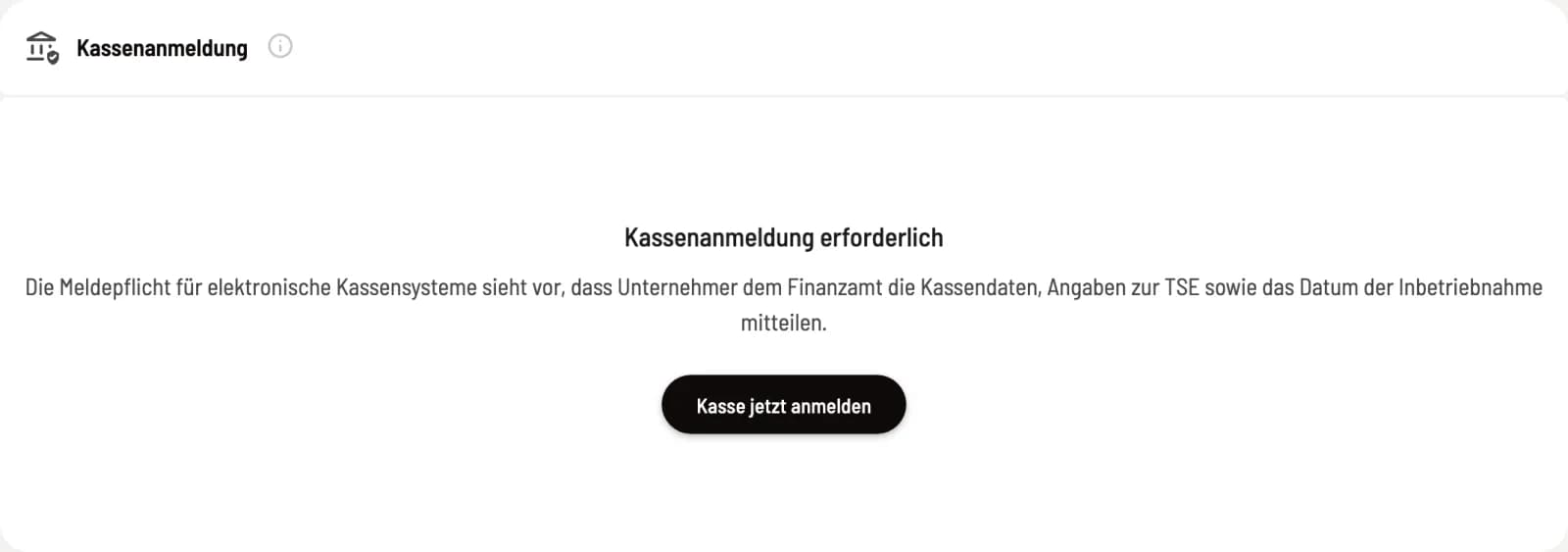
Start registration
Click on Register now. The assistant has four steps; the step you are in is shown in the bottom left corner.
1. Taxpayer
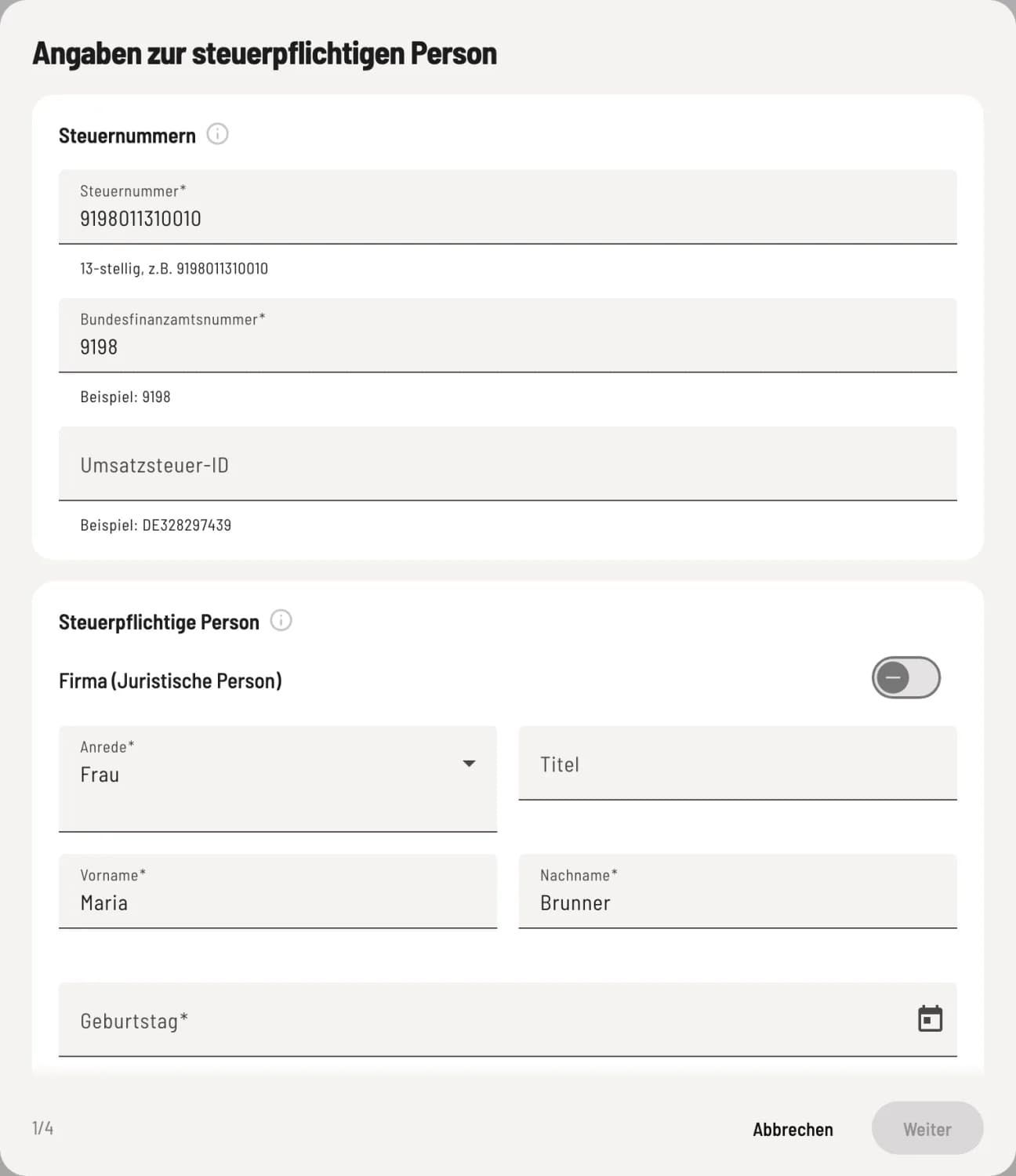
Step 1 of 2
Tax numbers and person
Tax number in 13-digit format, Federal tax office number (the first four digits of the tax number), and optionally the VAT ID. For sole proprietors: Salutation, Title (optional), First name, Last name, Date of birth, and the eleven-digit Tax identification number, not the tax number.
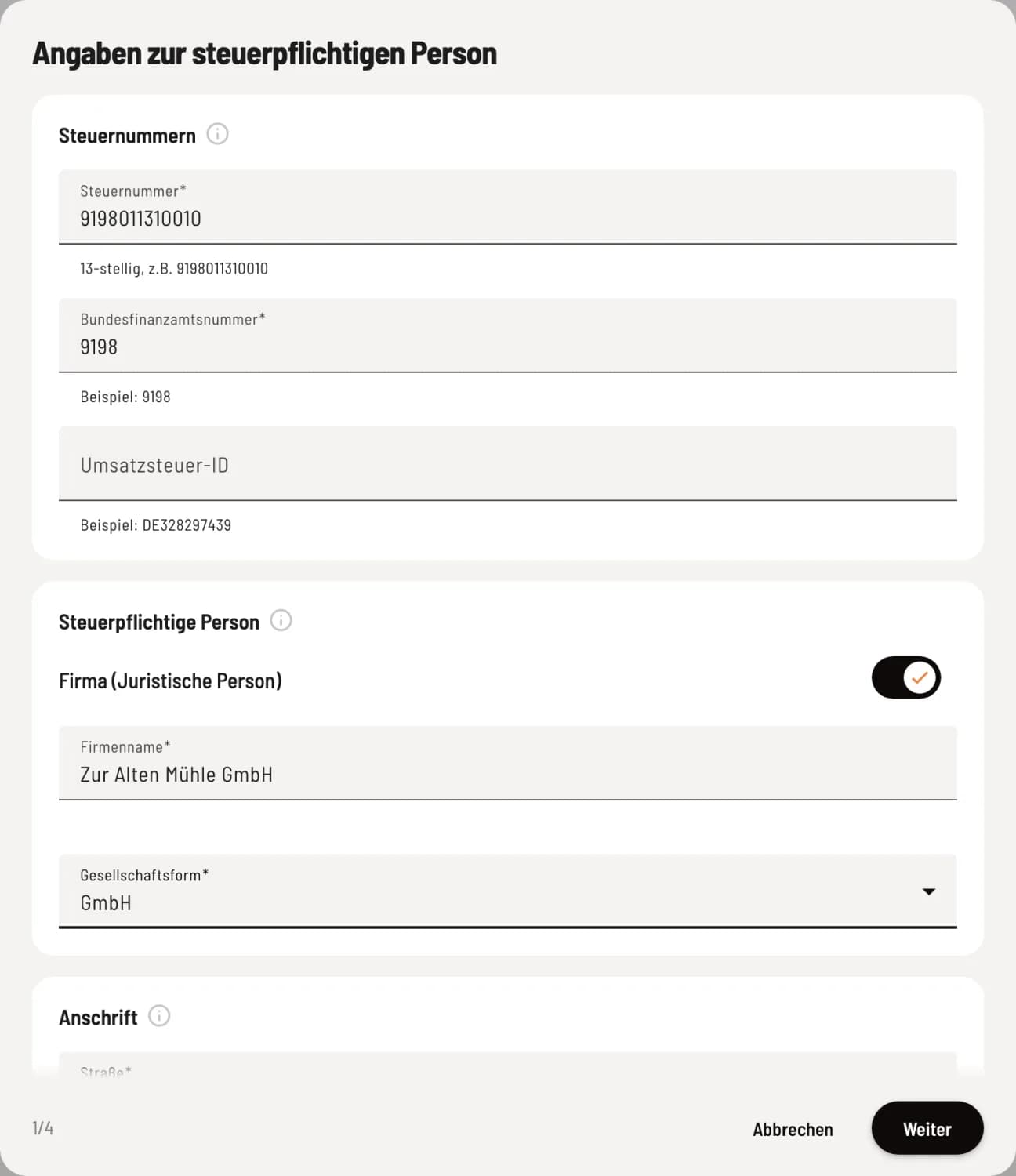
Step 2 of 2
Company instead of person
If a company operates the business, e.g., a GmbH (limited liability company) or GbR (general partnership), select Company (Legal Entity) and enter the Company Name and Legal Form. Below that, enter the Address: for a company, the registered office; otherwise, your home address. House Number should only be entered as numbers; letters belong in House Number Supplement.
2. Business premises
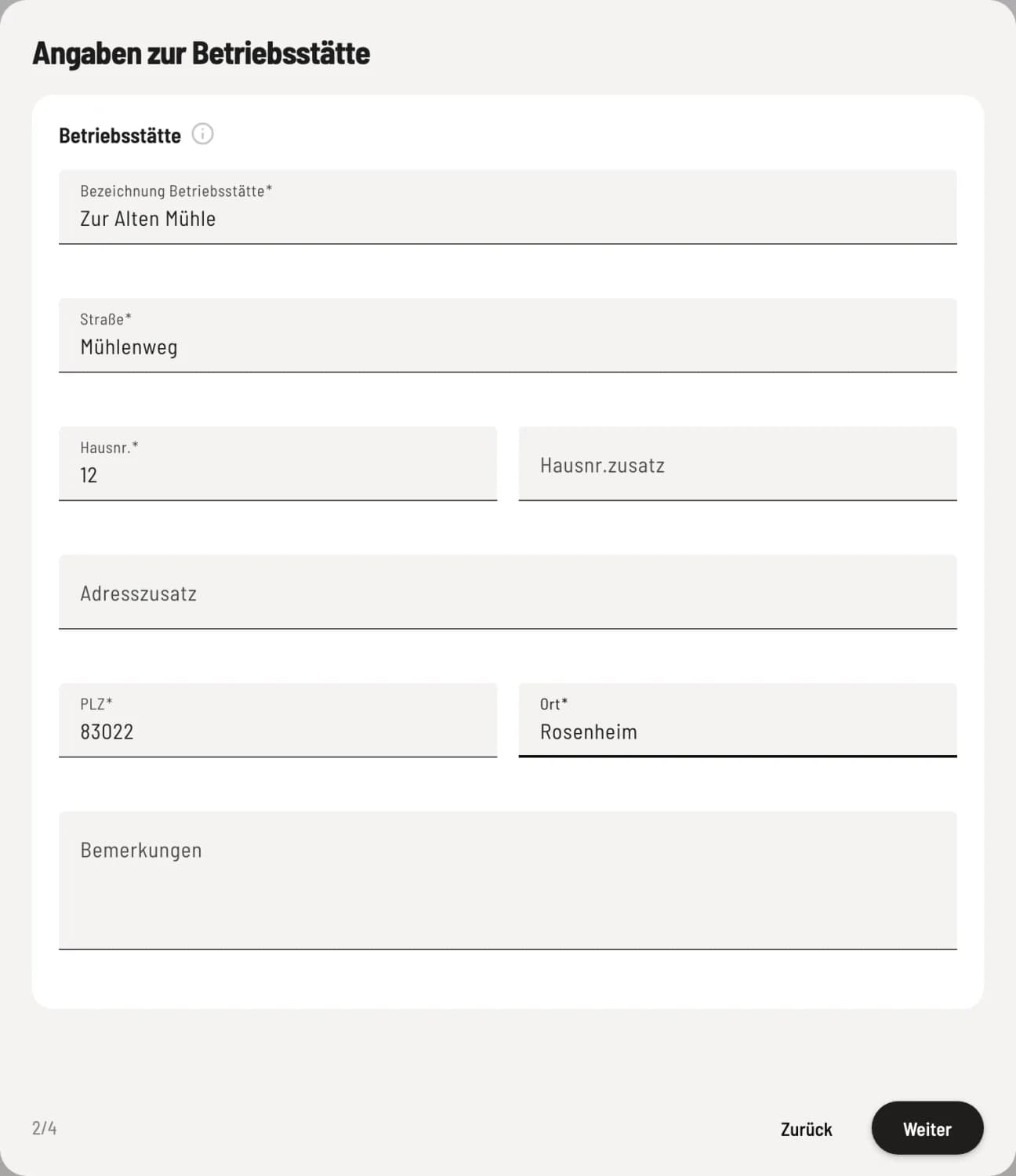
Register business location
The location of your cash registers, usually your establishment. Description of business location is mandatory, e.g., the name of your establishment along with its address. Remarks are optional.
3. Check and save the information
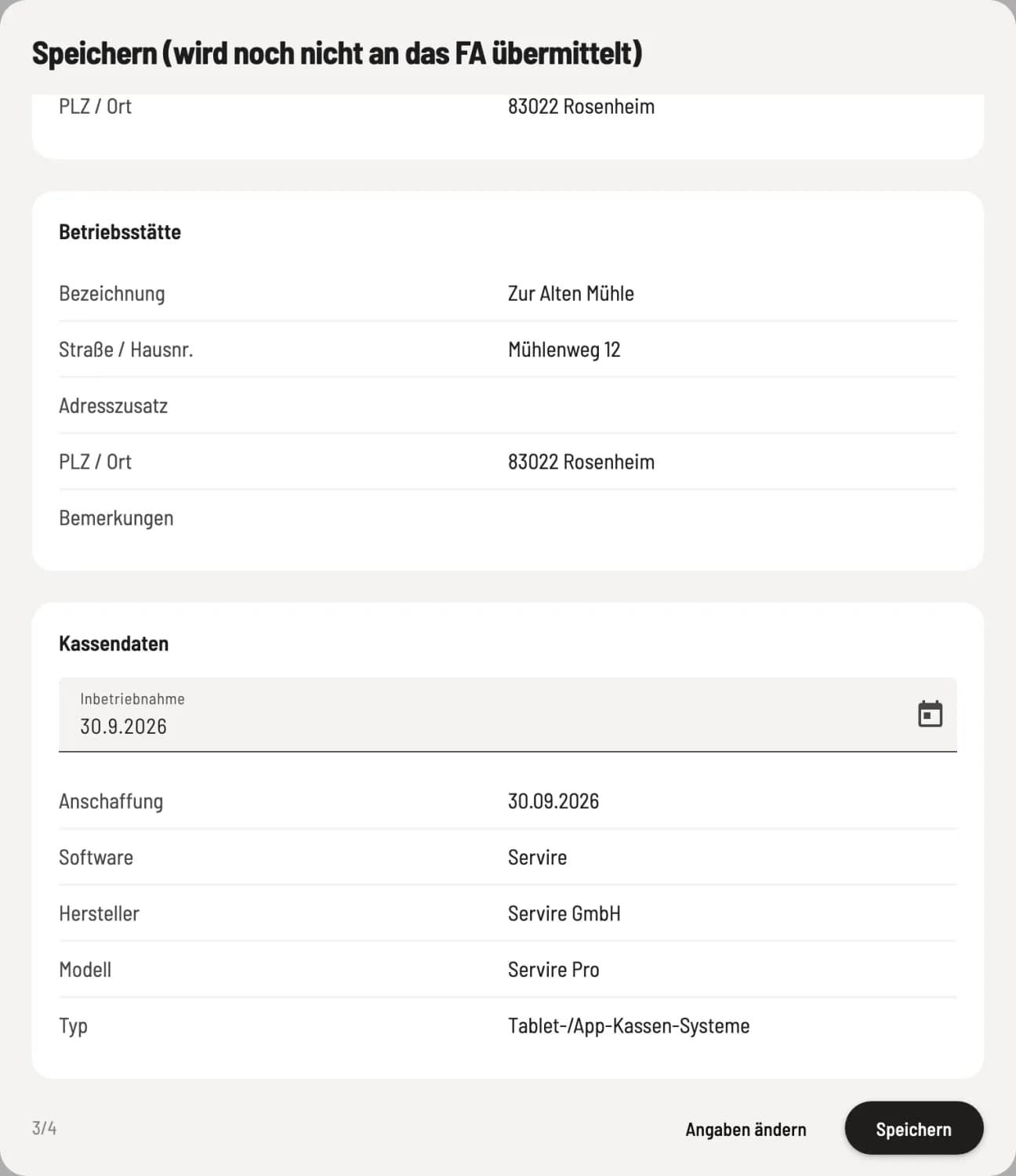
Summary and commissioning
Check all the information. Under Cash Register Data, you set the Commissioning date. Save prepares the message but doesn't transmit anything yet. Edit Details takes you back.
4. Check and submit the PDF
The Servire downloads a PDF preview of the report. Review it, check the box Yes, the information is correct, and click Submit data now. Then, save the document by clicking Download confirmation. By submitting the report, you assume responsibility for the accuracy of the information.
Check or correct later
After transmission, the card displays the status, taxpayer, and business location. In the menu … you will find Transmission History, Confirmation as PDF, and Correct Data. A correction will repeat the four steps; this is also how you report a new TSE) or a new address. If a transmission was interrupted, the message Continue Transmission will appear.
There is a separate procedure for deactivation: deregister the cash register.