
Manage vouchers in the Web desk
This way you can find every voucher in the Web desk, see the remaining value and redemptions, and extend its validity.
Open Vouchers in the Web desk . The list shows all vouchers for your restaurant: those created in the Web desk , those sold at the till, those sold online, and those topped up by guests. Voucher management is available in all plans.
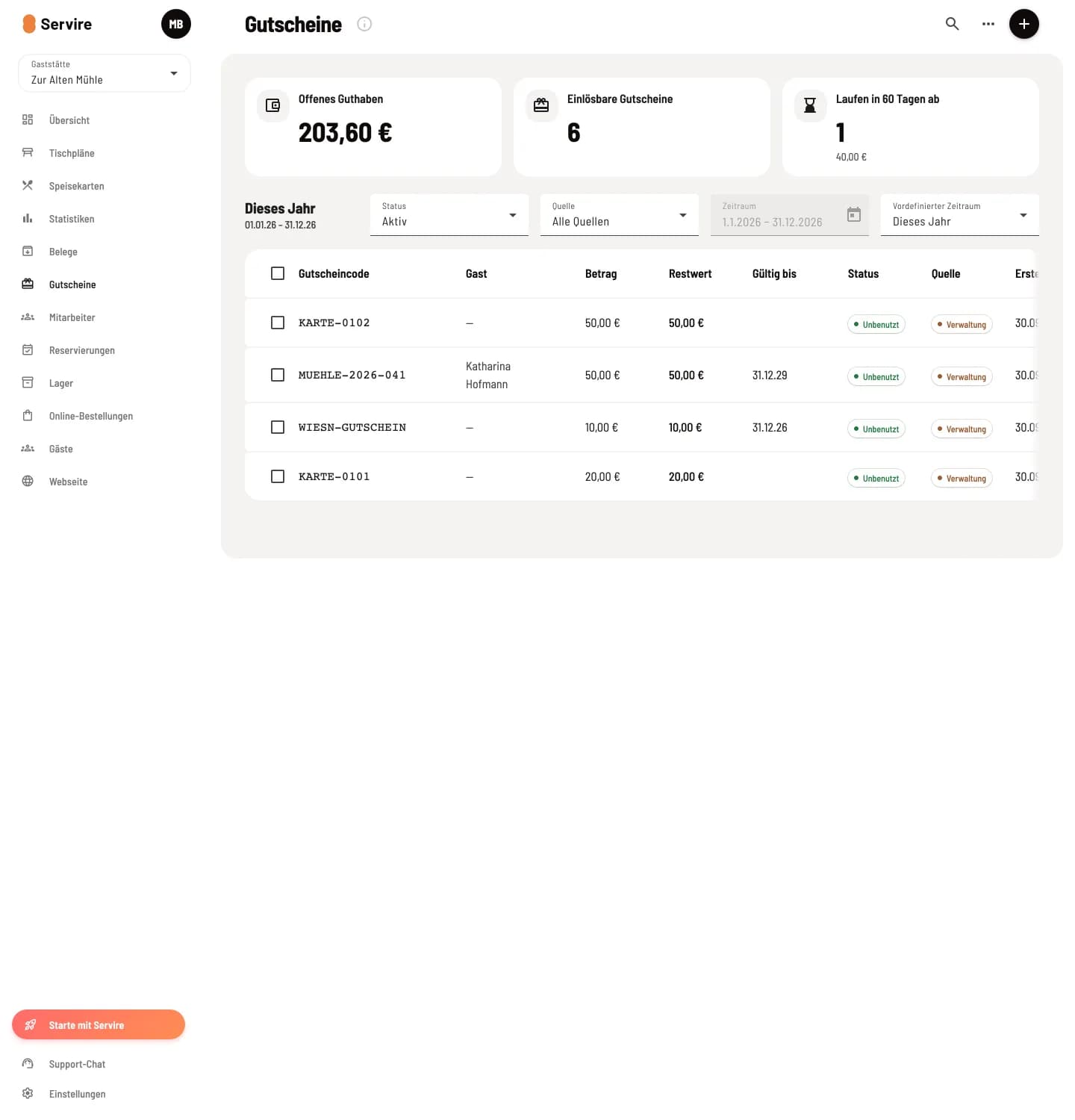
Key figures and list
At the top are Outstanding Balance (total of all remaining balances), Redeemable Vouchers, and Expires in 60 days, each for the entire restaurant. The table shows Voucher Code, Guest, Amount, Remaining Balance, Valid Until, Status, Source, and Created On. The i next to the title explains the voucher types.
Filter and search

Filter above the list
Status: Active, Redeemed, Expired, or All. Source: All Sources, Checkout, Administration, or Online. Predefined Period and Period determine which coupons appear based on the creation date. Load More displays more rows.
The magnifying glass in the page header opens the "Search for vouchers" function. If it finds nothing within the selected period, the "Search in all vouchers" function searches for the code across all periods, including redeemed vouchers.
Details and redemptions
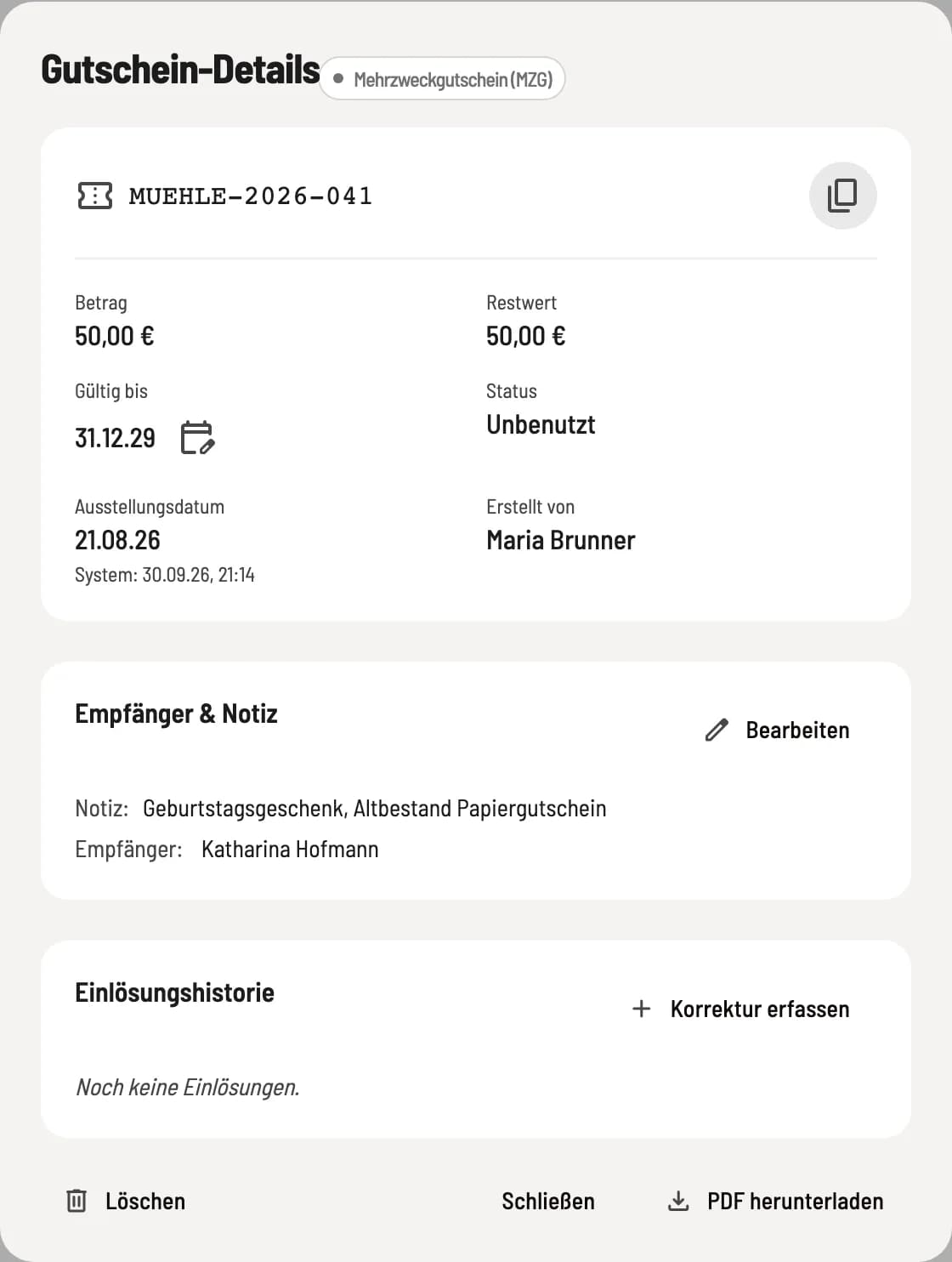
Voucher details
Clicking on a line opens voucher details: code (with copy code), type, amount, remaining balance, valid until, status, date of issue, and created by. You can edit the recipient & notes. The redemption history lists each redemption with the amount, table, and remaining balance afterward. Download PDF generates the voucher for printing.
Extend validity – the symbol next to Valid until, on every voucher with a remaining value, even sold ones. This makes an expired voucher redeemable again.
Record correction – only for vouchers from the administration that were never sold at the checkout, e.g., for redemptions in the previous system. You enter the date, amount, and reason. The correction reduces the remaining value but is not a sale.
Delete – only for vouchers issued by the administration that have not been redeemed.
Refund – for vouchers sold online that have not yet been redeemed: The customer receives the purchase amount back via the payment provider, the sale is cancelled.
For tax reasons, sold vouchers are write-protected. They can always be redeemed at the checkout: Sell and redeem vouchers.
Expired vouchers
If vouchers with a remaining value expire three years after the end of the year (§ 195 BGB), the card Expired Vouchers with Show List will appear. Your tax advisor will remove them from the books at the end of the fiscal year. An expired expiration date alone is not sufficient for this.