
Download time tracking exports
Time tracking, payroll export, proof of compliance with the Minimum Wage Act (MiLoG) and compliance report can be downloaded via the download button on the Employees page.
You can download all time tracking reports in the Web desk under Employees via the black Download button in the top right corner (Export).
Prerequisite: Exports are visible to the owner and all users with the rights to **Use Web desk ** and Manage Time Tracking & Payroll. Without the Max tariff, the same button appears in the employee list, but without the compliance report. Records and payroll export files are stored until the end of the sixth calendar year.
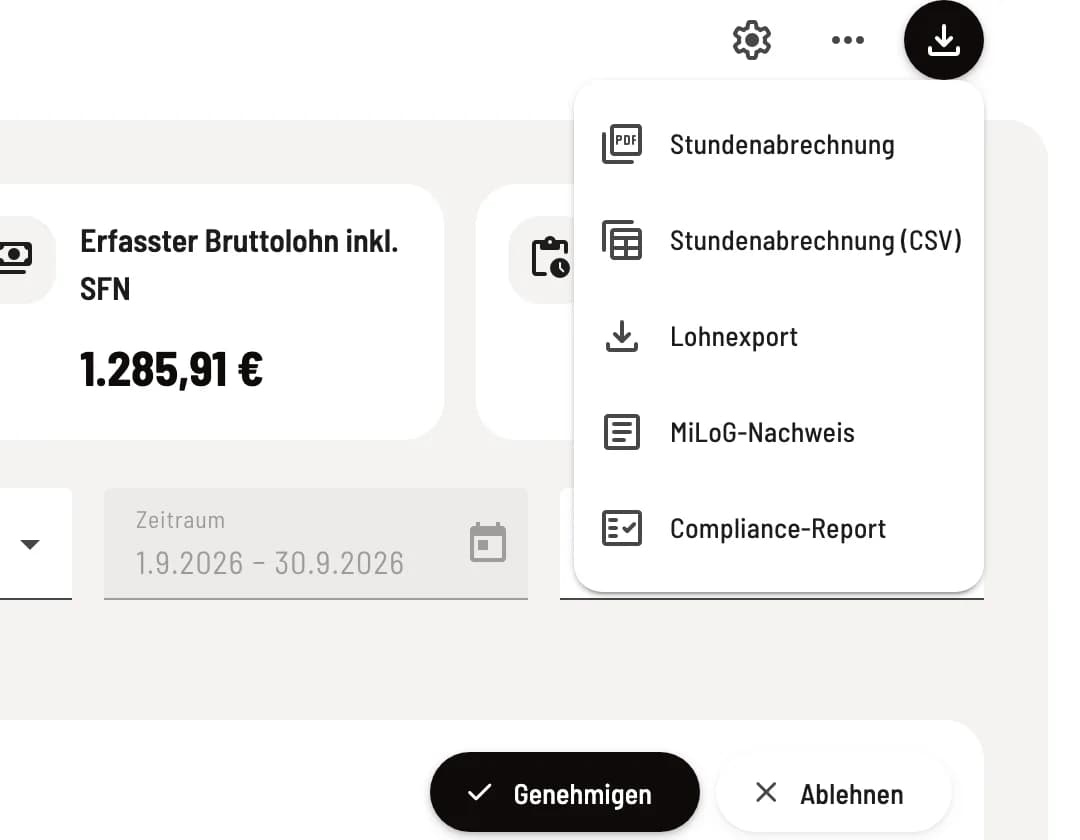
Select export
The menu offers Time Sheet, Time Sheet (CSV), Payroll Export, MiLoG Proof, and Compliance Report. During the download, the messages Creating Export… and Download Starting briefly appear.
Timesheet as PDF and CSV
Both options use the period and the employee filter from the page; therefore, set it to something like Predefined period → This month beforehand. Without the Max plan, the menu will ask for the billing month.
The PDF lists each completed entry for a person, including gross pay, breaks, net pay, wages, and bonuses; corrected entries show the originally clocked times. The CSV provides the same rows for Excel or your payroll department: semicolon, decimal point, attendance, breaks, rounding, hours worked, hourly rate, wages and bonuses, and the transfer method. Open entries are shown as a status row without hours.
MiLoG proof
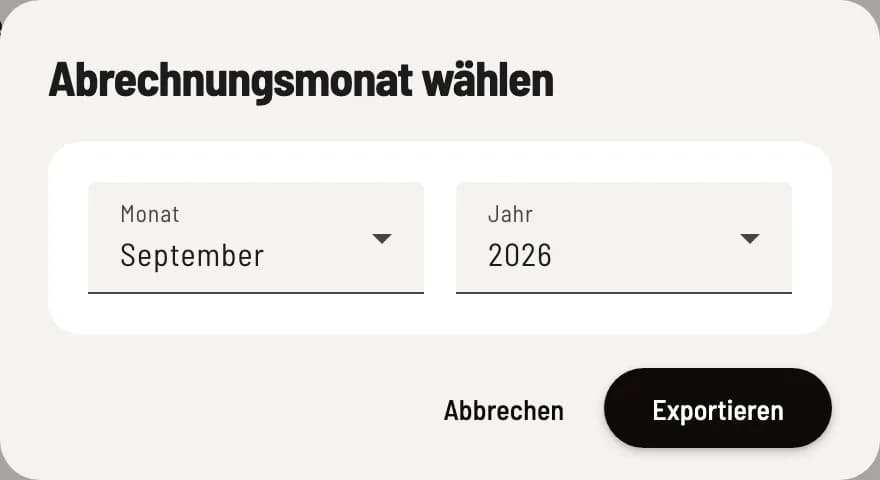
Select billing month
After clicking on MiLoG-Nachweis, select Month and Year and click on Export.
Proof is provided by the record according to Section 17 of the Minimum Wage Act: one PDF per person with the date, start time, end time, breaks, working hours, automatic break deduction, and the date of the record compared to the seven-day period. Shifts spanning the month boundary are recorded in both months. The calculated comparison with the minimum wage is not a certificate of wage payment.
Compliance Report
The Compliance Report opens the Working Time Act Compliance Report window for the period and employee filter of the page, which can be filtered by Warning / Violation and Type. Under Sunday and Public Holiday Rest (§ 11 Working Time Act), the Sundays and public holidays worked, including the compensatory rest day, are listed. Download as PDF supplements the working time record according to § 16 para. 2 Working Time Act. What the notes mean: Understanding Working Time Act Notes.
Contract export
The payroll export transfers the hours worked for a given month, broken down by wage type, to DATEV or another payroll program. See Setting up payroll export and Creating a payroll export.