
Activate and set up time tracking
Here's how to activate time tracking via the status badge and set it up in the wizard.
With the time tracking system, your employees clock in and out at the checkout. In the Web desk, you can view working hours, breaks, time accounts, and wages, and at the end of the month, you transfer everything to your payroll department.
Prerequisite: Time tracking is included in the Max plan. The owner and anyone with the rights to **Use Web desk ** and Manage Time Tracking & Payroll can activate and manage it. Anyone connected to the restaurant can clock in and out.
Activate time tracking
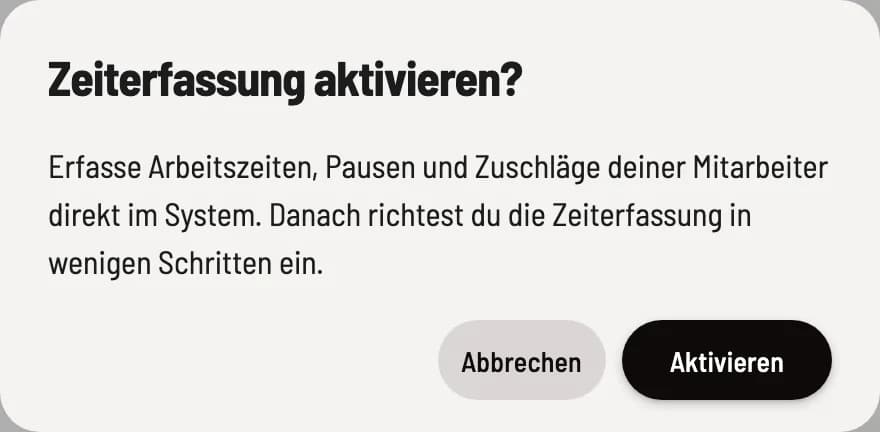
Click the badge
Open Employees. Next to the heading is the gray badge Time tracking inactive. Click on it and confirm Activate time tracking? with Activate. The setup wizard will then open.
Data Processing Agreement: The time tracking system processes your employees' data, including wages. If a data processing agreement (Art. 28 GDPR) is missing, it will appear for you to read and confirm before the confirmation prompt. Only the data controller can confirm; see "Concluding a Data Processing Agreement".
The setup assistant
The assistant appears once and cannot be skipped: Until it is completed, employees will always lead you to it. It has five steps.
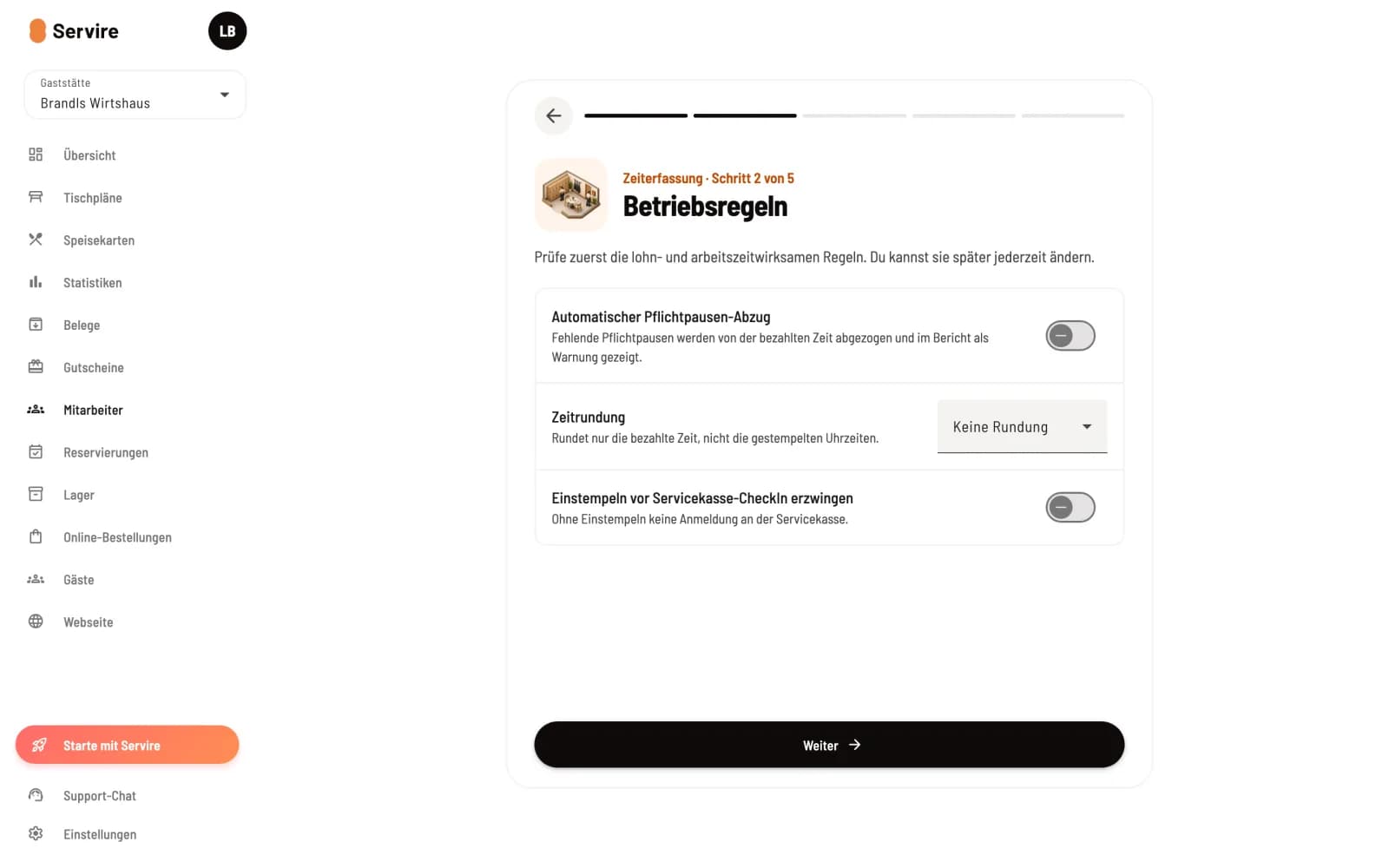
Step 1 of 3
Operating rules
After starting setup, you determine whether missing mandatory breaks are deducted from the paid time (Automatic mandatory break deduction), whether the paid time is rounded (Time rounding), and whether service staff must clock in before the service checkout (Force clocking in before service checkout check-in).
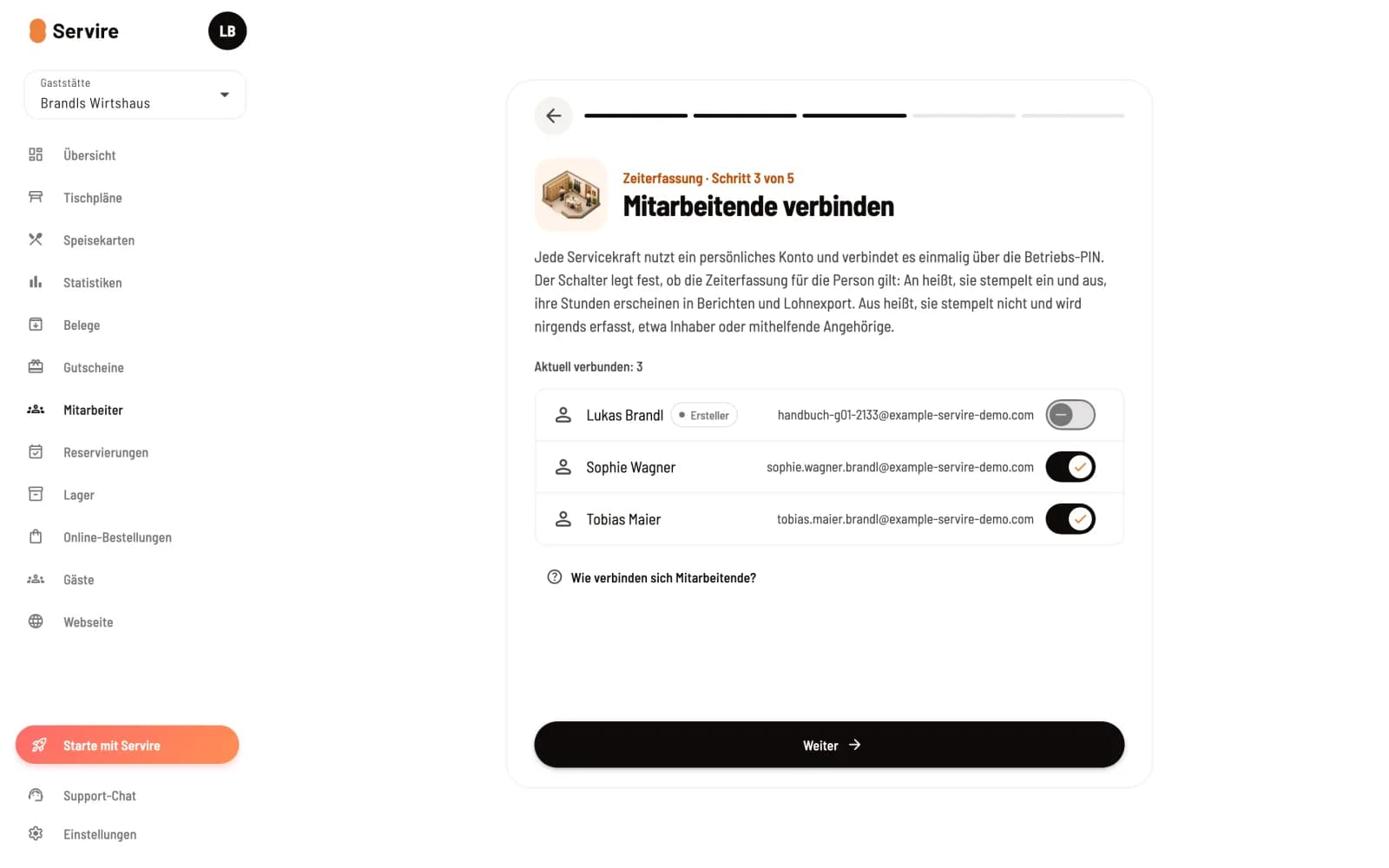
Step 2 of 3
Employees connect
The list shows who is already connected. The toggle for each person determines whether time tracking applies to them. The account holder, as the creator, is automatically excluded. How do employees connect? displays the company PIN.
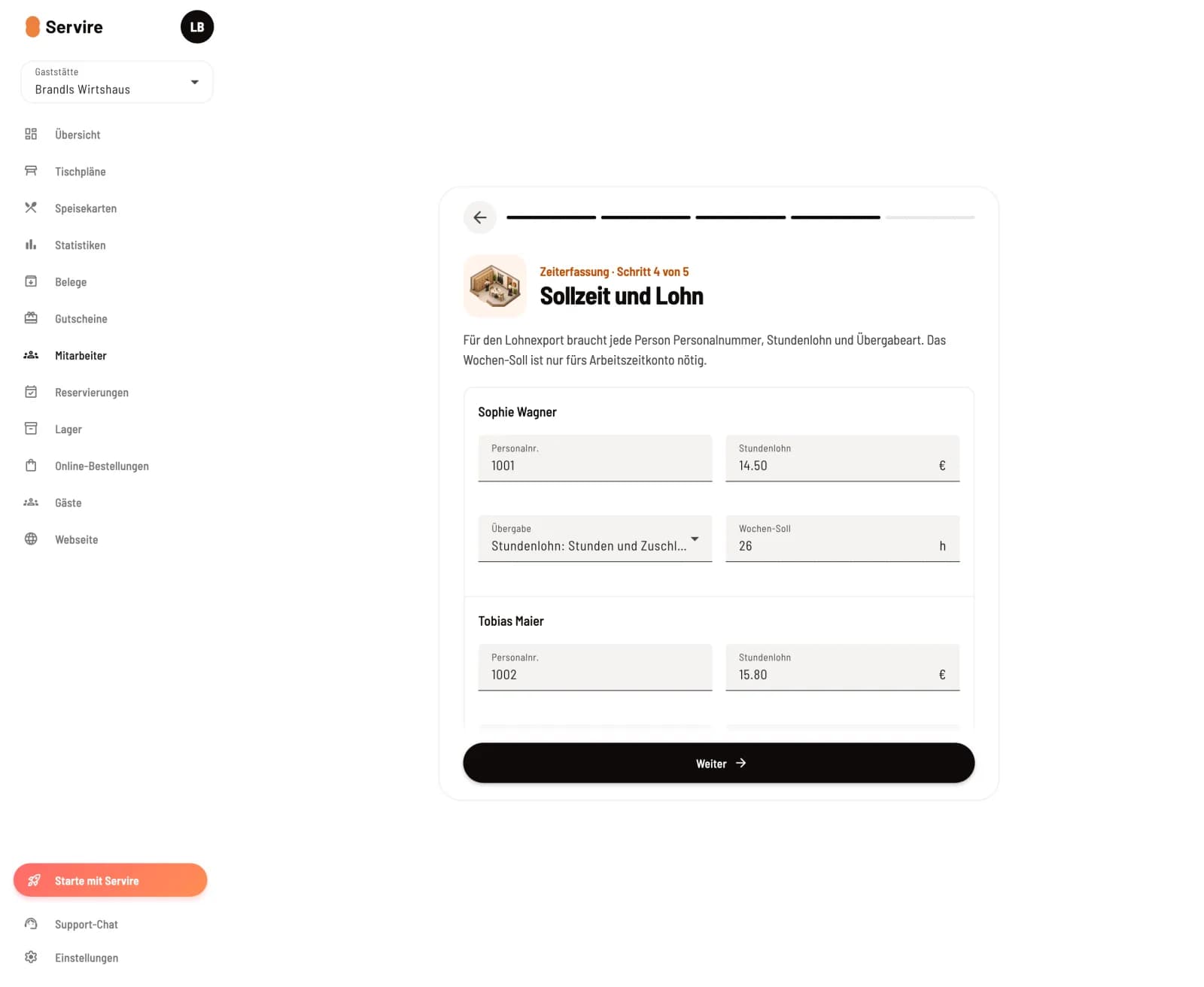
Step 3 of 3
Target working hours and wages
Enter each person's employee number, hourly wage, and transfer to the payroll program in the form. You only need the weekly target for a time tracking system. Clicking Complete Setup on the last page will take you to the Employee page.
You can change everything from the assistant later in the time tracking settings and in the " Edit Employee" dialog. Only the owner can exclude employees and share the company PIN.
Turn off time tracking
Click the "Activate Time Tracking" badge.
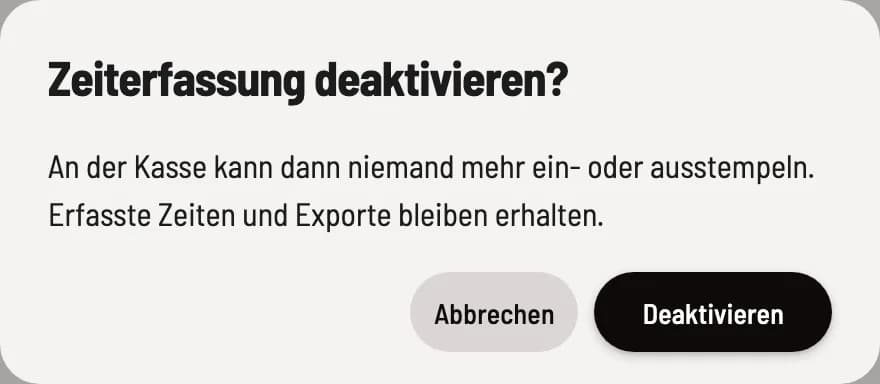
Click on the green Time Tracking Active badge and confirm Deactivate. Afterwards, no one will be able to clock in or out at the checkout. Recorded times and exports will be retained; the assistant will not reappear when time tracking is reactivated.
The cash register displays the clock-in and clock-out buttons as soon as time tracking is active, even without a current shift (older app versions only display them when a shift is in progress). Here's what it looks like: Clocking in and out at the cash register.