
Set opening hours and special opening hours
Set your weekly hours and enter exceptions for public holidays or company holidays.
You can find both maps under Settings → Restaurant in the top right corner. The opening hours apply to online reservations, takeaway orders, delivery platforms, and your website.
Prerequisite: Tariff Max (also during the test phase).
Opening hours per weekday
Step 1 of 2
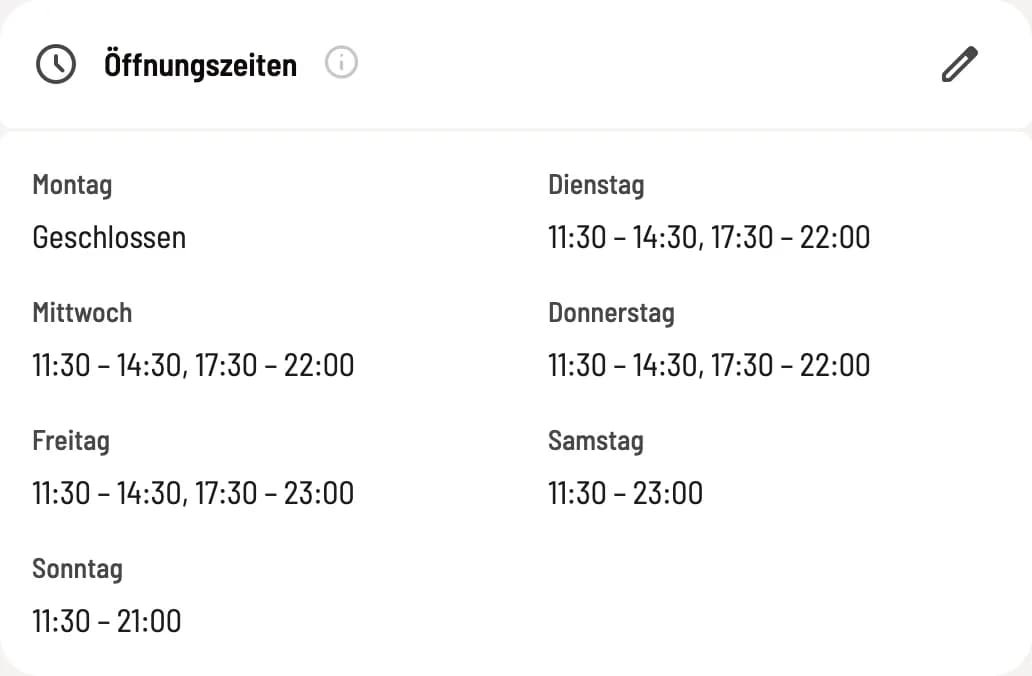
Map Opening Hours
The map shows your times for each day of the week. The pen icon opens the dialog.
Step 2 of 2
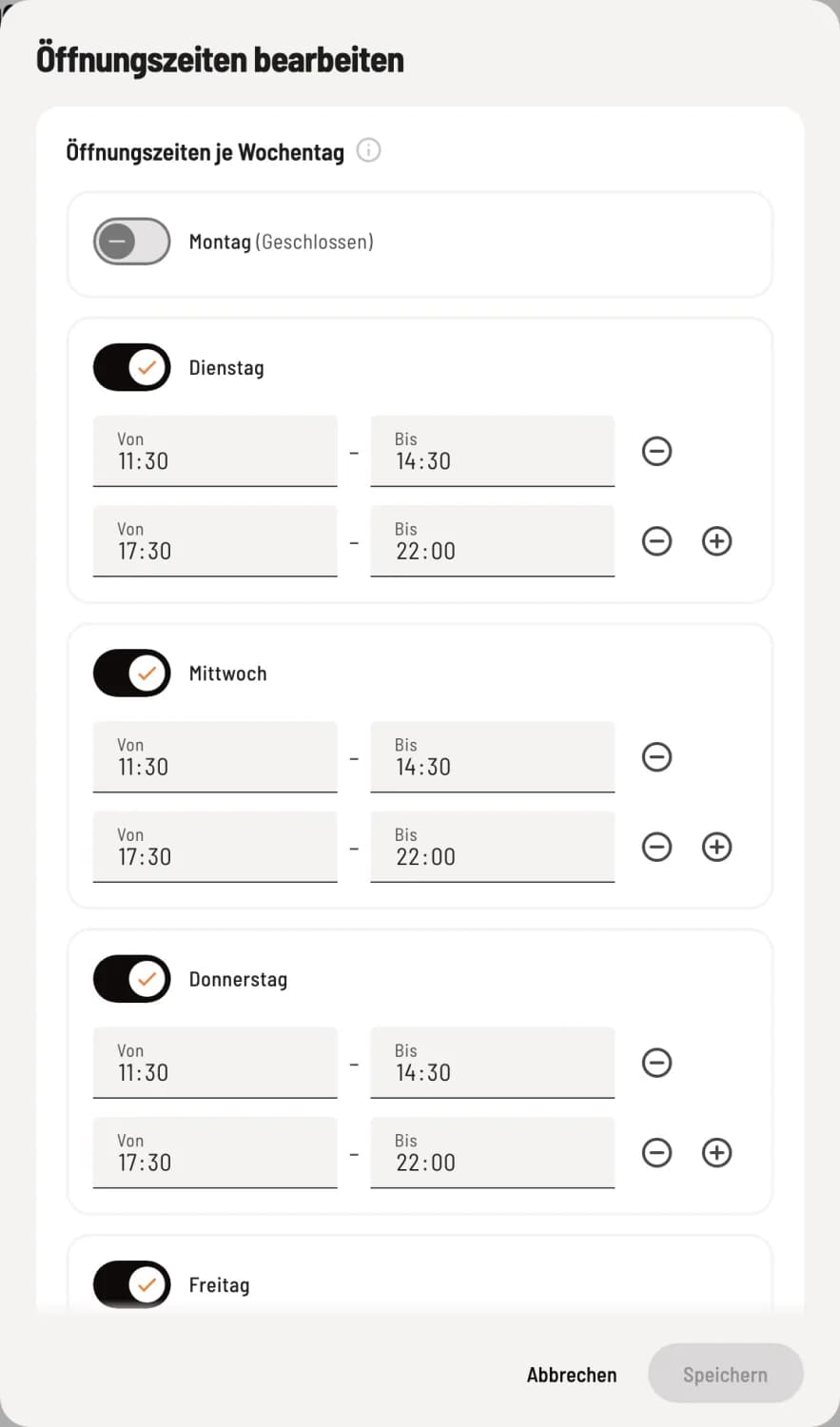
Enter time slot
Turn on each day you are open and enter From and To. Use + to add another time slot (up to five per day), e.g., 11:30–14:30 and 17:30–22:00; − removes one. A day that is turned off is considered closed.
Times past midnight are possible: 18:00–02:00 extends into the following day. Time windows must not overlap.
Special opening hours
Opening hours may vary on certain days, e.g., public holidays or company holidays. On these days, the regular opening hours apply.
Step 1 of 2
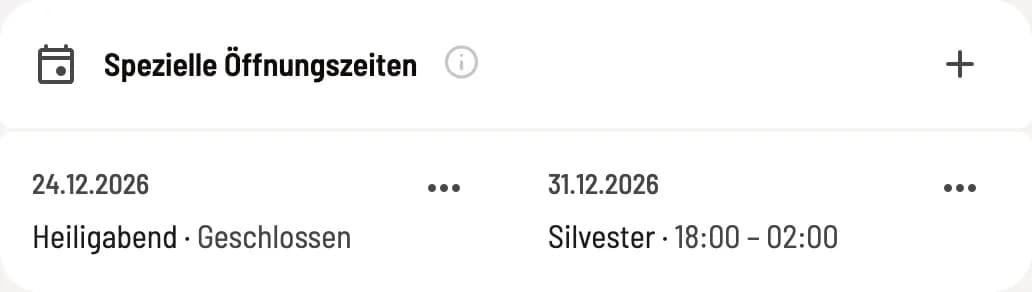
Special Days at a Glance
The map lists all special days with date, name, and times. + creates a new one, … on the entry offers Edit and Delete.
Step 2 of 2
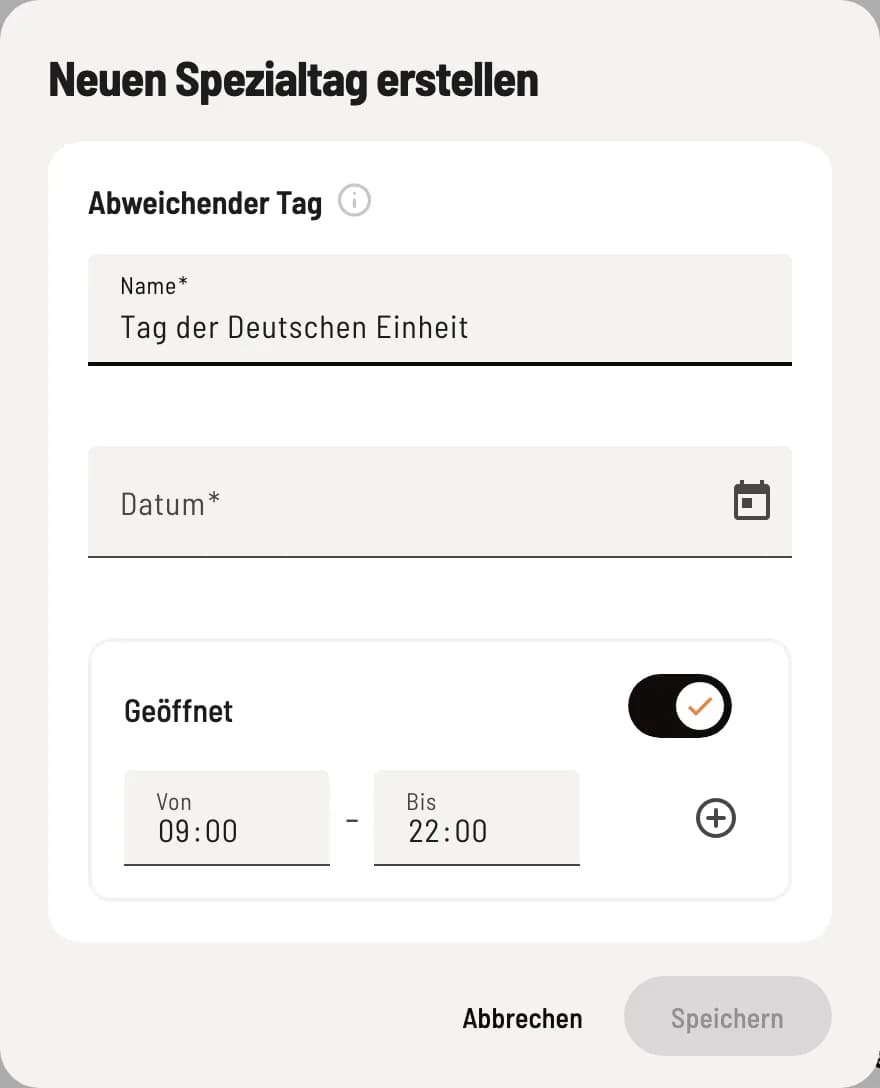
Create a special day
Enter a name (maximum 50 characters) and the date. Leave Open enabled and adjust the hours, or disable it for a day off. For company holidays, create a separate entry for each day.
One special day is possible per date. If the opening hours extend from the evening before past midnight, they continue until the morning; if there is a closing day, also check the previous day.
Opening hours do not start or end a cashier shift. You can configure this under Automatic Shifts.