
Set up cash book and cash count
This is how you keep a cash book for the main cash register and determine whether a count is taken at the end of the shift.
In the Web desk, open Settings → Cash Register and click the pencil icon next to Cash Book & Service Cash Register. The dialog box has four sections: Cash Book, Service Cash Register, ** tip**, and Kitchen Charges. This section deals with the cash book; the other sections explain how to set up service cash registers and how to tip and kitchen charges.
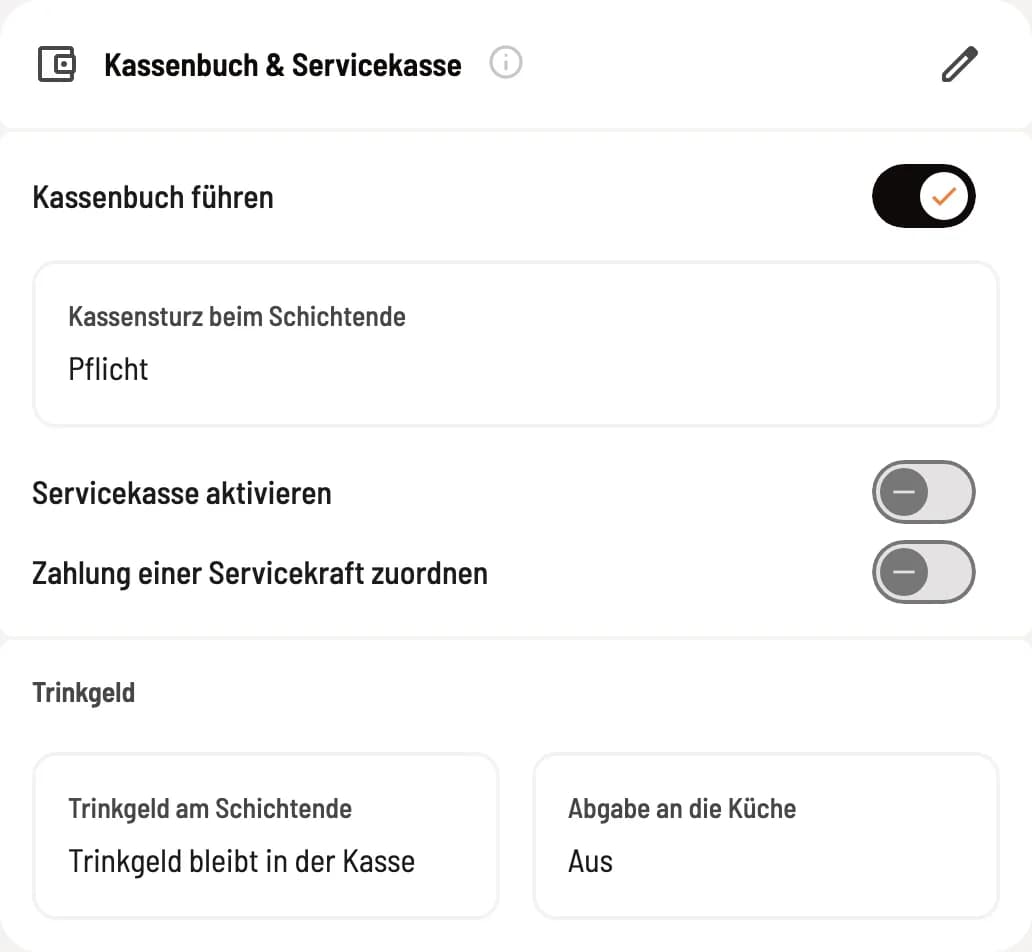
Step 1 of 2
Map on the settings page
The map shows the current status of all four sections. The pencil icon in the upper right corner opens the dialog.
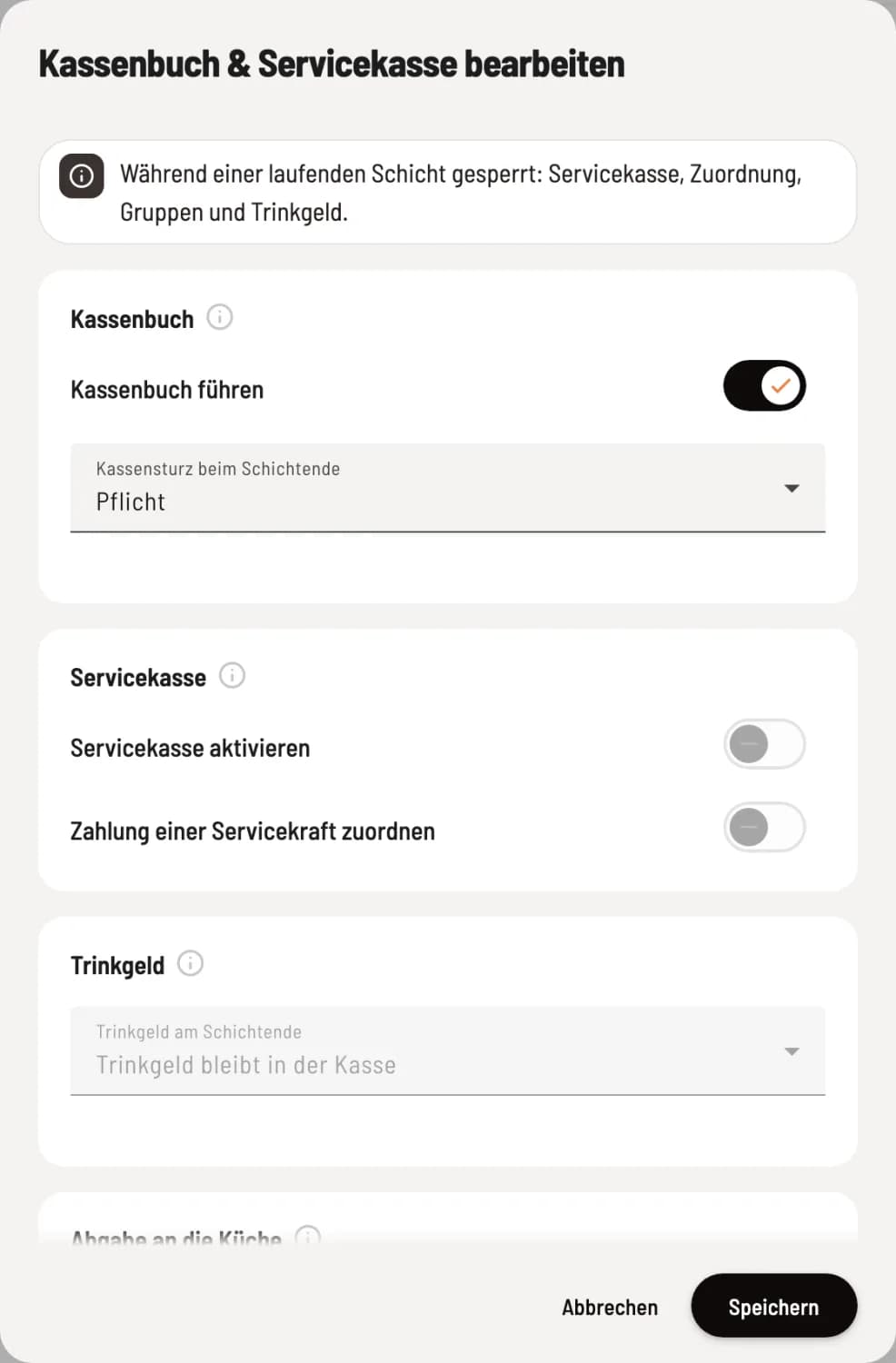
Step 2 of 2
Set up cash book
Each section has an info icon that briefly explains the fields. Save applies all sections together, Cancel discards the changes.
Cash book maintenance: Servire records every cash transaction at the main cash register: deposits, withdrawals, and the balance. In the case of cancellations, refunds of deposits, and cash disbursements, the cash register checks whether there is enough cash on hand. Only with this check does the cash reconciliation at the end of the shift function appear.
Cash count at the end of the shift: Mandatory: A cash count is performed at the end of the shift. Optional (skippable): The count can be skipped and completed before the next shift starts. Disabled: No cash count is performed; in this case, count regularly using the cash book.
Activate cash book
When switched on, Servire displays the current cash register balance; this number is not the actual counted amount. If a shift is running, you enter your actual change balance and confirm with Post & Activate; Servire posts the correction to the current shift. If no shift is running, the switch remains off even after Activate.
To activate the cash register function, a running shift is required. First, start a shift in the POS app and then activate the cash register function in the Web desk . The cash register will remain empty without a "Cash" payment type; the dialog box will indicate this.
If you deactivate the cash book during a shift , Servire will ask Deactivate cash book?. Afterwards, the end-of-shift count is omitted, and the balance is no longer checked for cancellations, deposit refunds, and cash disbursements. Cash transactions that the cash register automatically records, such as tip, are still recorded. These will then appear under Receipts → Cash Book without a balance; the cash book PDF will be discontinued, but the DATEV export will remain.
You can view the transactions in the POS app under Cash Register: Daily View. You can configure automatic report printing under Report Printing Settings.