
Manage discounts
Here's how to set up fixed or percentage discounts for the checkout.
Open Settings → Checkout. The Discounts list shows your discounts and their values. An additional free discount is always applied at checkout.
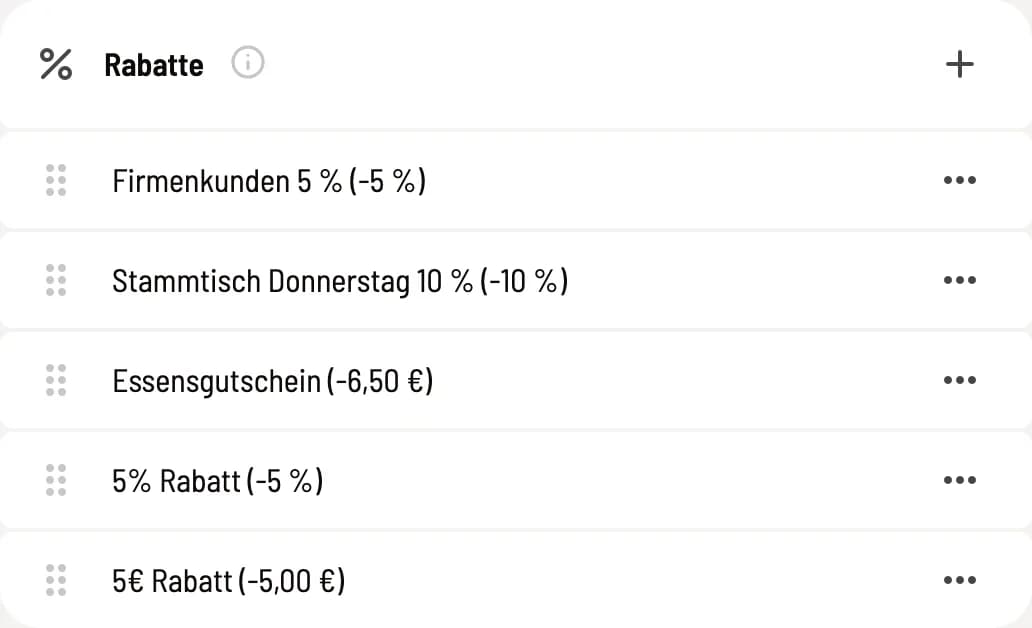
List of discounts
+ creates a new discount. You can Edit or Delete via …, and change the order at checkout using the sort handle.
Create and edit discounts
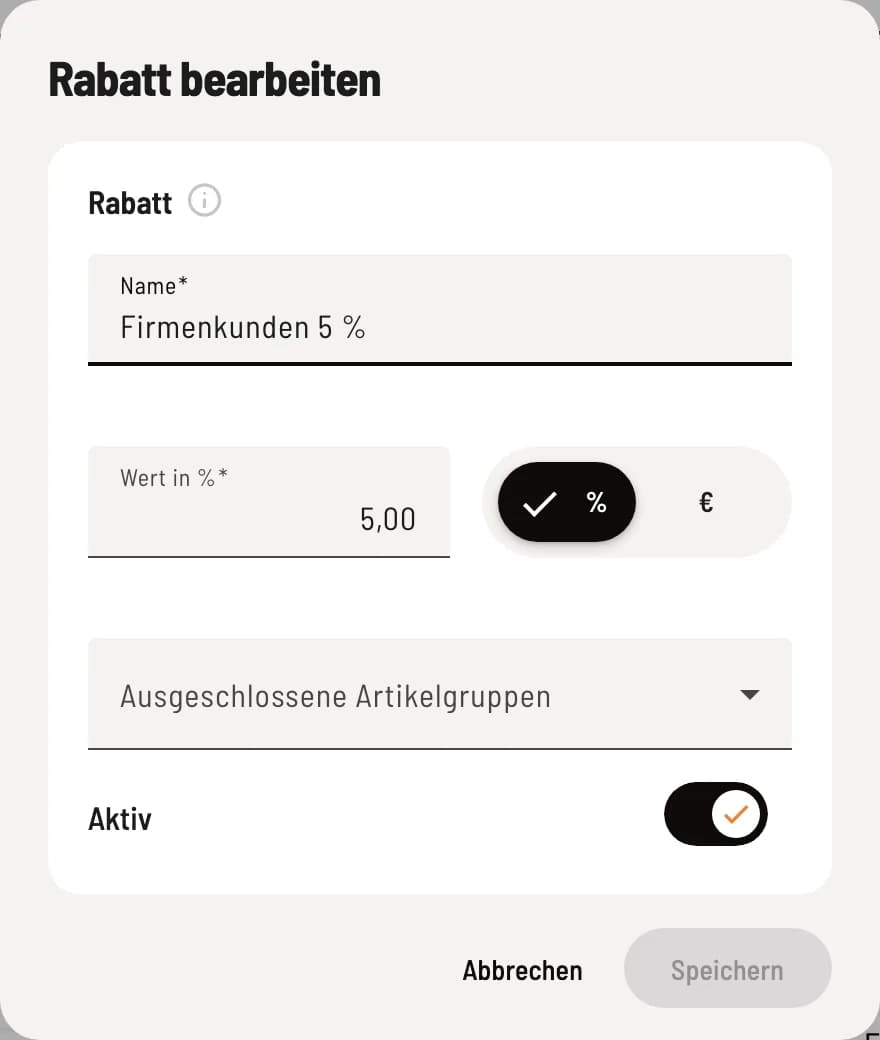
Name, value and exclusions
Enter Name and value, and select % or €. Under Excluded Item Groups, select groups that will not receive a discount. Confirm with Save.
Name – appears at checkout when selecting a discount and on the receipt.
Value in % or € – Percent (maximum 100%) or a fixed amount. At the checkout, you apply the discount to individual items or the entire bill. A euro amount on the bill is distributed proportionally among the items.
Excluded product categories – item in these categories are not eligible for discounts, for example, tobacco. Deposits and vouchers are always excluded.
Active – only active discounts are available for selection at checkout. Inactive discounts remain.
When using discounts from vouchers, the selection of product groups is blocked: they always apply to all groups.
Only employees with the permission "May grant discounts" can offer discounts. Creating a discount request does not grant this permission; see Employee Permissions for details.
Here's how to apply the discount when billing: Add discounts.