
Edit employee data and rights
This is how you maintain an employee's name, address, salary information, rights, and working time account.
All information about a person is available in the Edit Employee dialog. The data is on the left, the permissions on the right. Save saves everything at once. Each section has an information icon that explains the fields.
Prerequisite: Anyone with access to the Web desk can edit data. Permissions and Working Time Account can only be changed by the account holder; all others will see the switches locked. Payroll & Billing only appears when time tracking is active and with the permission May Manage Time Tracking.
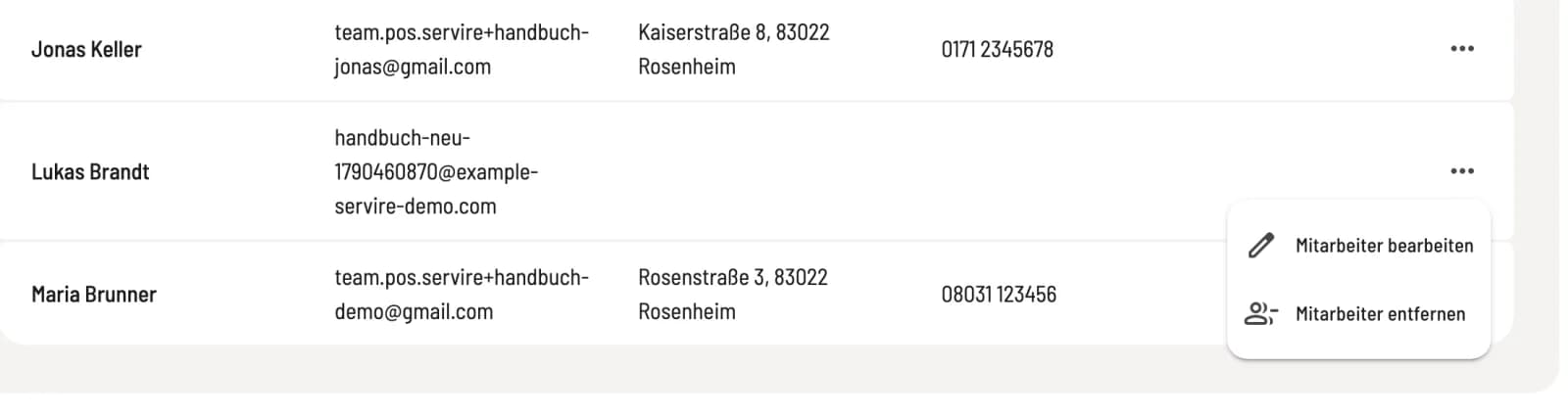
Step 1 of 2
Open dialog
Open Employees and, if time tracking is active, … → Manage Employees. Click on the person's row or on … → Edit Employees.
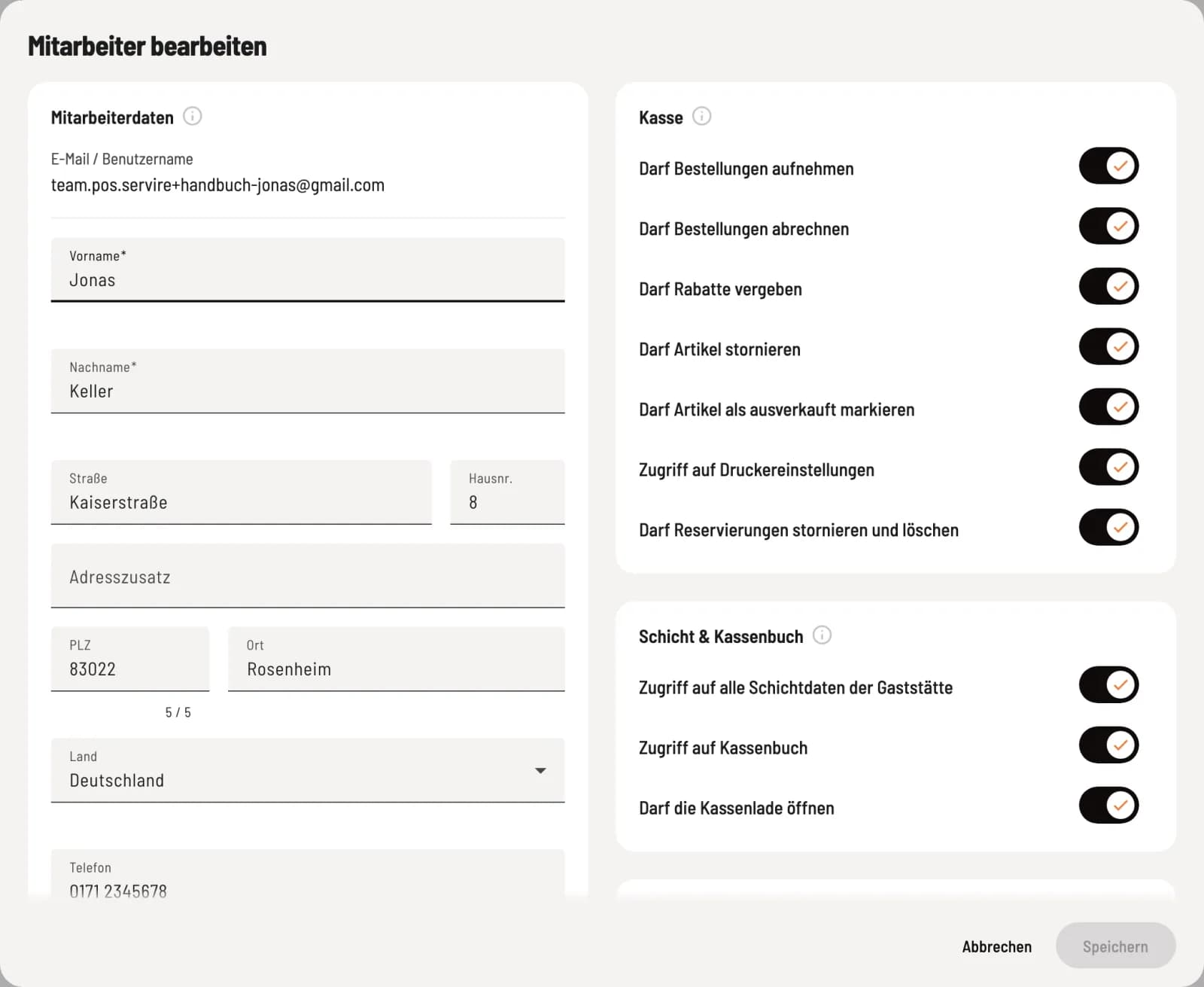
Step 2 of 2
Employee data
Only the individual user can change their email address/username in their account. The first and last names of the cashiers will appear on receipts and reports. Address and phone number are for your records and will be included in the list.
Payroll & Accounting
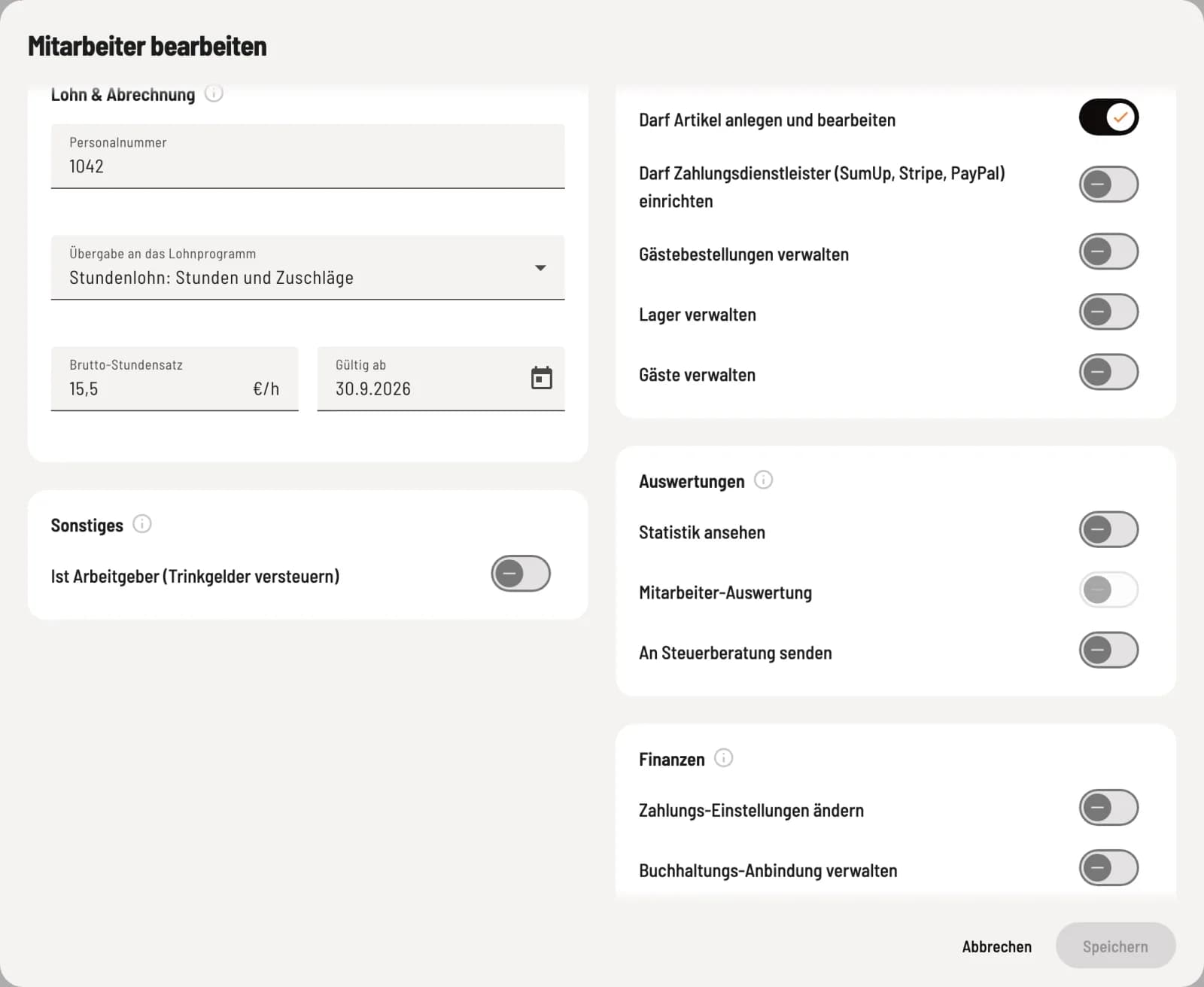
Employee number, handover and hourly rate
Employee number, Transfer to payroll program, and Gross hourly rate with Valid from are required for payroll processing and export. The function of each field is explained in "Entering hourly rate, employee number, and time account".
Miscellaneous
If you are an employer (taxing tips), you activate this feature for owners or managers who collect tips themselves. tip received by this person are considered tip to the employer and are taxable. tip to employees remain tax-free.
Rights and working time account
The permissions are listed on the right in five sections: Cash Register, ** shift & Cash Book**, ** Web desk & Master Data**, Reports, and Finance. The details of each permission are explained in the section on employee permissions. Below this, if time tracking is active, is the Working Time Account with weekly target and starting balance.
If you have unsaved changes and close the dialog, the Web desk will ask you beforehand.