
Enter hourly rate, employee number and working time account
This is how you maintain payroll data and weekly targets for each employee.
Payroll data and weekly targets apply per restaurant: If an employee works in two of your restaurants, they can have a separate hourly rate for each. You manage these in the Edit Employee dialog under Employees → … → Manage Employees → Click on the person.
Prerequisite: Payroll & Billing and Working Time Account are available in the Max plan as soon as time tracking or shift planning is activated. Both can be viewed and modified by the owner and all users with the rights **Use Web desk ** and Manage Time Tracking & Payroll; only the owner can change their own hourly rate.
Payroll & Accounting
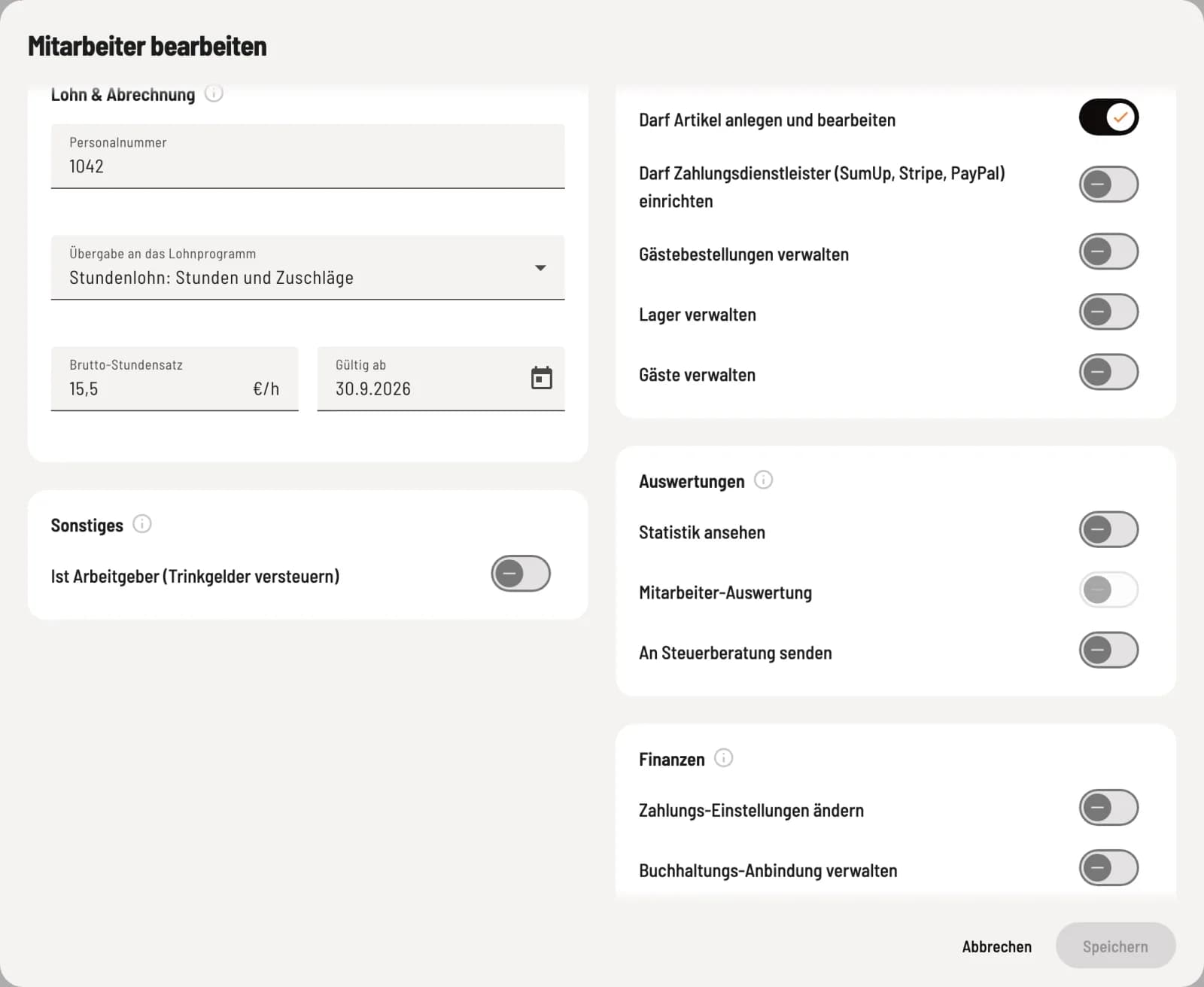
Employee number, handover and hourly rate
Personnel Number: assigns the payroll exports in the payroll program; in DATEV , these are the numbers 1 to 99999. Each number may only be assigned once. Transfer to Payroll Program: Hourly Wage: Hours and Bonuses, Fixed Salary: Bonuses Only, or No Transfer. If no setting is selected, the payroll export is blocked. Gross Hourly Rate and Valid From: A new rate applies from the selected date; previous rates remain valid for their respective periods.
The wage for an entry is calculated at the time of clocking out, based on the rate applicable on that day. If the rate is below the legal minimum wage, the Web desk will warn you with Hourly wage below minimum wage; you can only save it by selecting Save anyway.
Receives tax-free bonuses appears below the hourly rate if Calculate tax-free bonuses is enabled in the employee settings. Disable it if no bonuses for work on Sundays, public holidays, or at night have been agreed upon with the employee. When applying the payroll, Effective from appears, pre-filled with the first of the month. Servire recalculates its entries from this date; if a payroll export already exists for an affected month, create a new one. More information: Editing employee data and rights.
Working time account
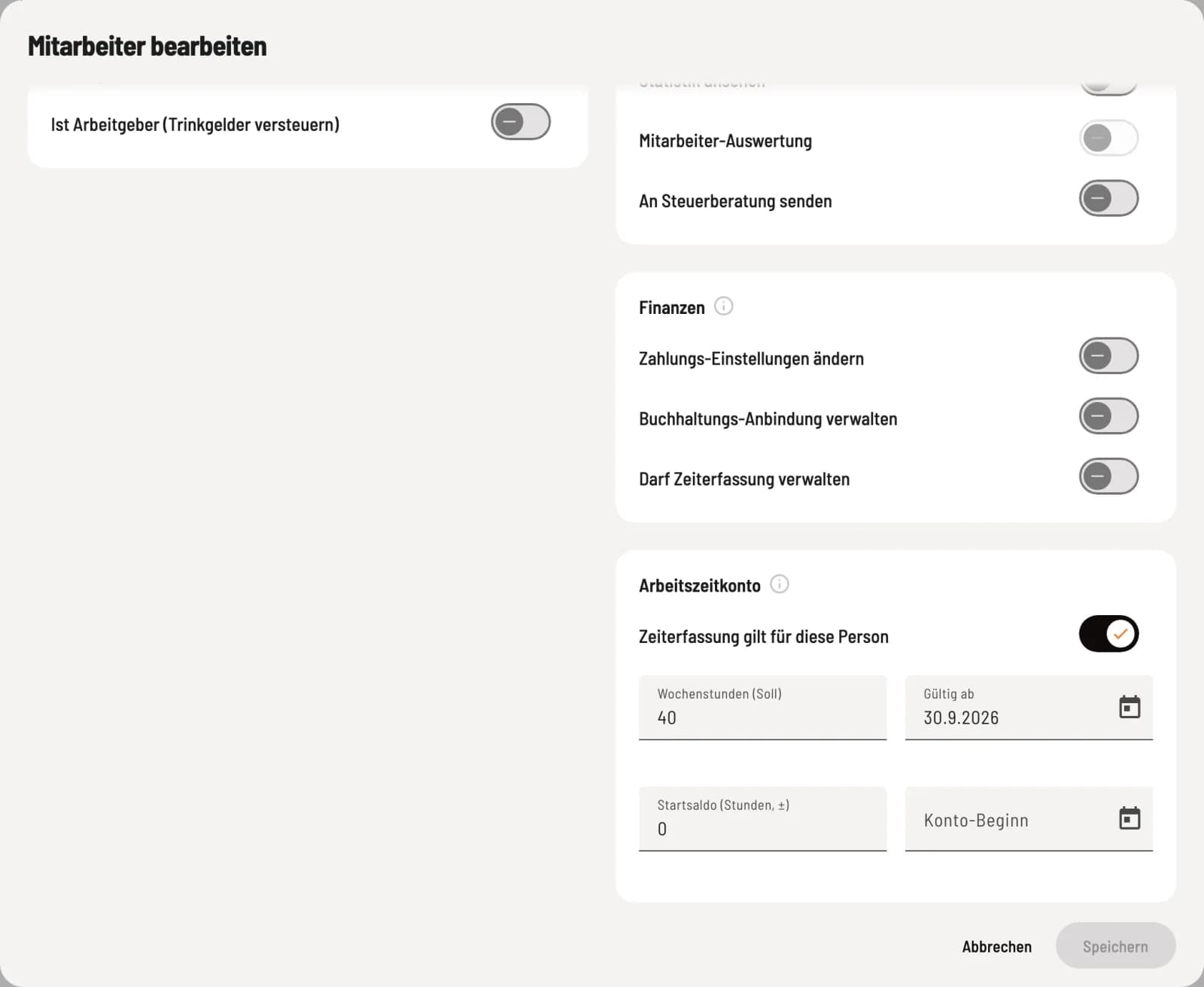
Weekly target and starting balance
Time tracking applies to this person: In the hospitality industry, the working hours of all employees must be recorded. Deactivation is only permitted for non-employees such as managing partners or close relatives; the owner is automatically exempt. Weekly hours (target) with Valid from: Basis for target, actual, and overtime hours. Blank means: no time tracking account. Starting balance (hours, ±) and Account start date: Overtime or negative hours with which the account begins on this day.
Under Working Days, you define how the weekly target hours are distributed: Varying (default) evenly across all calendar days (weekly target hours ÷ 7), because work in the hospitality also takes place on weekends; Fixed Days only on the selected days. Approved vacation, sick leave, and other paid hours from the work schedule are credited to the daily target hours. The same applies on a public holiday when the restaurant is closed according to its opening hours; you configure the federal state in the restaurant settings, see Time Tracking and Setting Up Surcharges. Employees who are exempt will not see their time tracking at the cash register.
Close family members of the business owner are exempt from the record-keeping requirements under the Minimum Wage Act, but the Working Time Act still applies to them. If in doubt, consult your tax advisor to determine who should be exempted.