
Setting up automatic shifts
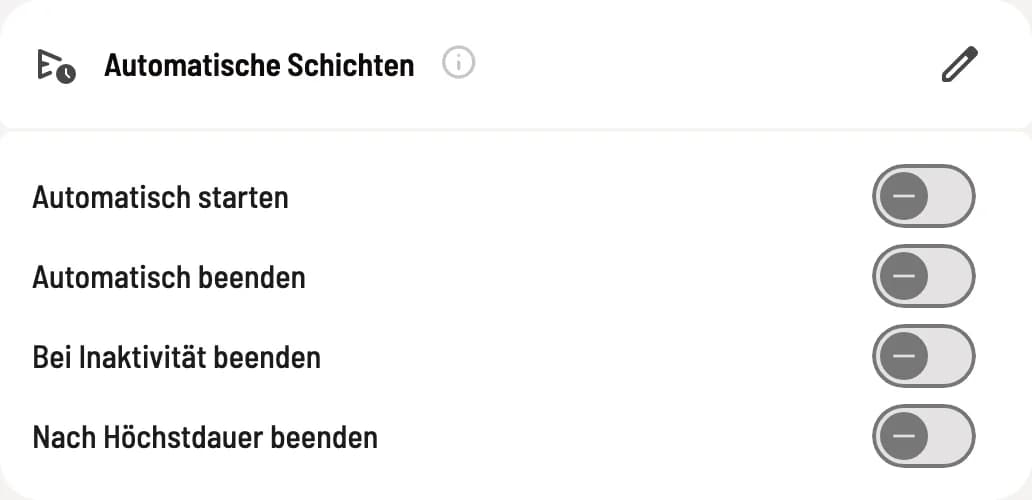
Your shifts will start and end automatically: like your opening hours, according to your own schedule, upon inactivity, or after a maximum duration.
In the Web desk, open Settings → POS and click the pencil icon next to Automatic Shifts. This automatic shifting feature is included in every plan and runs on the server; a POS terminal does not need to be switched on. It checks every five minutes, so the start and end times may be delayed by up to five minutes.
According to shift times
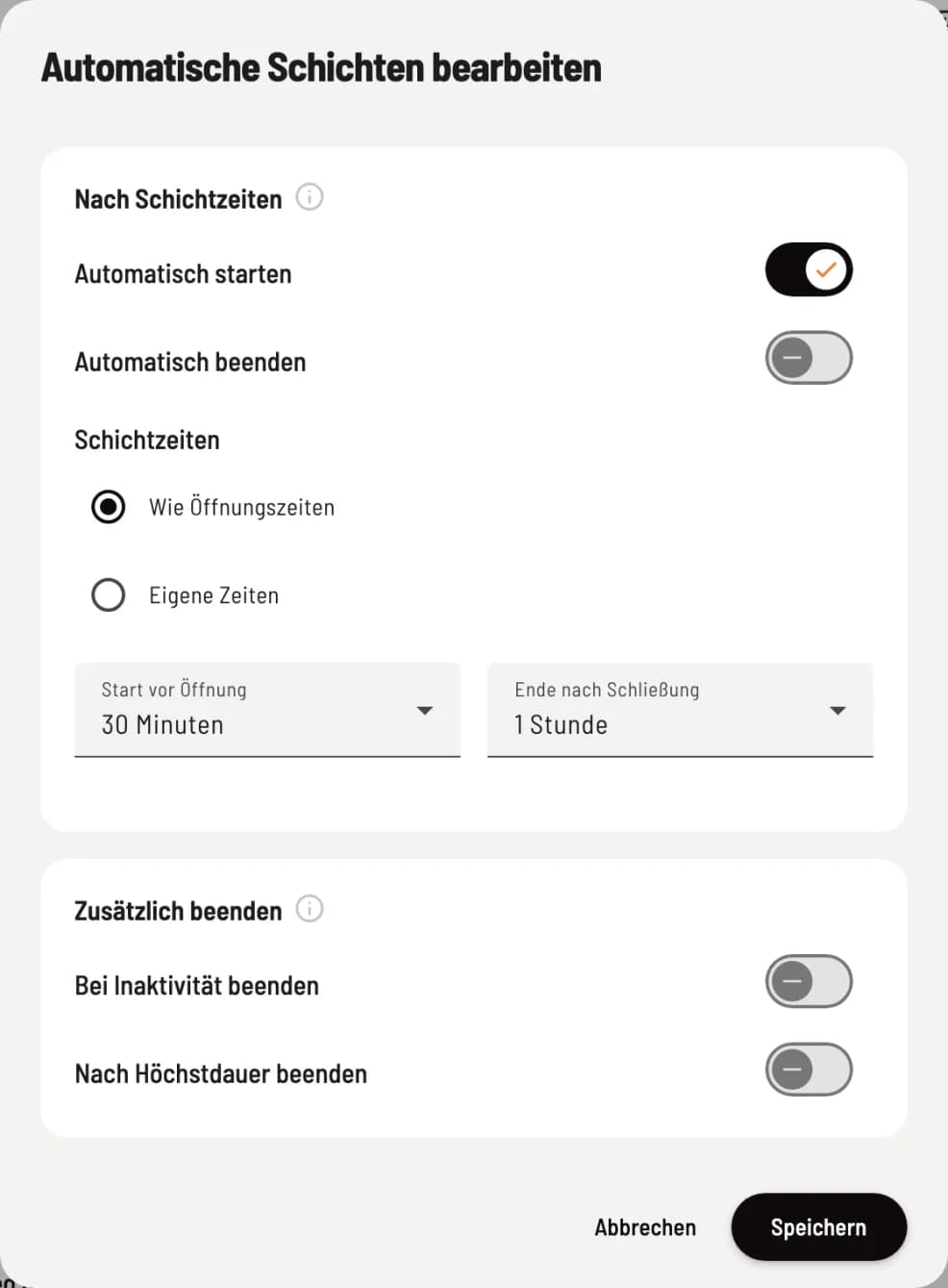
Turn on automatic
Automatic Start: At the beginning of each time window, a shift starts for the owner, using the current cash balance. Service tills are not opened. If a shift is already running, nothing happens. If you manually end an automatically started shift , no new one will start in the same time window. Automatic End: At the end of the time window, the shift is closed and the Z-report is generated, even for shift started manually. This applies for up to 90 minutes after the window ends. Once either of these switches is activated, you can select the shift times below: Same as opening hours or Custom times.
The first time you activate Automatic Start or Automatic Stop, Same as Opening Hours is selected if you have entered opening hours; otherwise, Custom Hours is selected. If you have already entered custom hours, they will remain until you change the setting.
Opening hours
On each day the business is open, a shift runs from the first opening to the last closing. A lunch break does not interrupt it. Start before opening (0 minutes to 2 hours, default 30 minutes) and End after closing (0 minutes to 3 hours, default 1 hour) adjust the start and end times. So, if you are open from 11:30 AM to 2:00 PM and from 5:30 PM to 10:00 PM, the shift runs from 11:00 AM to 11:00 PM. Special opening hours apply: On a closed day, no shift starts; changed hours shift the shift accordingly.
You can enter your opening hours under Settings → Restaurant, in every plan: Set opening hours and special opening hours. Without opening hours, no shift will start or end automatically; a dialog box will warn you if this is the case.
Own time
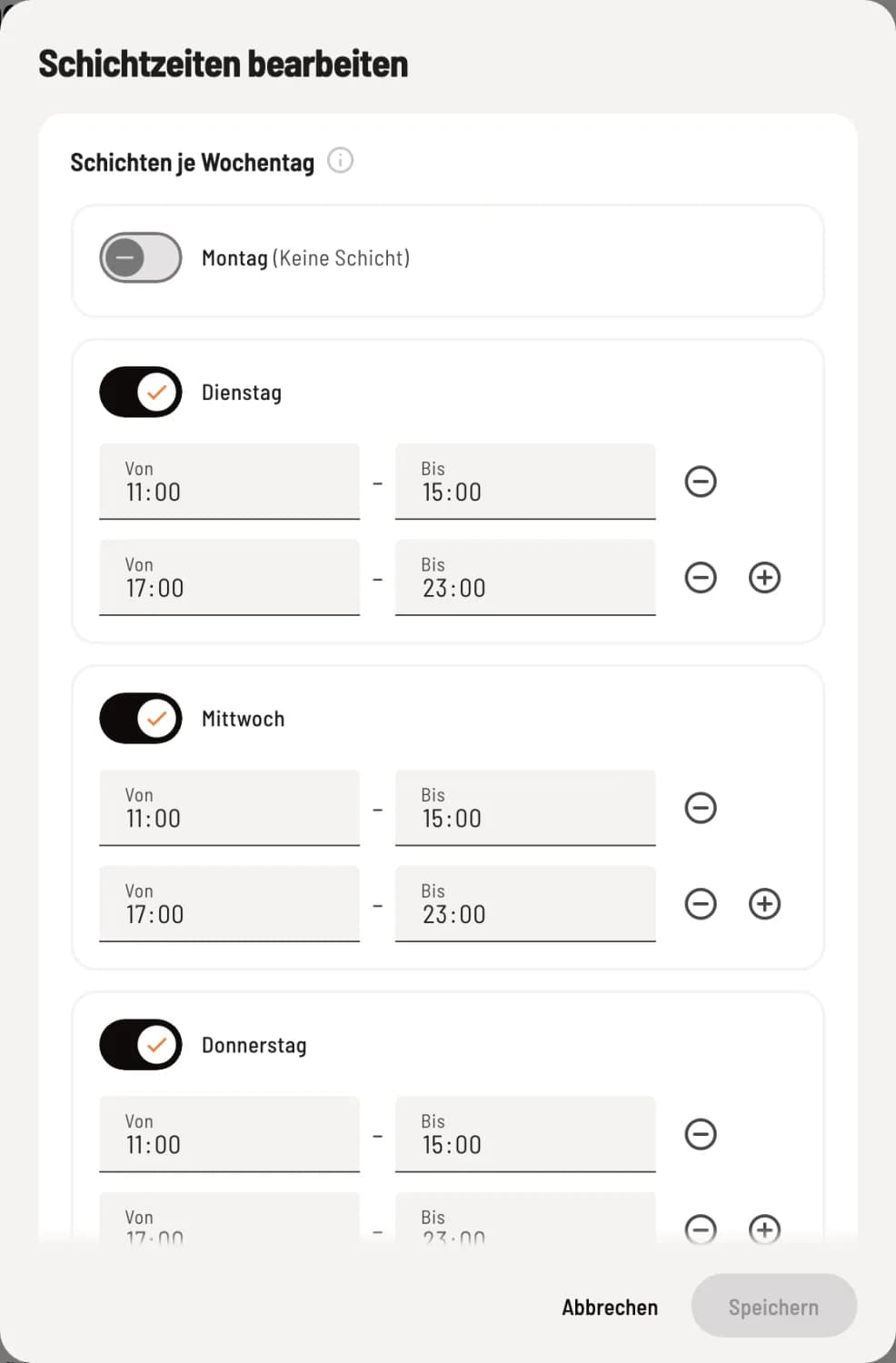
Time slots per weekday
Select Custom Times if your shifts don't match the opening hours, and then click the pencil icon below. Select the days of the week on which your shifts run and enter From and To. Use + to add another time slot, for example, for lunch and dinner, and − to remove one. Save the times and then the Edit Automatic Shifts dialog.
Each time window is a separate shift. At its end, it is terminated and the next one is started immediately, even if two windows directly adjoin each other.
Over midnight is also possible, e.g. 5 PM to 1 AM. 8 AM to 7:59 AM constitutes a full operating day as one shift.
Please allow at least 15 minutes for each time slot. The automatic process may not start for shorter slots; a dialog box will warn you.
Additionally, finish
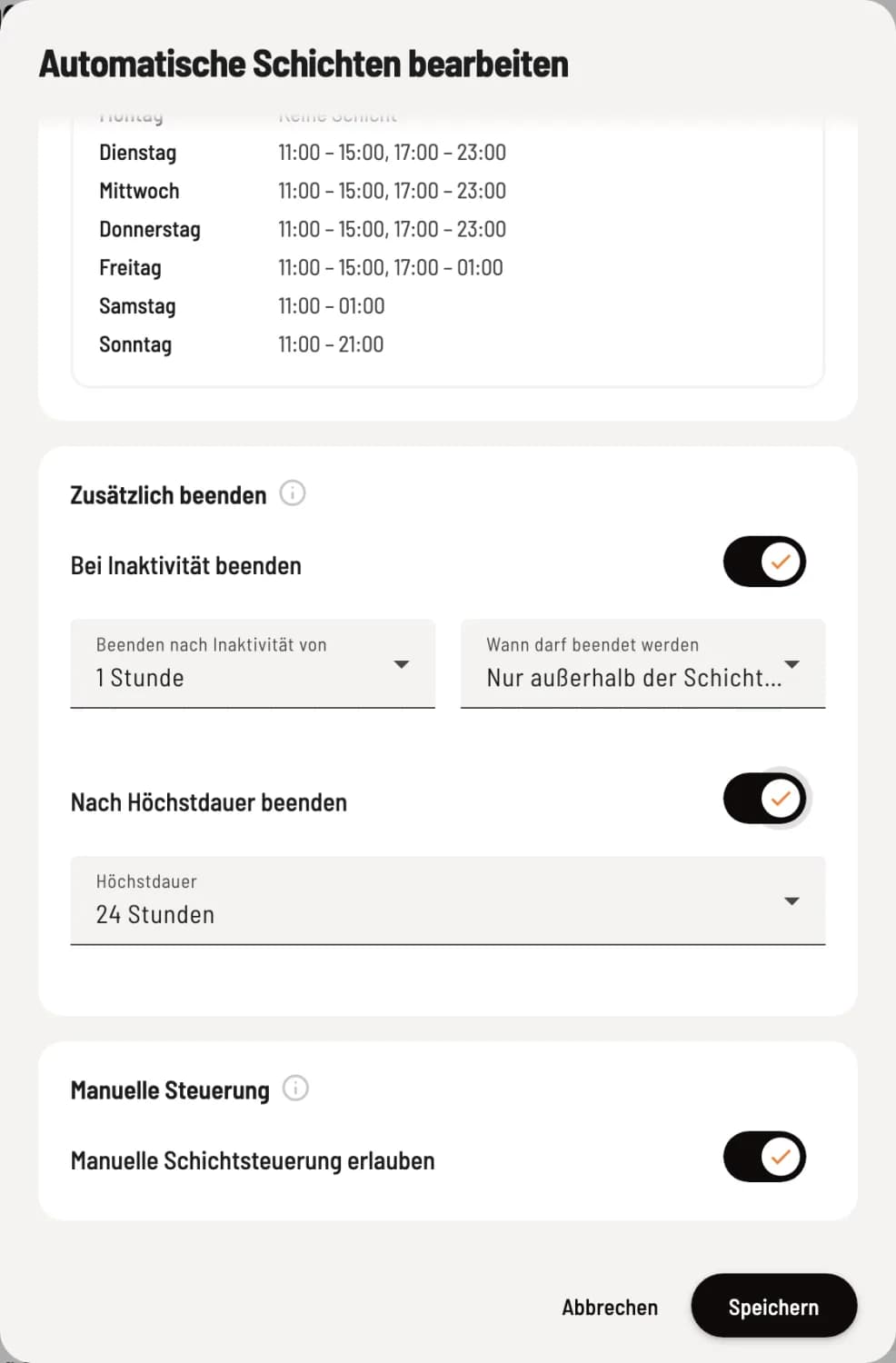
Inactivity and maximum duration
End on Inactivity ends the shift if no bookings have been made for the duration specified under End after Inactivity (15 minutes to 12 hours, default 1 hour). Under When can it be ended, you select Anytime or Only outside shift hours (default). The second option never ends if there are no shift hours: Like Opening Hours without opening hours, Own Times without time windows. End after Maximum Duration ends each shift no later than the selected Maximum Duration from the shift start (6 to 48 hours, default 24 hours). This is your safety net against a shift remaining open after closing time.
Manual control
Allow manual shift control appears when Start automatically and End automatically or End on inactivity are enabled. If you disable them, the Start and End buttons in the POS app are locked, and the message "Shifts are controlled automatically" appears below.
What happens during automatic termination
Open orders remain. They appear in the order list under Carried Over ("From Shift End") and can be settled in the next shift . Open online orders remain at the top under Online Orders. The Z-report counts them in the Carried Over section.
No cash count will be performed; service checkouts will be closed without being counted. You can complete the cash count before the next shift starts.
Z-report and employee reports are generated automatically. As the owner, you will receive an email explaining the reason for the end of the shift; the cash registers will report "shift ended automatically".
A shift with no bookings is discarded and does not appear in any report.
Printing: If automatic printing is enabled under Reports, a cash register with a printer will print the Z-report at the end of the shift, and employee reports if this switch is also enabled. This is handled by a cash register with the POS app open and Print Online Orders enabled; with Print Center enabled, the Servire Hub prints. If no cash register is currently open, the first one to open on the same workday will print. The workday begins at 5:00 AM. You can also find and print each Z-report in the Shift History of the cash register: Set Report Printing. The daily process is described under Start and End shift.