
Check working hours: Time entries and working time account
Here's how to read the time tracking on the Employees page in the Web desk.
Under Employees you can see who is currently working, what the period costs and which entries you should check.
Prerequisite: Time tracking is included in the Max plan. It can be activated and managed by the owner and anyone with the rights **Use Web desk ** and Manage Time Tracking & Payroll. Time tracking must be enabled.
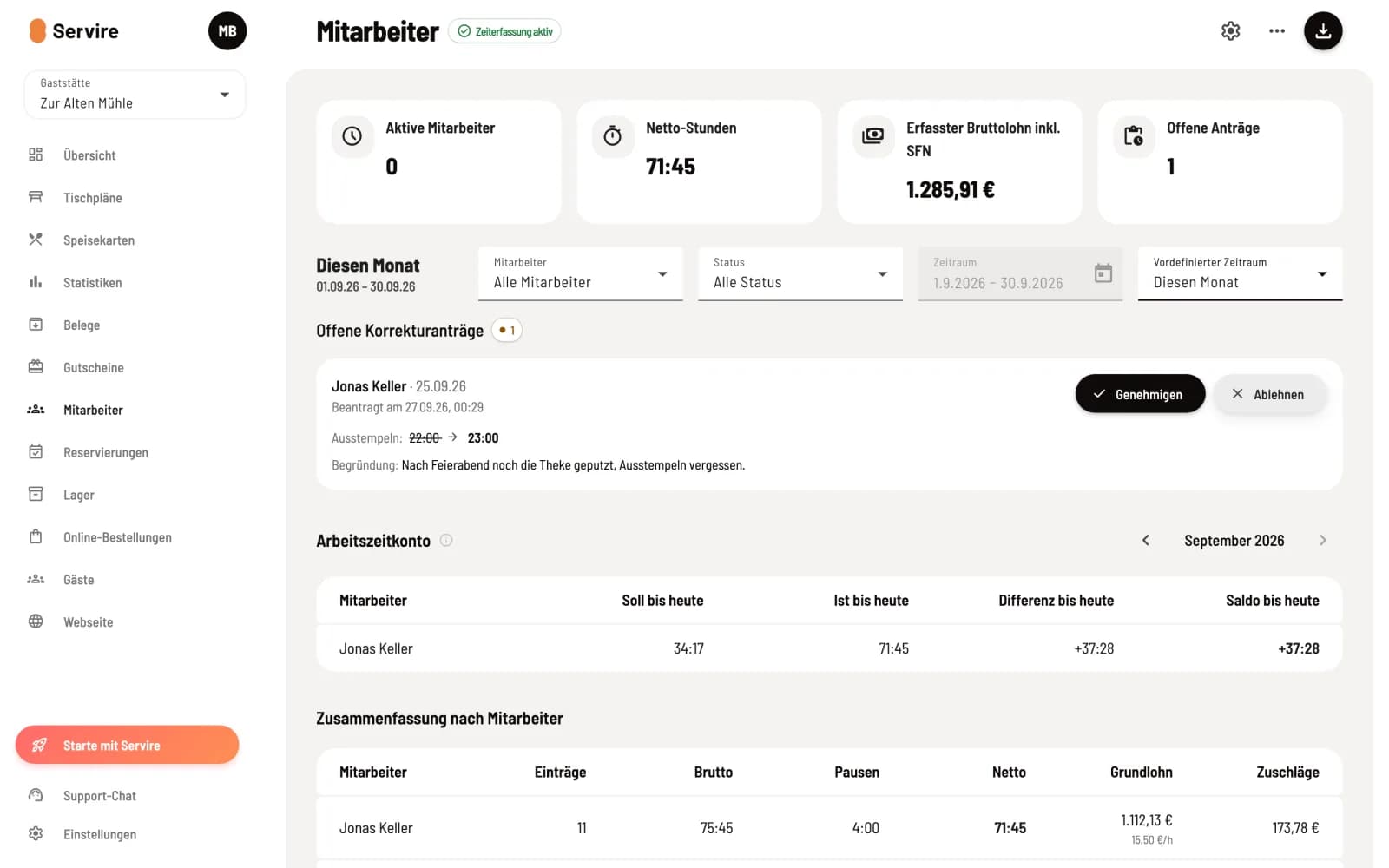
Tiles and filters
Active Employees counts all employees who have just clocked in; below, they are listed with their duration and status: Active or On Break. Net Hours and Recorded Gross Wage incl. SFN sum the time period; the wage includes base pay and bonuses, but not employer contributions, vacation, or sick pay. Open Requests counts the correction requests that you still need to process.
Under Predefined period, you select options such as This week or This month. Custom lets you freely define the period. Employee and Status limit the selection to a specific person or to Active, On break, Completed, or Processed.
Working time account

For each person with a weekly target, the Target, Actual, Difference, and Balance are displayed for one month, with the current month's figures showing up to today. Use the arrows to switch between months. No working time account configured means that the weekly hours are missing; see hourly rate, employee number, and time account settings.
Summary and all entries
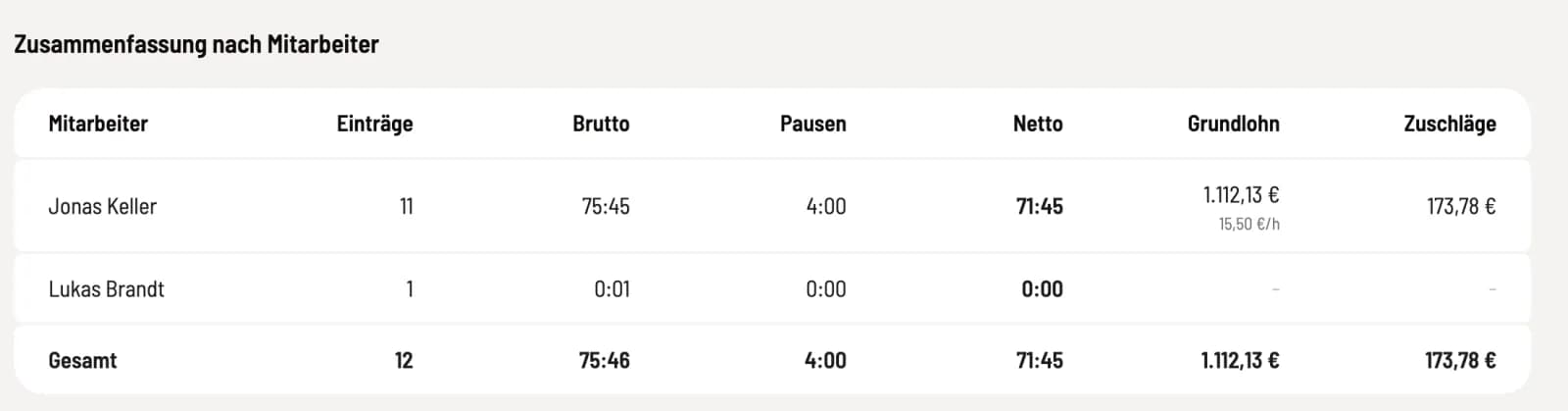
The summary by employee adds up entries, gross pay, breaks, net pay, basic wage and bonuses per person and for the entire restaurant.
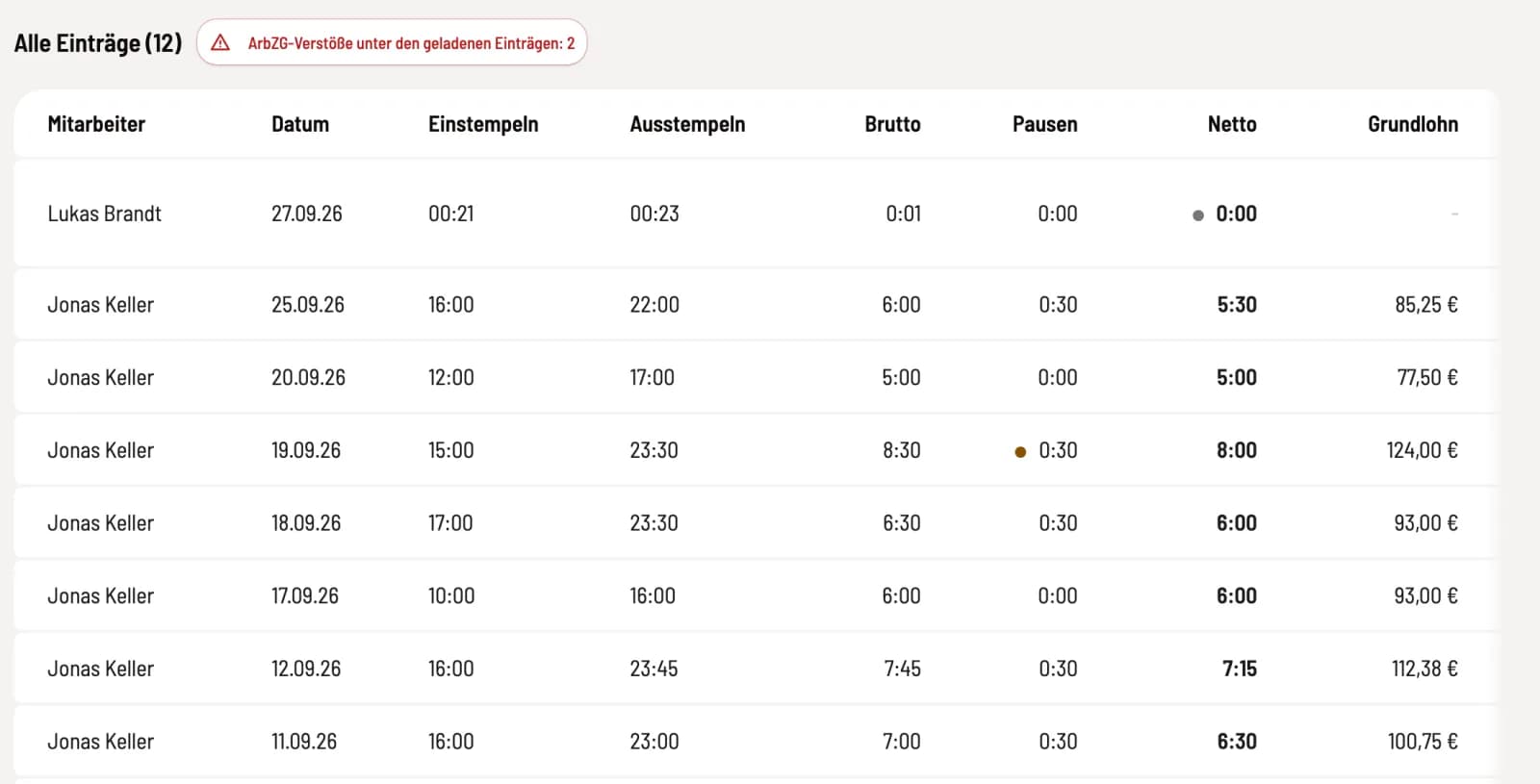
Under All Entries, each clocking-in/clock-out process is listed individually. A dot next to Breaks indicates an automatic break deduction, a dot next to Net indicates rounding; hovering the mouse over the entry displays the details. Load More retrieves older entries. Clicking on a row opens the correction; see Correcting Time Entries.
Symbols
Warning triangle: A notice according to the Working Time Act, for example, regarding a missed break. Understanding the meaning of the Working Time Act notices is explained here.
Automatically clocked out – please check: The person forgot to clock out; Servire closed the entry 16 hours after clocking in.
i on edited entries: who changed them, when, and for what reason.
If there are more than 5000 entries in the time period, the summary will display a Totals truncated message. In that case, reduce the time period.