
Resubmit failed TSE transactions
This is how you check processes without a signature and immediately trigger the signing process again.
If the cash register couldn't sign a transaction with the TSE ( Technical Security Equipment), for example, due to lack of internet access, it appears in the Web desk under Settings → TSE → Failed Transactions. A red counter on the ** TSE** tab indicates open cases. The Servire automatically attempts to sign a transaction hourly; you can initiate a sign-off here immediately.
Prerequisite: A subscription from Solo upwards and a configured TSE.
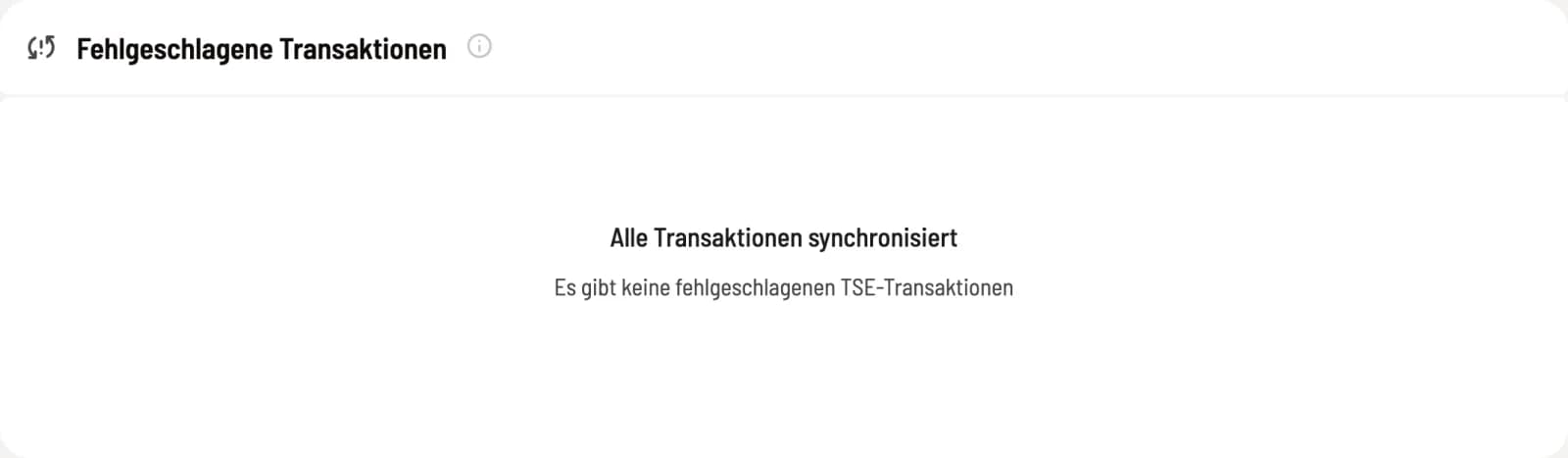
Check status
If it says All transactions synchronized, no action is required. Otherwise, the table displays the Date, Table, and Amount of the affected transactions.
Resend
The refresh symbol on a line triggers the signing process for that operation; Repeat all applies to all operations. The TSE confirms after a few seconds, after which the line disappears. Related operations are processed together, so the reported number may differ from the number of lines.
Transactions that can no longer be signed (deactivated cash register or permanent TSE error) are displayed separately in the table by Servire . These are listed with the error reason in the DSFinV-K export. If errors persist, contact support. The cash register displays the following information in the event of a TSE failure: TSE Failure. The time period, reason, and affected receipts for each failure can be found in the failure log.