
Add surcharge to an item
Book a special request with amount and description for a single item .
A surcharge increases the price of a single item, for example, for "burrata instead of mozzarella". It is treated like an option and is included in the price and tax of that item.
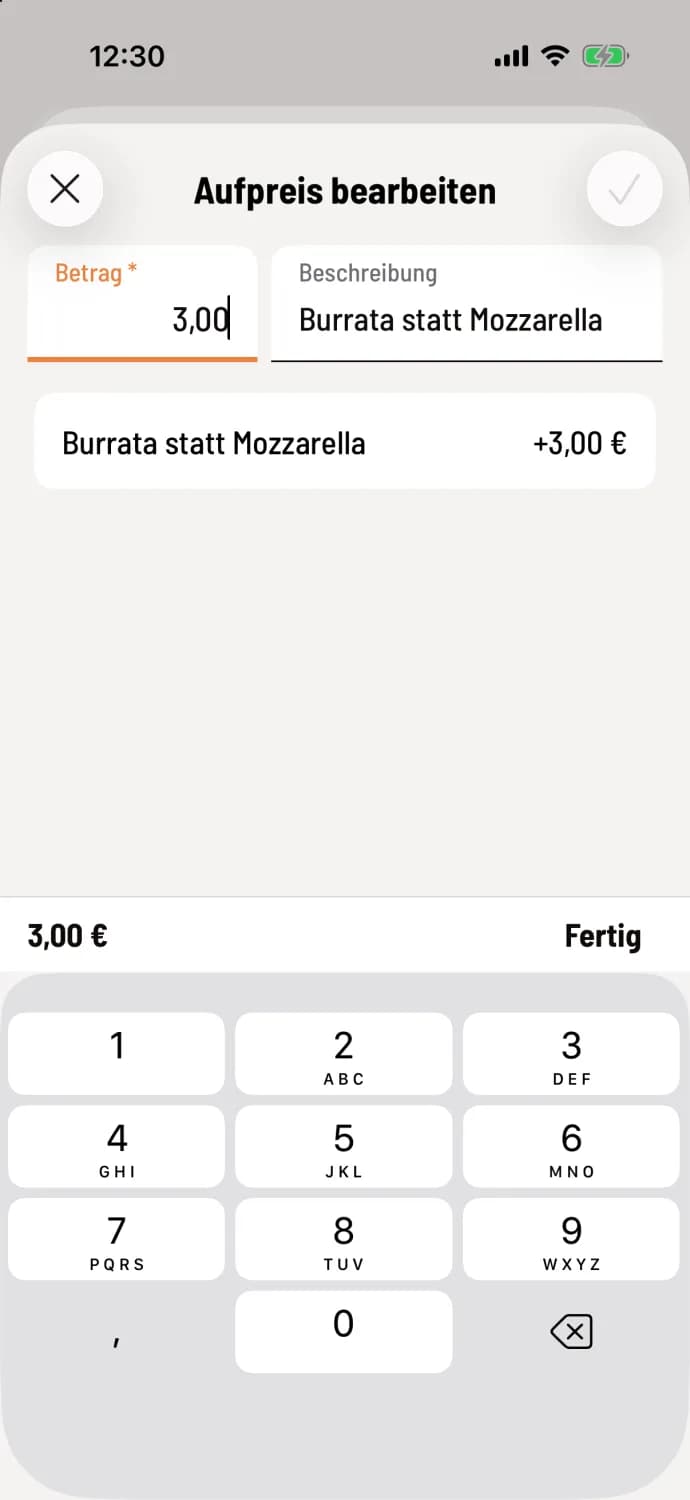
Step 1 of 2
Select surcharge
In the table view, press and hold the item row and tap Surcharge. When ordering, you can also add a surcharge in the Detailed Order view. Type the Amount into the numeric keypad; it fills in from the right, 300 results in 3.00. Add a Description, such as "Burrata instead of Mozzarella". Save by tapping the Checkmark or Done above the numeric keypad. Previous surcharges for this item are displayed below as templates; tap to apply them. If the item already has a surcharge, the window will be labeled Edit Surcharge.
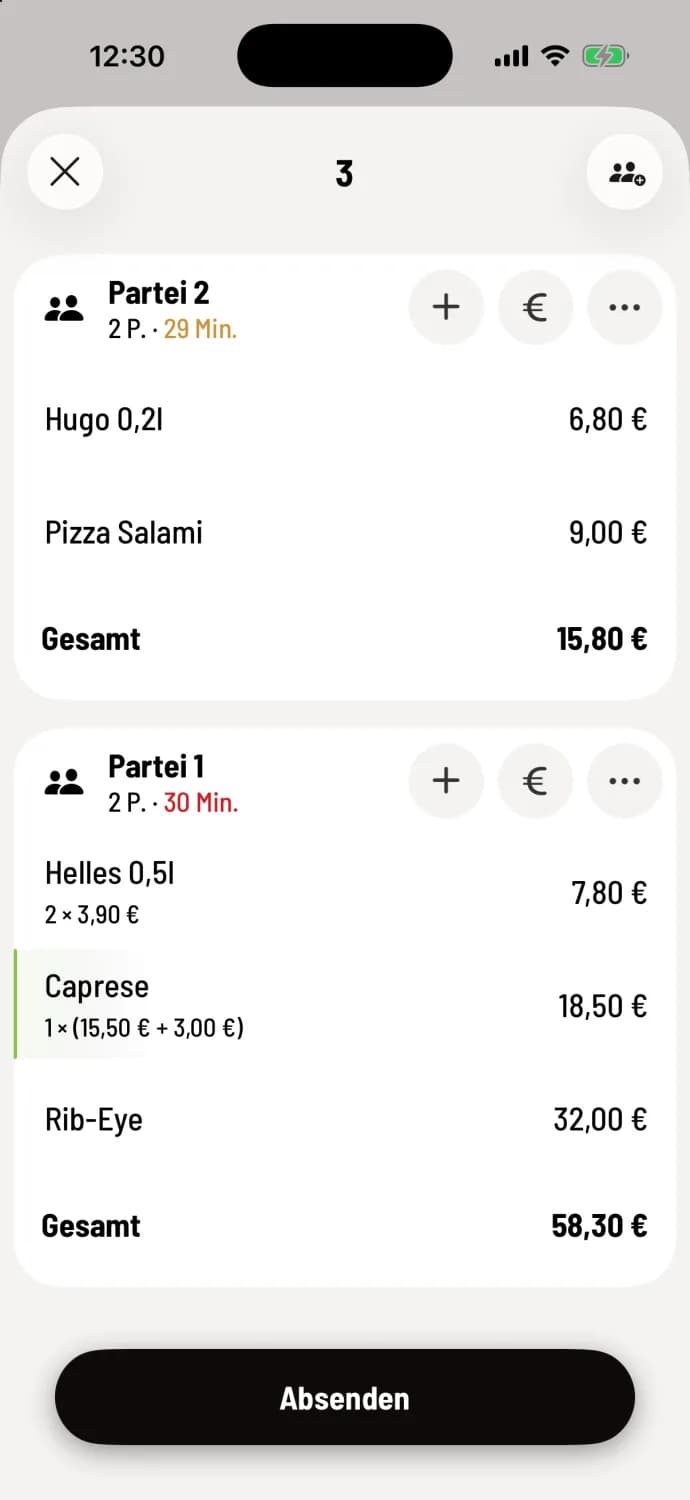
Step 2 of 2
Submit
This line shows the new price, for example 1 × (15.50 € + 3.00 €) 18.50 €. The surcharge is saved when you Submit.
If the item already has a surcharge, you will find Edit surcharge and Remove surcharge in the same menu.
A surcharge is always an additional charge. For a discount, you use a rebate: Add rebates. The surcharge option is only available in the line's menu if the line contains exactly one item. For multiple items, open the line and tap … next to the item.