
Change restaurant
Switch between connected businesses without having to log in again.
Requirement: You are affiliated with at least two restaurants: Working in multiple restaurants.
In the cash register app
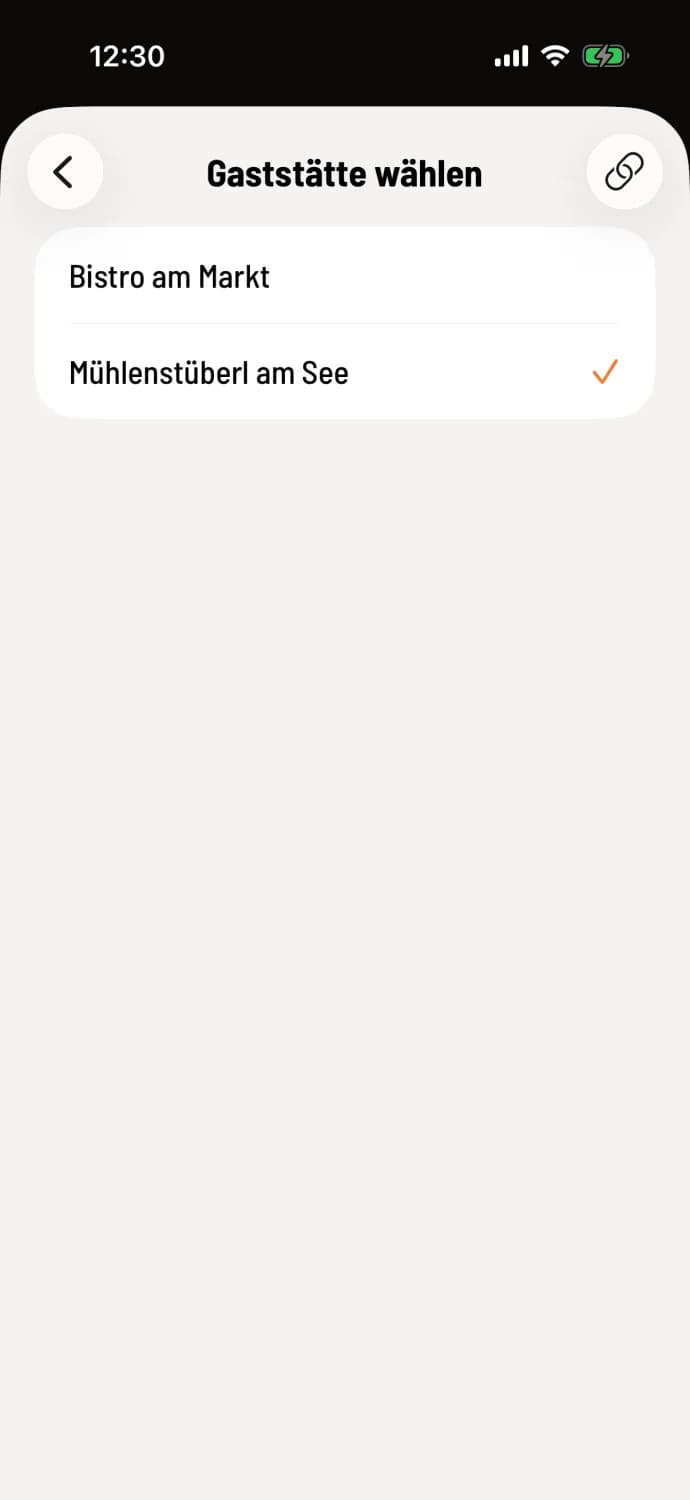
Choose a restaurant
Tap the House icon in the top left corner. Under Restaurant, the currently active establishment is listed with an arrow. Tap the row and select the other establishment. The POS system will immediately load the table plan, menu, printer settings, and other information for that establishment.
If a shift is currently running at the selected company, you'll be taken directly to the start view; otherwise, you'll remain in the overview. The POS system requires an internet connection to switch between views.
The active restaurant in the POS app is linked to your account: If you switch here, you'll also be in the new establishment on your other POS devices. If you're traveling between two restaurants, check the name at the top before printing your first receipt.
In the Web desk
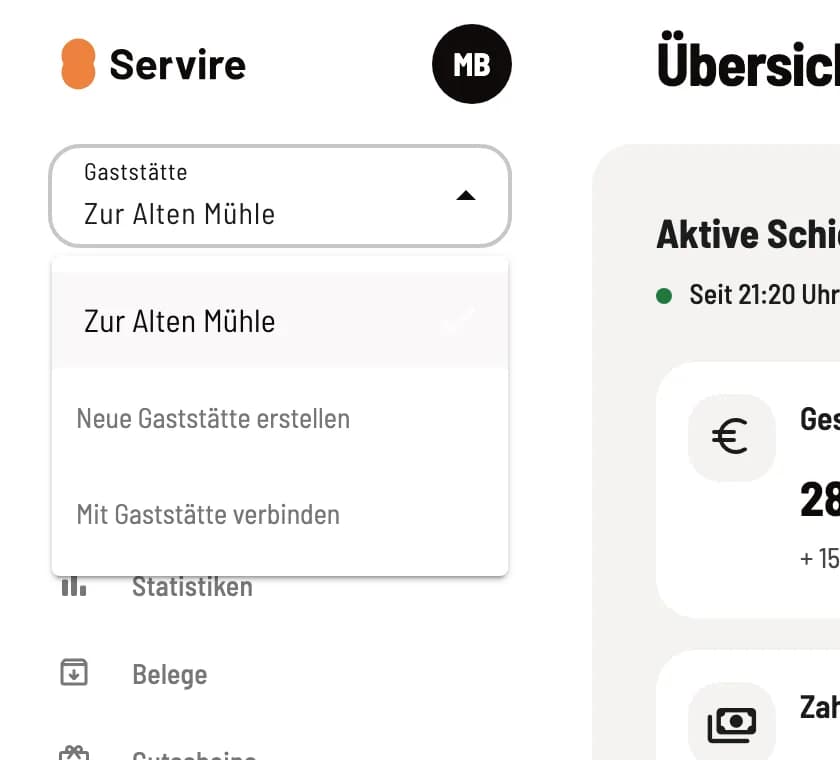
Tile Restaurant
Click on the Restaurant tile in the sidebar at the top and select the establishment. All pages will then display its data. This selection in the Web desk is independent of the POS app.