
First steps in the cash register
Your first day of work in five steps: register, start shift , order, settle accounts, end shift .
A typical day at the checkout always follows the same routine. Run through it once, and you'll know the essentials. A new restaurant will bring sample items and tables to demonstrate this.
Playing loads YouTube (Google).Playing loads the video from YouTube and sends data to Google. Clicking allows external media. Privacy

Step 1 of 6
Register
Open the app and tap Log in. New here? First, create an account: Create an account in the POS app.
Step 2 of 6
Start shift
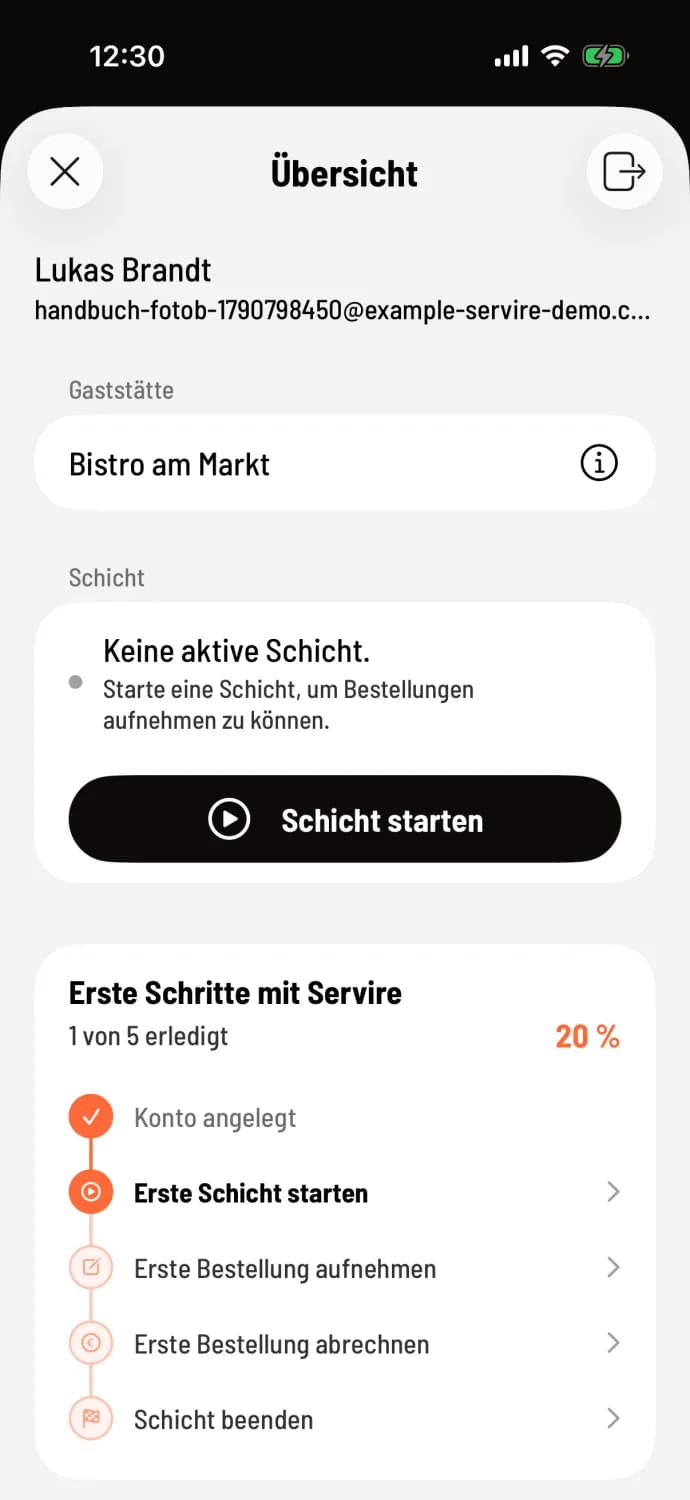
In the Overview, tap on **Start shift **. The cash register won't accept any orders without an open shift . More information: Starting and ending a shift.
Step 3 of 6
Choose a table
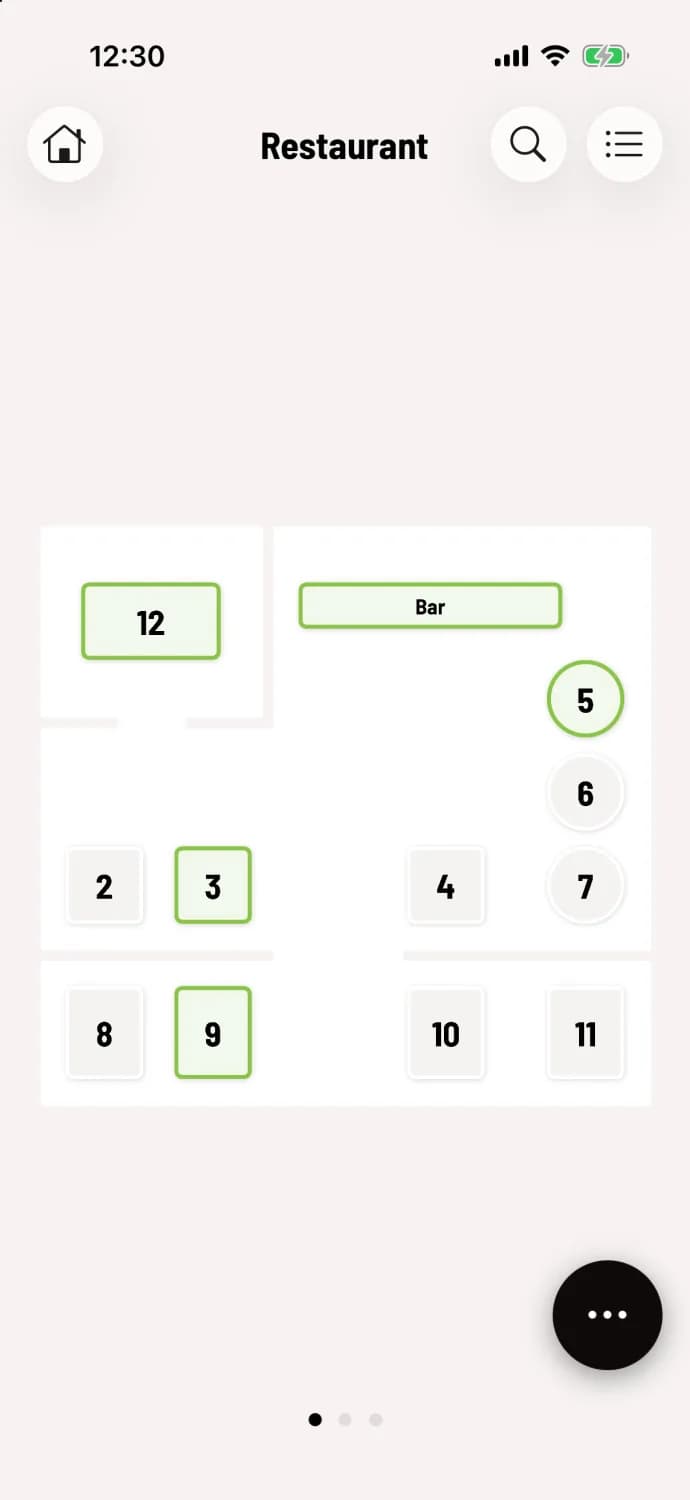
Next, you'll see the table plan. At the top is the name of the area, for example, Restaurant. Tap on the table where the guest is sitting. Occupied tables are outlined in green. You can access other areas by swiping; the dots at the bottom show your current location.
Step 4 of 6
Order
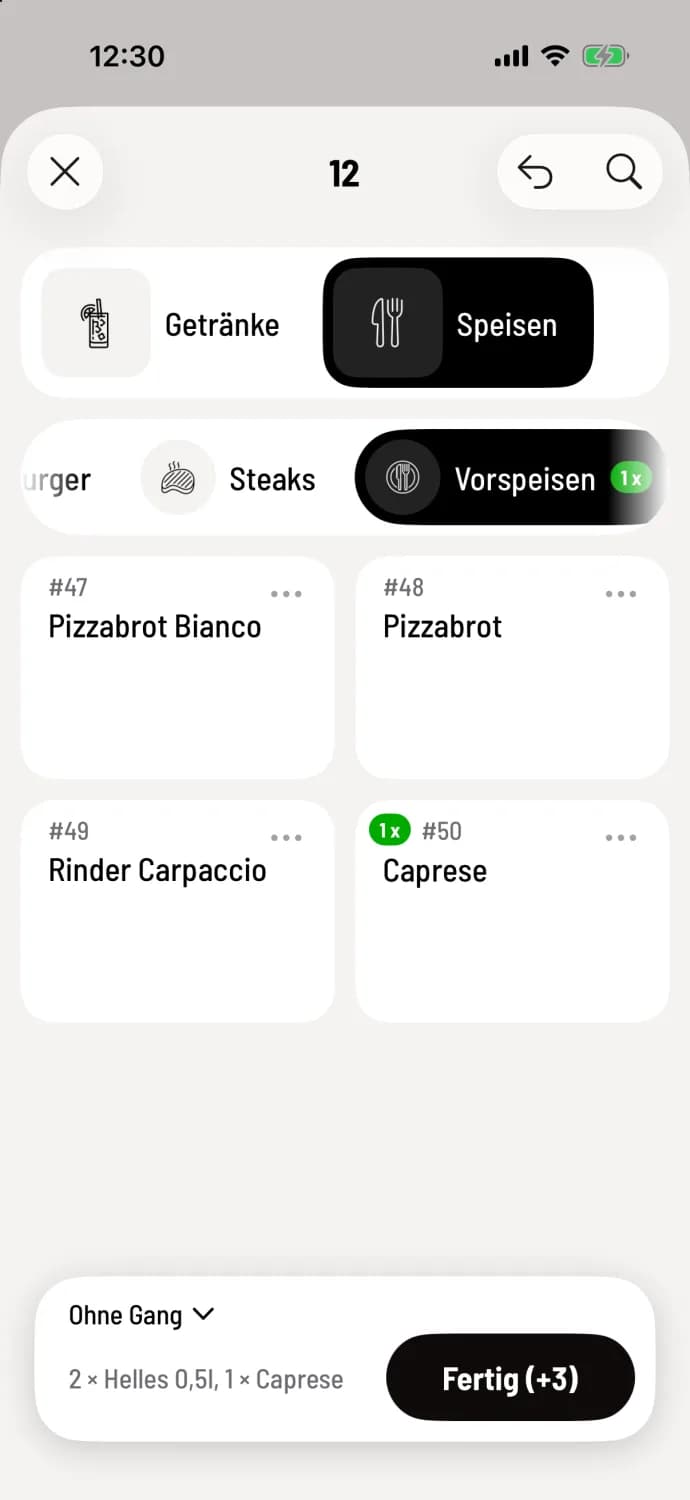
Select the category at the top and tap the item ; the POS system will collect them below, for example, 2 × 0.5l light beers, 1 × Caprese salad. Tap Done, then in the table view, tap Submit New Order. Only then will the order be sent to the kitchen and receipt printer: Take a new order.
Step 5 of 6
Billing
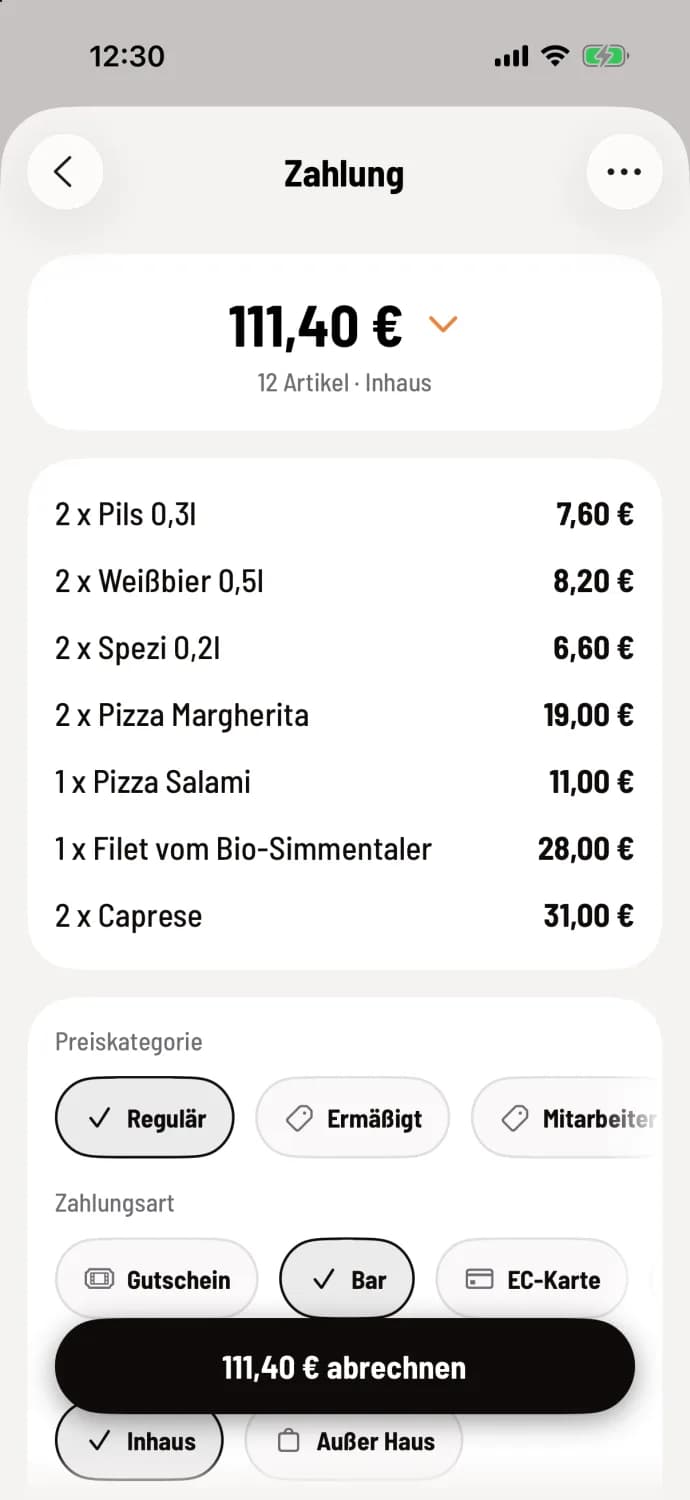
If the guest wishes to pay, open the checkout icon at the table and select the items. In the Payment window, select the payment method, for example Cash, and tap the button with the amount, for example Settle €111.40: Settle orders.
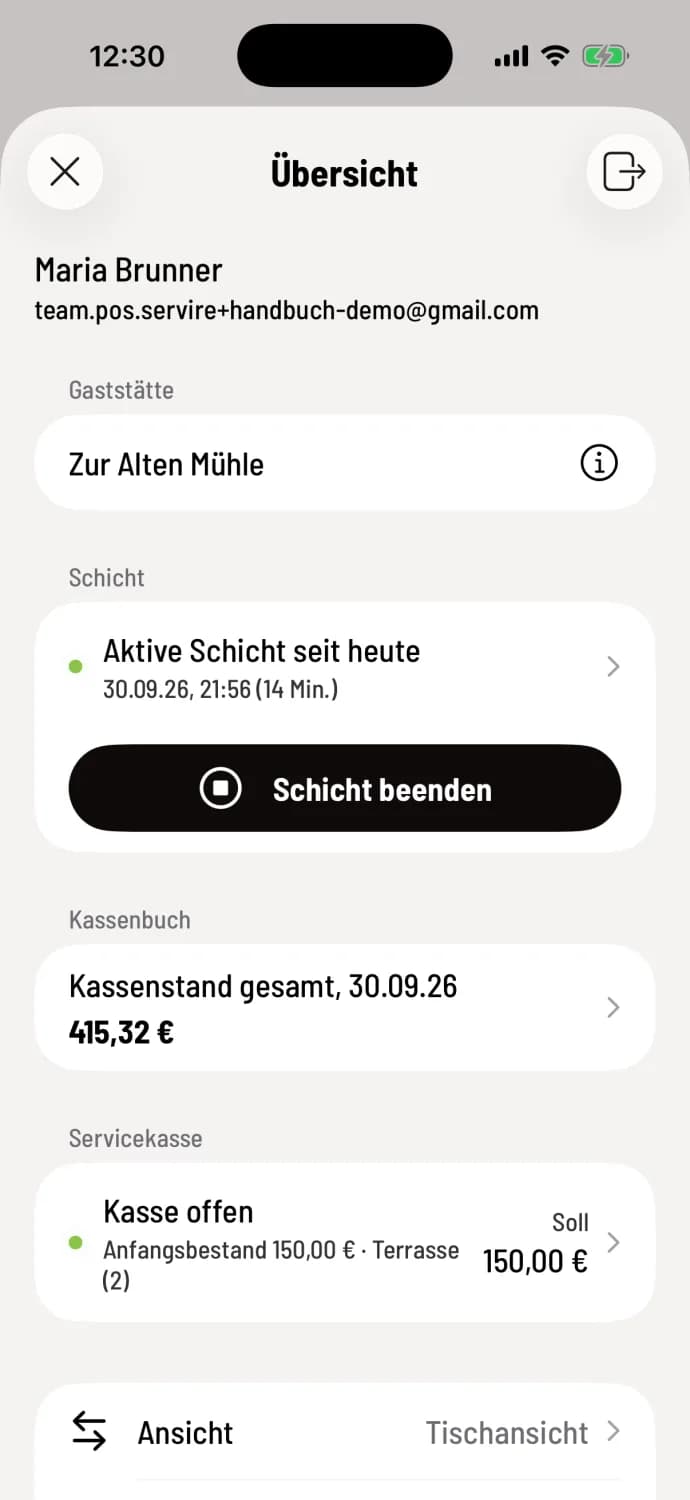
Step 6 of 6
End shift
At the end of the day, tap **End shift ** in the overview. The cash register then generates the Z-report, the daily closing statement for the tax office.
The card “First steps with Servire”
As the owner, you'll see the First Steps with Servire card in the overview. It shows five steps and how many have been completed: Account created, **Start first shift **, Take first order, Process first order, and **End shift **. The cash register automatically checks off completed tasks. Employees do not see this card.
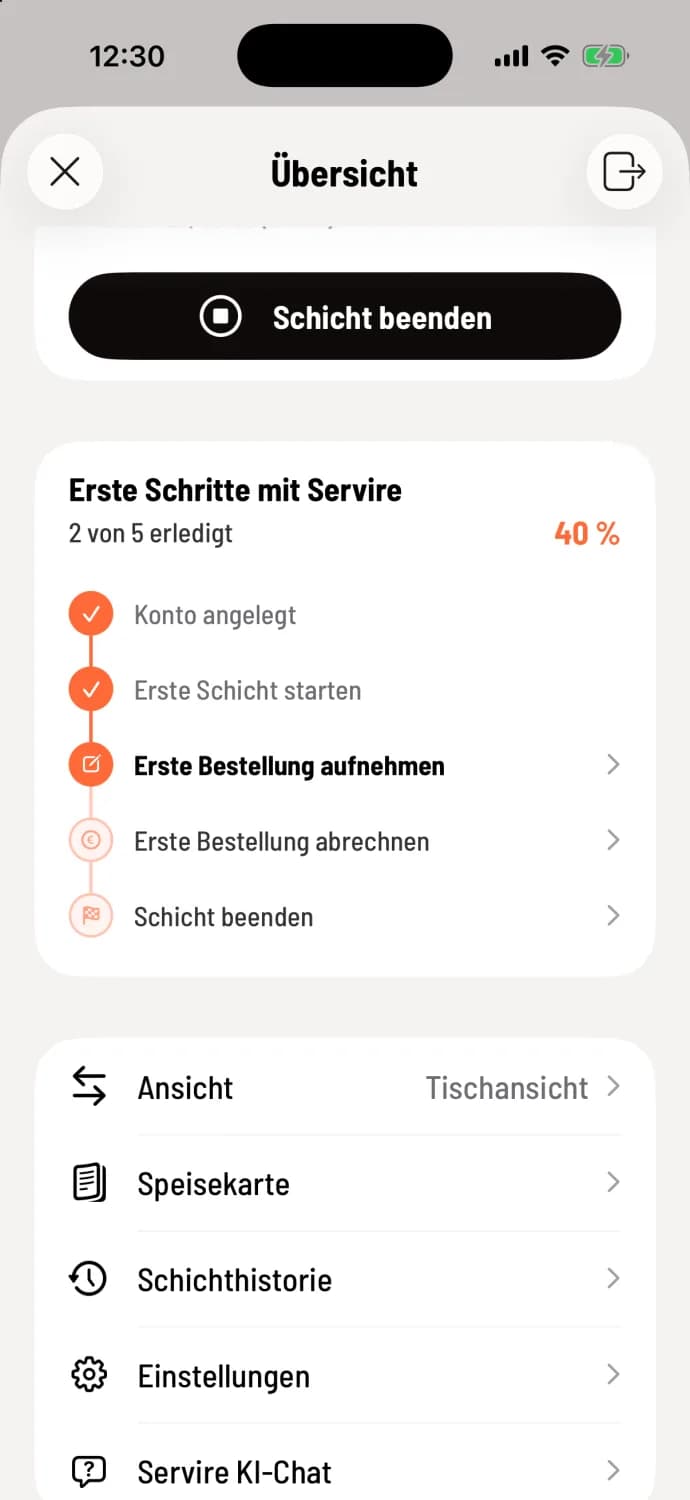
Step 1 of 3
View progress
The map shows how many steps have been completed, for example, 2 out of 5 completed, and next to it the percentage. Completed steps are marked with a checkmark, the next remaining step is shown in bold.
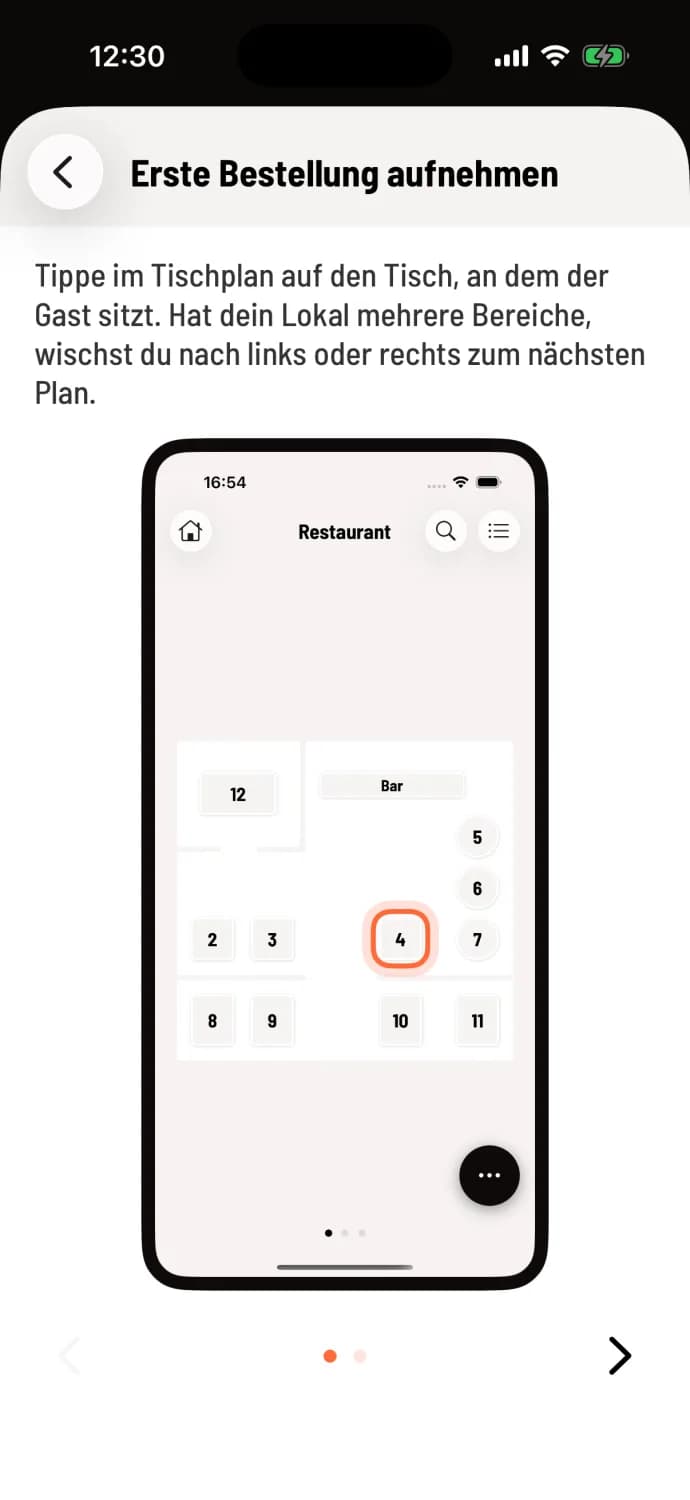
Step 2 of 3
Get a step-by-step explanation
Tap on an open step. A series of images shows you where to tap; the spot is highlighted in orange. Use the arrows at the bottom to scroll forward and backward.
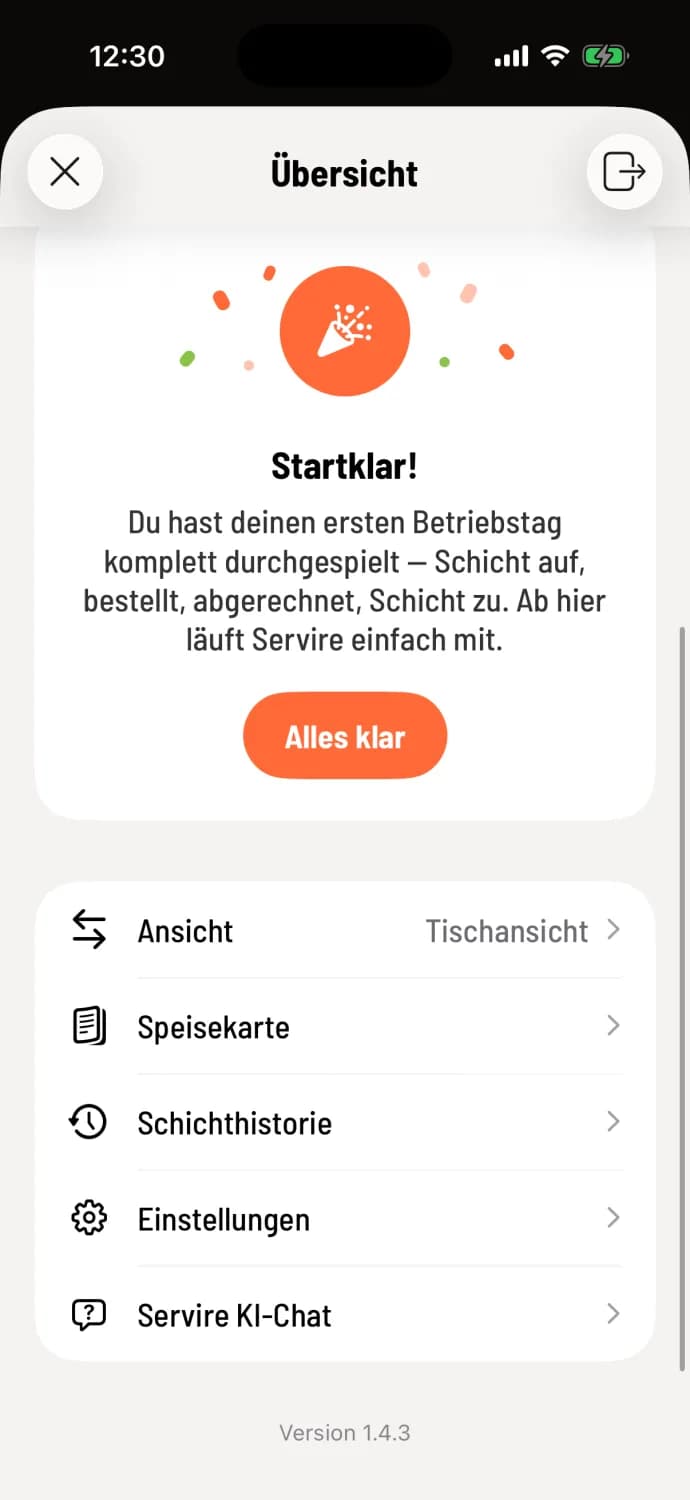
Step 3 of 3
Ready
Once all steps are completed, Ready! appears. All clear permanently hides the map.
Everything without a table – To-Go, deposit return, vouchers, cancellation – can be found behind the round button in the bottom right corner: The round action button.