
Edit or delete printers
Check the status of the printers, change a printer's settings, or remove it.
Prerequisite: You need the employee right Access to printer settings. Without this right, the Printer entry will be missing from the settings.
Read printer list
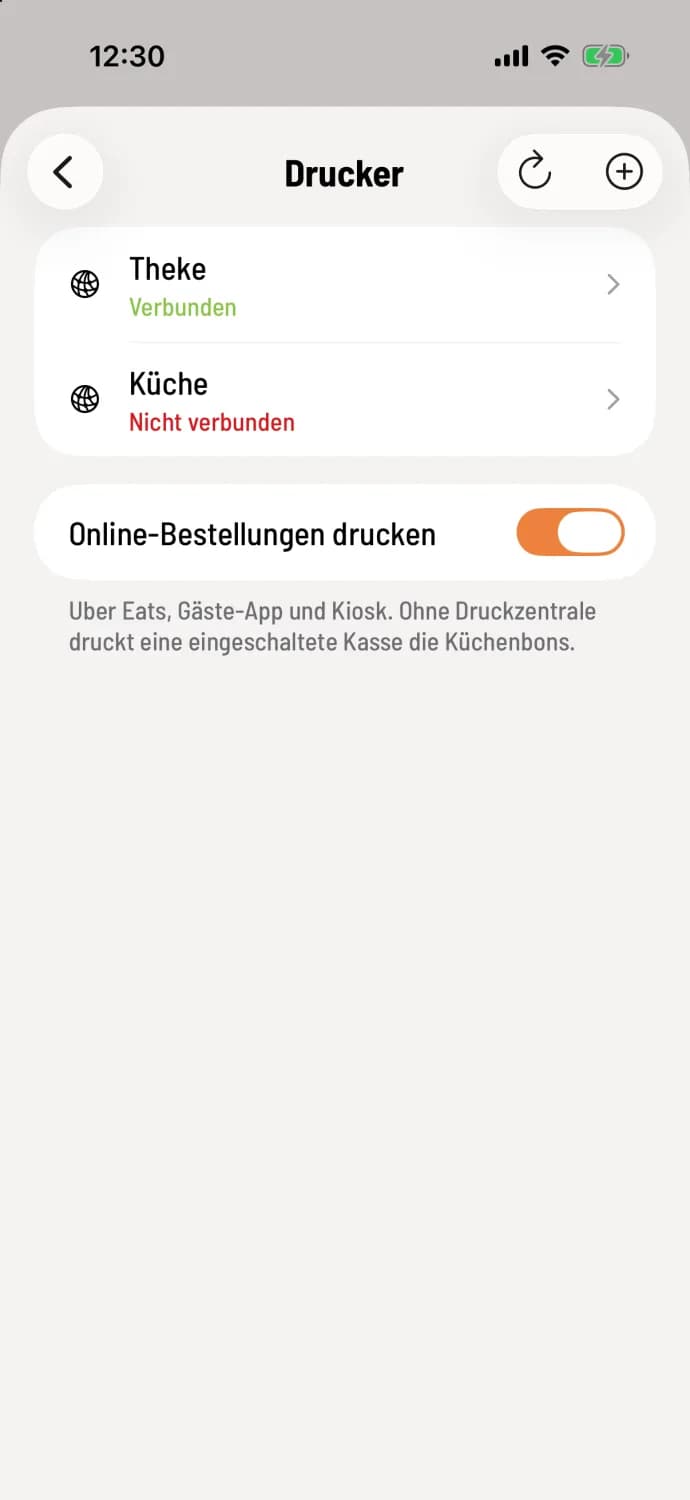
Each line displays the printer name, a symbol indicating the connection type (network, Bluetooth, or USB), and the status: Connected in green, Not connected in red, Checking connection…, or a printer problem such as blank paper in plain text. Android displays Available, status unknown for printers that don't report their status. The arrow icon in the upper right corner makes the POS system recheck all printers.
Edit printer
Tap on the printer. You can change the printer name, printer series, paper width, character set, cash drawer, and print jobs. On iPhone and iPad, you can also change the print mode. The printer type and address cannot be changed. If the printer has been assigned a new IP address, delete it and add it again.
On iPhone and iPad, the checkmark in the upper right corner saves your changes; it becomes active as soon as you make a change. If you go back with unsaved changes, the checkout will ask if you want to save or discard. On Android, you save by tapping Save; without saving, changes will be lost when you go back.
delete printer
delete printer
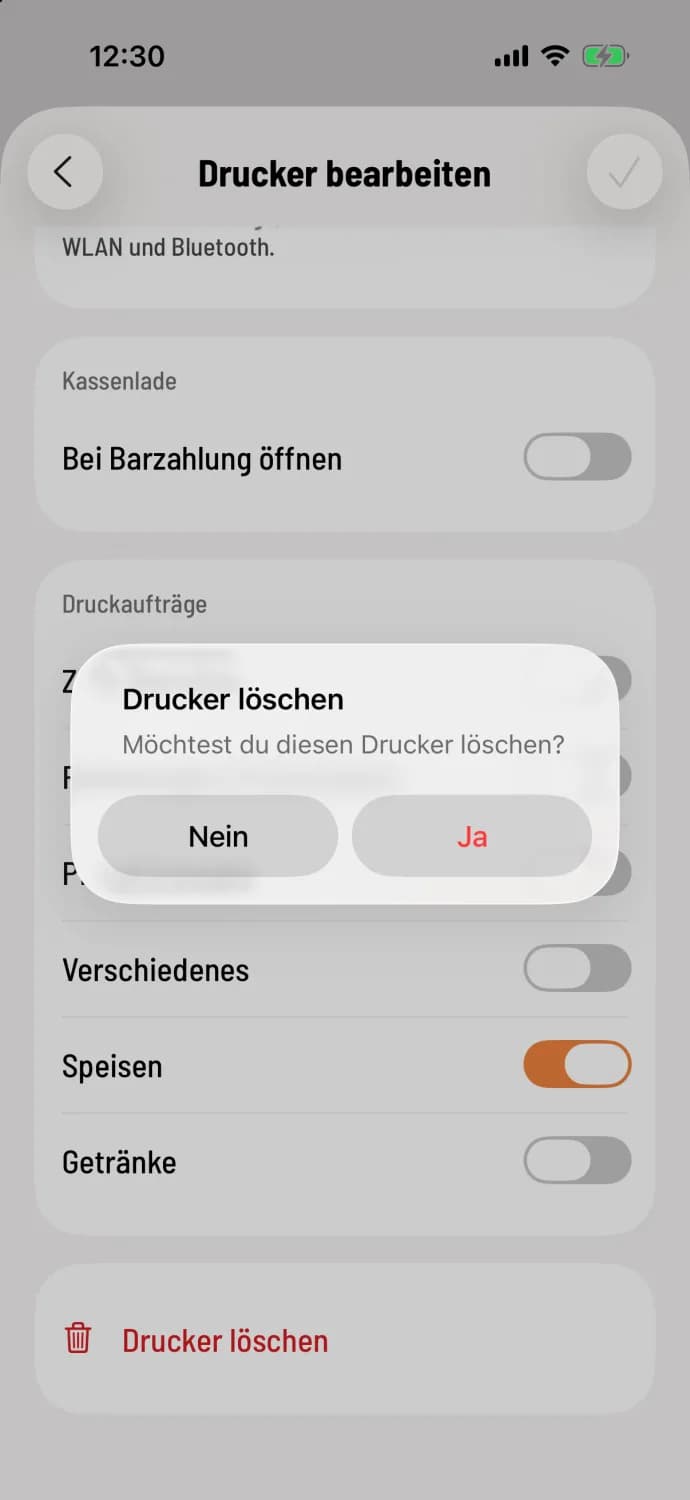
Scroll to the bottom of the printer settings and tap Delete Printer. Confirm "Do you want to delete this printer?" with Yes.
The cash register needs an internet connection to delete the printer. A deleted network printer disappears from all cash registers; any outstanding receipts for that printer will no longer be printed.
If the printer is printing a single receipt type, such as reports, first activate it on another printer. Otherwise, no one will print it.