
Import menus via AI
Import an existing menu as a photo or PDF and use it as a new menu .
With the AI Import feature, Servire reads an existing menu , either as a photo or PDF. It recognizes categories, item, prices, variations, PLU numbers, and labels. You review everything before adding anything; it's then imported as a new menu.
Requirements: Images in JPG, PNG, or WebP format up to 25 MB, PDFs up to 20 pages and 50 MB. Each restaurant is allowed 5 scans per week with the Free plan, otherwise 20; the allowance resets on Mondays. A scan in which no menu is recognized does not count. In the POS app, you need the permission **Allow creating and editing item **.
In the Web desk
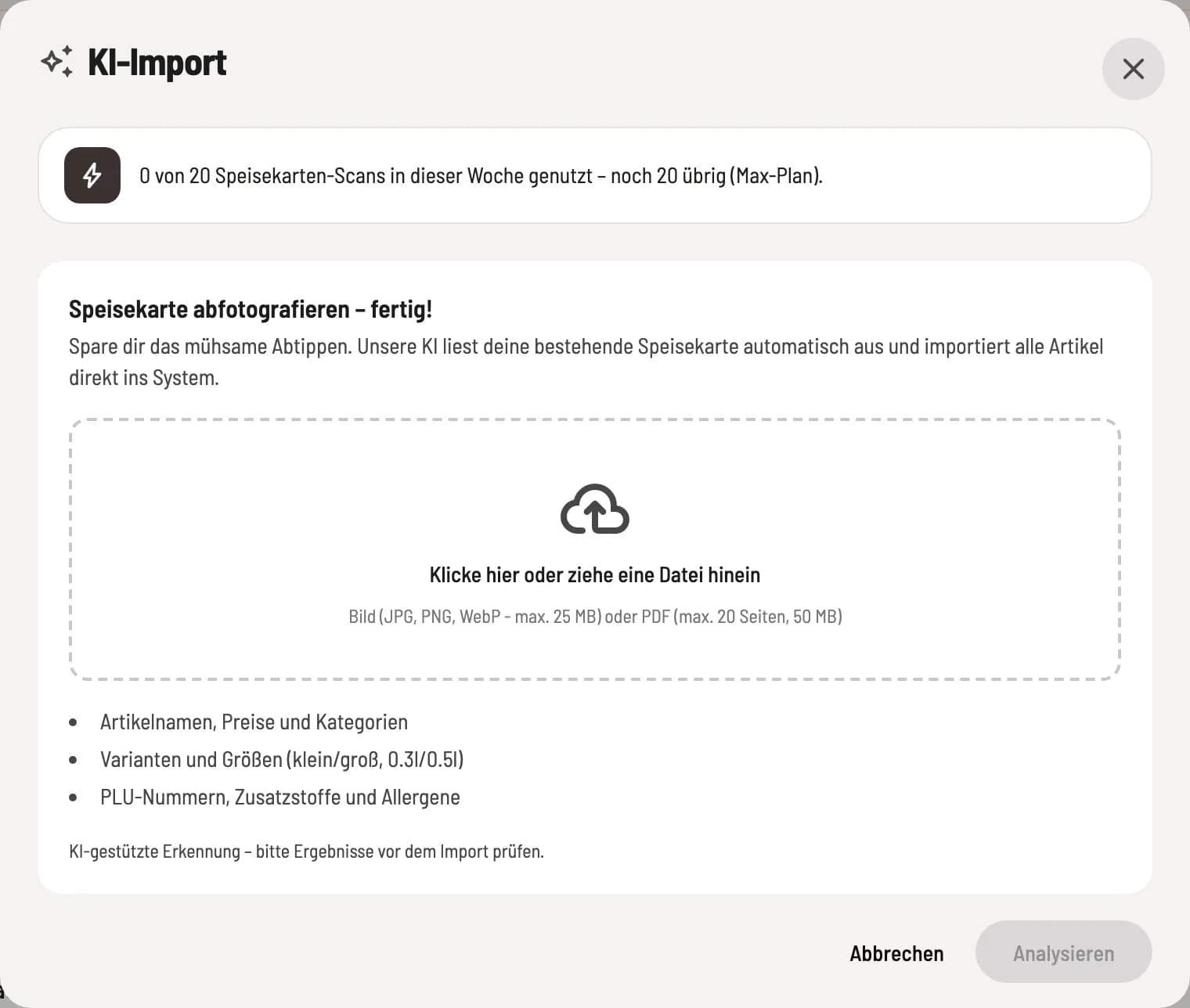
Upload file
Click on ⋯ → AI Import in the menu header. The number of scans you have left this week is displayed at the top. Drag the file into the field or click inside it, and then click Analyze.
Next, you assign information that appears on multiple items: Global Variants can be created, linked to an existing one, or excluded from import; identified Additives & Allergens can be assigned to existing labels or created anew. If a legend is missing on the menu, such labels are deselected. Clicking Continue to Item Review lets you check the ** menu Name**, categories, item , and prices. item that already exist are marked already exists and are deselected. **Import item ** creates the menu .
In the cash register app
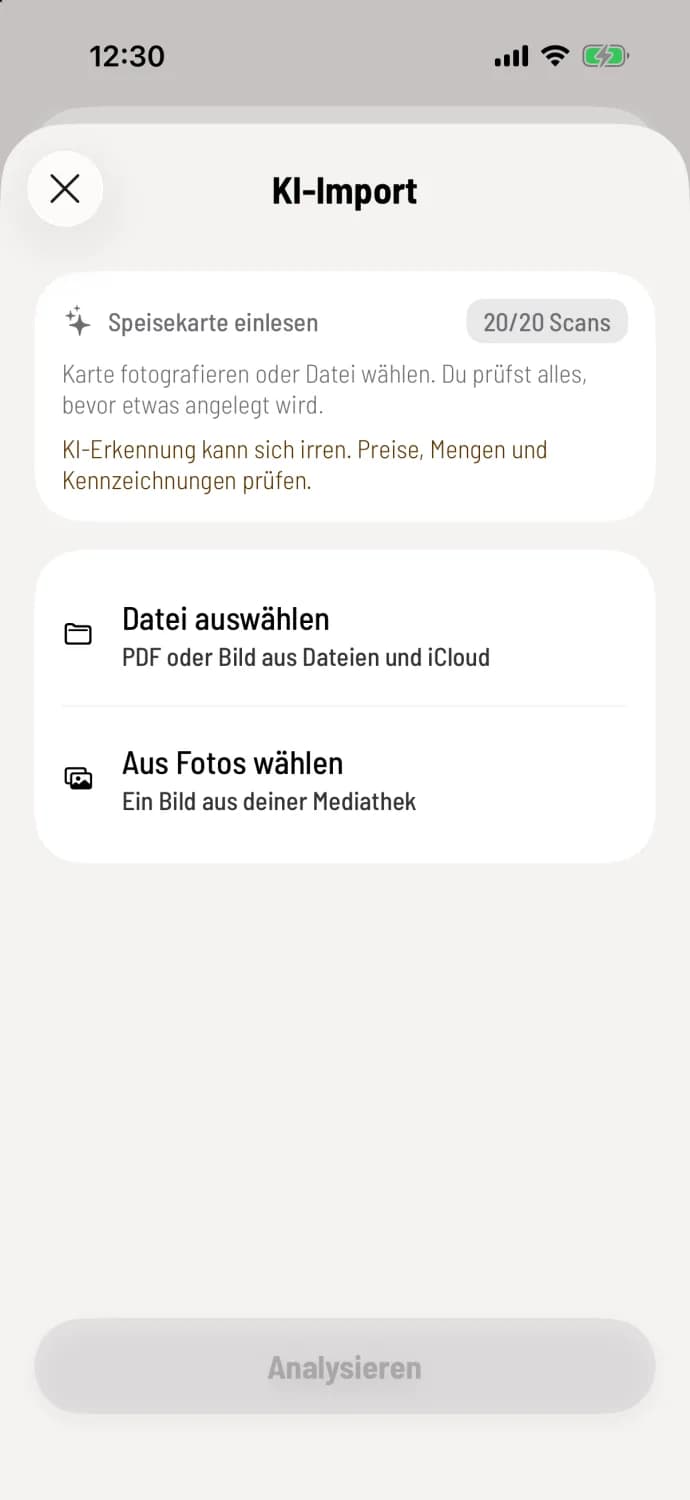
Step 1 of 2
Select source
Tap on the House, then on ** menu**, and then on the spark icon in the top right corner. In the menu at the top right, ** menu **, you'll see how many scans you have left, for example, 20/20 scans. Select Photo Map, Select File, or Choose from Photos (Android: Choose from Gallery) and tap Analyze. Photo Map is not available on devices without a camera.
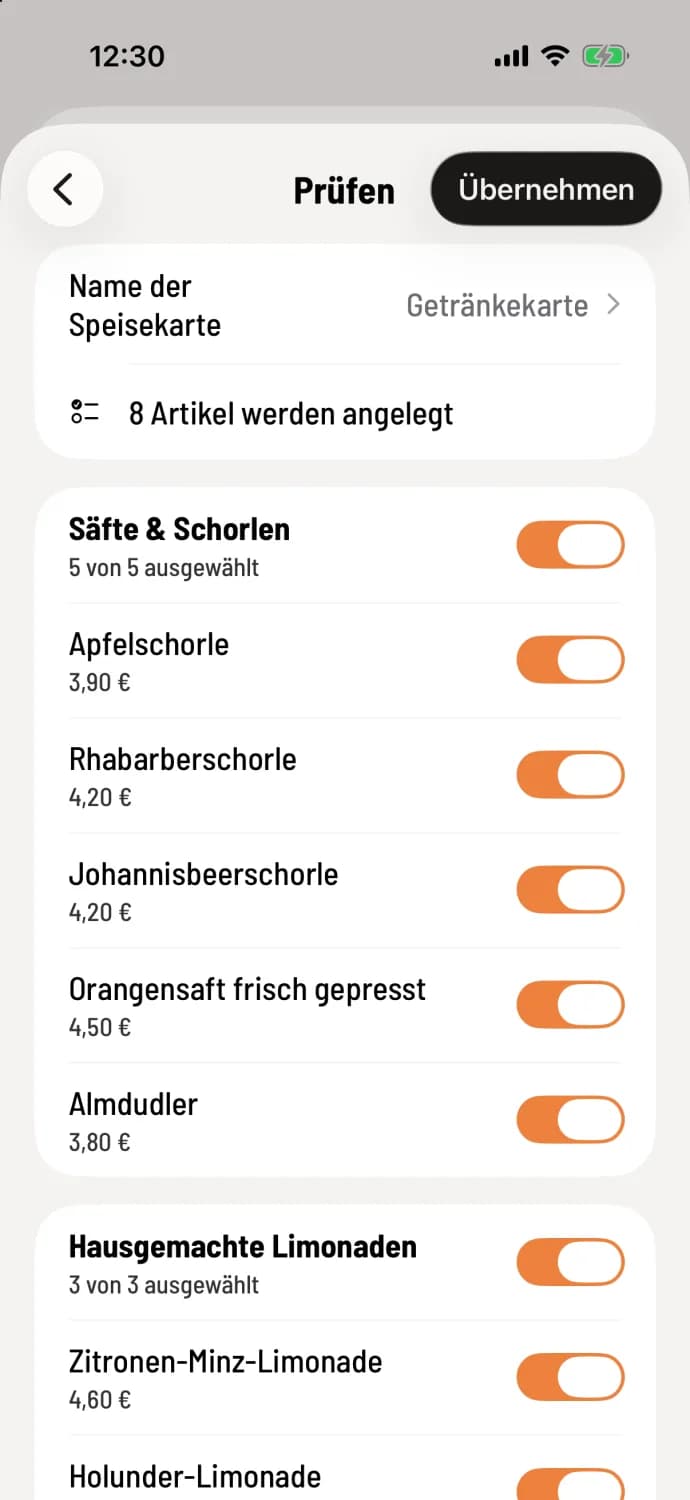
Step 2 of 2
Assign and check
Under Assign, you define what happens to tags and variations. The Check page displays the ** menu Name** and how many item will be created, for example, 8 item will be created. Use the toggles to select or deselect entire categories or individual item ; tapping on an item edits it. Apply in the upper right corner creates the new menu .
For multi-page maps, you photograph page by page, up to 20 pages.
Check after import
The import process automatically sets the product group and tax rates based on whether an item is a beverage or a food item. Check tax rates, prices, and allergens before using the card at the checkout. You can add images, recipes, and fine-tune variations in the Web desk.
Clear, straight photos without reflections produce the best results. Save photos in HEIC format from your iPhone as JPG or PNG files before using them on the Web desk .