
The payment screen at a glance
What amount, positions, options, deductions and allocation mean on the payment screen.
After selecting Bill, the Payment screen opens. It is structured from top to bottom. Almost everything is pre-selected; you only need to change what differs.
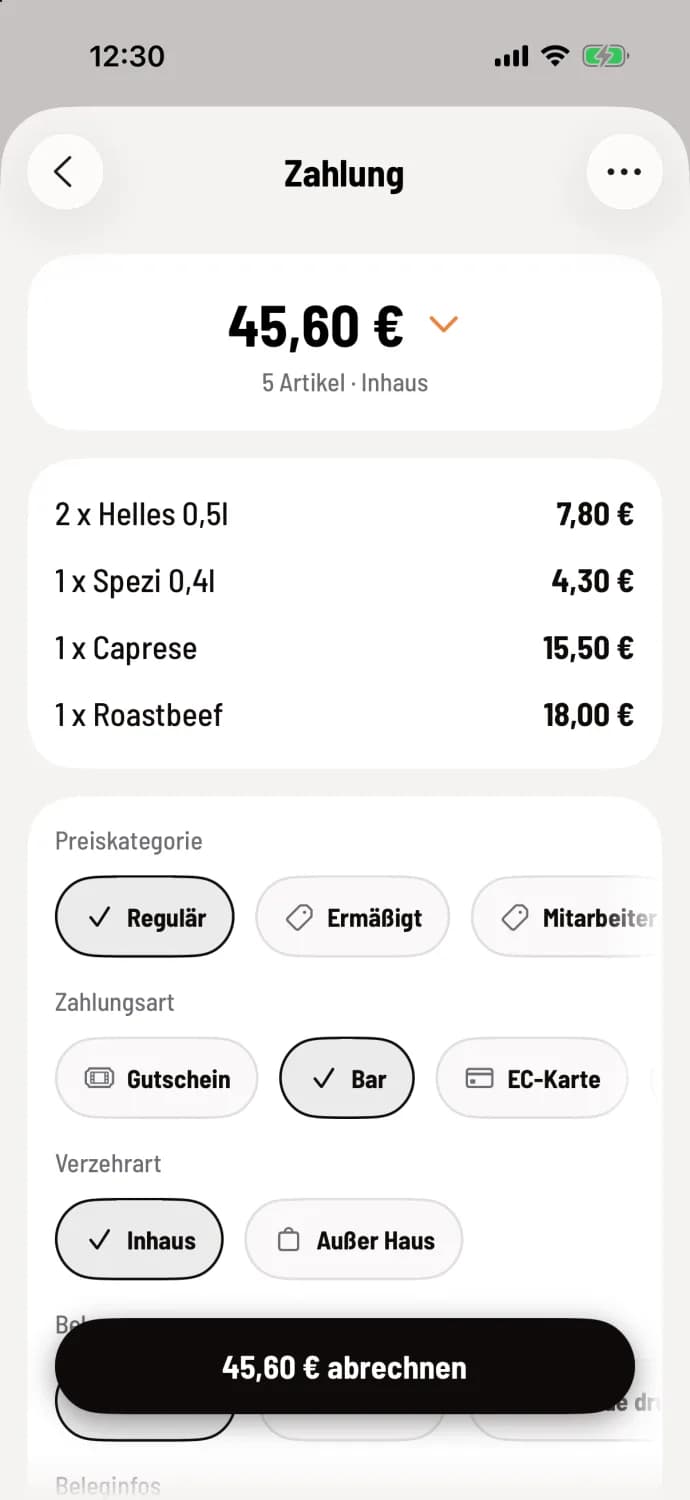
Step 1 of 4
Amount and items
At the top is the amount you're collecting, below that the number of item and the type of order, for example, 5 item · In-house. This is followed by the itemized list, for example, 2 x 0.5l light beers. Tapping on the amount opens the input field for tip and cash: tip and Change.
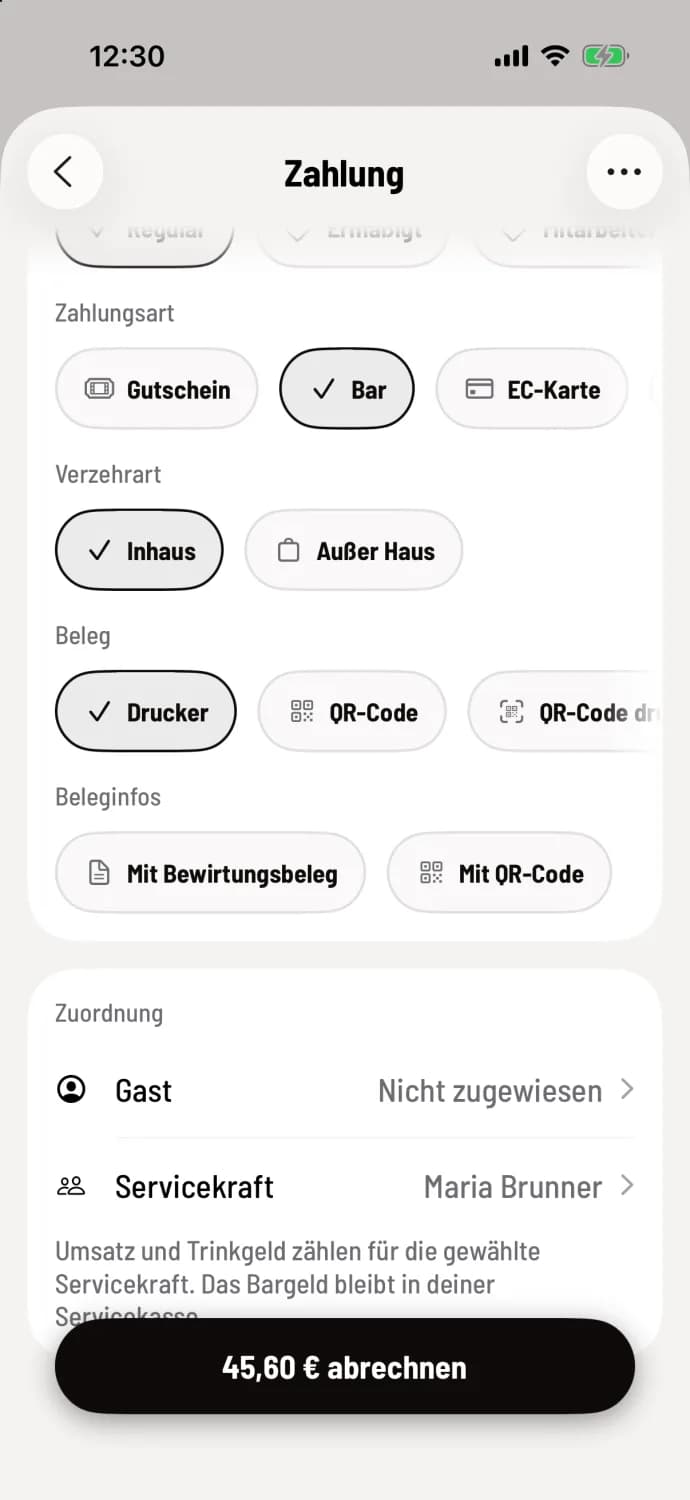
Step 2 of 4
Options
Below you select payment method, consumption type, receipt, and receipt information. The selected pill is marked with a checkmark.
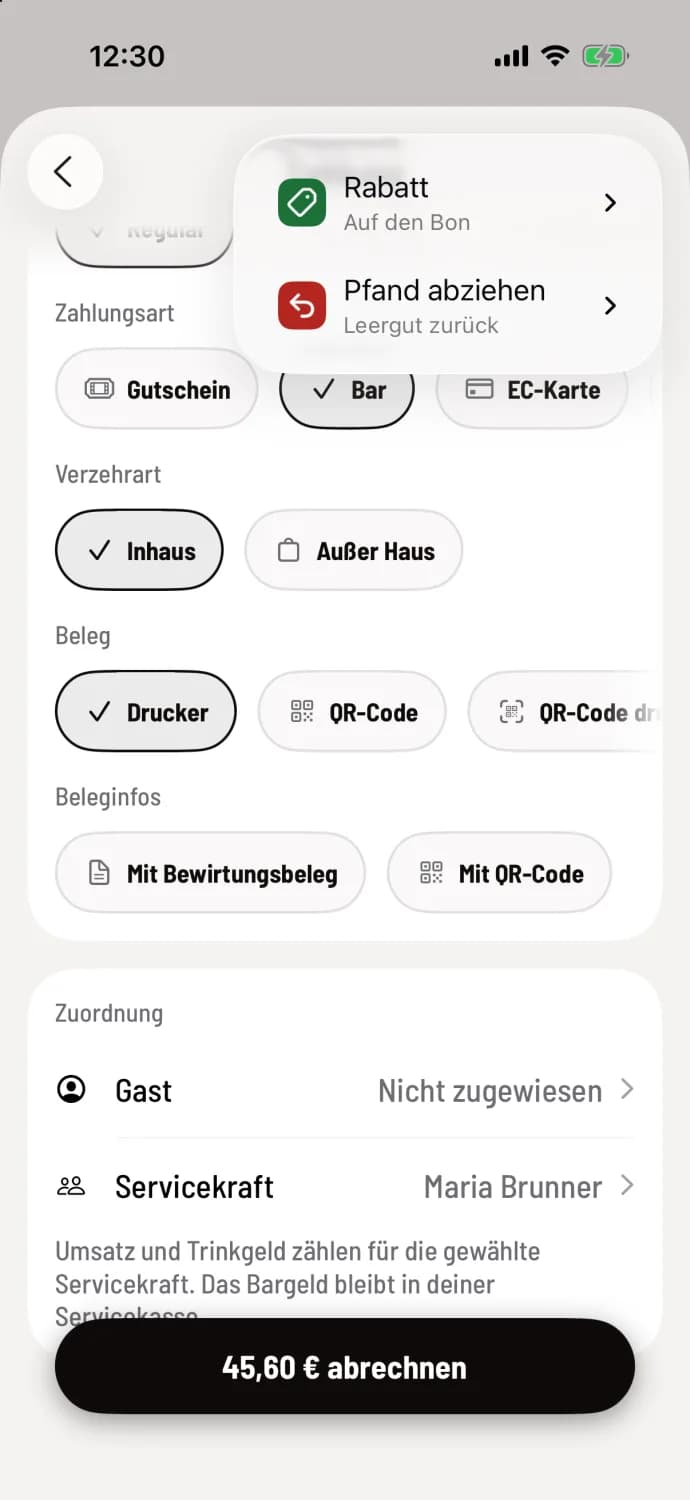
Step 3 of 4
Menu in the upper right corner
Via … you can access Discount (on the receipt) and Deduct Deposit (return empty containers). If a guest is assigned a reward or credit, Redeem Reward and Redeem Credit will also be displayed there.
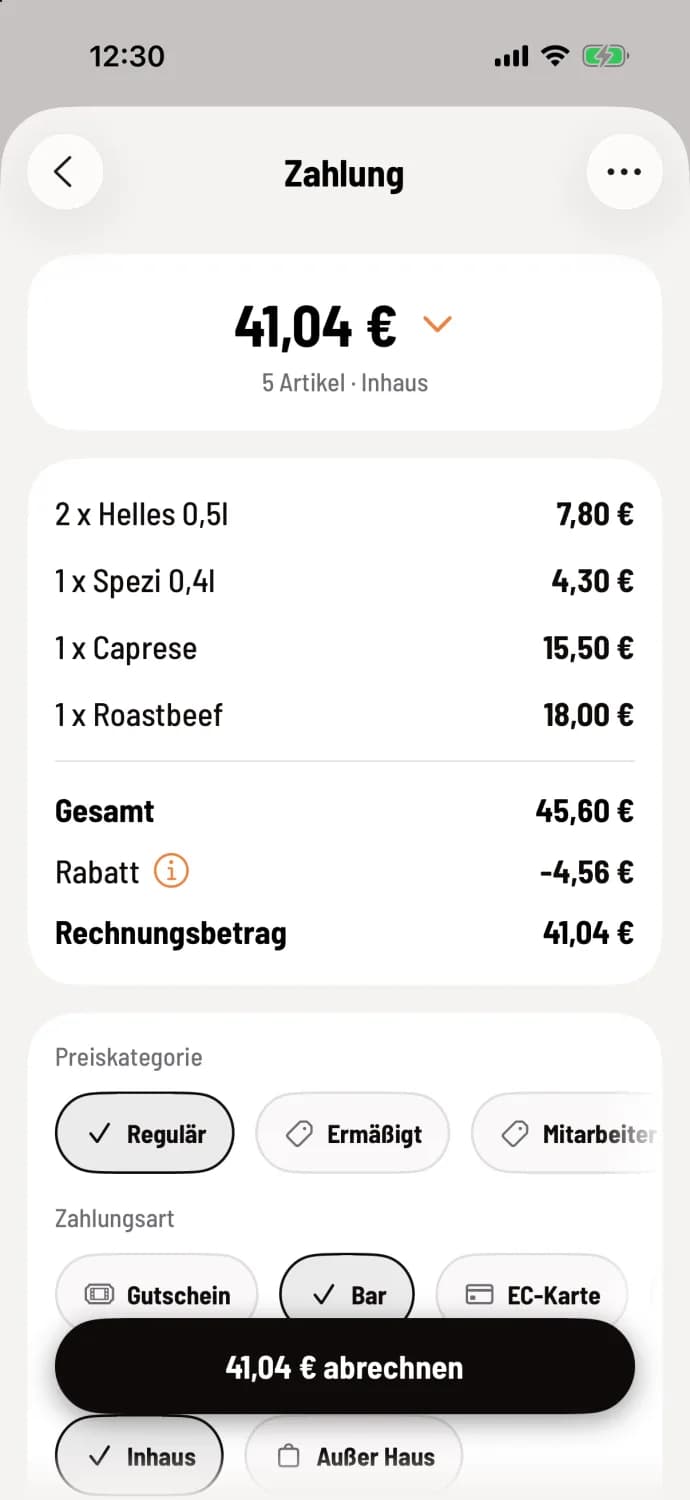
Step 4 of 4
Check deductions
If there are deductions, the cash register displays the total, the deduction lines, and the invoice amount. You can remove a deduction by clicking the ⓘ next to a line.
The options
Price category: different prices, e.g. for employees: Change price category.
Payment method: all active payment methods. Gray pills are currently unavailable on this device, for example, because a card reader is missing.
Method of consumption: In-home or Takeaway determines the tax rate.
Receipt: Printer, QR Code, Print QR Code or Email: Receipt as QR code, invoice via email. In the Free plan, this option is called Email (starting with Solo) and is blocked.
Receipt Information: With business meal receipt and With QR code. These only appear with printer and email receipts.
The owner defines what is pre-selected and whether the consumption type, receipt, and receipt information are even available for selection in the Web desk under Settings → POS → Payments: Set consumption type and payment type, set receipt issue. If a fixed value is selected there, the selection will not be available at the POS.
If another device processes item from this invoice in the meantime, the cash register will recalculate and display a message indicating that the invoice has changed. Then check the amount.