
Setting up a new device for the cash register
Which devices are suitable and how to prepare a smartphone or tablet for use as a cash register.
The POS app runs on standard smartphones, tablets, and Android POS terminals. You can use a device you already own and mix iOS and Android devices within your business.
Suitable equipment
iPhone and iPad – with iOS or iPadOS 17.6 or later.
Android – Smartphone, tablet or POS terminal with Android 9 or newer and Google Play services. The app automatically detects POS terminals with a built-in receipt printer, such as those from Sunmi.
Card payment directly on the device (Tap to Pay) – requires: an iPhone XS or newer, or an Android device running Android 13 or later with NFC. Details: Card payment directly on the device.
Prepare the device
Turn on the device and follow the manufacturer's setup wizard: select language and region, connect to Wi-Fi ( connect device to the internet ), and sign in with your App Store or Google Play account. Then install the latest system update.
Recommended settings for cash register operation
Set Automatic lock or Screen timeout to a long time, or turn it off completely when using the charging cable.
Turn off power saving mode so that the app is not slowed down in the background.
Turn on Do Not Disturb in the service settings to prevent private messages from interrupting your conversation.
Turn off time limits for apps (Screen Time or Digital Wellbeing) for Servire .
Used equipment
When buying used devices, make sure the previous owner has reset the device and logged out of their account. Otherwise, it will remain locked after the reset.
Thereafter
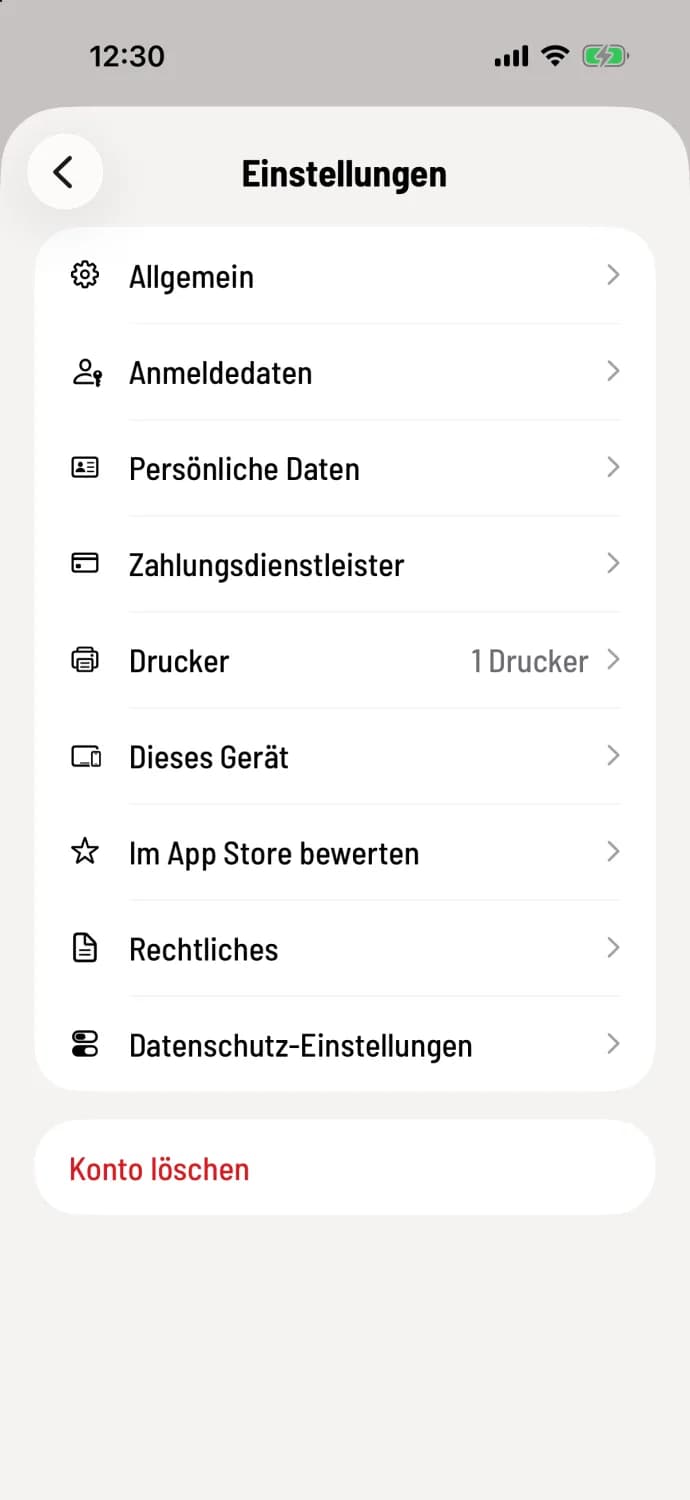
Install the app and set up your device.
Install the app ( download the Servire app ) and log in. Under Settings → This Device (under Printers), the device assistant will obtain all necessary permissions for the printer, camera, and card payments.