
Send order to kitchen
What submitting does, what already applies beforehand, and what happens when closing without submitting.
Any changes you make in the table view are initially only noted: new item, cancellations, changes of address, course changes, notes, surcharges, number of people, and the name of a new party. Only Submit saves everything and prints the receipts.
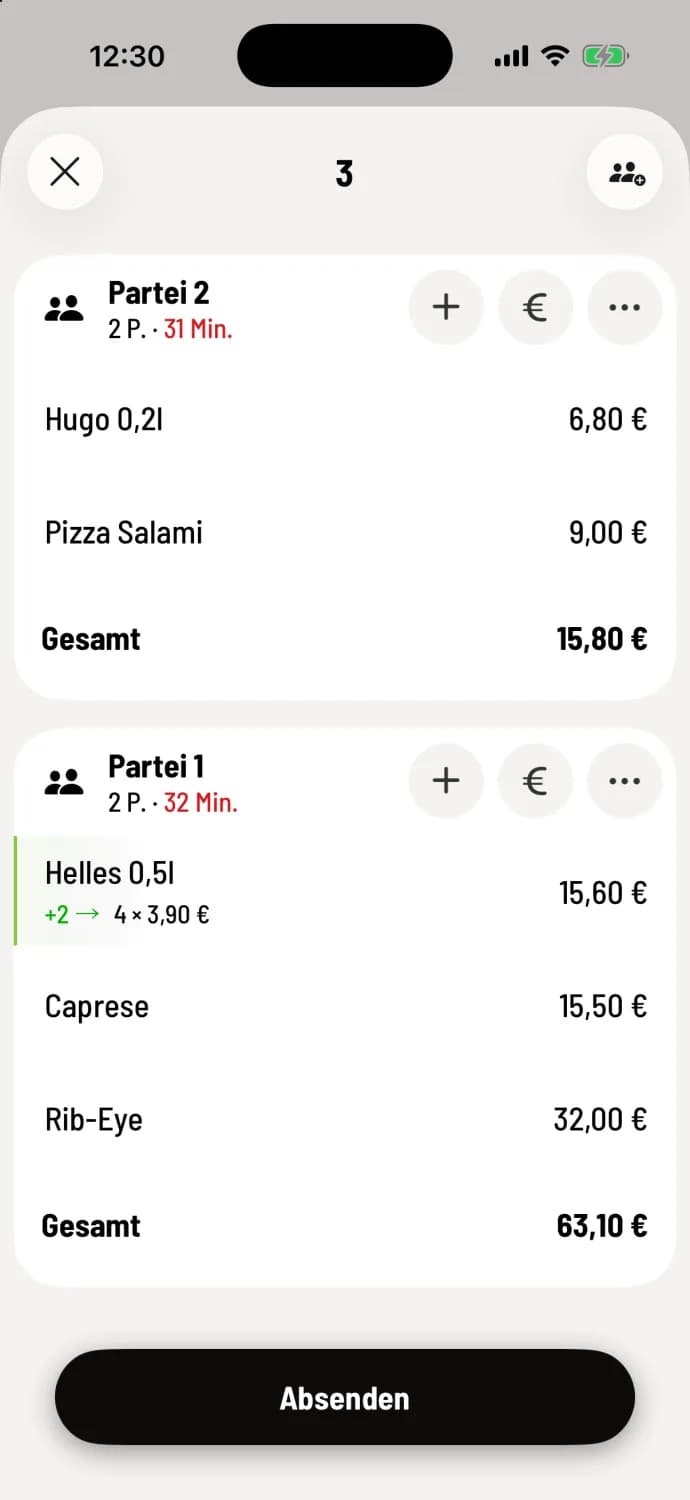
Tap submit
New item are marked with a green +1. For a new party, the button is labeled Submit New Order, for changes it's Submit.
The window then closes, and the cash register reports Order for table 3 successfully received or successfully adjusted.
Faster menu: Press and hold the order bar at the bottom and tap Submit. Submit & Pay takes you directly to payment.
What applies without sending
The following options take effect immediately: Name or guest of a party already sent ( Name or guest of a party ), Mark as served and Can be served for a course already sent.
Close without submitting
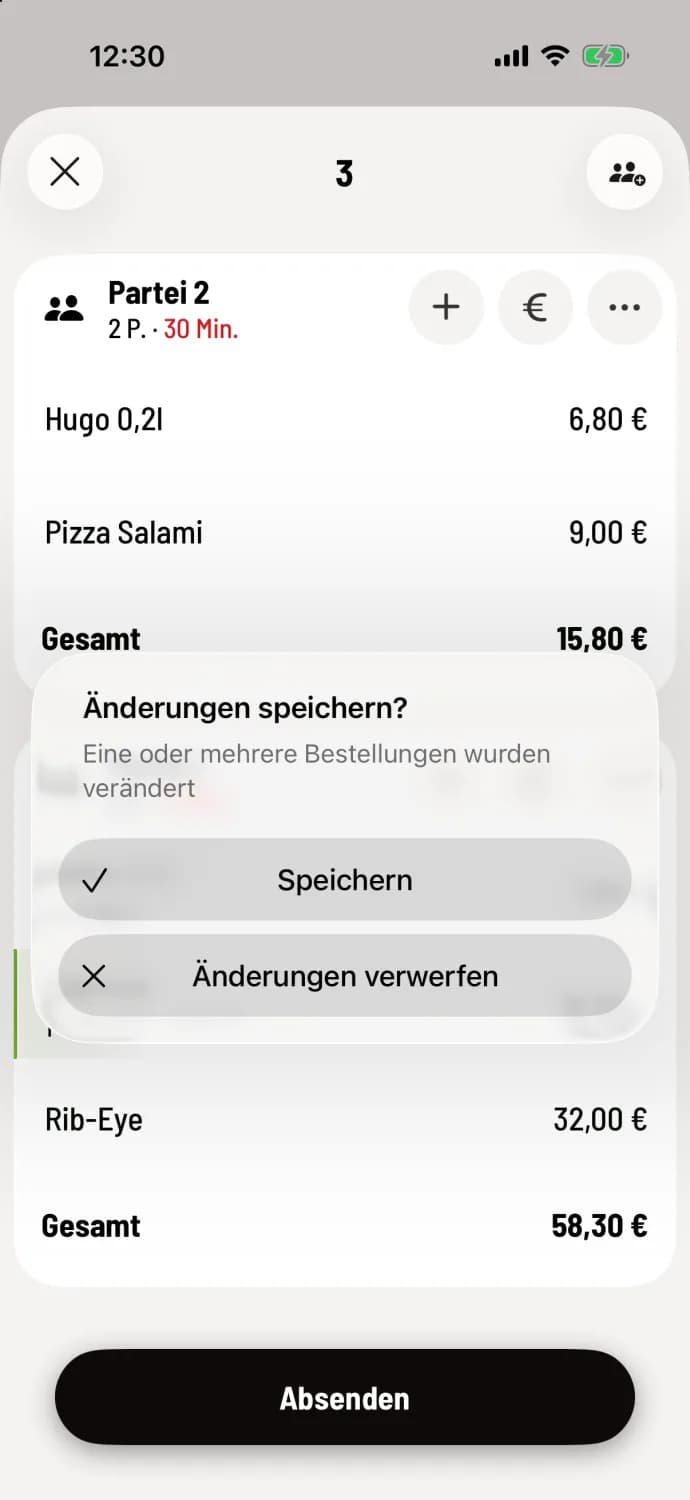
Save Changes?
If you close the table view with the X before everything has been sent, the cash register asks Save changes? and offers two buttons.
Save – like Submit: The cash register saves everything, prints the receipts and closes.
Discard changes – all unsent item and reservations at this table are gone.
In the menu itself, you always tap Done; only then will the selected item appear in the table view. In the To Go window, the question is Discard Entry?; you cannot save there. Discarded item cannot be retrieved.
Submitting an order requires the permission "Allowed to accept orders". You can only return sent item via cancellation: Cancel ordered item. You configure which item groups a printer receives on the printer itself: Printer: Configure print jobs.
If no receipt arrived, check paper and power and look at the print jobs: View and complete open print jobs.