
Take a new order
Tap on an available table, select item , and send the order to the kitchen and counter .
Tap on an available table in the table plan , select the item , and submit the order. The order slips are only sent to the kitchen and counter upon submission.
Prerequisite: A shift is running, and you have the right "May take orders". The owner assigns rights to each employee in the Web desk : Edit employee data and rights.
step by step
Step 1 of 3
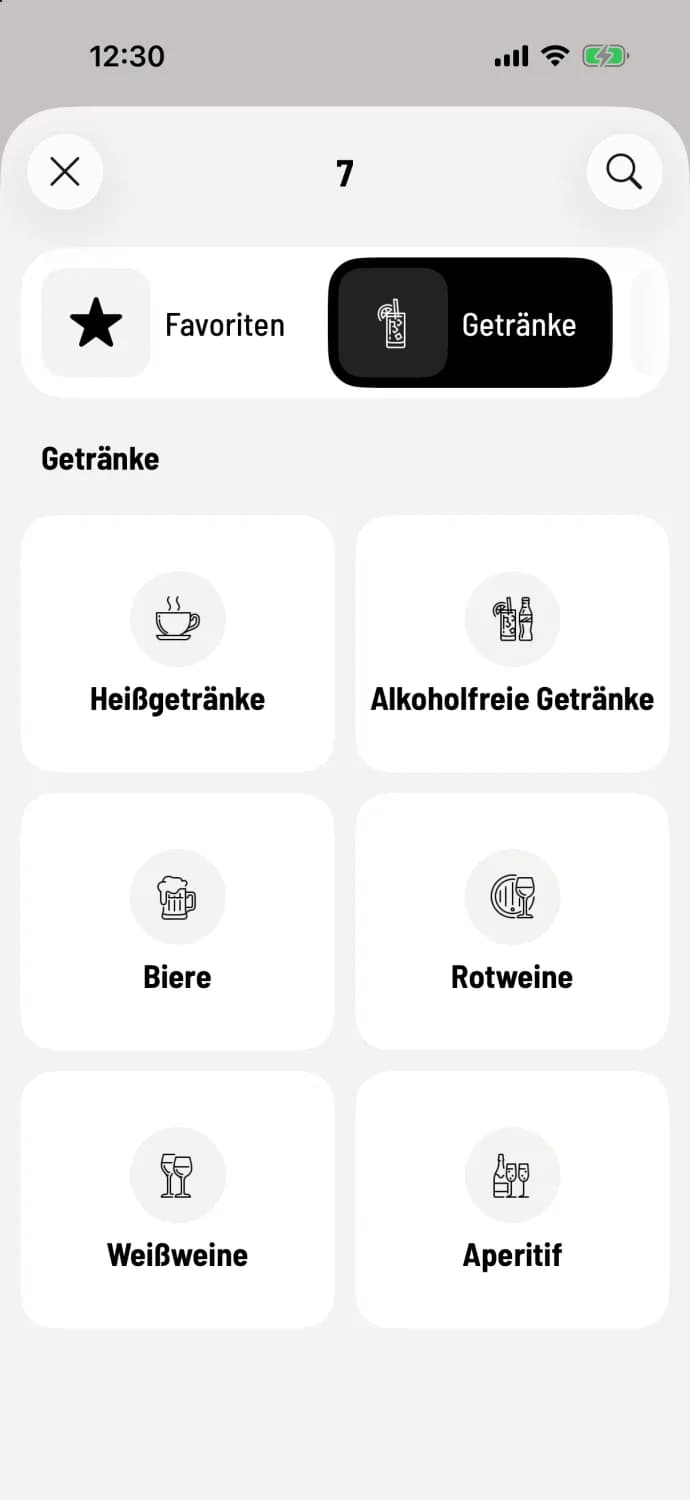
Tap on an empty table
The menu opens. At the top, you select the menu, for example, Drinks. If you have favorites, the Favorites icon will appear next to them, and the menu will start there. Below, you tap on a category, such as Beers. Above the items, it shows your current location, for example, Drinks › Beers. Tapping Drinks takes you back to all categories.
Step 2 of 3
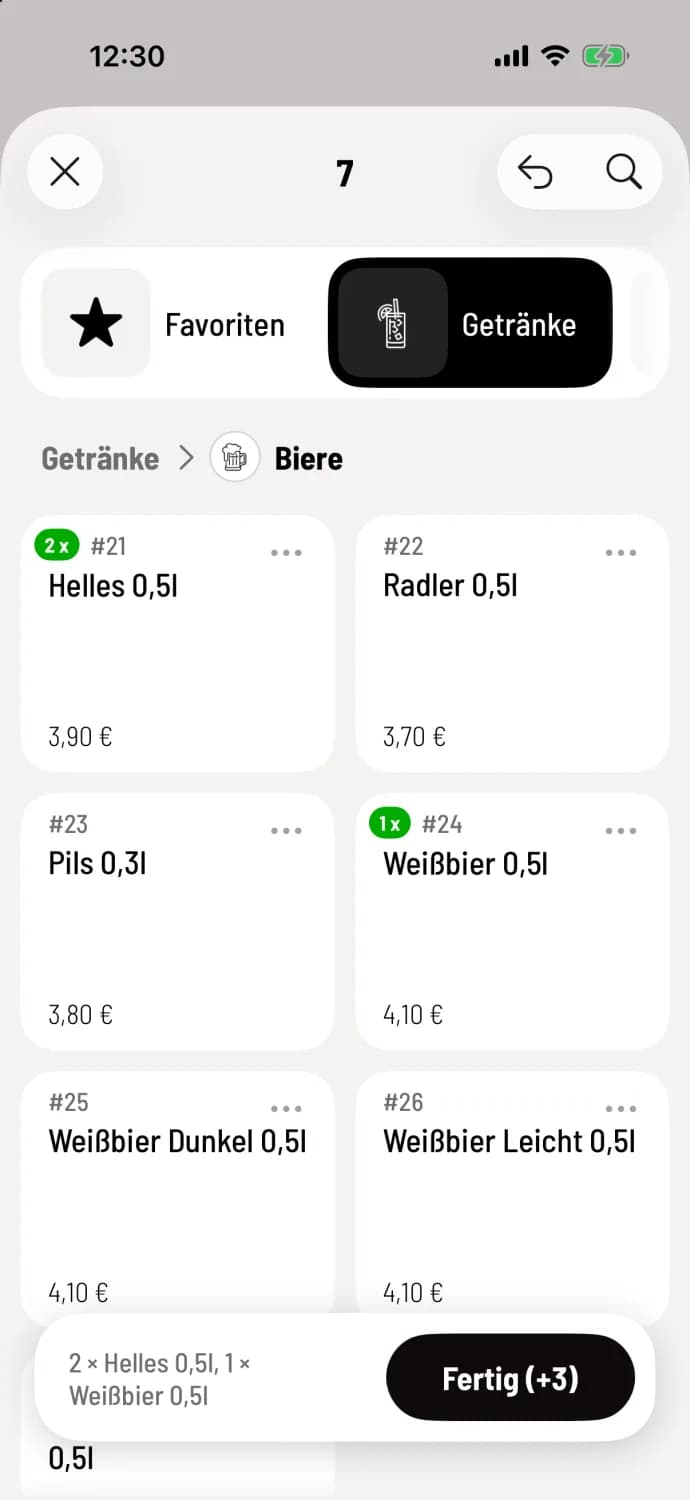
Tap the item
Each selection books one item. The green number on the tile shows how many times the item has been selected. The order bar appears at the bottom once the first item is selected. The back arrow in the upper right corner cancels the last selection.
Step 3 of 3
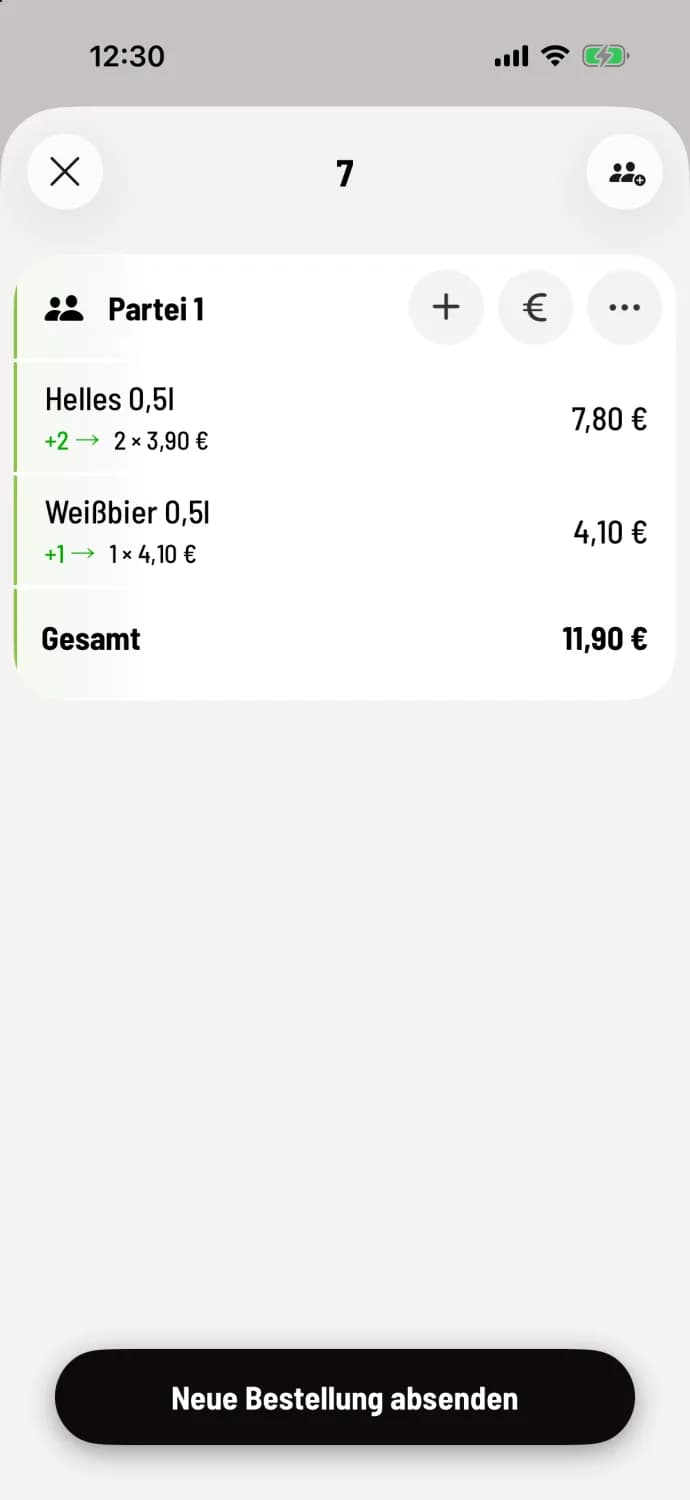
Finish and submit
Tap Done. The table view shows the new item with a green +1. Tap Submit New Order. The cash register will now print the receipts, and the table will be booked on the table plan .
Tapping on item with mandatory selection opens the Detailed Order, see Placing an Order with Variants. You can configure whether the categories appear as tiles or as a bar on your device: Categories and Course Selection when Ordering.
Hold down the order bar at the bottom to review your selection. From there, you can submit your order directly by clicking Submit or proceed directly to payment by clicking Submit & Bill.