
Cancel item before invoicing
Return sent, unpaid item in the table view.
You can cancel sent item that haven't yet been paid for in the table view of the POS app. The POS system initially only records the cancellation. It becomes effective when you Submit, at which point the kitchen prints a cancellation receipt.
Prerequisite: You need the employee right **To cancel item **. You don't cancel item that haven't been sent yet; you simply remove them: change the quantity and edit the item.
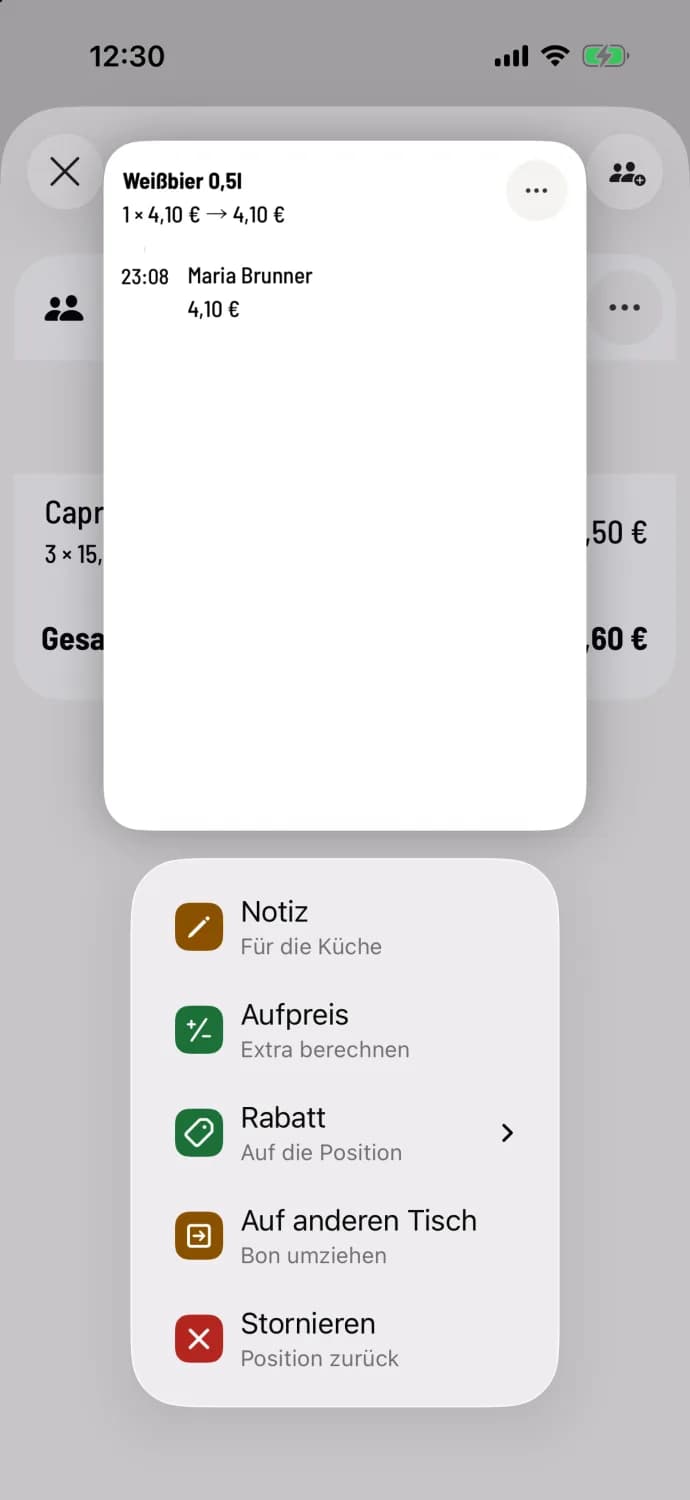
Step 1 of 3
Hold down the line
Press and hold the item row and tap Cancel. The entry will appear if the row contains exactly one shipped item.
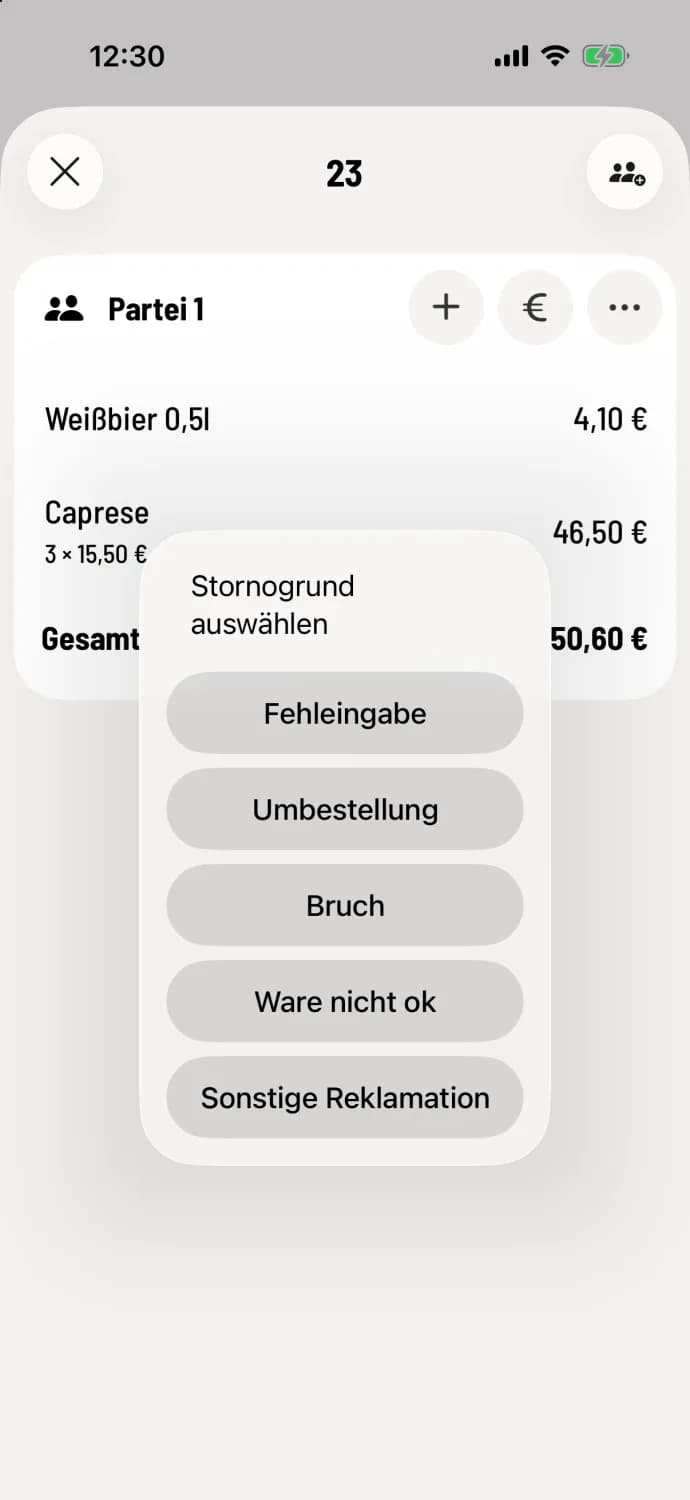
Step 2 of 3
Choose reason
In the Select Cancellation Reason window, tap the appropriate reason, such as Enter Incorrect Entry or Item Not OK. If no reason is active in the Web desk , it will only show Cancel Without Reason.
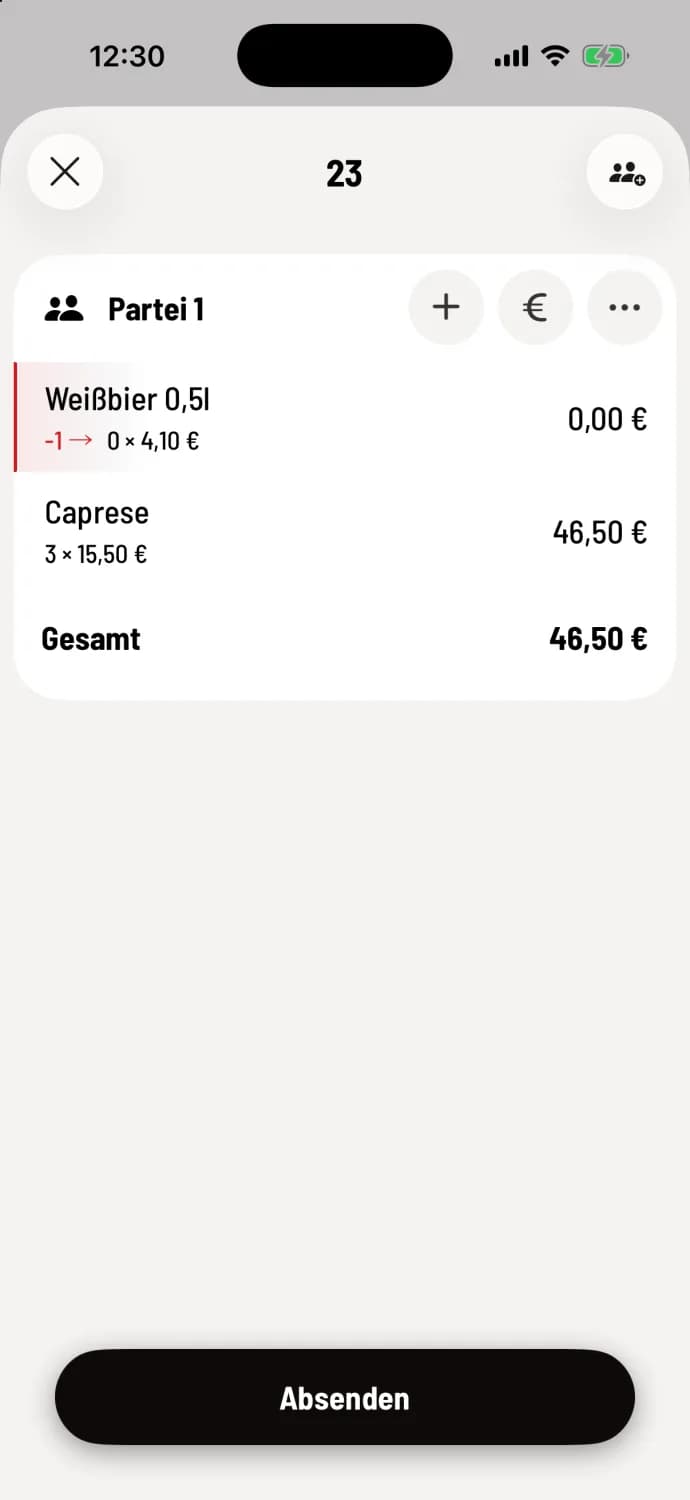
Step 3 of 3
Submit
The line is now highlighted in red, for example Wheat beer 0.5l with −1 → 0 × €4.10, and the total amount decreases. Tap Submit. Only then will the item be canceled.
One piece of several
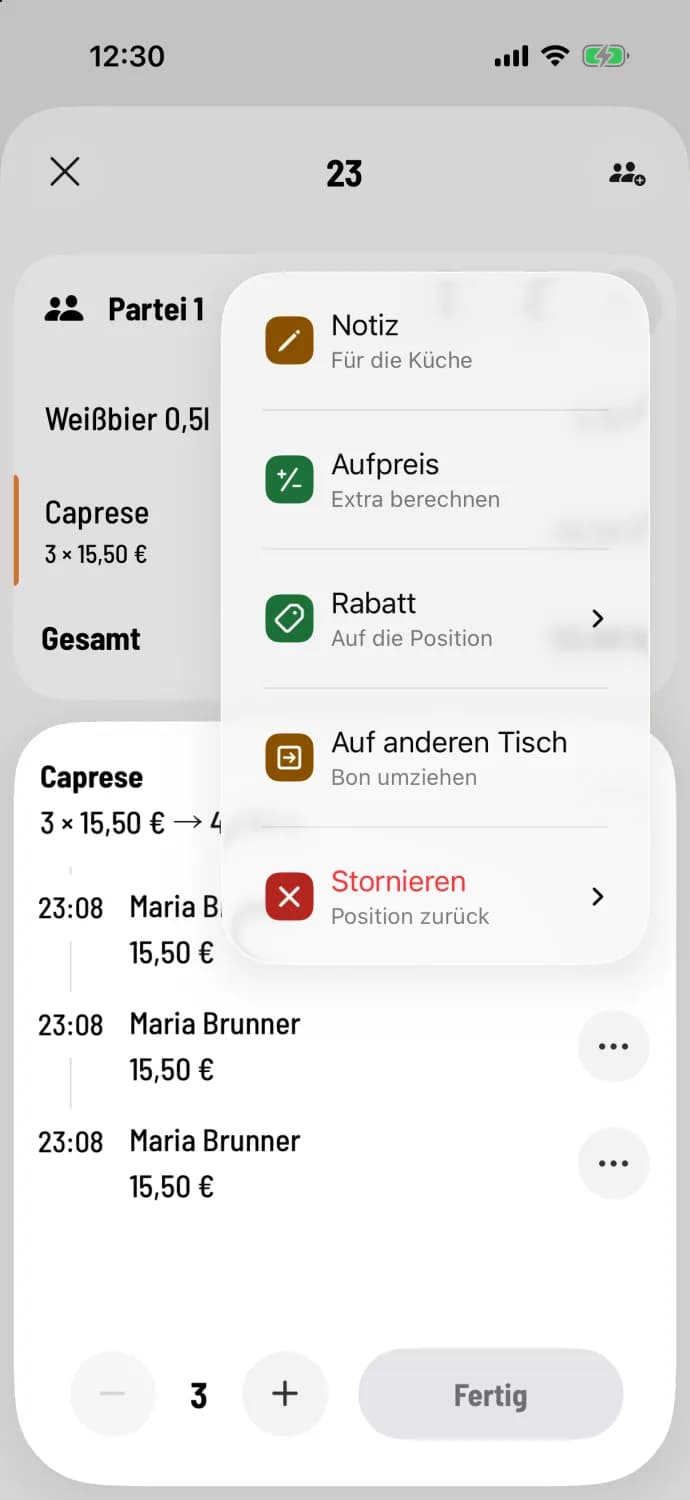
Cancel in detail
If the row has multiple items, tap on it. Tap … on the desired item and then tap Cancel. Tap Cancel All to remove all items in the row. Then tap Submit as above.