
Log in, log out, and change employees
Log in to the cash register and Web desk , hand over a device to a colleague and log out again.
If several employees share a device, each logs in with their own account. The shift continues as normal; it belongs to the company, not the individual.
Register at the checkout
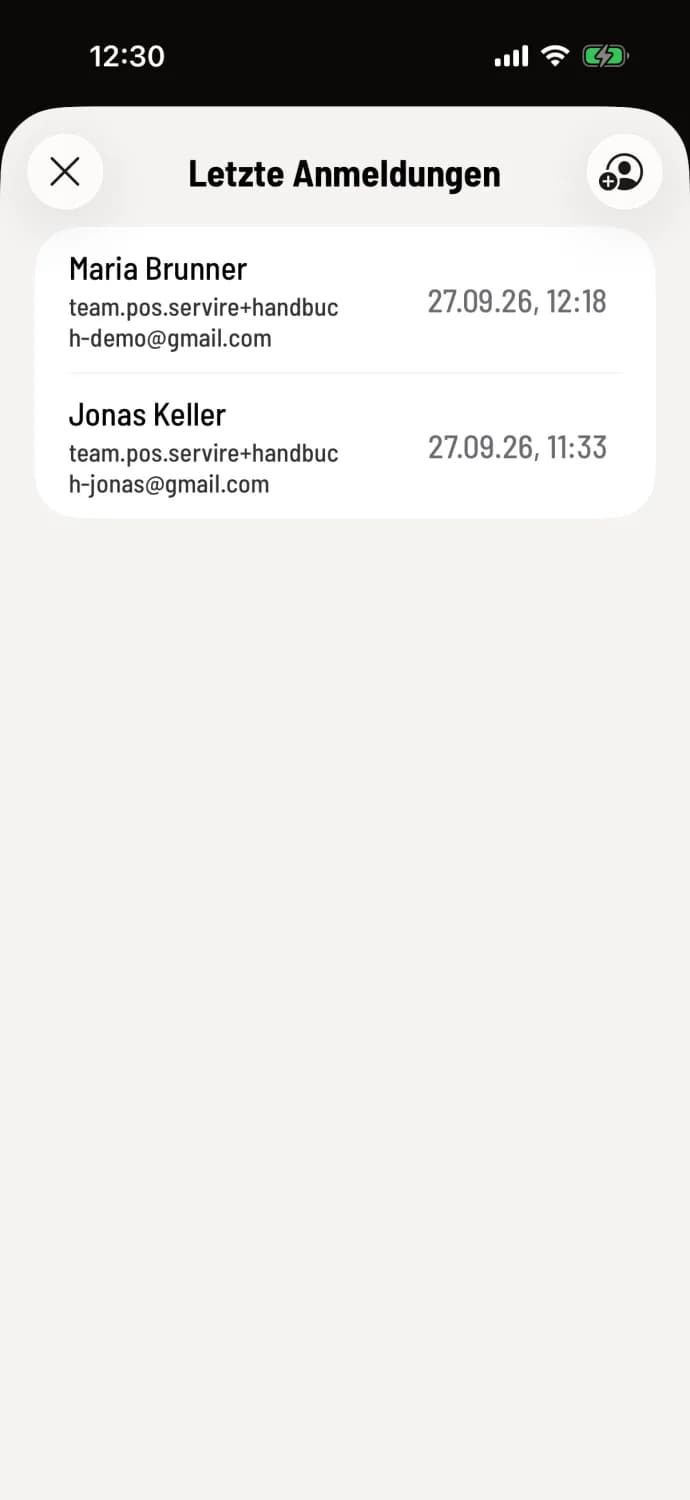
Step 1 of 2
Select account
On the home screen, tap Sign in. Recent sign-ins shows all accounts that have signed in to this device. Tap your name.
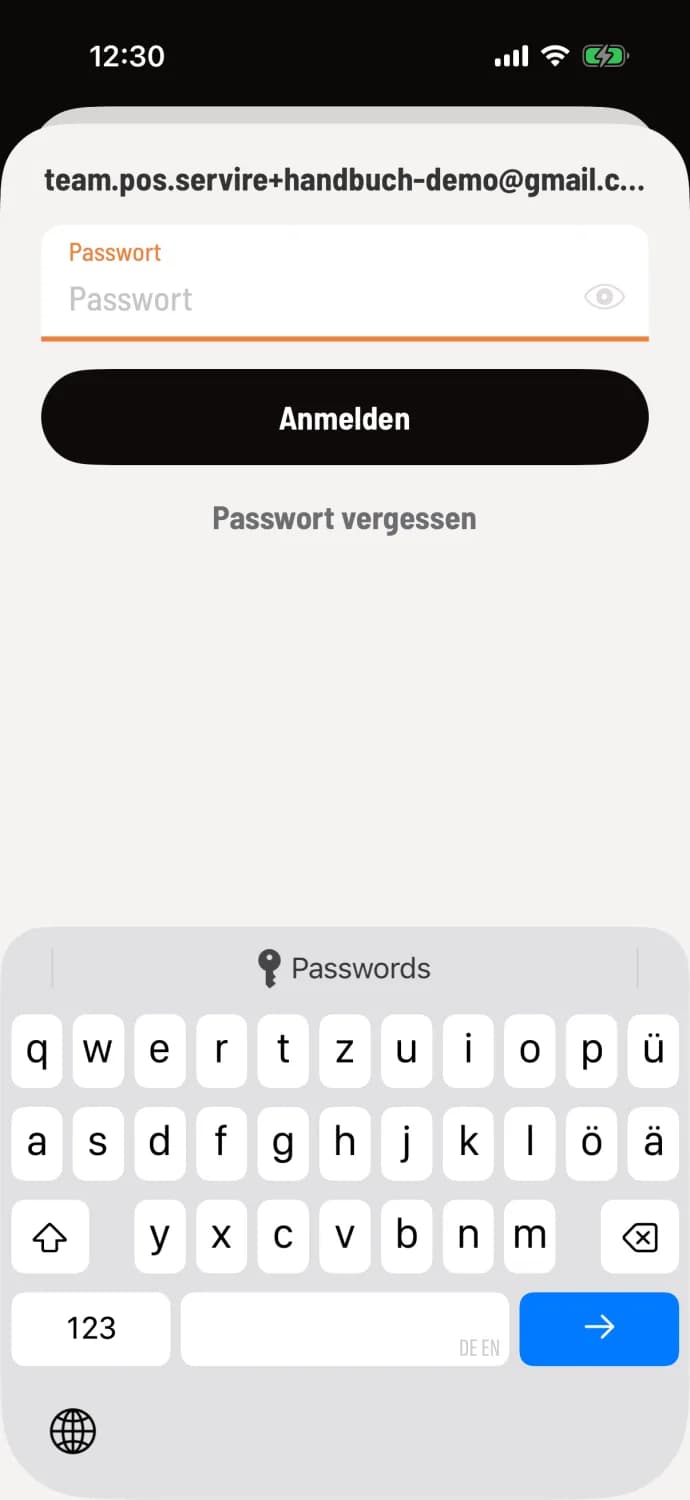
Step 2 of 2
Enter password
Enter your password and tap Log in. If you have a login PIN, the number field will appear instead: Login via PIN.
If a shift is running, your start screen will open afterwards; otherwise, the overview will open. The device needs internet access to log in.
For the first time on this device
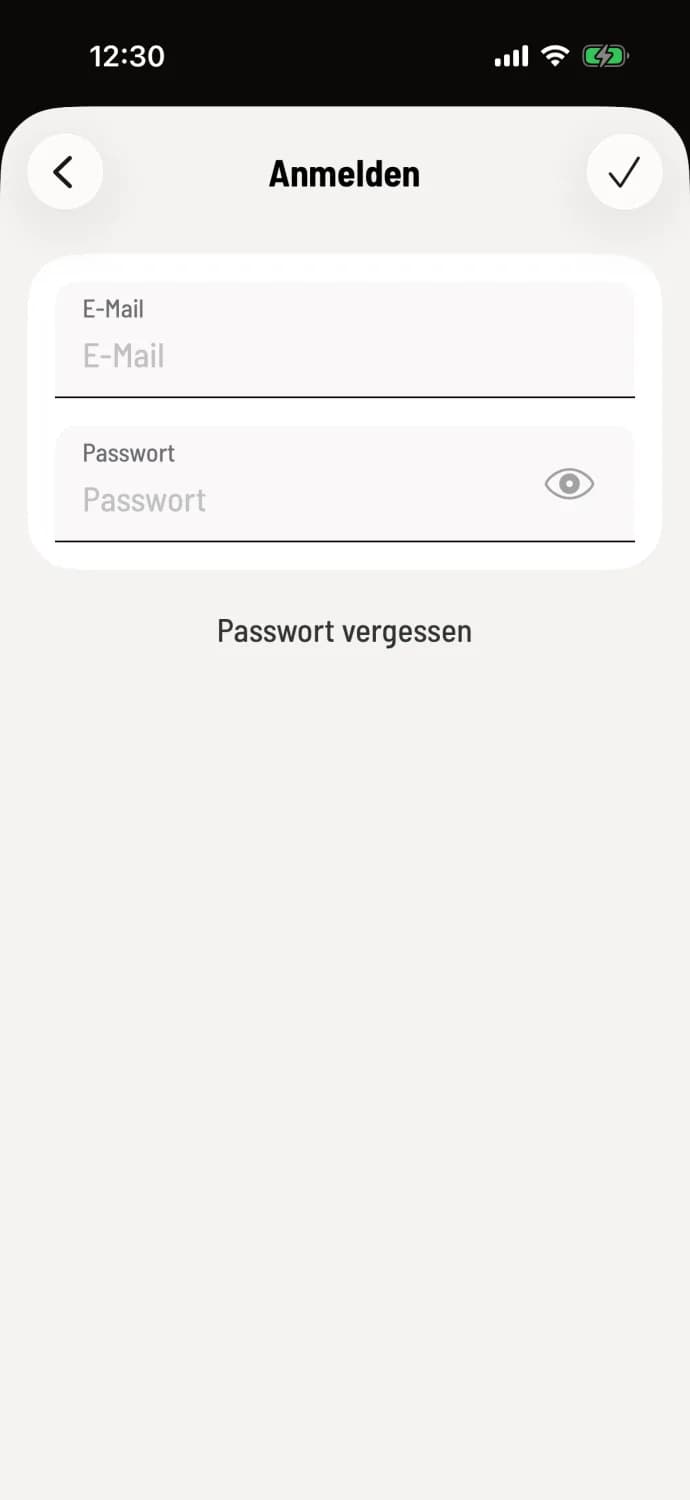
Email and password
In Recent Logins, tap the person icon with a plus sign in the top right corner, and then tap Log In. If the list is empty, Servus with Log In will appear. Enter your Email and Password and confirm with the checkmark.
Log out
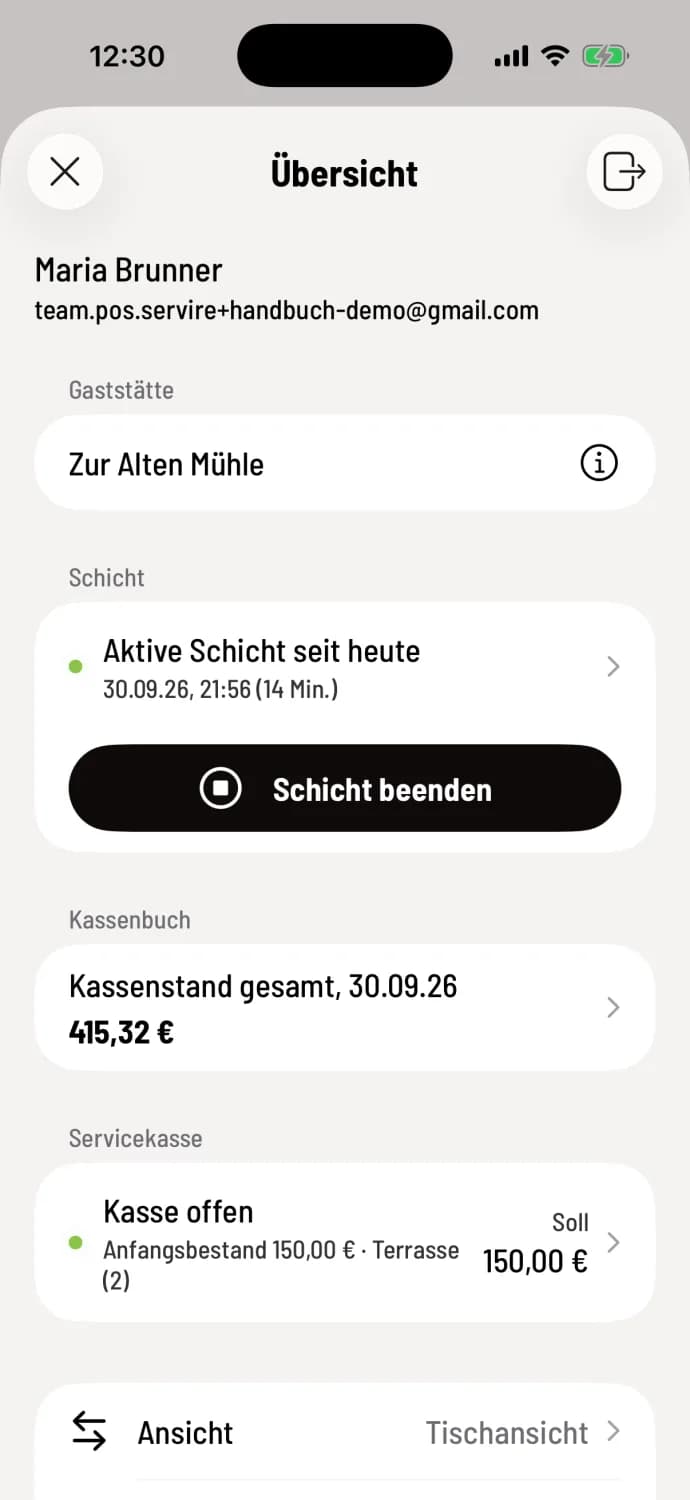
Logout symbol
Open the overview of the house and tap the logout icon in the top right corner. The POS system will log you out immediately. If the device is offline, it will ask you beforehand, as you will need internet access for the next login.
Remove account from list
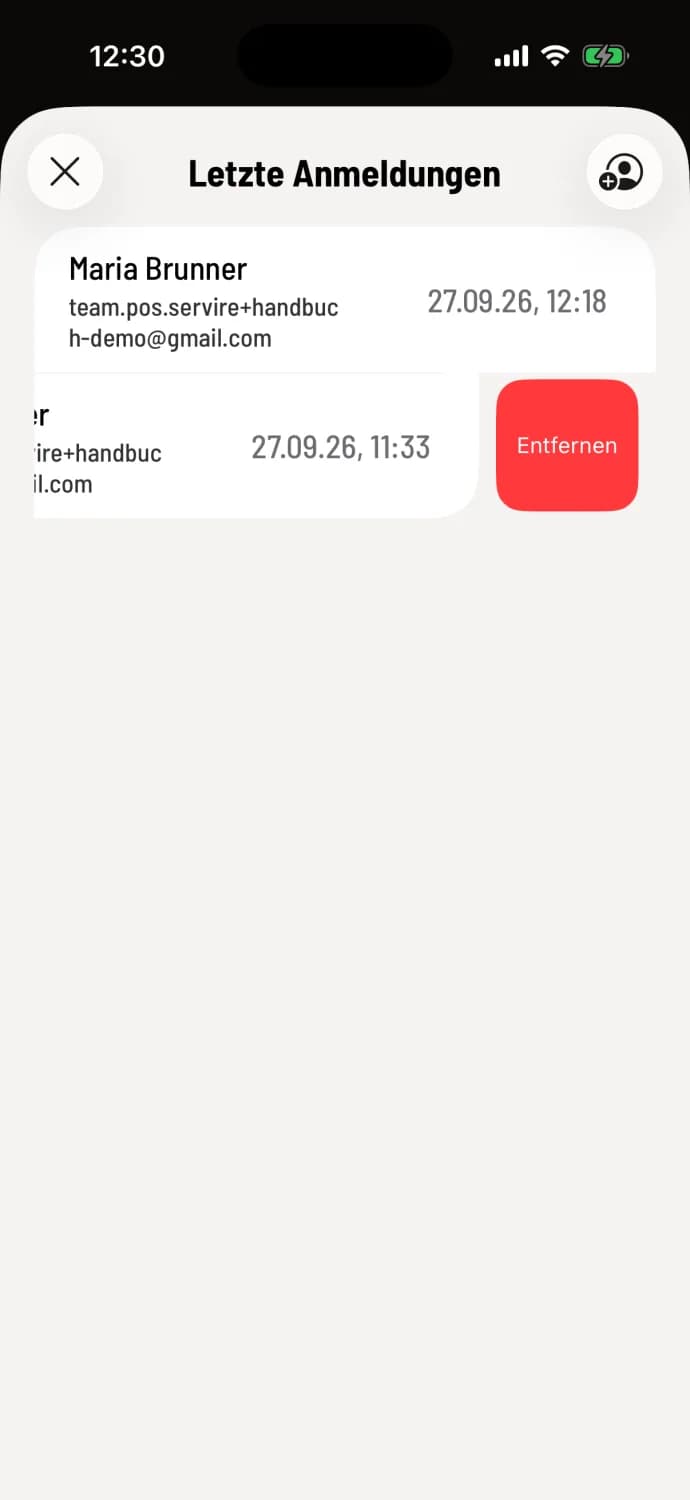
Swipe left
In Recent Logins, swipe left on an account and tap Remove. This only removes the entry on this device; the account itself remains.
Log in to the Web desk
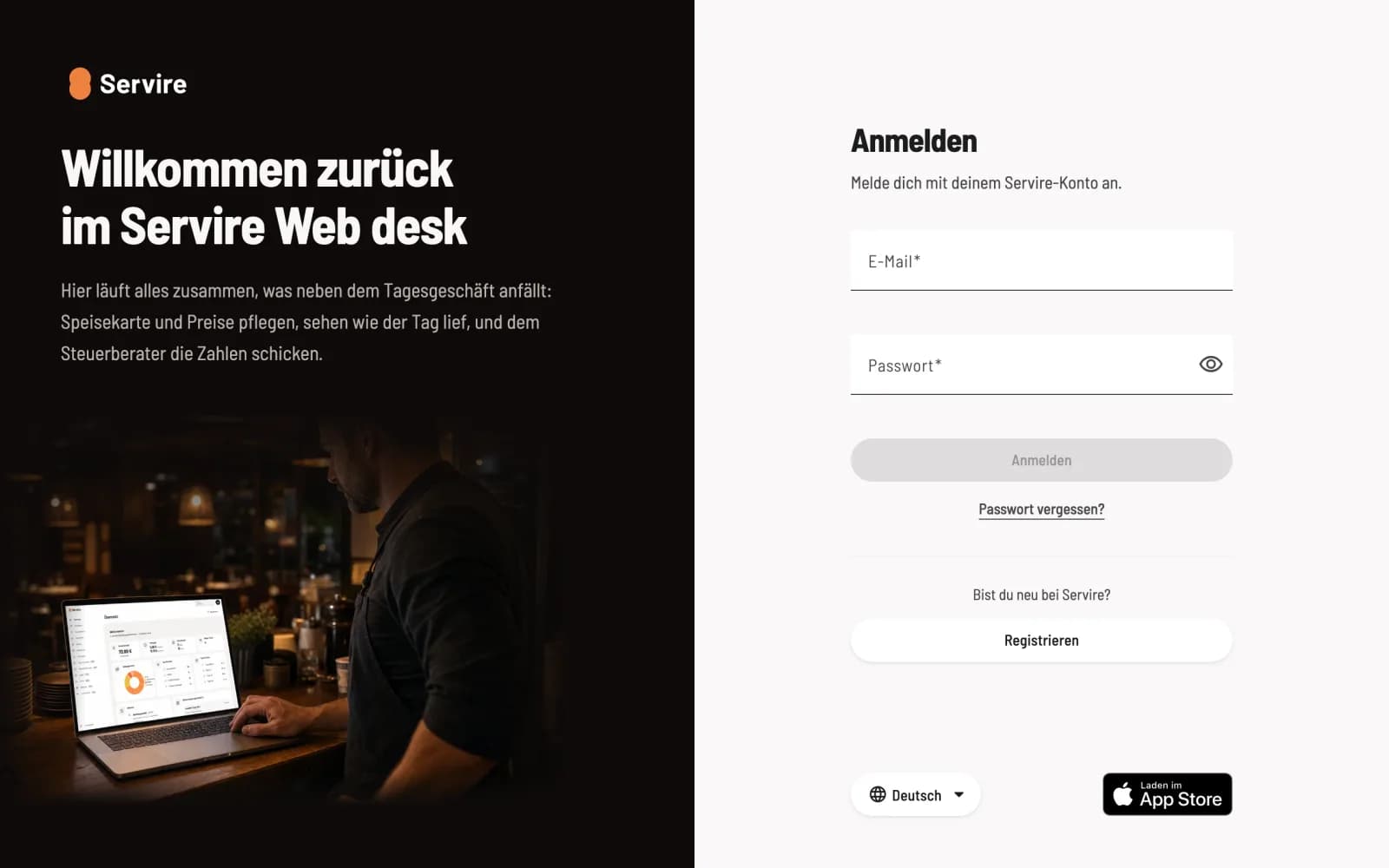
Registration page
Open desk.service.de, enter your email and password, and click Log in. You can log out via your profile picture at the top of the sidebar.
Forgot your password? Tap or click on Forgot your password: Reset password.