
Change quantity and edit item
Change the quantity by swiping and edit an item line via its details and menus.
Each item line in the table view can be edited directly: quantity, notes, surcharge, discount, move, or cancel. All changes only take effect after submission.
Change quantity
Swipe right to add one item, left to remove one. You can only remove items that haven't been sent yet. You can cancel sent item .
Line detail
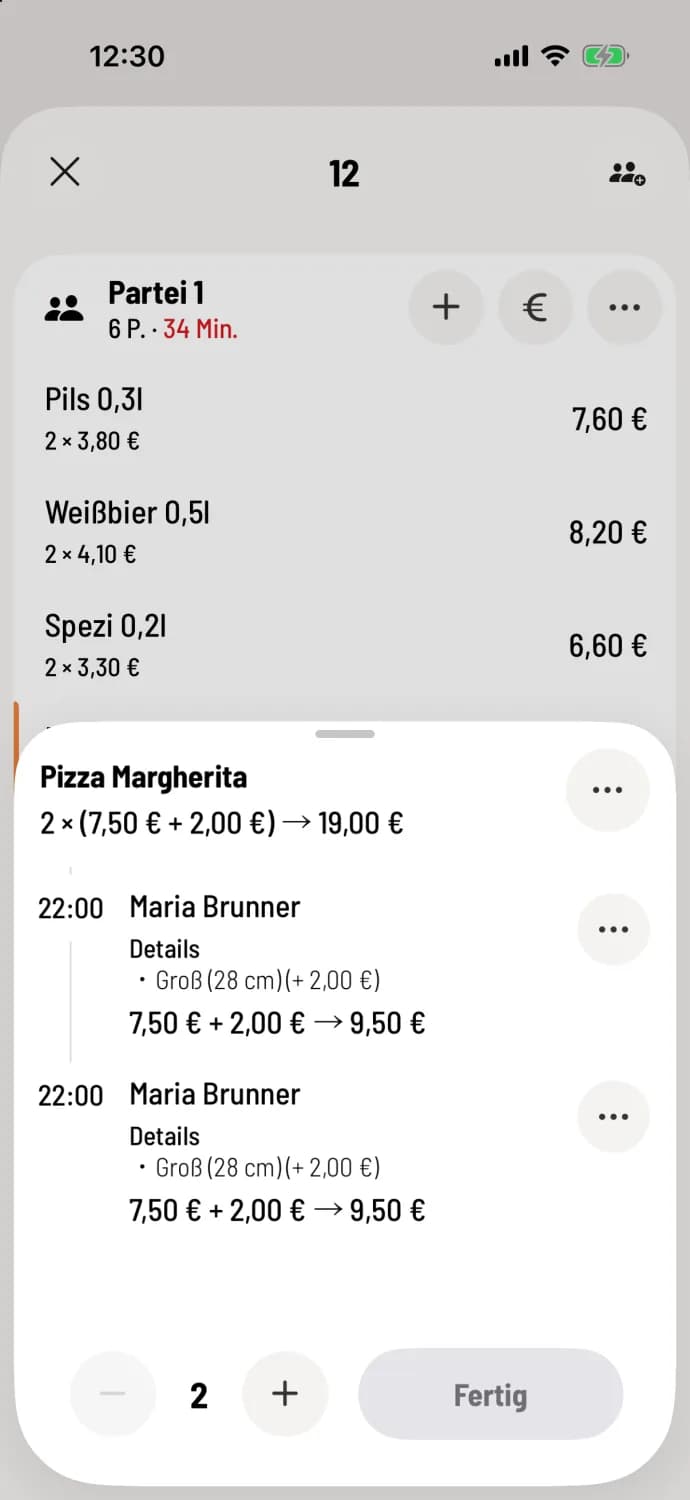
Tap the line
The details show each item with the time, employee, note, and options, for example, Details · Large (28 cm) (+ €2.00) for a Margherita pizza. Below, you can change the quantity using − and + and confirm with Done. − only applies to new items.
The menus of a row
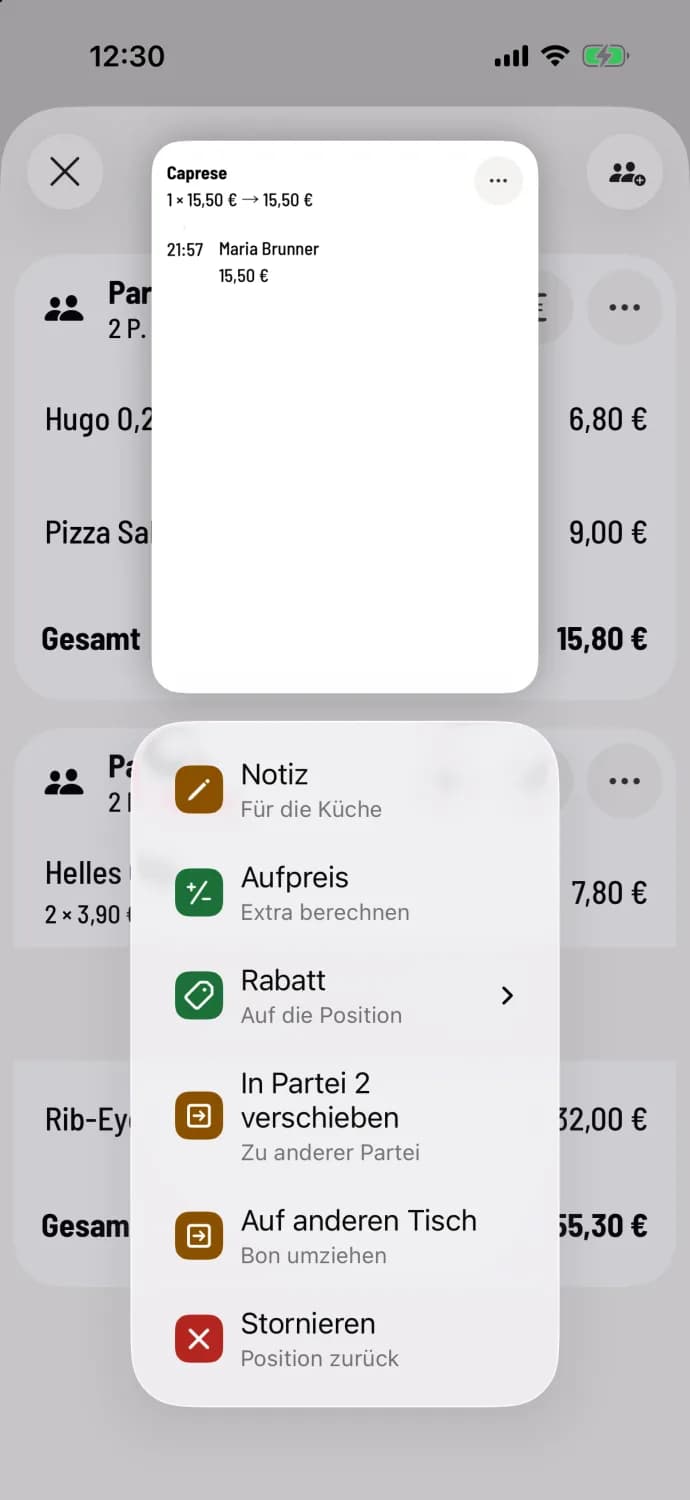
Hold down the line
At the top you see a preview of the row, below which are Note, Surcharge, Discount, Move to Party… (e.g., Move to Party 2), Move to Another Table, and Cancel. If the menu is long, swipe down; the preview will shrink.
If the row has multiple items, open the details and tap … on the desired item. The … at the top of the details will affect all items, for example, Cancel All or Move to Process.
Discount only appears with the permission "May grant discounts", Cancel only with "May cancel item ". Note, surcharge and discount in the line menu are only available for lines with one item.
More information: Surcharge, Add discounts, Move individual item, Cancel ordered item.