
Add more restaurants
This is how you create additional restaurants for branches or other locations in the Web desk .
With your account, you can add as many additional restaurants as you like, for example, for branches, a second location, or a pop-up. Each restaurant has its own menu, tables, staff, printer, TSE Security Equipment), and statistics. Data is not transferred between restaurants.
You can add additional restaurants in the Web desk . The "Add" option in the POS app is only available the first time, immediately after registration. An account can be linked to up to 50 restaurants, both your own and those of other businesses.
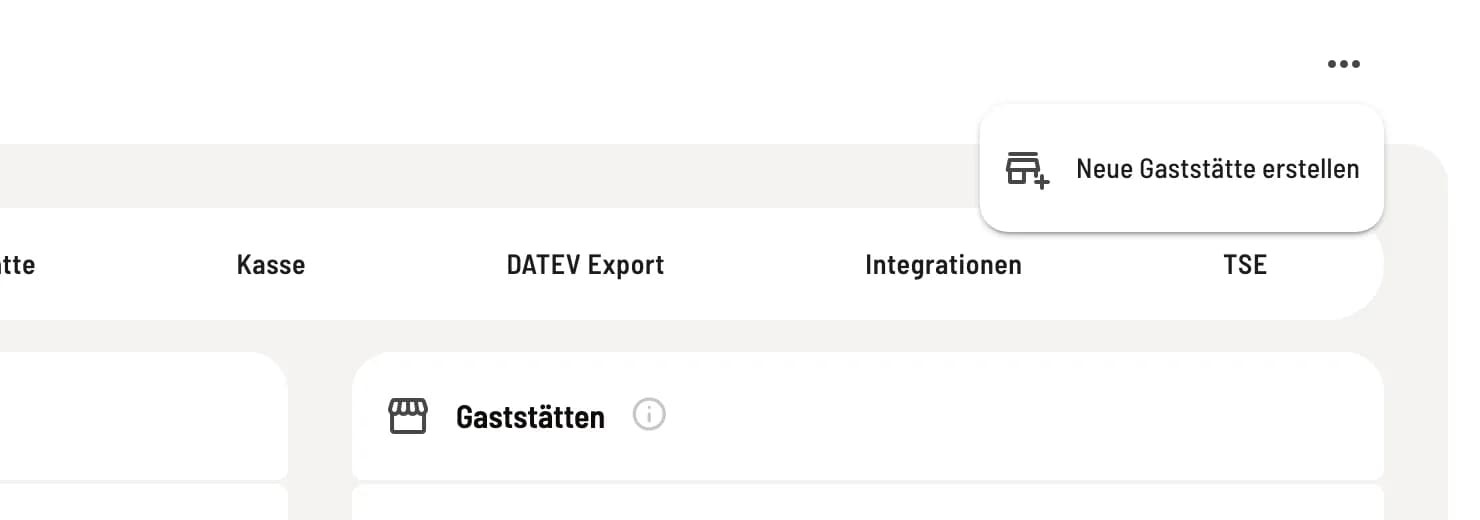
Step 1 of 2
Select Create new restaurant
Click on the Restaurant tile in the sidebar and select Create New Restaurant. Alternatively, you can find this option under Settings in the menu … in the top right corner.
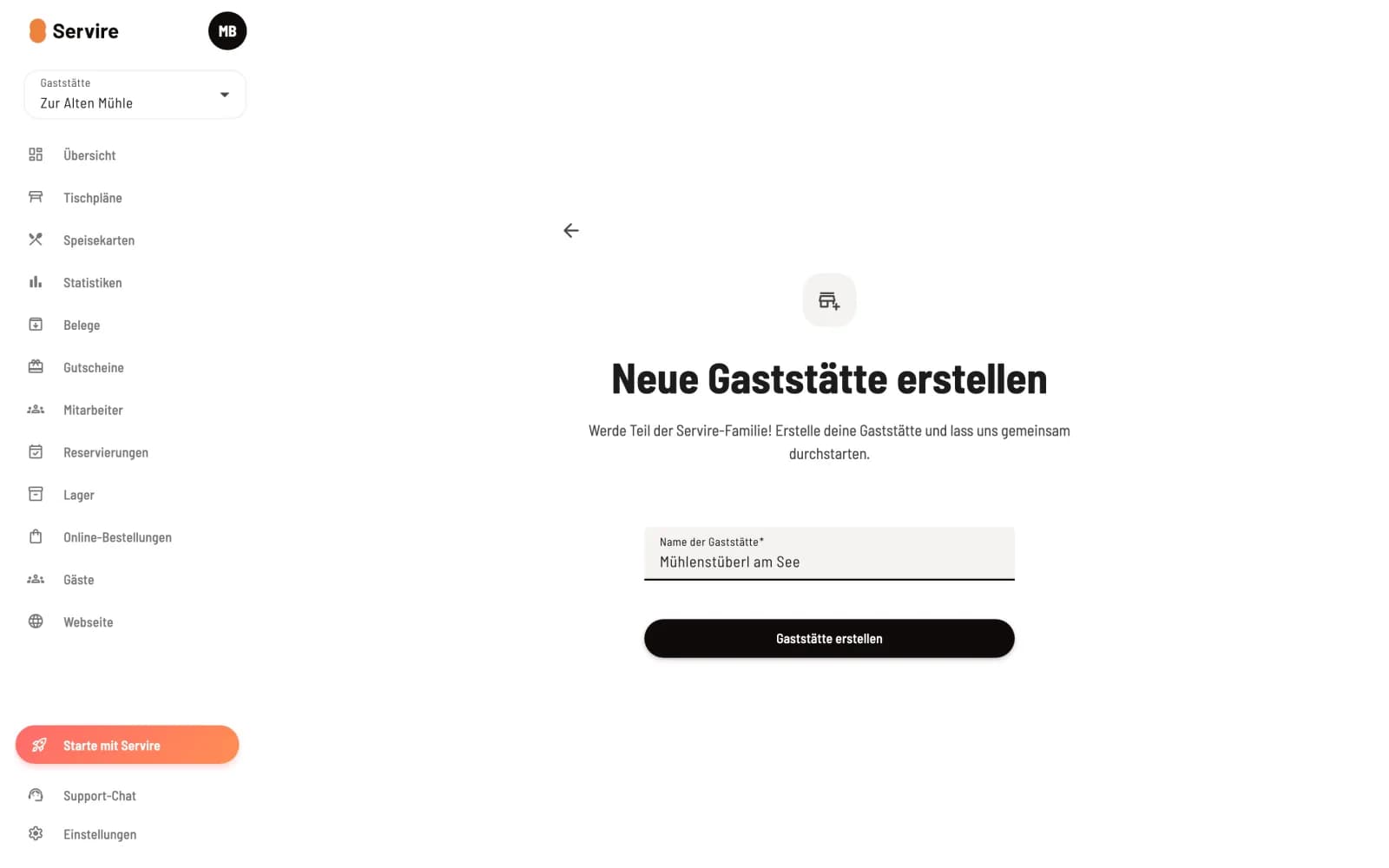
Step 2 of 2
assign names
Enter the name of the restaurant and click on Create Restaurant. The new restaurant will receive sample data and will be immediately selected as the active restaurant.
What you should know
Price per restaurant – each restaurant has its own rate and subscription. The 14-day trial period is only available for the first restaurant on a new account: Rates and trial period.
Switch – in the Web desk via the Restaurant tile in the sidebar, in the POS app in the overview: Change Restaurant.
Shared Employees – an employee links their account to each restaurant where they work and receives their own rights there: Working in multiple restaurants.