
Manage item variants
This is how you create variations such as size, side dishes or extras with an additional charge.
Variations are selection options when ordering: the size for coffee, the toppings for pizza. There are two types:
You create global variants once and assign them to any number of articles. A change will then apply everywhere.
Item-specific variants belong to only one item, for example with/without cream for a cake.
Create global variants
Step 1 of 2
Open edit variants
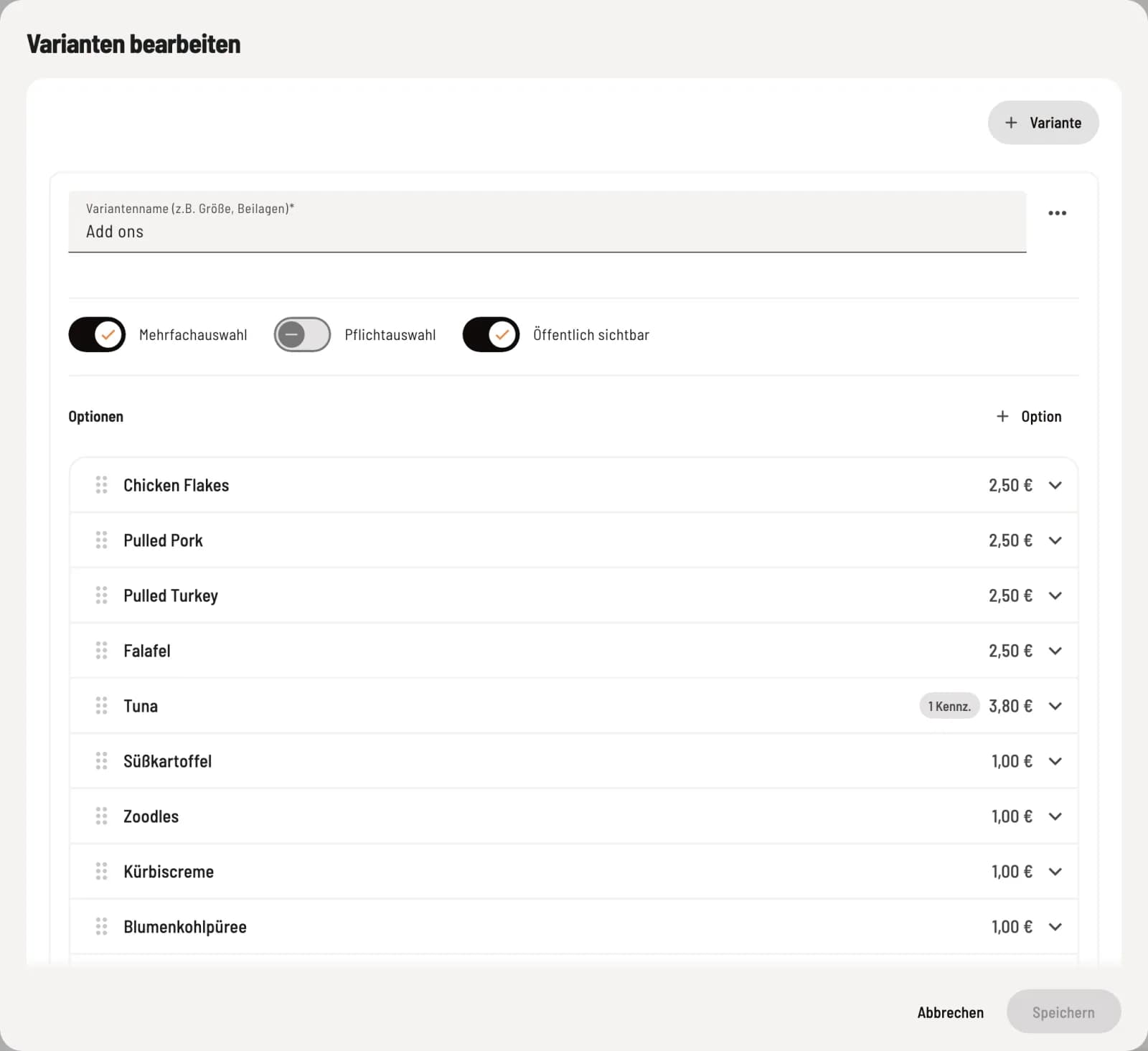
Click on ⋯ in the menu header and select Edit Variants. + Variant creates a new group. You can find Duplicate Variant and Delete Variant by clicking on ⋯ within a group.
Step 2 of 2
Set variant and options
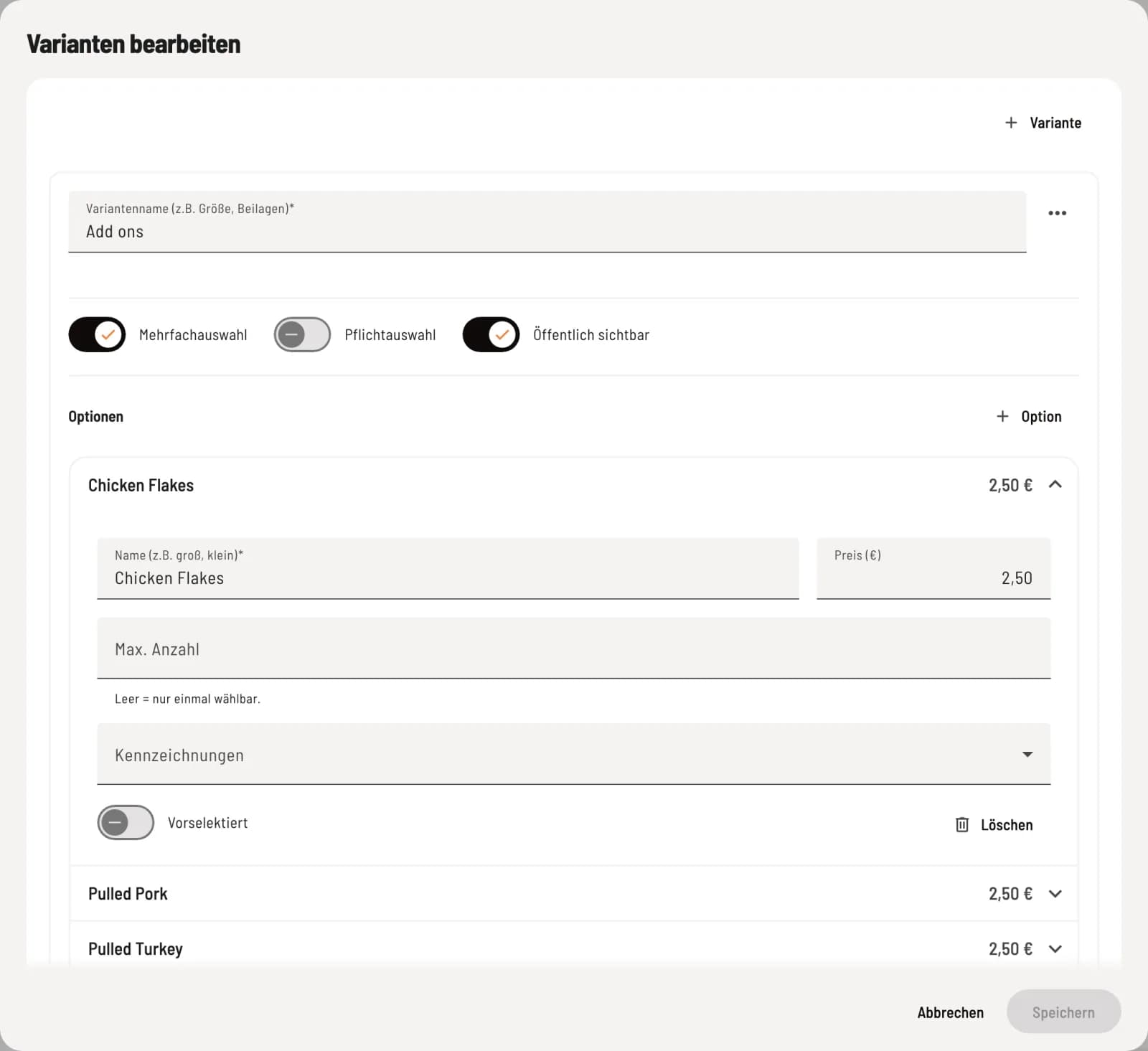
Enter the variant name (unique, maximum 50 characters) and set the switches. Use + Option to create the choices; clicking on an option expands it. Sort them using the handle on the left.
Variant settings:
Multiple selection: Several options can be selected, such as multiple toppings.
Required selection: At least one option must be selected. The POS app will then automatically open the selection when the item is tapped.
Publicly visible: This option appears on the menu for guests.
Settings of an option:
Name and Price (€) as an additional charge, for example Large with €1.50.
Max. Count: how many times the same option may be selected (1 to 99). Empty means only once.
Labels: Allergens or additives that the option includes, such as milk in Extra Cheese.
Preselected: The option is already checked in the selection. Without multiple selection, this can only be one option.
Each variant needs at least one option. Clicking Save applies all changes to the dialog.
Assign variants to an item
Open the item and select the group in the Global Variants tab. You can create custom variants for this item only in the Article-Specific Variants tab; Copy from Global uses a global variant as a template. See the article dialog: the seven tabs.