
Configure payment providers
Configure POS payment method, card reader, online payments and account details of a connected provider in the Web desk .
Once a provider is connected, you can open its settings by clicking the pencil icon on the map under Settings → Integrations → Payment Providers. Any changes take effect immediately; there's nothing to save. Instructions on how to connect a provider can be found under Connecting Payment Providers.
Prerequisite: The employee right May set up payment service providers (SumUp, Stripe, PayPal).
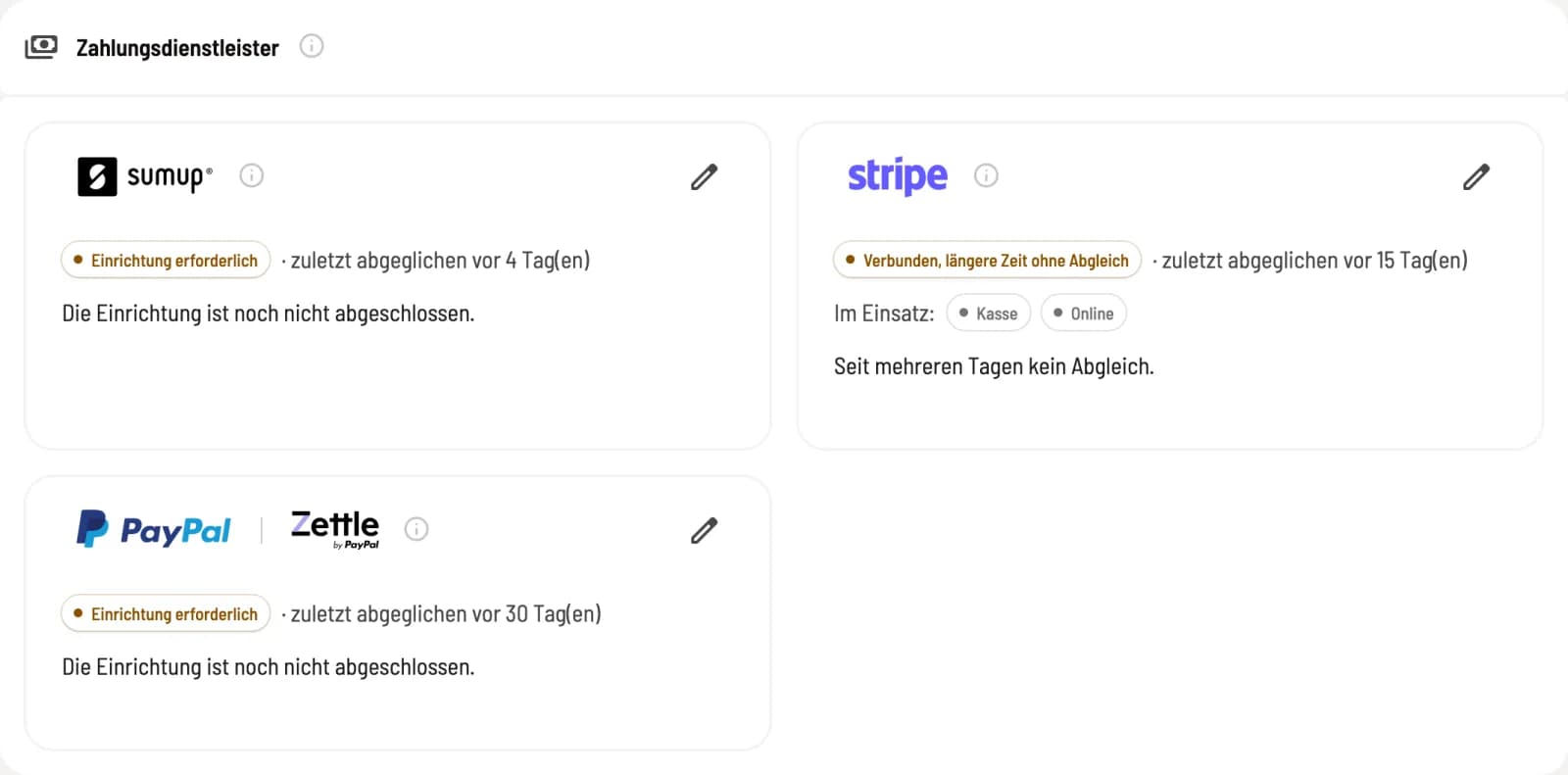
Step 1 of 2
Provider's map
The card shows the status, such as Connected or Connected, but without synchronization for an extended period, and below it, what the provider is In Use for. If something is missing, the card states the reason. Clicking the status pill or pencil opens the dialog.
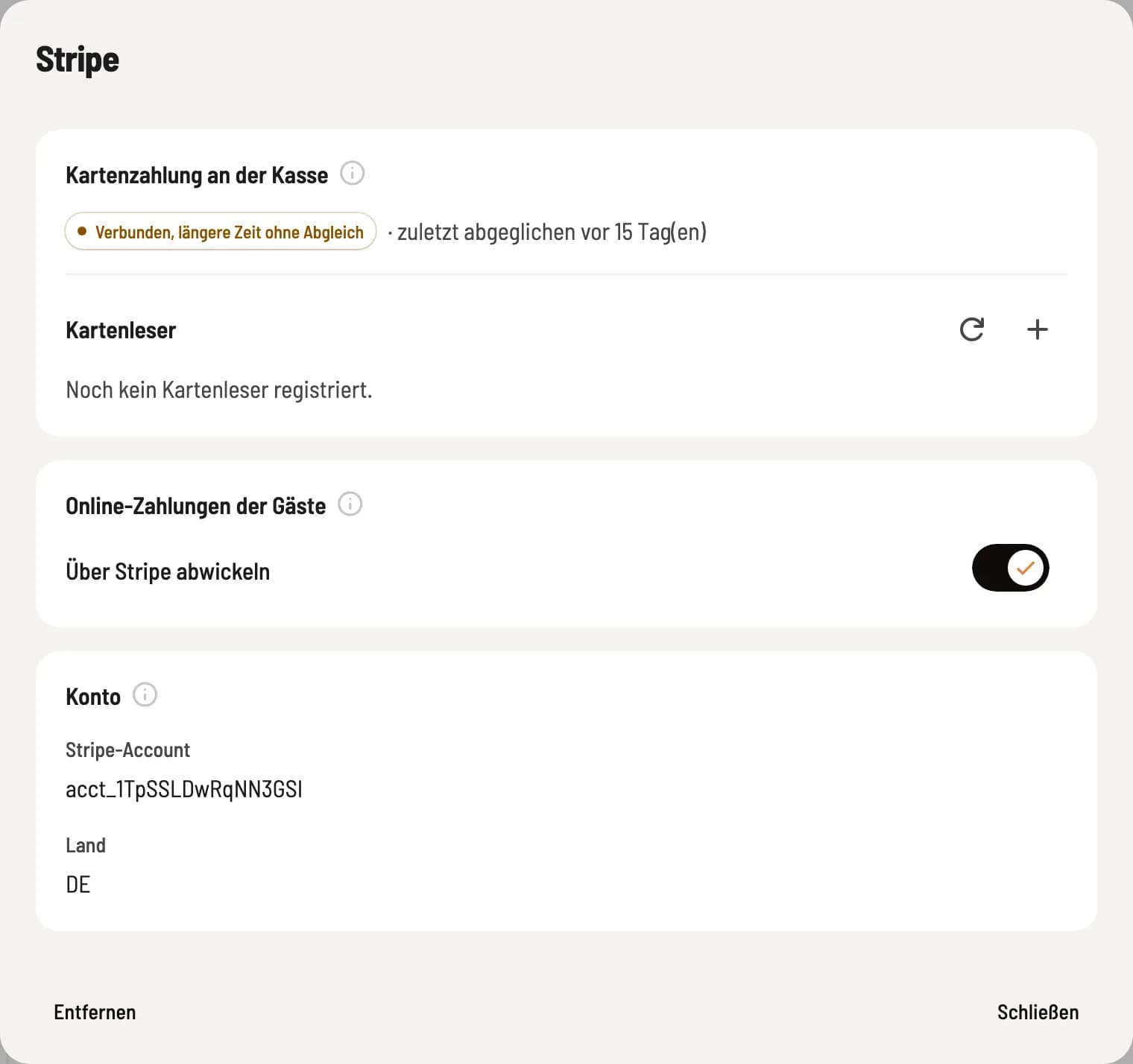
Step 2 of 2
Open dialog
The dialog has up to three sections: Card payment at the checkout, Online payments by guests, and Account. The i next to each section explains it.
Card payment at the checkout
Status: whether your team can charge cards at the checkout.
Payment Method: Payment is processed via a payment method linked to the merchant. If this method is missing, No payment method available at checkout will be displayed; a card payment would then be processed without any money changing hands. Click on Add Payment Method. If it is deactivated, it will not appear at any checkout.
Card Readers (Stripe only): Your restaurant's card readers, including device type, status (online/offline), and serial number. Use + to register a reader, Remove to delete it, and Refresh to reload the list.
Reconnect: only necessary if the connection is interrupted or if the provider is missing information. With PayPal, the button is called Connect for checkout or Renew checkout connection.
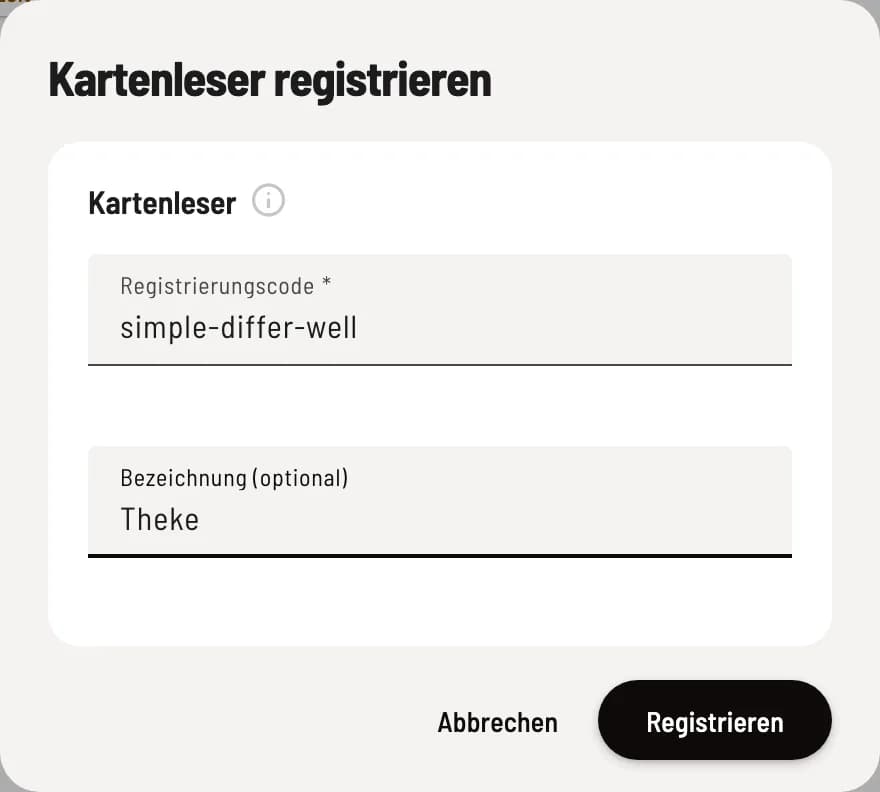
Register card readers
Click on + next to Card Reader. The Registration Code will be displayed on the reader's screen, for example, "puppies-plug-could"; type it in exactly as shown. The Label (optional) will appear in the list and in the POS app, for example, "counter". Click on Register.
The card readers belong to the restaurant, not a specific device: the cash register and order terminal both see the same list. You select which reader a device uses in the POS app: register and remove card readers.
Online payments from guests
Here you specify whether guest orders (table orders and pickup) and the voucher shop are processed through this provider. Process via… activates this provider for all these payments. Only one provider can be used: If you activate it, it replaces the previous one. If no provider is activated, guests cannot pay online. For PayPal, online access is a separate connection; if it's missing, it will say Connect for online. For SumUp, a message will appear as long as online payments are not yet enabled for your account.
Account and removal
Under Account you'll find your merchant account details, such as Merchant Code and Email (SumUp), Stripe Account and Country (Stripe), or Cash Register ID (PayPal). Remove in the bottom left corner will delete the connection after asking Remove payment provider?. Your account with the provider remains unaffected.
In the POS app, only two things are possible per device: Activate Tap to Pay and select the card reader: Payment service provider in the POS app. When processing payments, your team selects a payment method, not a provider.