
Cancel the entire party before billing.
Return all item from one party in one step before payment.
If a guest complains about everything or leaves before anything happens, you cancel the entire party at once. This also only takes effect upon submission.
Prerequisite: You need the employee right **To cancel item **. You cancel already paid receipts differently: Cancel invoiced receipts.
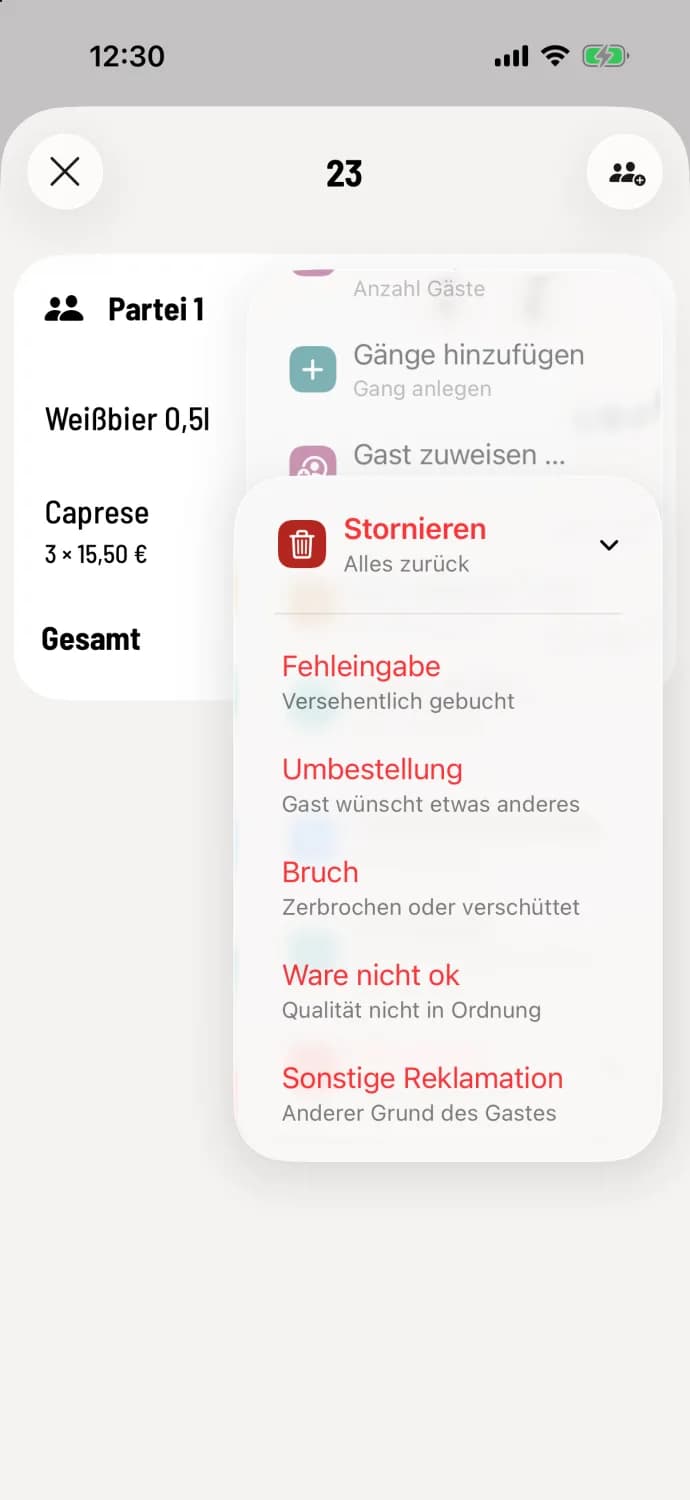
Step 1 of 3
Choose to cancel
Tap on … at the top of the party and then on Cancel (subtitle Reset everything).
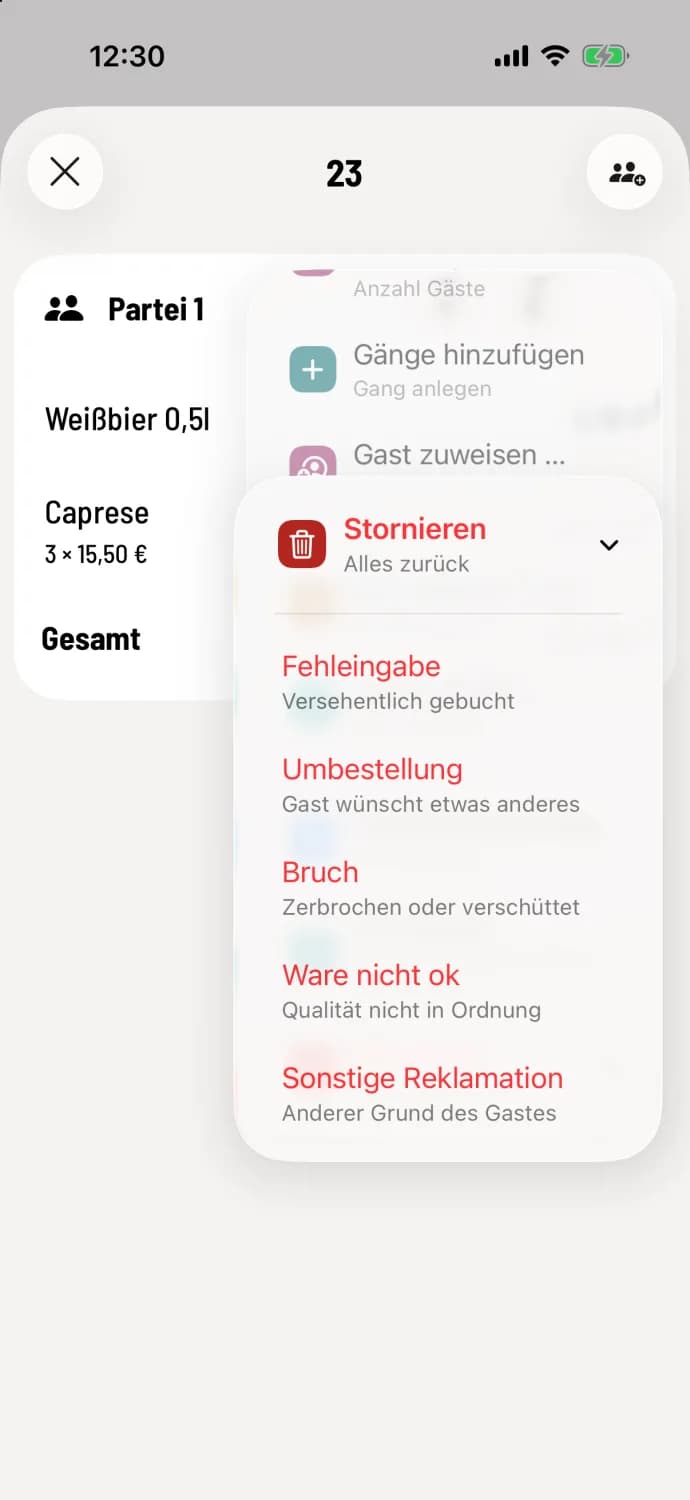
Step 2 of 3
Choose reason
The submenu displays the reasons for cancellation. The standard reasons have a brief explanation below, such as Incorrect entry with Booked by mistake. Tap the appropriate one.
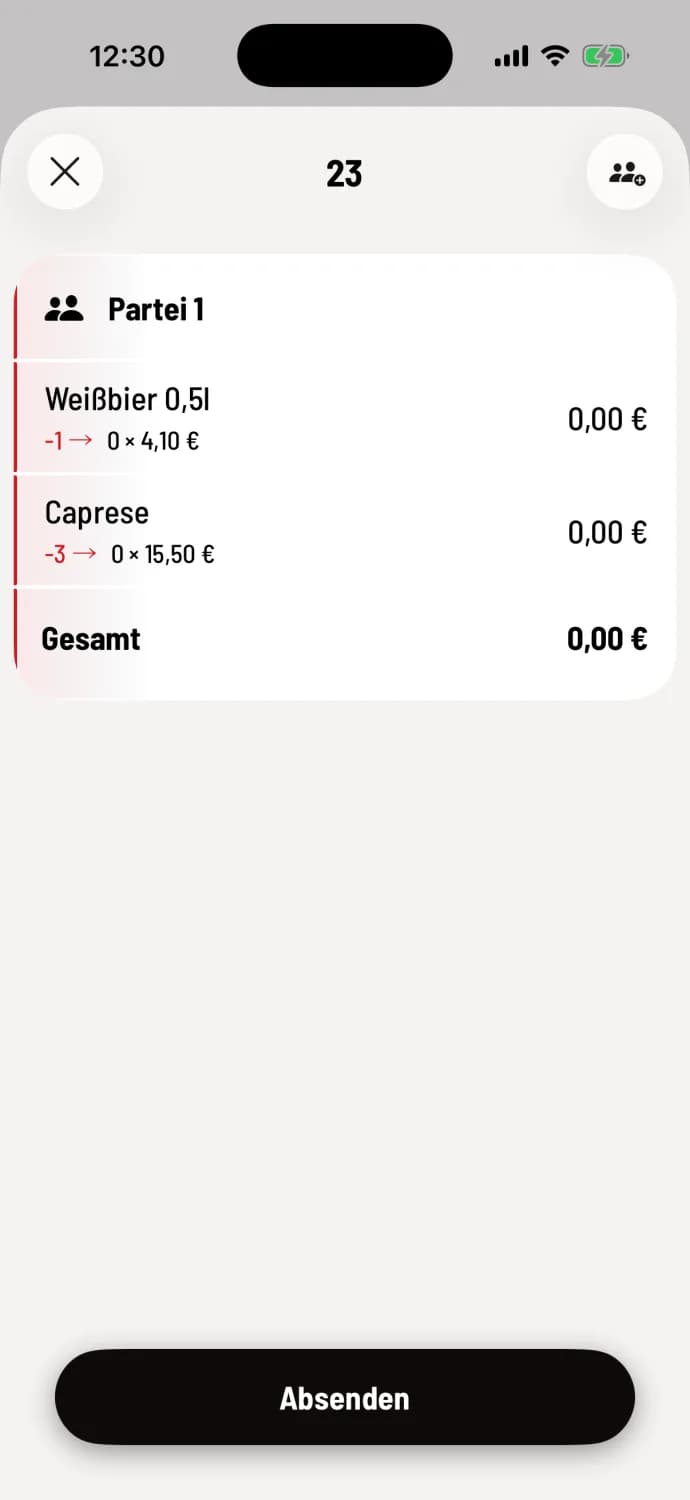
Step 3 of 3
Submit
All party-related item are highlighted in red. Tap Submit. The kitchen will receive a cancellation slip.
If it is the only party at the table, the table is then empty. Otherwise, the other parties remain standing.
Quickly out of the table plan
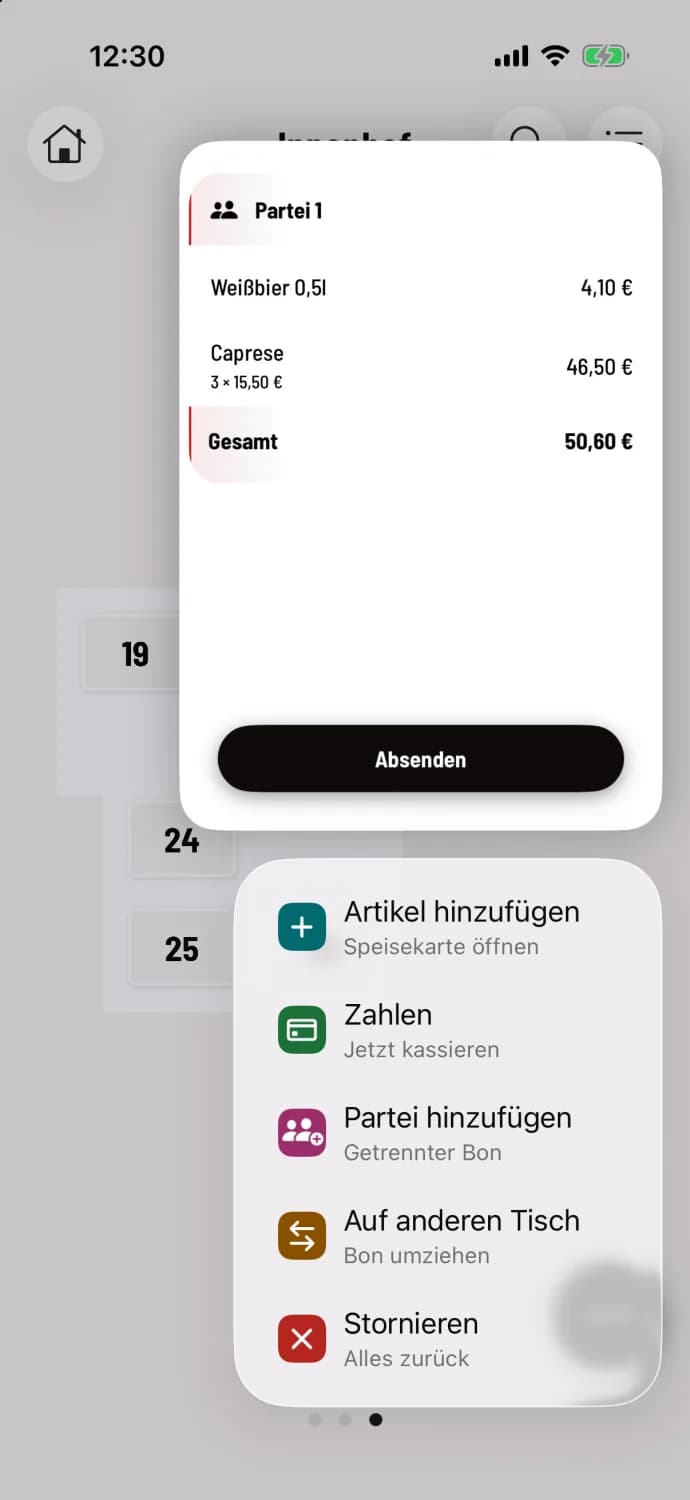
Hold table down
In the table plan, press and hold the table. Above the menu with **Add item **, Payment, Add Party, and Move to Another Table, you'll see a preview of the order; select Cancel (Reset Everything) at the very bottom. This option is only available for tables with exactly one party. Then select the reason and submit as described above.