
Specify what a printer prints
Each printer must be switched on to specify which receipts it receives: reports, vouchers, deposits and individual item groups.
With multiple printers, you can distribute the orders: food to the kitchen, drinks to the bar, receipts to the counter. You configure this on each printer under Print Jobs.
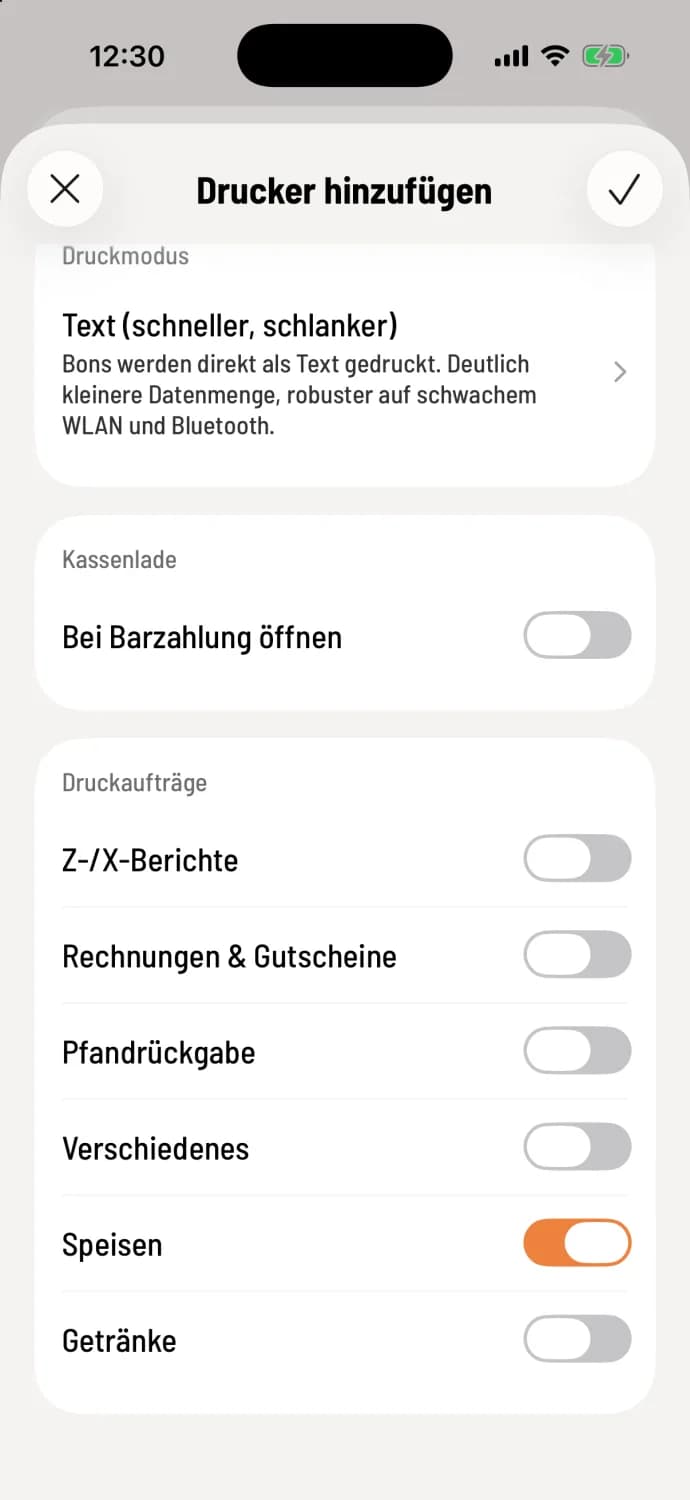
Enable print jobs
Open the printer settings under Overview (house icon in the top left) → Settings → Printers, scroll to Print Jobs and select what you want it to print. Save with the checkmark (Android: Save).
What the switches mean
Z/X Reports – shift and employee reports.
Invoices & Vouchers – Receipts, interim invoices, cancellation receipts, incoming invoices and payments, sold vouchers and also the return of deposits upon payout.
Deposit Return – only for reprinting a deposit return from the shift history.
One line per item group, such as Miscellaneous, Food or Drinks – the order slips with the items in this group.
You manage the article groups in the Web desk: Manage article groups. A new group will appear here automatically, but will be deactivated.
A receipt is sent to every printer where the appropriate switch is activated. If drinks are dispensed from two printers, the receipt is sent twice.
Don't forget anything: Assign at least one printer to each receipt type and product group. Otherwise, this receipt won't print anywhere. If you delete a printer, check the remaining ones afterward.
You can set whether a group receives a receipt per item, per group or per piece under Print settings: Splitting, Prices, Copy.