
Record income or expenditure in the cash book
Manually enter any cash that enters or leaves the till without being sold.
Not all cash comes from a sale. If you get change from the bank or pay the baker in cash, you record it in the cash book. Otherwise, the cash balance won't be correct.
Prerequisite: Ongoing shift, internet connection and access to the cash book: Open daily view.
Playing loads YouTube (Google).Playing loads the video from YouTube and sends data to Google. Clicking allows external media. Privacy
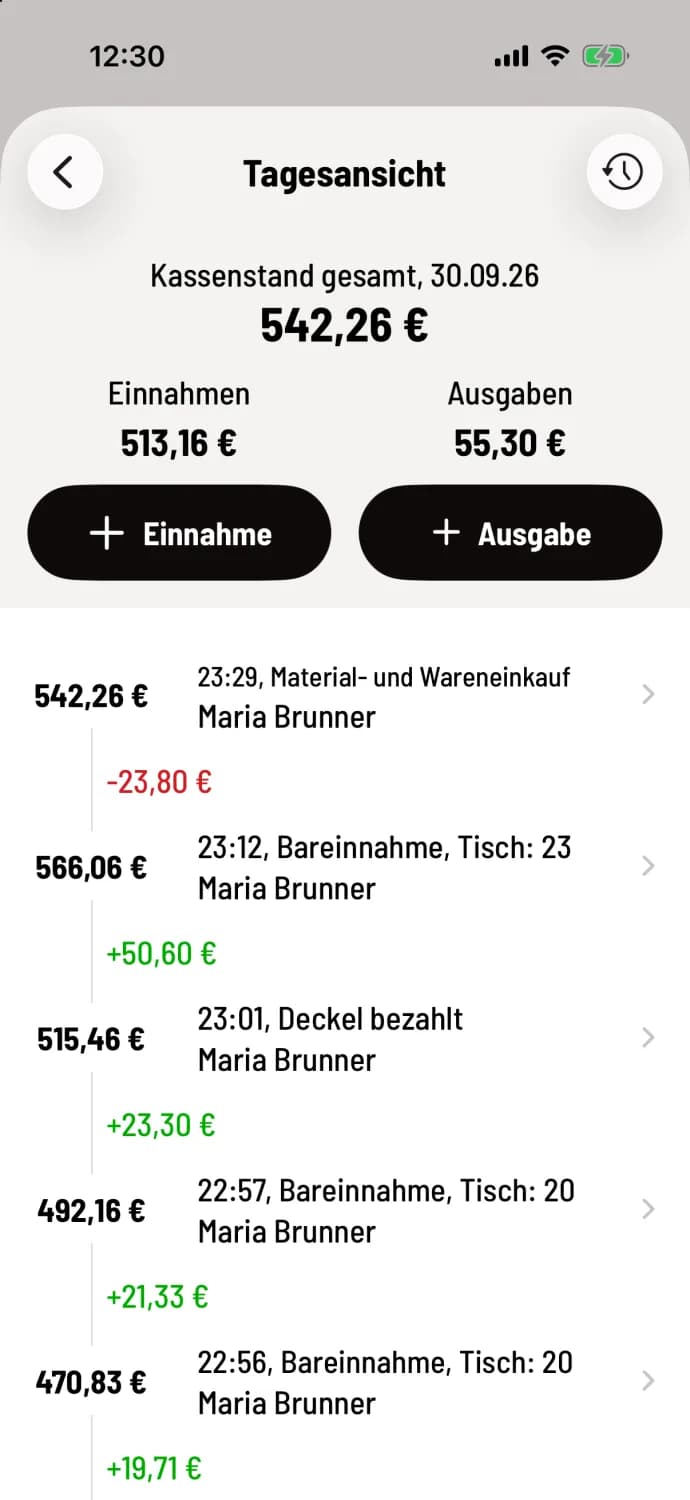
Step 1 of 3
Choose income or expense
In the Daily View, tap + Income or + Expense below the daily totals.
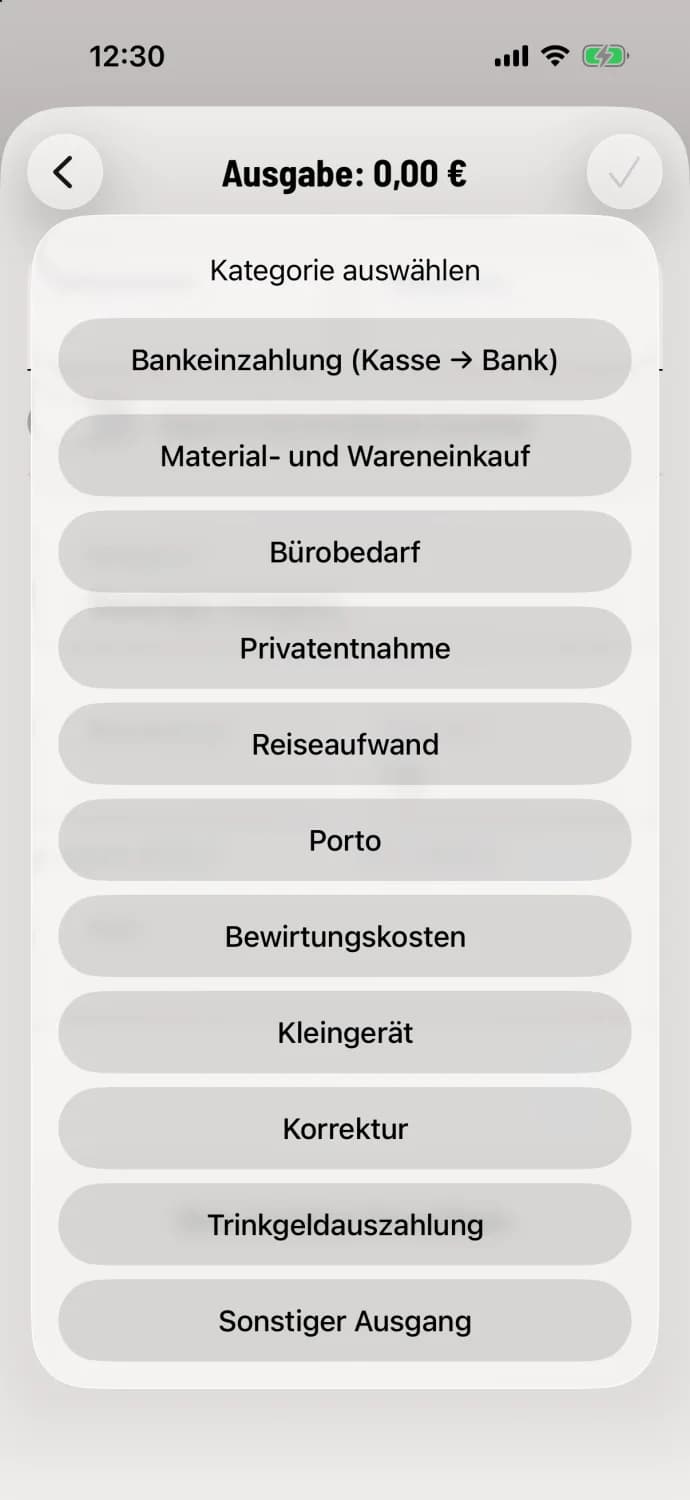
Step 2 of 3
Select category
Income: Bank withdrawal (bank → cash register), Private deposit, Cash sales, Other income. Expenses: Bank deposit (cash register → bank), Purchase of materials and goods, Office supplies, Private withdrawal, Travel expenses, Postage, Entertainment expenses, Small equipment, Proofreading, Tips paid out, Other outflow.
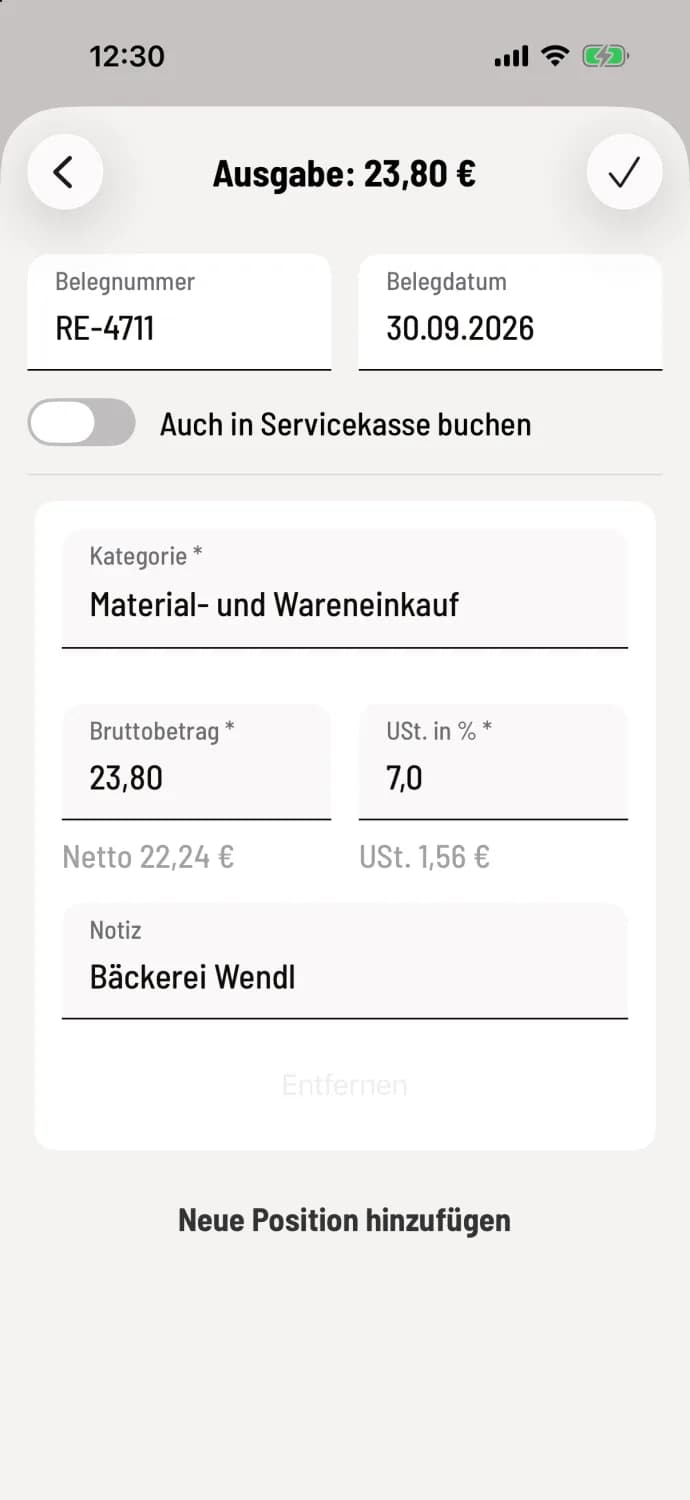
Step 3 of 3
Enter and save the amount
Enter the gross amount and VAT in %, optionally receipt number, receipt date and a note. The cash register will automatically calculate the net amount and tax. Clicking the checkmark in the upper right corner saves the entry; the cash register will then display "Expense added".
You record an invoice with multiple tax rates in one transaction: Transaction with multiple items. If an expense cannot be saved: Expense cannot be saved.
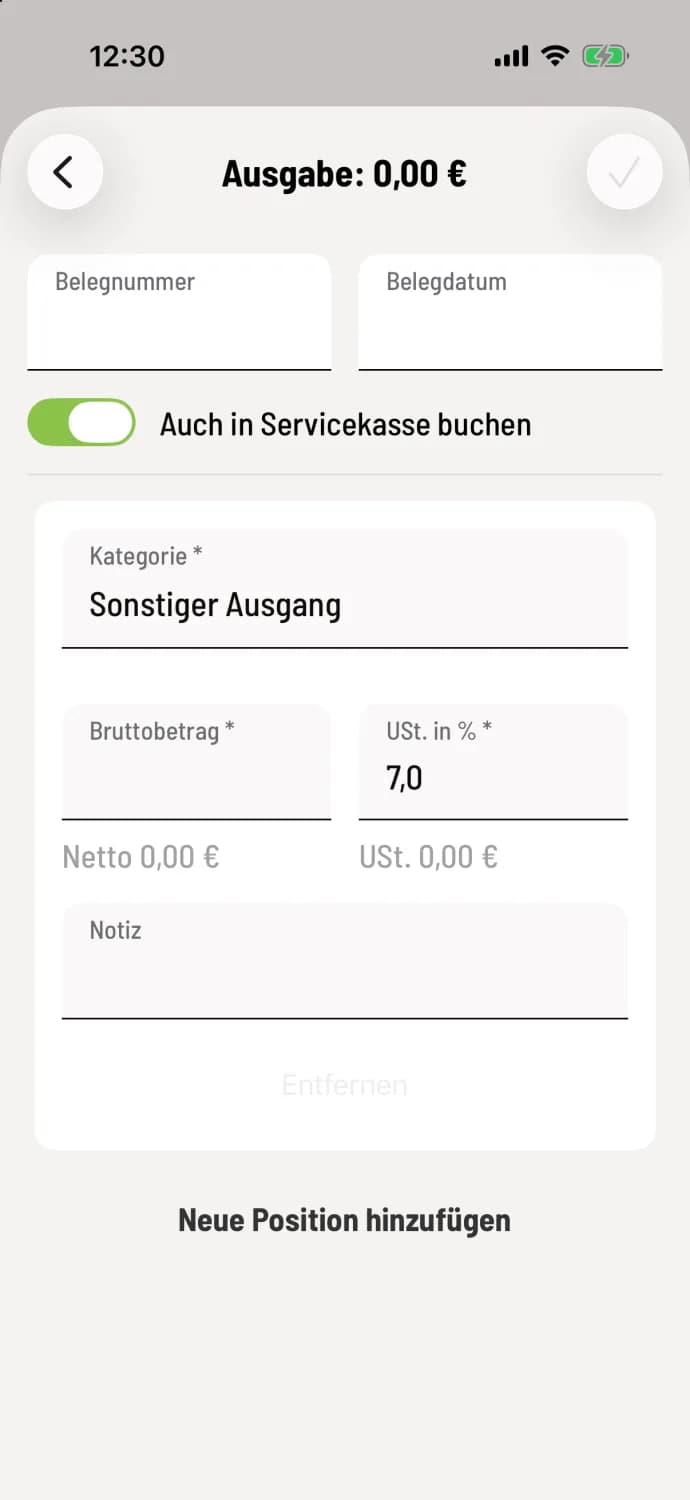
Also book at the service checkout
The form for the service cash register includes a switch for Also post to service cash register. Activate this switch whenever money enters or leaves your wallet, for example, when paying the baker from the service cash register. The transaction will then also appear in the timeline of your service cash register, and its balance will increase or decrease by the corresponding amount. The transaction will still change the balance of the main cash register.
Saved transactions cannot be changed. You correct an error with a counter-entry, for example, using the category Correction. The cash register does not save receipt photos; keep the paper receipts.