
Data export (CSV/ZIP)
Save menus as a ZIP file with CSV and images, maintain them in Excel, or transfer them to another restaurant.
The data export function saves your menus as a ZIP file. This file contains a CSV file and all product images. Use it as a backup, for price changes in Excel, or to transfer a menu to another restaurant.
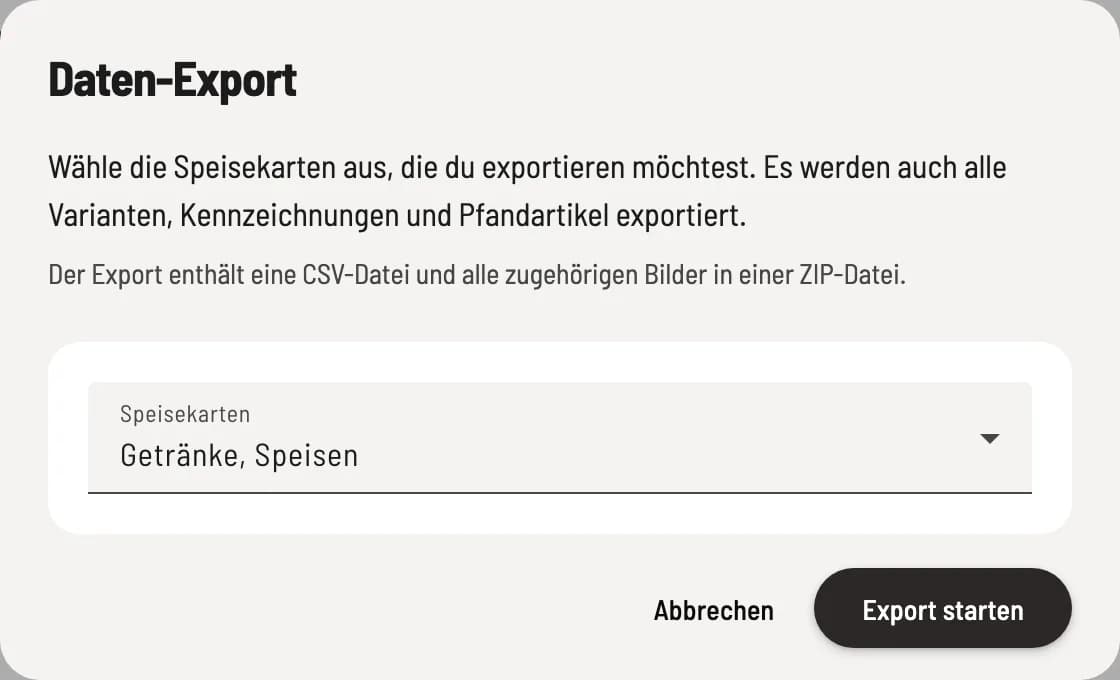
Start export
In the menu header, click on ⋯ → Data Export. Under Menu, select which menus you want to export and click on Start Export. The ZIP file will be downloaded.
The CSV contains menus, categories and item with prices, tax rates, price categories, cost of goods sold, status, channels and recipes, as well as variants, labels, deposit items and item groups.
Edit CSV files in Excel
Open the CSV file in Excel, Numbers, or Google Sheets. Adjust the prices, for example, and then import the file back in using the data import function.
You don't need this export for tax consulting. Receipts and the DATEV export are what count there.