
Quick menu at the table (long press)
Press and hold on an occupied table: View the order and collect payment directly, reorder, or reschedule.
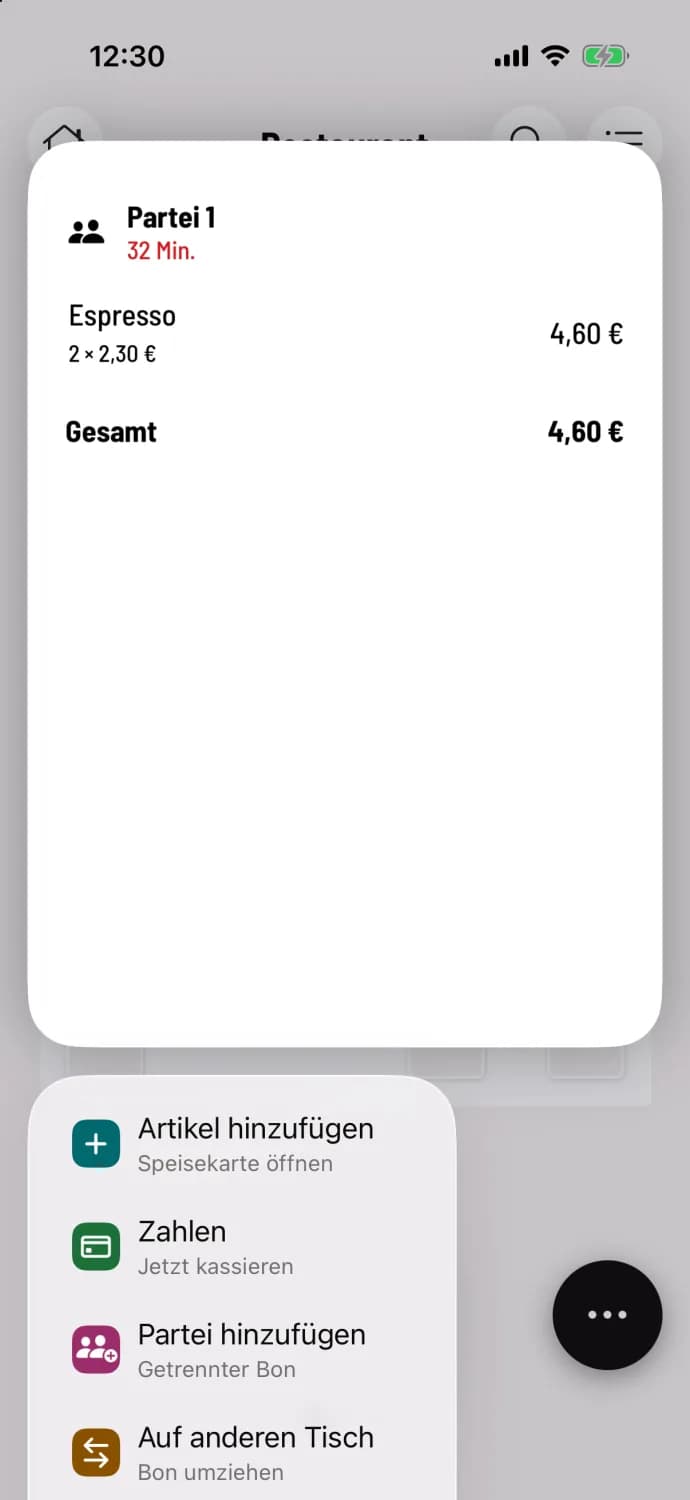
Press and hold a table occupied in the table plan . You'll see a preview of the order and the most important actions below, without having to open the table.
Hold table down
At the top is the order details, including party, wait time, items, and total. Below are the actions. For long menus, swipe down to cancel. Tapping the preview opens the table.
The actions
**Add item ** – opens the menu for ordering additional items.
Numbers – jumps directly to billing.
Add party – new order with separate receipt at the same table.
To another table – to transfer the order, see Select destination table.
Cancel – withdraw the entire order.
If multiple parties are seated at the table, only Add Party is available; for everything else, you open the table. Cancel is missing, and therefore the right to cancel is not available. Empty tables do not have a quick menu.