
Park and pick up again
Set aside a partially completed order, serve the next guest, and continue later.
If a guest is still looking for their wallet, you put their receipt aside and serve the next one. Nothing is booked, printed, or signed in this process.
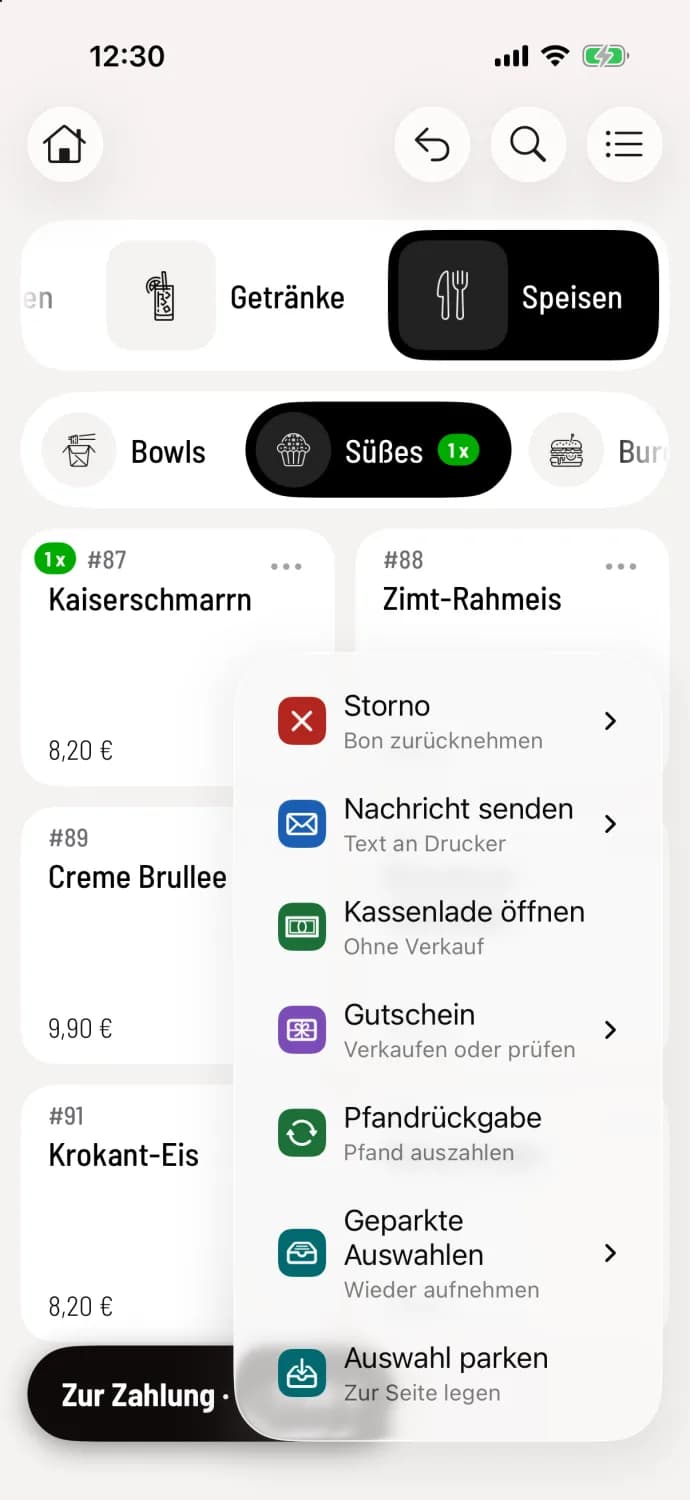
Step 1 of 2
Parking voucher
Tap the round … button in the bottom right corner. The menu offers Cancel, Send Message, Open Cash Drawer, Voucher, Return Deposit, and at the very bottom, Park Selection (on Android, Park Receipt). The cash register displays the receipt number, for example, Receipt #2 Parked, and the counter is cleared.
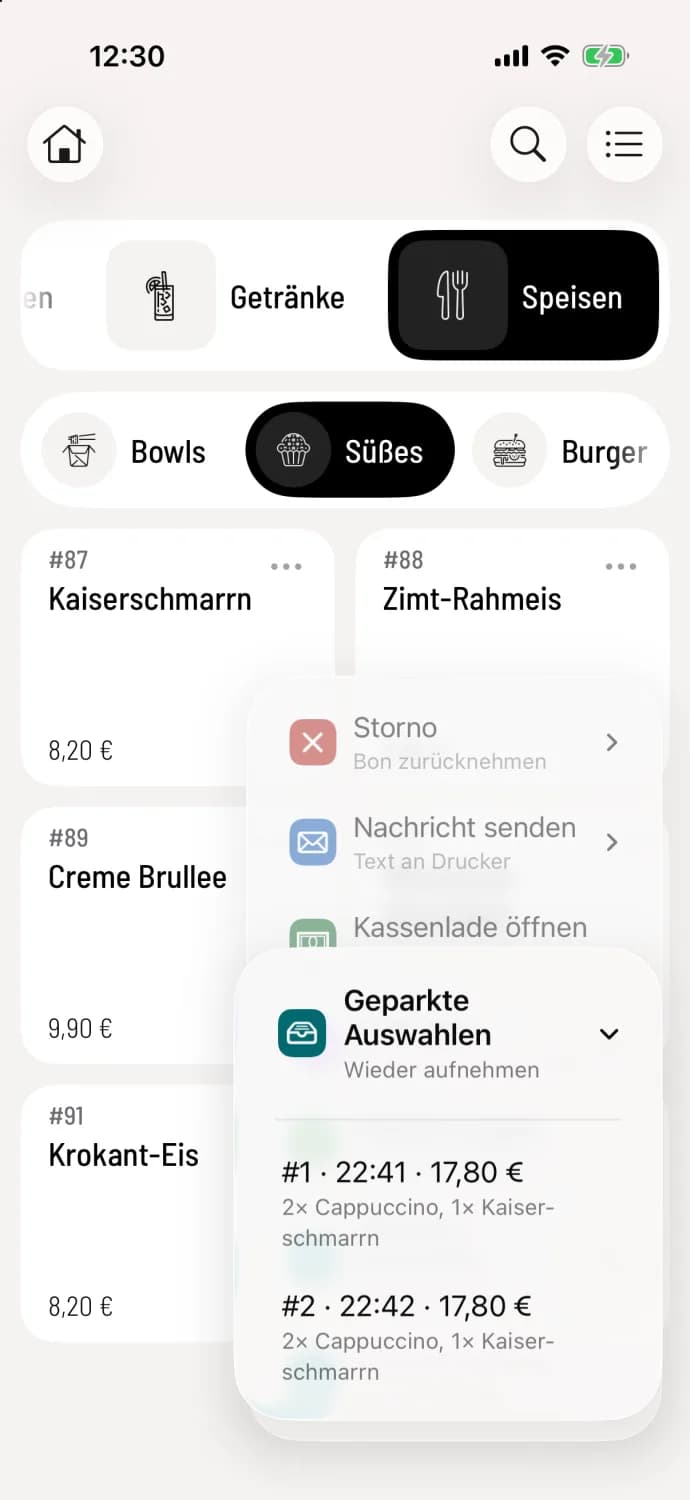
Step 2 of 2
Resume
Tap on … and Parked Selections (on Android, Receipt Storage); the entry only appears when a receipt is parked. The submenu shows each receipt with its number, time, amount, and items, for example, #1 · 10:41 PM · €17.80 with 2× Cappuccino, 1× Kaiserschmarrn. Tap the correct one.
The receipt includes the table, discount, deposit, price category, type of order, server , and guest information. If another receipt is already in the counter when the receipt is taken, it is automatically parked. A redeemed stamp reward cannot be parked and is removed.
Important: Parked receipts are only stored on this machine and only during the current shift. They are discarded at the end of the shift; the cash register will warn you when it ends.
If you park often, add the parking button as a quick button next to the … button: Setting up action buttons and quick buttons.