
View existing orders
Open a table full of items and see its parties, item , and amounts.
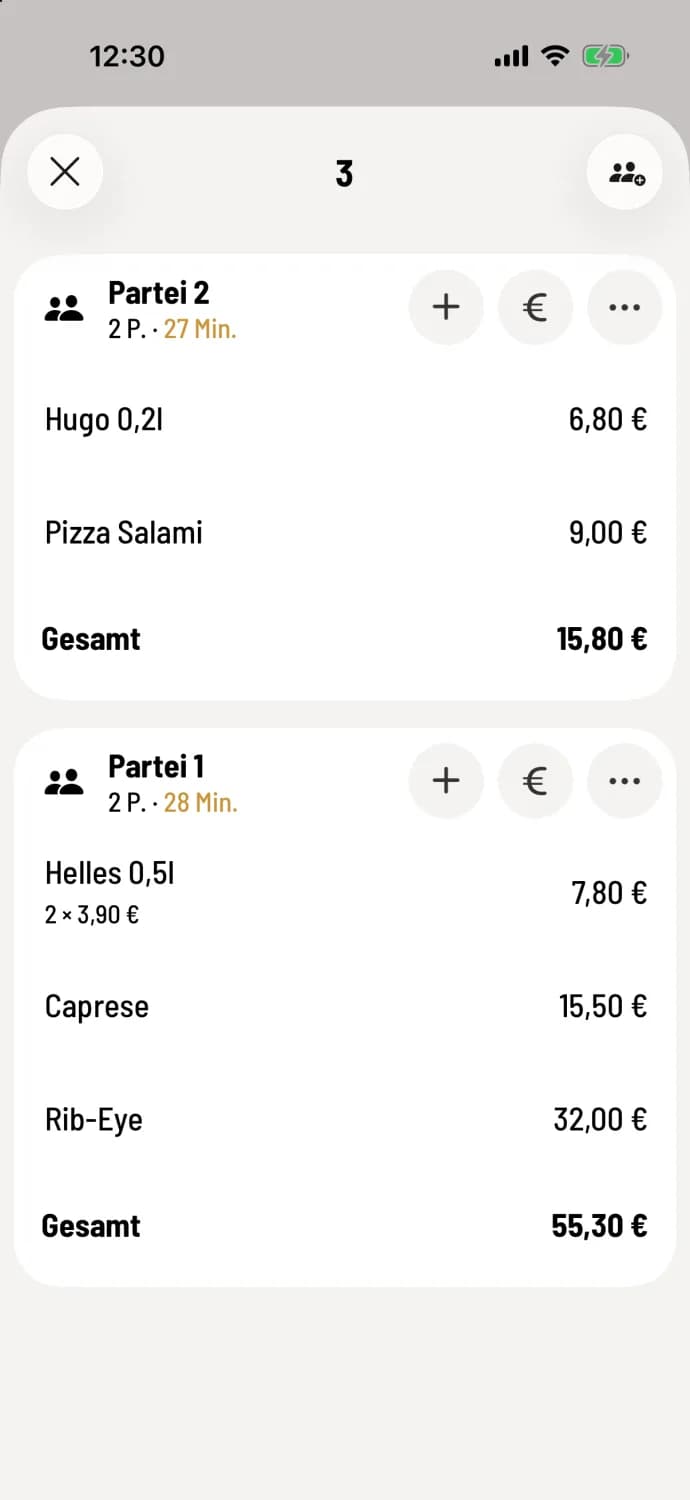
Tap on an occupied table in the table plan . You'll see its orders, separated by party, with items, prices, and total. The most recent party's order is at the top. Tap on a row to see its options and notes.
The buttons
+ – More item for this party: Add more item. If the party has corridors, the + is located at each corridor row.
€ – bill the party: bill orders.
… – the party menu: Name the party or guest, number of people, courses, move to another table, split, combine, interim bill, and cancel. You can access the latest entries by swiping down in the menu.
People with a plus sign in the upper right corner – a new party at the same table: Parties at the table.
Next to the party name, the number of people is displayed, and if the service time indicators are activated and nothing has happened for a while, the minutes are shown in traffic light color, for example 4 P. · 15 min.
Tapping on an item row opens its details, long pressing opens its menu: change quantity and edit item.
If another device changes the table, you'll see it immediately. If the table is then settled there, the view closes.