
Search for item when ordering
Find item by name or PLU, instead of browsing through maps and categories.
With a large map, you can find item faster using the search function than via maps and categories. It works the same at the table, at the express checkout, and for takeaway orders.
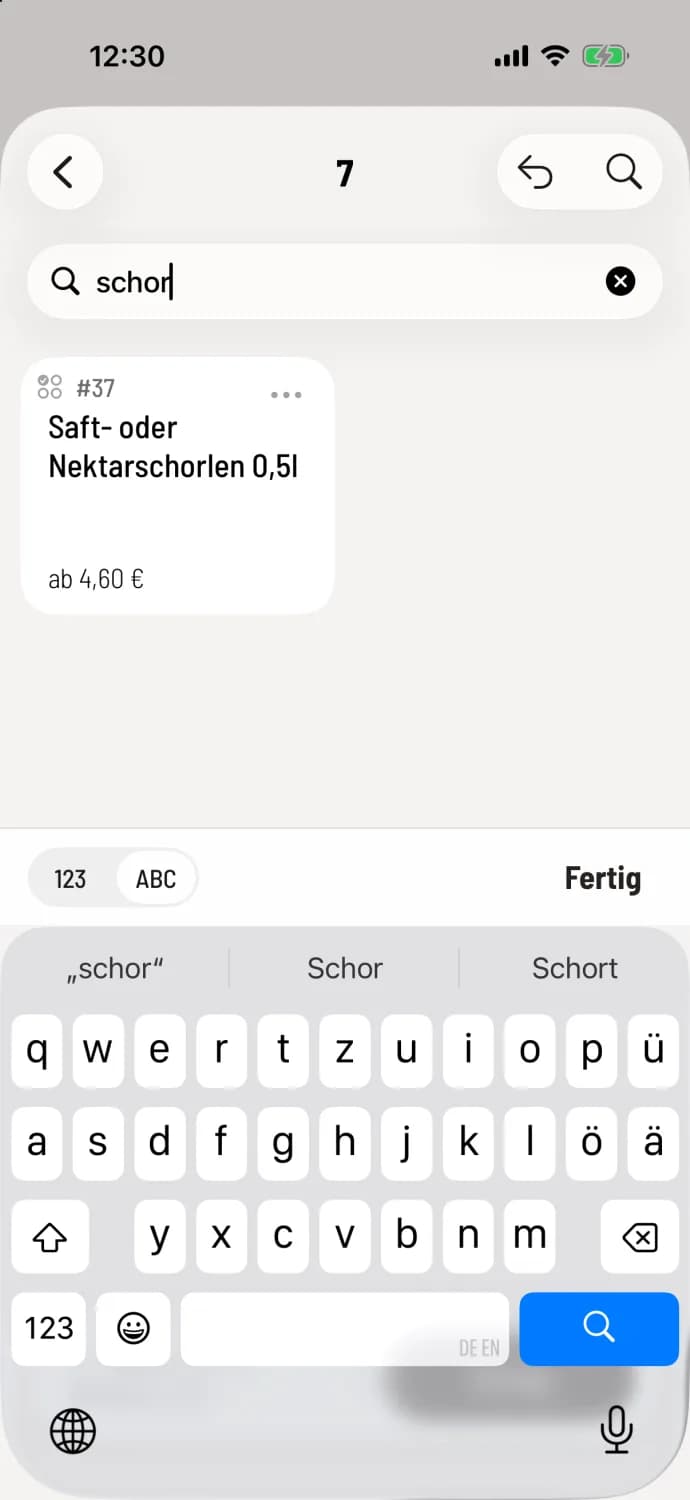
Tap the magnifying glass
When ordering, tap the magnifying glass in the top right corner. The search bar replaces the menu. You'll quickly find the spritzers, for example, "Juice or Nectar Spritzers 0.5l". Tapping a match adds it to your cart, just like a tile.
The search is performed across all currently visible cards: the name, the PLU, the descriptions, the recipe, the labels, and the variant names. Use 123 and ABC above the keyboard to switch between numbers and letters; the cash register remembers your selection. A second tap on the magnifying glass ends the search.
The PLU is displayed in small print above the article name on tiles without an image, for example #38. The fastest way to type it is 123.
The search in Overview → menu works the same way, but doesn't book anything: Search the menu as a list.