
View order list
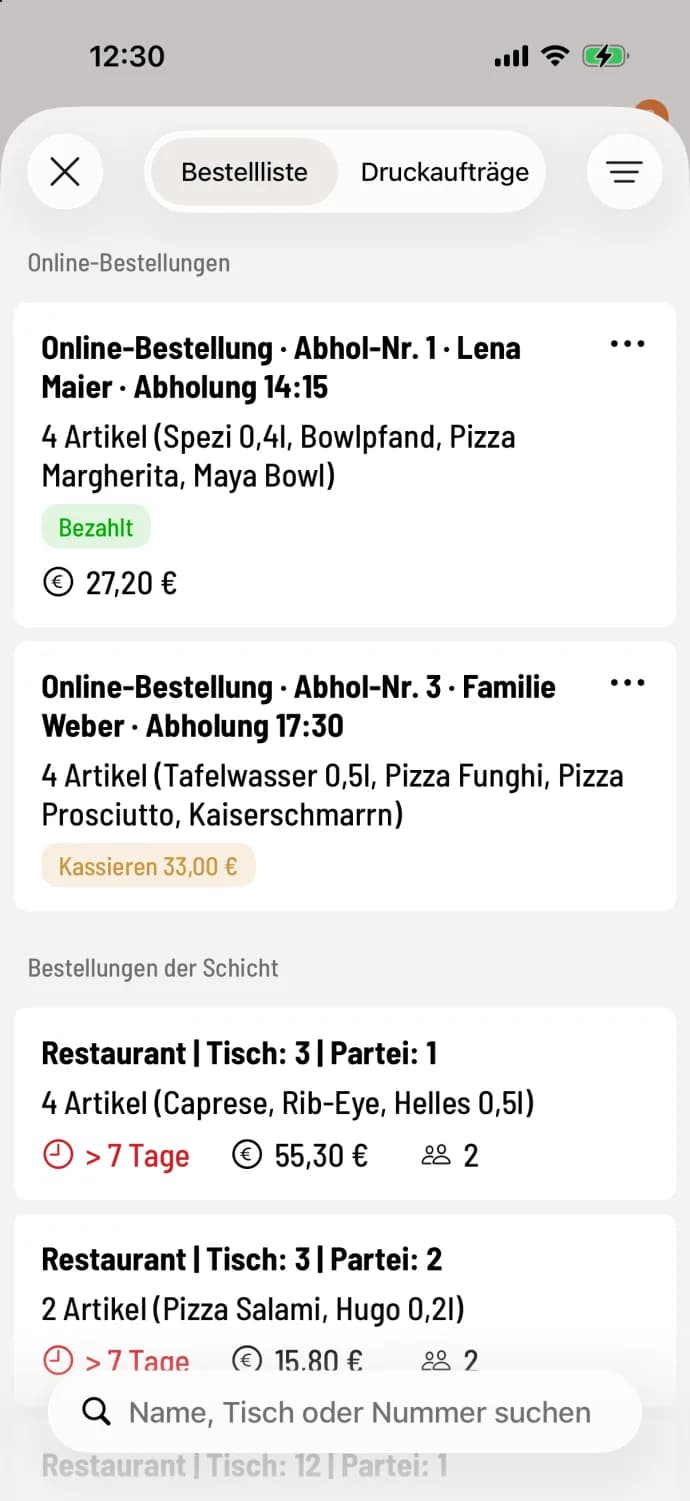
Online orders and all open orders of the shift , including waiting time and amount, at a glance.
The order list shows all open orders at a glance, including table, party, items, waiting time and amount.
Open list
Tap the list icon in the top right corner of the table plan and select Order List at the top. The POS system will remember which tab you last had open.
What the list shows
Online Orders – at the very top, everything from the order page, website, QR code at the table, order terminal and delivery services, with Paid or Cash on Delivery and the guest's name: Online orders at the checkout.
** shift Orders** – Open orders, oldest first. The minutes since the last change are color-coded according to the traffic light system.
Notified by letter – only if something has been notified by letter, sorted by debtor with date and outstanding amount. A tip to help with settling: Settle notified debts.
Carried over – open orders without a receipt from a previous shift, e.g., From shift end · Order from…. A tap opens the statement.
Collection numbers – orders paid for at the checkout but not yet collected with a collection number: Working with collection numbers.
Tapping on a table order opens the table. Open orders without a table directly open the checkout. Use the search field to find entries by name, table, or number.
If the owner has enabled the button, Busy will appear next to the filter. This extends the waiting time for online orders when there is a high volume of customers: Activate "Busy" when busy.
You can filter out areas you don't use via the funnel: Filter prints and orders.