
Create, edit, and delete item
This is how you create an item in the Web desk with price, item group and tax rates.
An item is a line item on your menu, from Espresso to Pizza Margherita. You create it in the Web desk ; it's then available on all devices in the POS app. For quick additions at the counter, you can also add item at the POS.
Create new item
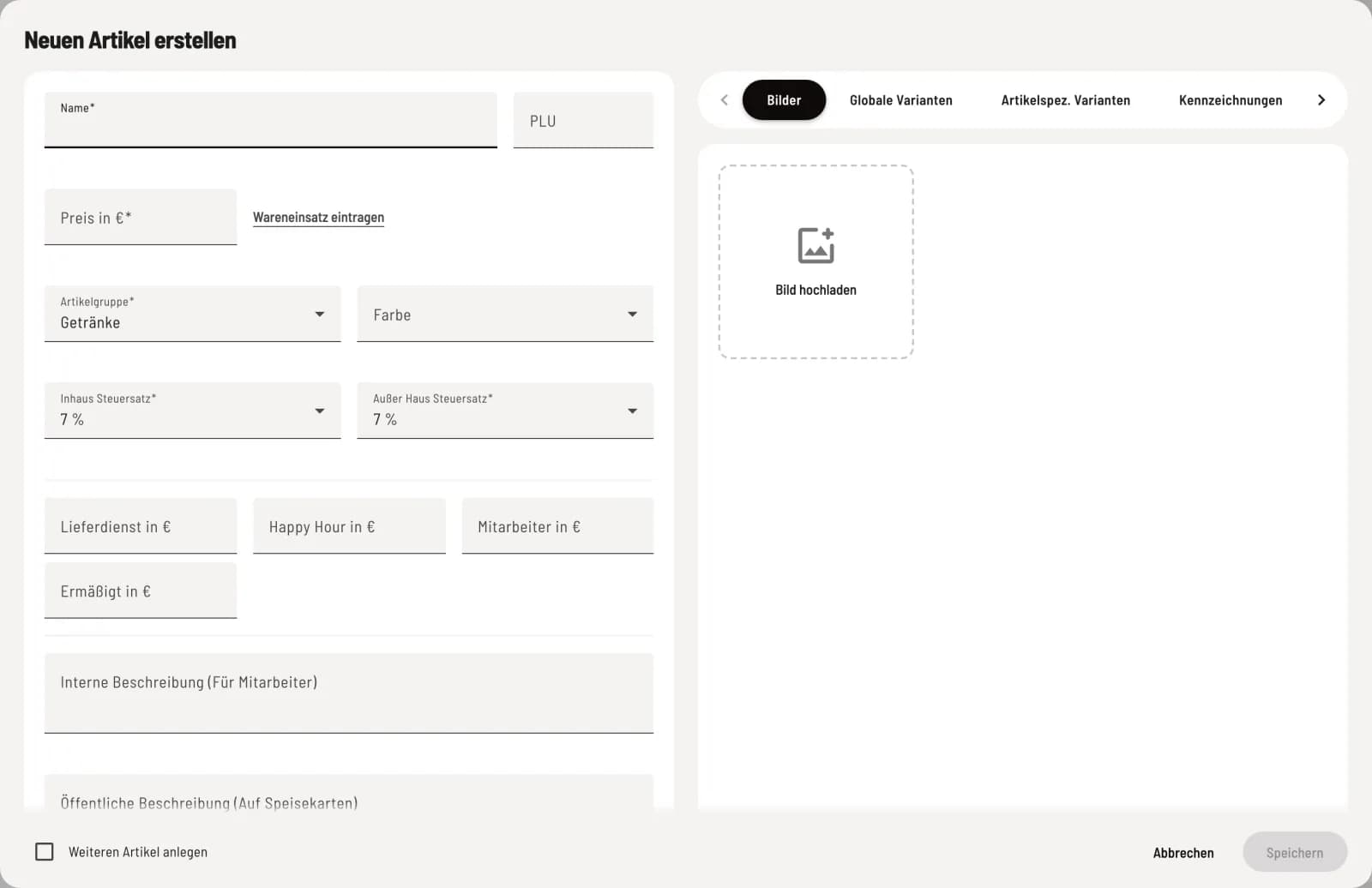
Create item
In the category header, click on + (**Create new item **). Enter the information on the left; the tabs for images, variations, and more are on the right. Checking the **Create another item ** box will keep the dialog open for the next item after saving.
Required fields include: Name (maximum 100 characters), Price in € (gross), Product group, In-house tax rate, and Takeaway tax rate. Optional fields include:
PLU: Short code up to 10 characters that the cash register searches for.
Color: colors the tile in the POS app. If no selection is made, the color of the category or menu applies.
Prices per price category, e.g., Happy Hour in €. An empty field means the regular price applies. These fields only appear when price categories are enabled.
Internal description (for employees) and Public description (on menus), each up to 500 characters.
Check tax rates: New item start with the Beverages category and 7% for both tax rates, even if you create them in a food category. Check both for each item. Beverages are usually taxed at 19% in-house. You can define which rates are available under Manage tax rates.
The item group is mandatory because the cash register cannot process an item without it. If the field displays a message indicating that the previous assignment no longer exists, select a new group.
Starting with the Solo tariff, next to the price you'll see Enter cost of goods sold. Here you enter the purchase price of one portion (excluding VAT); the contribution margin will appear next to it. If you've already entered a value, this field will remain visible in every tariff. If the item is linked to the warehouse, it will say Purchase prices in the warehouse take precedence.
The block in the bottom left corner controls where the item appears and whether it is currently available for order: " Where an item appears " and " Set item to sold out ". The tabs on the right explain the article dialog: the seven tabs.
Edit, move, duplicate, or delete
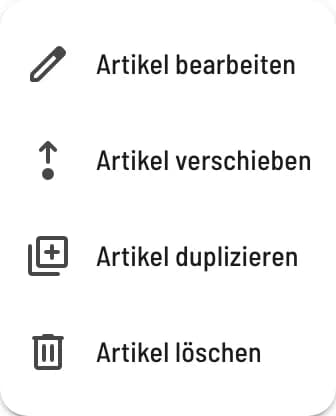
Article menu
Clicking on a row opens **Edit item **. You can also find **Move item **, **Duplicate item **, and **Delete item ** via ⋯ at the end of the row.
The list shows the product group, tax rates (in-store/out-of-store), price, and any status variations such as Inactive or Sold Out for each item . Hovering over the i next to the name displays prices, descriptions, variants, and other relevant information. You can also search for an item by clicking the magnifying glass icon at the top of the page (**Search for item **).
Deleted item only disappear from the menu. Previous orders, receipts, and statistics are retained.