
Set up collection numbers
Activate collection numbers for orders without a table.
For orders placed without a table, such as at the counter, express checkout, as a to-go order, or at the ordering terminal, you cannot track the customer by table. Therefore, these orders receive a sequential pick-up number. This number is prominently displayed on the customer's receipt, on the kitchen slip, and on the pick-up display.
The numbers run from 1 to 999 and then start again at 1. After more than 8 hours without a new number, for example overnight, the numbering also restarts at 1. Orders with a table reservation do not receive a number. Pickup numbers and pickup displays are available in all plans, including Servire Free.
Activate collection numbers
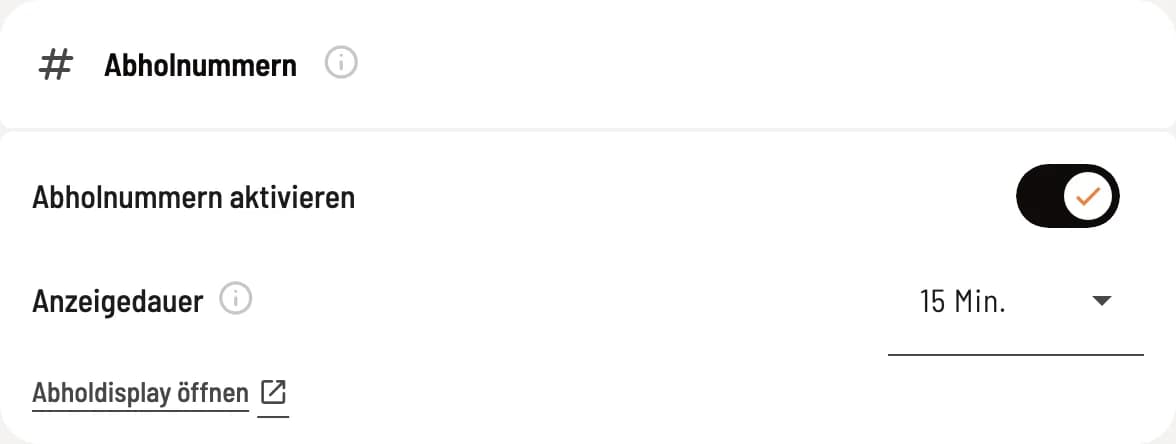
Switches in the Web desk
In the Web desk, open Settings → POS and on the Pickup Numbers tab, activate the Activate Pickup Numbers switch. This saves the settings immediately and applies to all POS terminals and Hub devices in the restaurant from the next order onwards. Below that, select the Display Duration, and Open Pickup Display opens the display in the Hub.
In the Servire Hub , you'll find the same switch under Settings → Pickup Display. It's intentionally omitted from the POS app to prevent accidental changes on the device. If the pickup numbers are deactivated, the self-checkout system will notify owners and administrators once.
When you activate an order terminal, the pickup numbers are automatically enabled. Without a number, the customer would have no identifier at the terminal that you could use to contact them.
Set up collection display
The pickup display is an area within the Servire Hub: A tablet, laptop, or screen with a mini-PC in the dining area shows the numbers of items being prepared on the left and those ready for pickup on the right. It is always located in the Hub's sidebar. Setup, display duration, and signal tone: Set up the pickup display.
How the numbers are assigned and called up in everyday use is explained in Working with collection numbers.