
Read the payment rules in the checkout.
In the POS app, you can see which consumption method, payment method, and receipt type your establishment specifies.
Under Settings → General → Payments you can see your business's payment rules. This way, you know at the till why something is pre-selected. Nothing can be changed here – the note below says: Only changeable in the web portal (Settings → Restaurant → Payments).
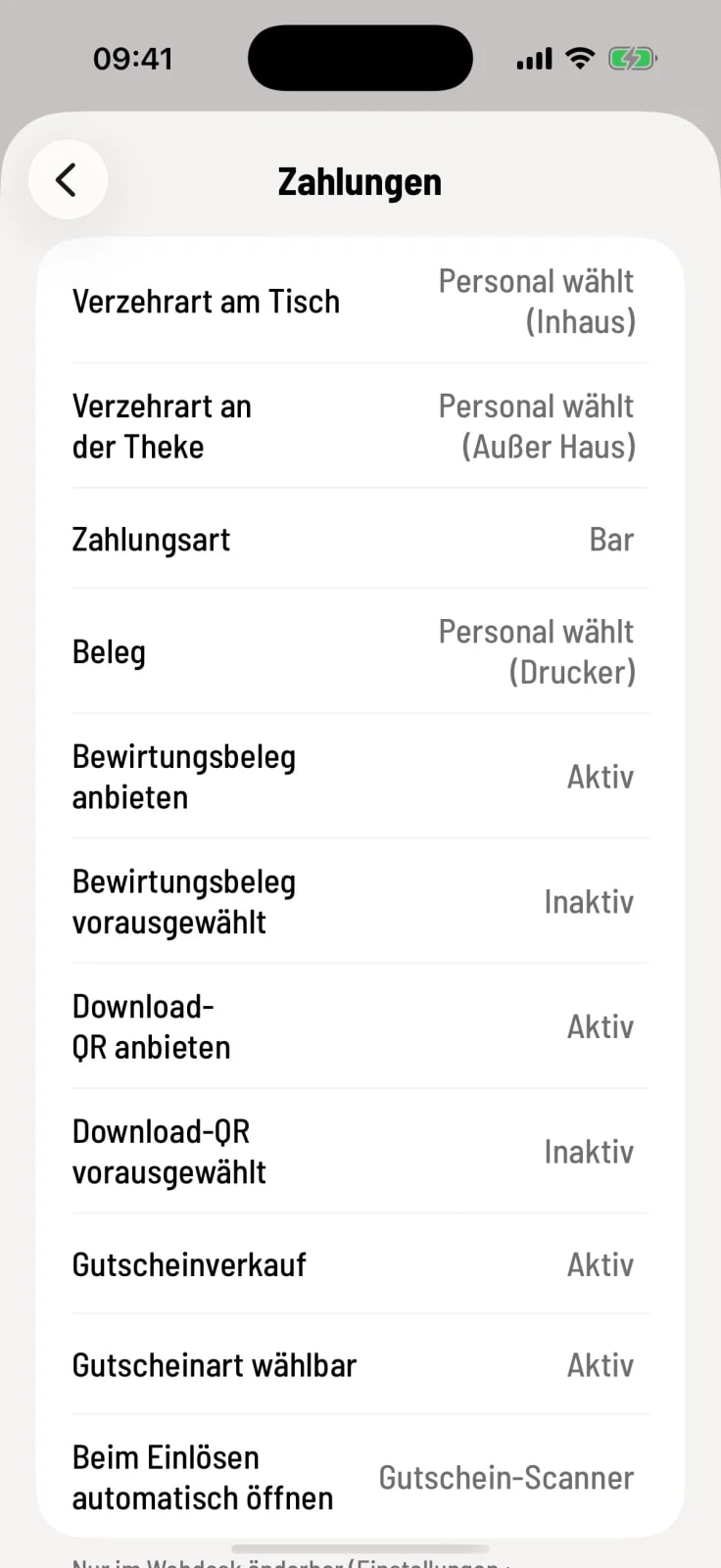
Meeting at the table and Meeting at the counter – Always in-house, Always takeaway or Staff chooses, followed by the pre-selection.
Payment method – the payment method that is pre-selected during invoicing, or No pre-selection.
Receipt – whether always printed, shown as a QR code, printed as a QR code or sent by email, or whether the staff chooses. Without a printer, "printing" becomes generating a QR code.
**Offer business meal receipt ** and Offer download QR – each Active or Inactive, and whether they are pre-selected.
Voucher sale, Voucher type selectable and Open automatically on redemption – what the cash register opens on redemption: Card reading, Voucher scanner or Nothing.
You configure the rules in the Web desk : set the consumption type and payment method, configure receipt issuance, and set up vouchers at the checkout. The checkout displays changes immediately.