
Set up receipt printing and receipt additions
Specify whether the guest receives their receipt printed, as a QR code or by email, and offer business meal receipt and a downloadable QR code.
Prerequisite: Only those with the employee right to Change Payment Settings can make changes. Email is available starting with the Solo plan, even during the trial period.
Open Settings → Cash Register and click on the pencil icon under Payments. The receipt type is listed under Receipt in the Settlement section, and the additional information is listed under Receipt Additional Information.
Document type
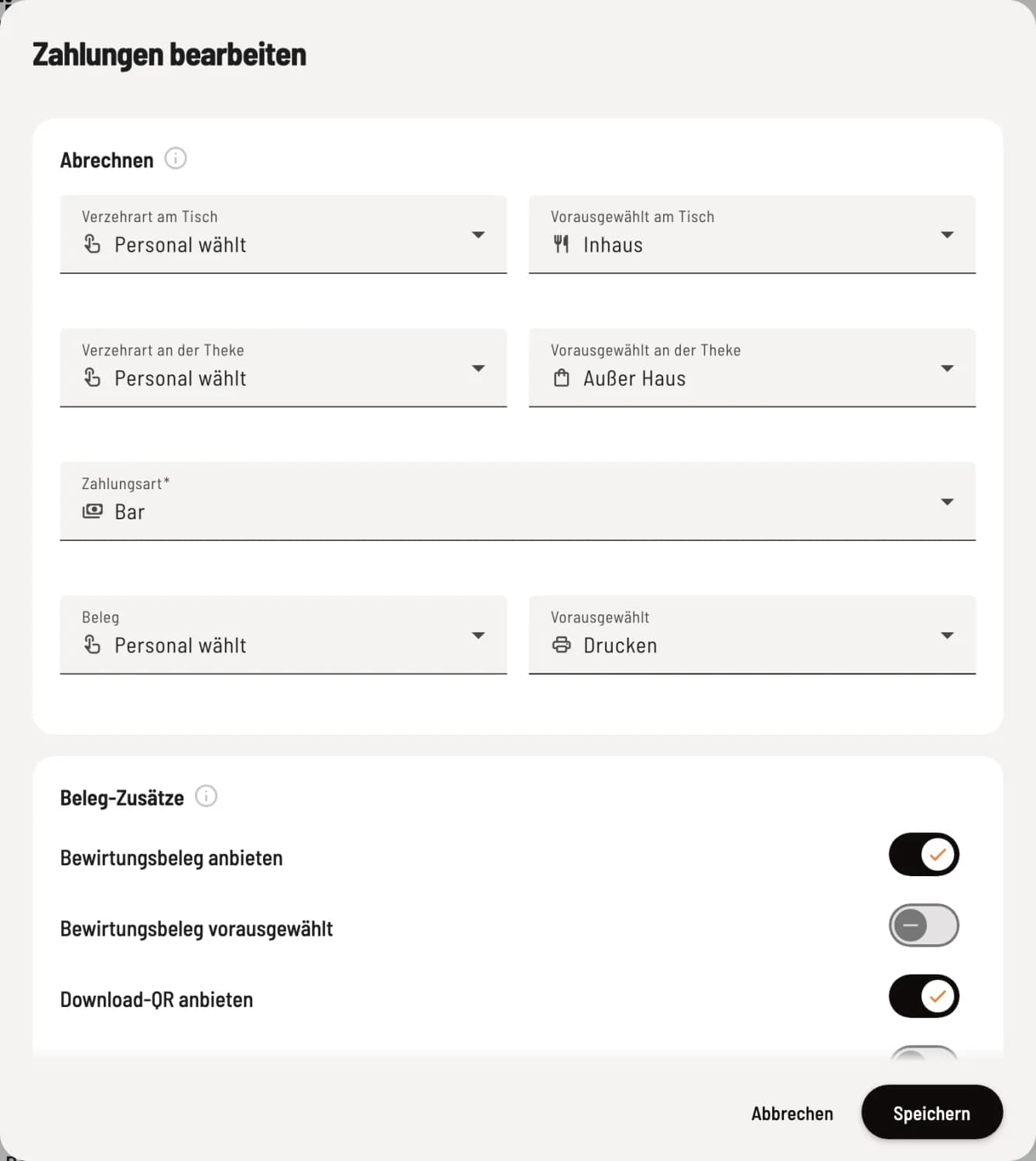
Define document type
With Staff Selects, the staff taps the receipt type when processing payments; what is listed under Preselected is highlighted first. Always Print, Always QR Code, Always Print QR Code, and Always Email eliminate the need for selection at the cash register.
Print – full paper receipt.
QR Code – the cash register displays a QR code on the screen; the customer scans their receipt. Nothing is printed.
Print QR code – a small receipt with a QR code, which the guest can use to retrieve the receipt.
Email – the receipt will be sent to the guest via email.
Without a printer: If no printer is set up on a device, the cash register will preselect QR code, and staff can still choose a different receipt type.
Document additions
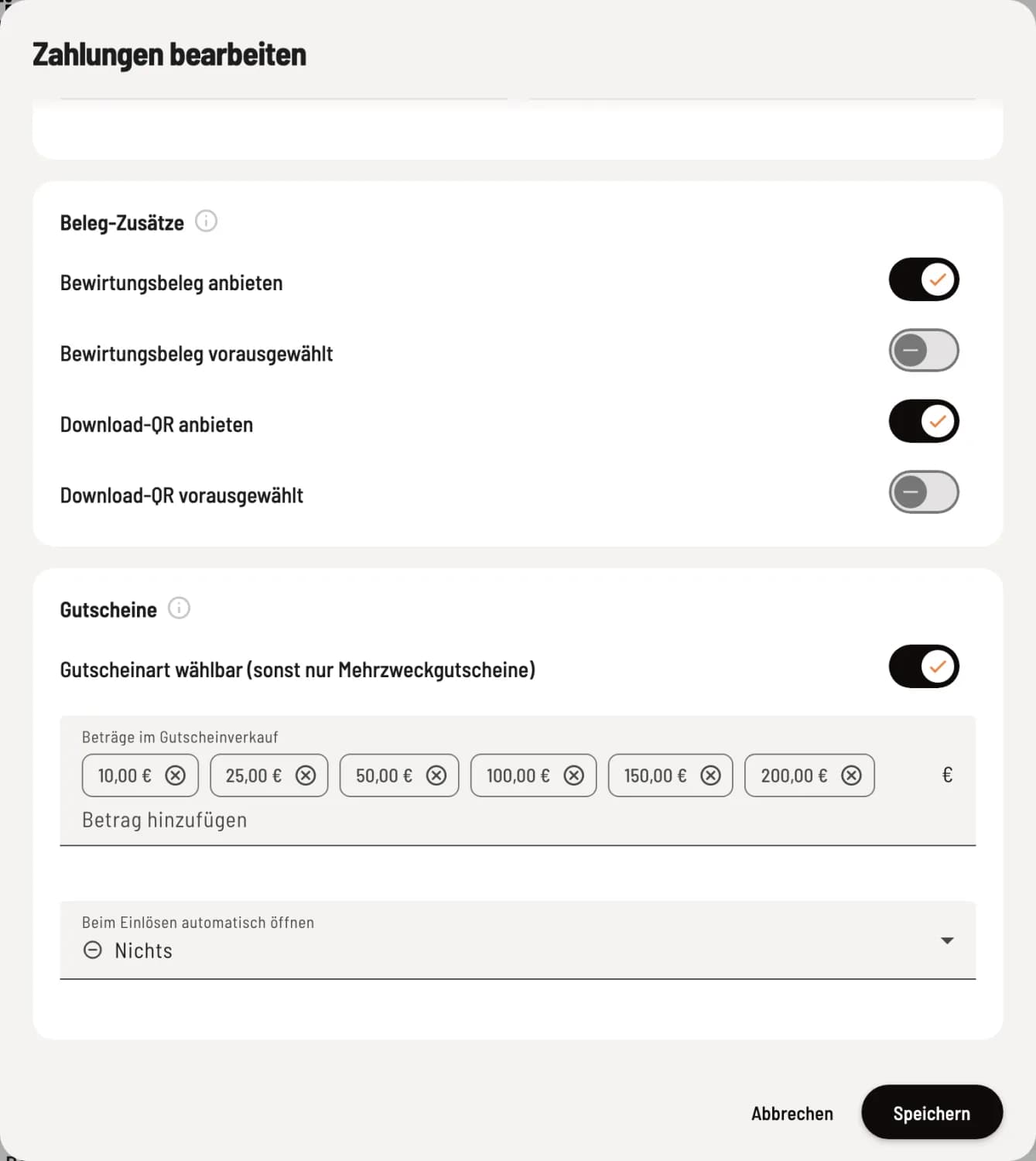
Turn on additional features
**Offer a business meal receipt ** – when settling the bill, there is an option for a business meal receipt; the receipt includes fields for guests entertained, occasion, and signature. Offer a download QR code – the printed receipt includes a QR code that the guest can scan to access it digitally. If an add-on is enabled, …preselected will appear below: The option will then already be checked when settling the bill.
Both options are only available for the receipt types Print and Email. If both are disabled, the Receipt Information section will be omitted at the checkout. Confirm with Save; the toggles on the card save immediately.