
Print center on multiple devices
Multiple devices as a central printing unit: one prints, the others take over. Here's how to define the main device.
The print center can be open on multiple devices simultaneously, for example, one in the kitchen and one at the counter. One is printing, while the others wait and take over if the printing device fails. Each receipt is still printed only once.
The conditions
The Status tile in the top left corner tells you where you stand:
Active – this device is printing.
Ready – another device is printing; this one is a backup. If the printing device fails, it will take over in approximately one to two minutes.
No machine is printing – the print center is on, but no one is printing right now. Orders are being collected until a machine takes over.
Inactive – the print center is off, the cash registers print directly.
Set main device
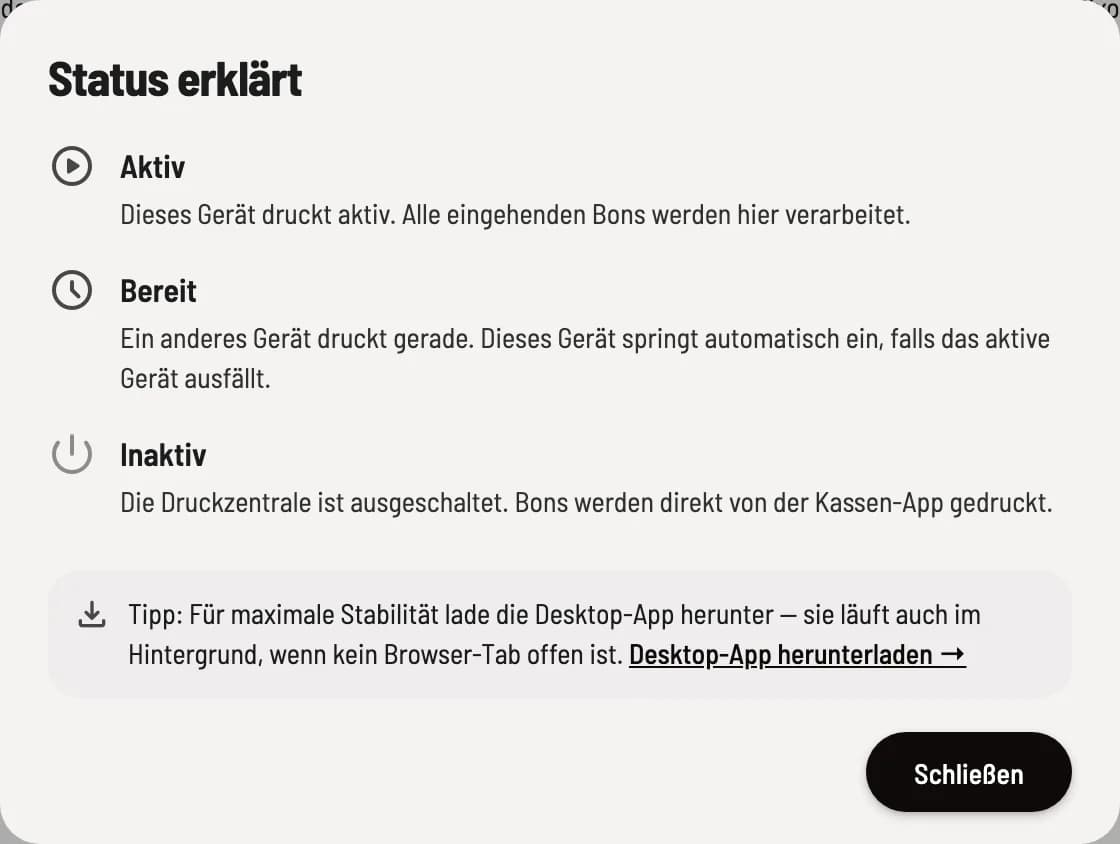
Status explained open
In the Status tile, click the info icon or Set Primary Device. With Print Center enabled, all devices with a browser and operating system are listed under Connected Devices; your own device is listed as This Device.
Without your intervention, the device that has been connected the longest will print. If you want a specific device to print, such as the computer with the desktop app instead of the iPad at the counter, click Set as Primary Device on that device. It will then be marked Pinned. If it fails, another device will take over, and the hub will report "Pinned device offline". Remove Pin returns to automatic selection.
If a device fails to reach the printers several times in a row, it hands over the printing to another device.
You see disruptions everywhere.
If a printer reports a problem, the warning appears on all devices, including those in standby mode, for example, "Printer jammed: Paper empty. — 2 receipts waiting." The queue itself is only maintained by the printing device.