
Set up print center
Print all receipts via one station in the Servire Hub : switch on, add printer, test.
Without a central print shop, each cash register sends its receipts to the printers itself. This means each device needs access to every printer, and a cash register that's currently switched off won't print online orders. With a central print shop, all cash registers send their receipts to a central station in the hub, which then handles the printing.
Requirement: A device located and running in the restaurant: a small computer, an Android tablet, or an iPad. The print center only prints to Epson printers via the browser and only while the tab is open. It runs most reliably with the desktop app.
Turn on
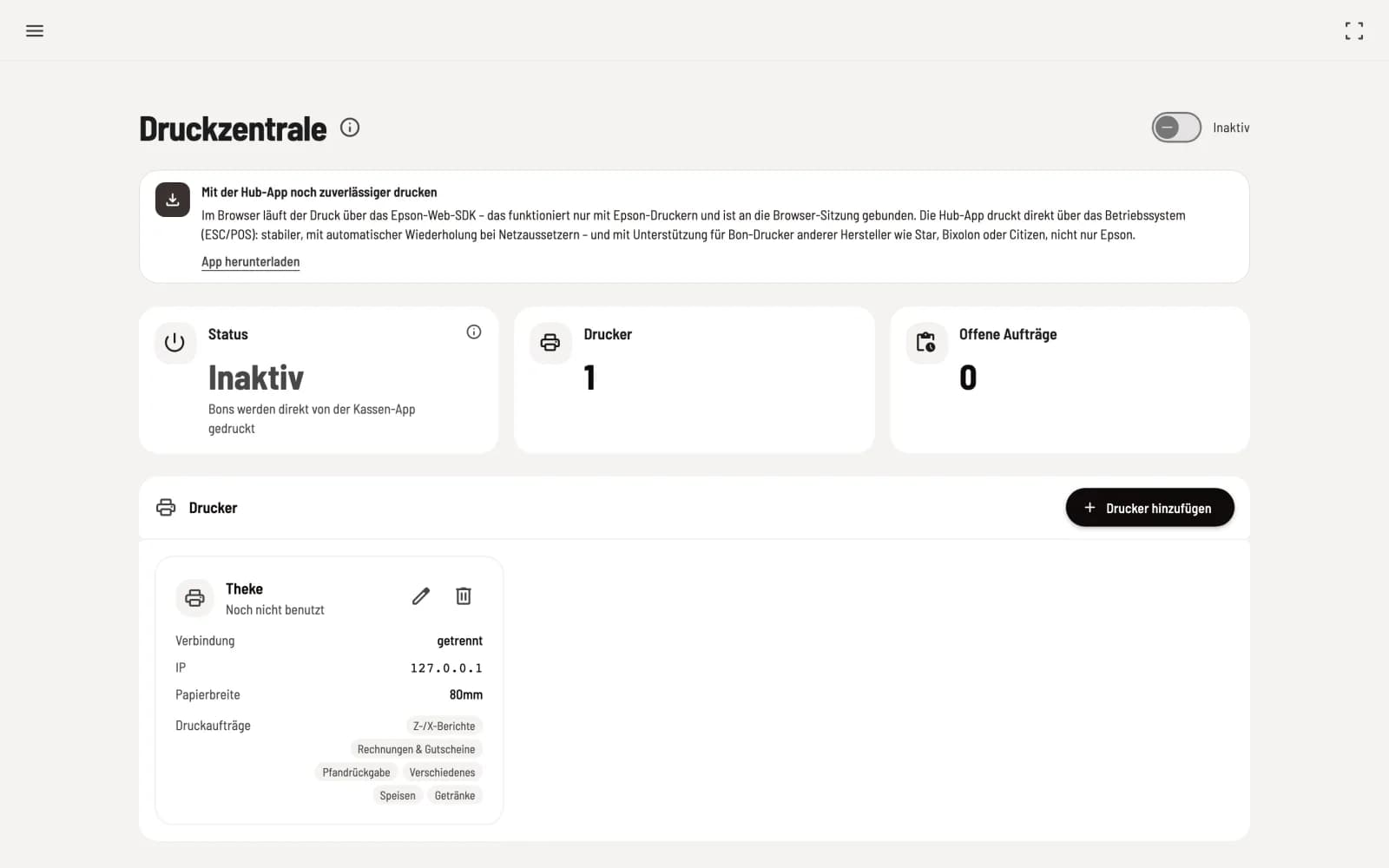
Activate print center
Open the Print Center in the Hub and switch the toggle in the top right corner from Inactive to Active. You can find the same toggle in the settings under Activate Print Center.
From now on, all receipts will be processed via the hub, and the cash registers will display Hub mode active: printing via the print center. Switching the same switch back to Inactive will restore direct printing to the cash registers.
Add printer
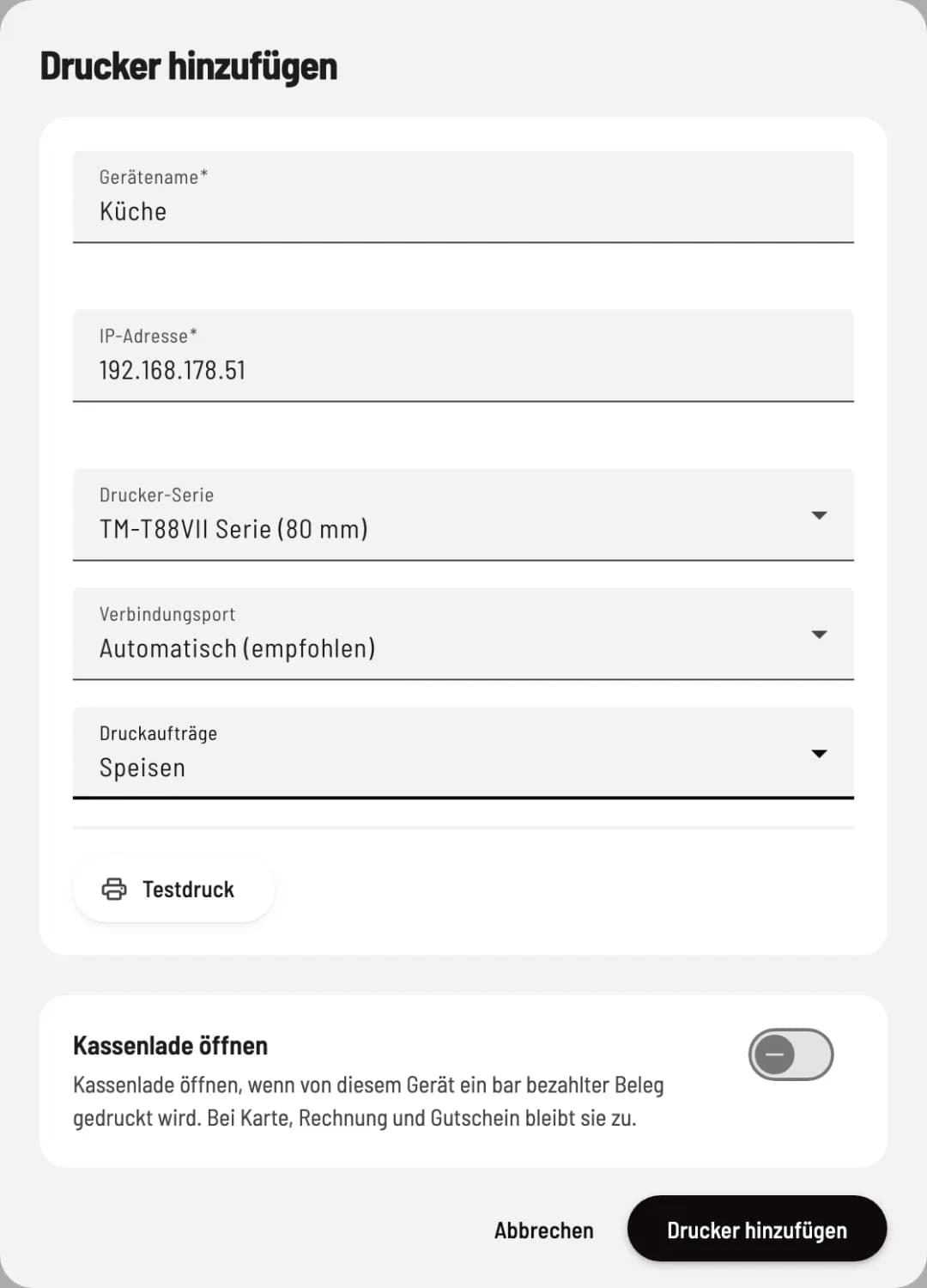
Add printer
Click on Add Printer. Enter the device name, for example, "Kitchen", and the IP address from the printer's self-test. Under Print Jobs, select which receipts it should print, such as an item group for the kitchen or Online Orders for a single receipt for each online order ( Define what a printer prints ). Then click on Add Printer.
In your browser, select the printer series of your Epson printer; this determines the paper width. Leave the connection port set to Automatic (recommended).
In the desktop app, you instead select Port (usually 9100), Paper width (58 or 80 mm) and Character set.
Open cash drawer opens a connected cash drawer when this printer prints a cash payment receipt. In the desktop app, you select the cash drawer PIN to do this.
With test print you check if the address and paper width are correct. The printers share the hub and cash registers: what you create here is also visible to the cash registers.
What the printing center does automatically
If the printer reports an empty paper tray or an open lid, the receipt will wait and print automatically as soon as the printer is ready again: kitchen receipts up to 5 minutes, receipts and deposit slips up to 15 minutes, reports up to 30 minutes. If the printer is unavailable, it will try twice more. After that, the job will be in the print queue, and you will need to print it manually.
You can set prices on order slips, COPY note and the print time for each item group here: Print settings of the print center.