
Setting up a menu display
Display your menu on a screen, with design, columns and display mode.
The menu display shows your menu on a screen: with logo, categories, prices, selection options, labels, and a key to additives, allergens, and properties. Sold-out item are marked.
Prerequisite: The menu is set up in Servire , with categories and items. Descriptions will appear if you have added them as a public description to the item .
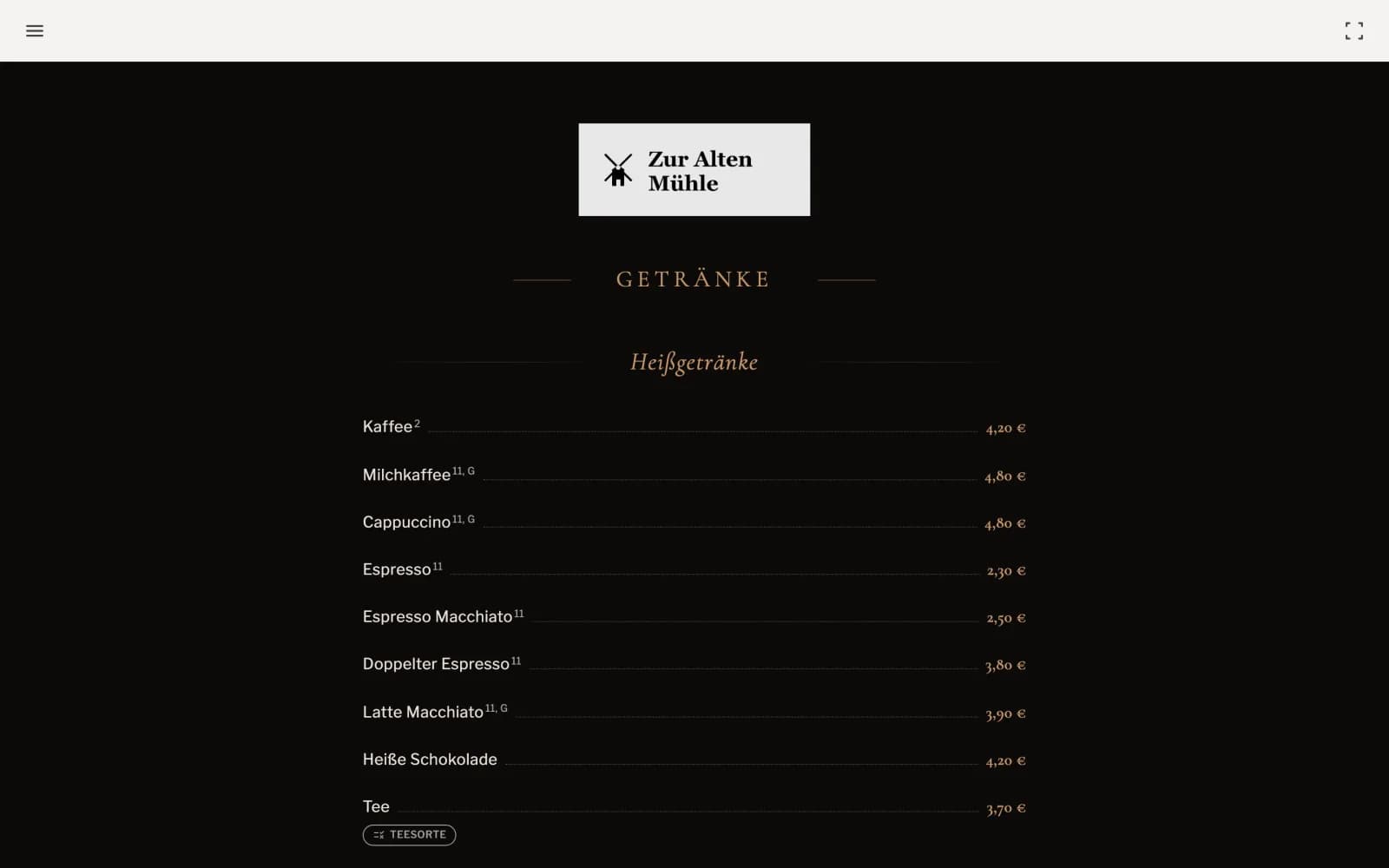
Open ad
Open hub.servire.de on your screen, log in and select menu display. Switch to full screen in the top right corner.
Settings
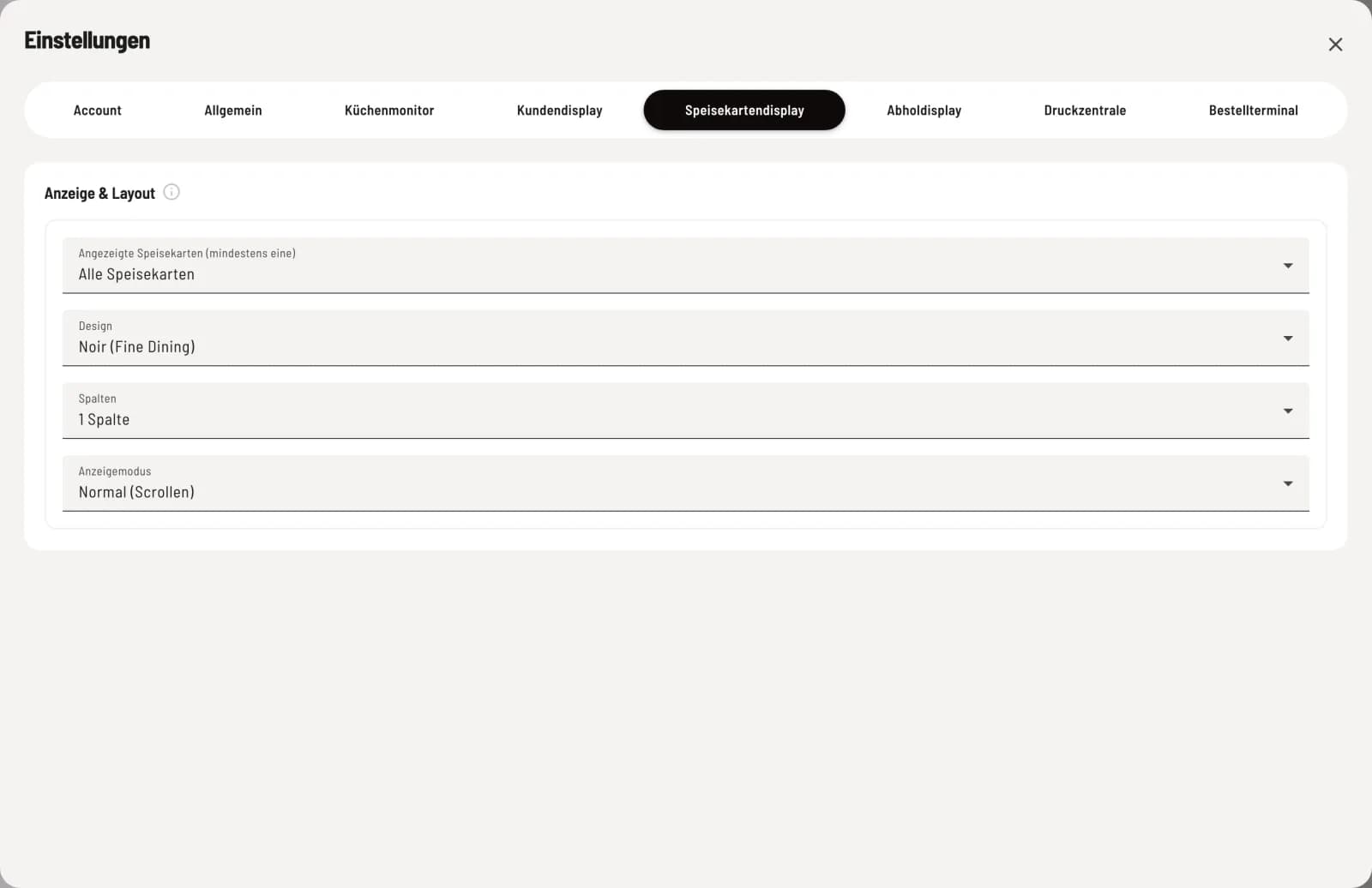
Click on your profile (gear icon) in the sidebar at the bottom and select the Menu Display tab. Under Display & Layout:
Displayed menus (at least one) – which menus are running, for example the lunch menu on one screen and the dinner menu on another.
Design – Noir (Fine Dining), Signal (Urban), Osteria (Trattoria), Tafel (Board), Café (Brunch) or ** beer garden (Wirtshaus)**.
Columns – 1, 2 or 3. One column fits on a vertically hung screen, three on a wide one.
Display Mode – Normal (Scrolling) by hand, Auto-Scroll runs automatically (with Scroll Speed Slow, Medium or Fast), Fade (Slideshow) fades page by page (with Display Duration 10, 15 or 20 seconds).
These settings only apply to the device you are using. Therefore, two screens can display two cards in two different designs.
You manage item, prices, images, and labels in the menu via the Web desk or the POS app. The display updates with the latest information at least every five minutes.