
Setting up action buttons and quick keys
Define which actions the round button in the cash register app offers and which two separate buttons are located next to it.
The Action Button is the round … button in the table plan and quick checkout section of the POS app. Open Settings → POS and click the pencil icon next to Action Button. Anyone who can access the settings can do this; no special permissions are required.
Menu items
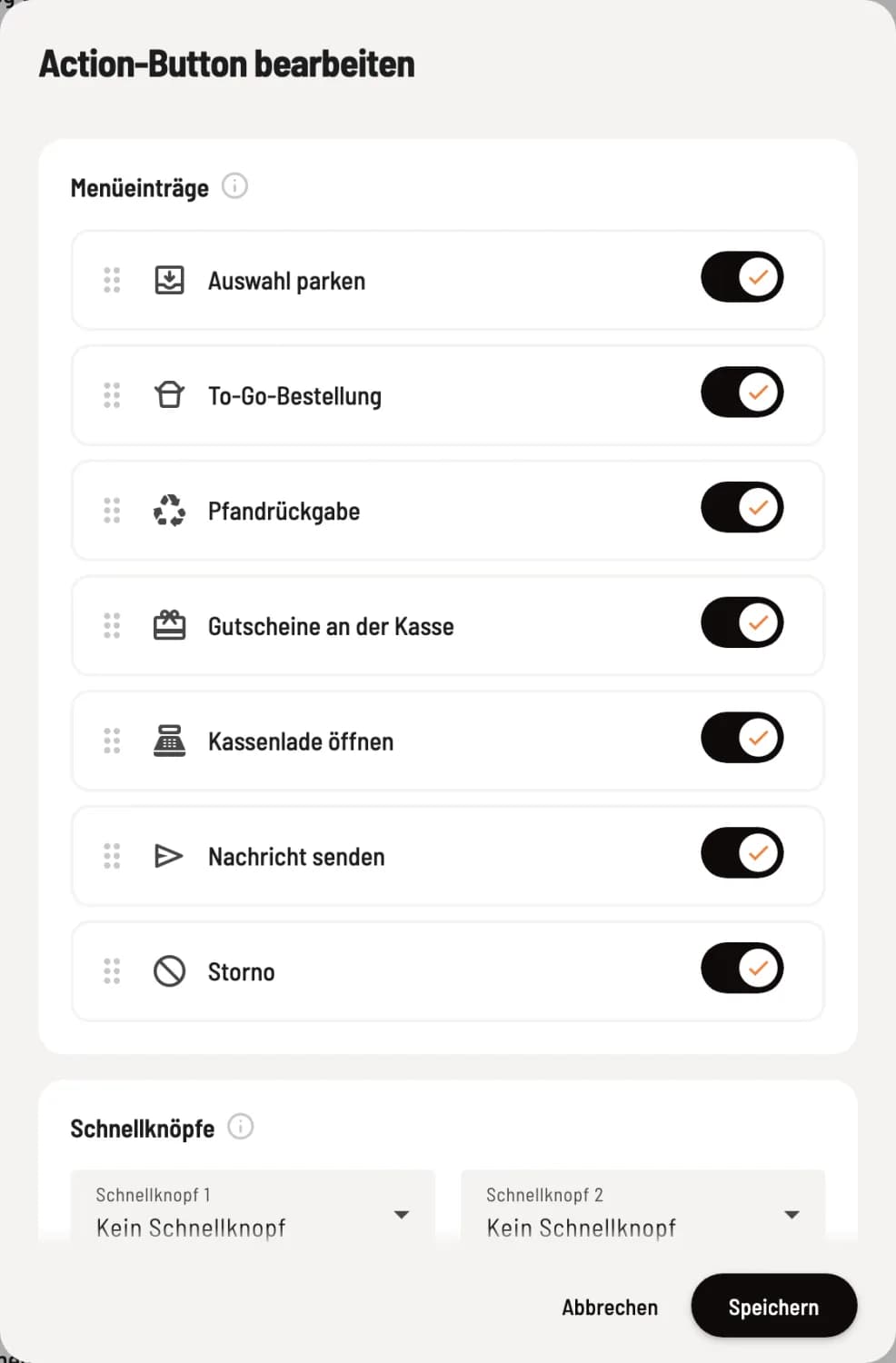
Select and sort entries
The button displays the entries in the order of this list. To reorder, drag an entry by the sort handle on the left. Entries that are turned off disappear from the menu.
Park Selection – sets the shopping cart aside without checking out. Only available at express checkout.
To-Go Order – starts an order without a table. Only available on the table plan.
Deposit Return – opens the deposit return.
Gift vouchers at the checkout – Sell vouchers and check balances. Redemption is always possible.
Open cash drawer – opens the cash drawer without making a sale.
Send message – sends a text to a printer, for example in the kitchen.
Cancellation – Cancel receipt or free amount.
Hiding the cancellation option is not a block: Hiding the Cancellation entry does not block cancellations: Cancellations remain possible at the table and on the receipts. Blocking cancellations is only possible via the employee permission **Allowed to cancel item **.
Quick buttons
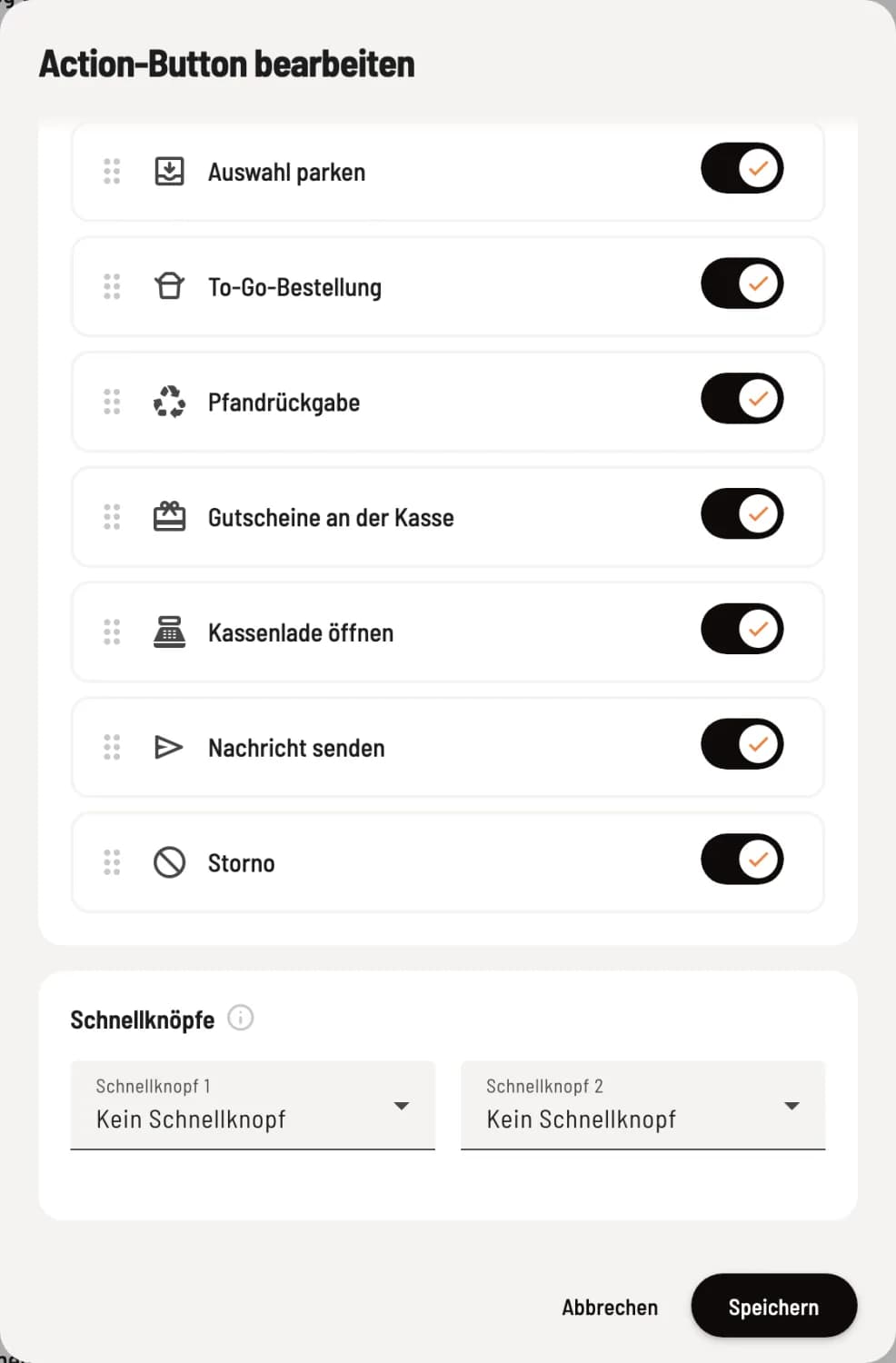
Assigning quick keys
Under Quick Button 1 and Quick Button 2, you can add up to two entries as separate buttons next to the round button, one tap away instead of two. No Quick Button leaves the space empty. Confirm with Save.
Entries on a quick access button are no longer displayed in the menu. If all entries are disabled or on quick access buttons, the round button disappears completely. On the phone and in the compact layout of the quick access point, only Quick Access Button 1 fits.
When an entry is missing: Open cash drawer and Send message only appear at the checkout if a printer is configured. Furthermore, only employees with the permission Can open cash drawer can see the cash drawer, and only those with **Can cancel item ** can see the cancellation option. If an employee lacks the permission for a quick access button, the corresponding space will remain empty.