
Check voucher and pay out remaining value
Check the remaining value and validity of a voucher and pay out the remainder in cash if necessary.
If a guest asks how much is left on their voucher, you check without a table or a receipt. The information desk doesn't enter anything.
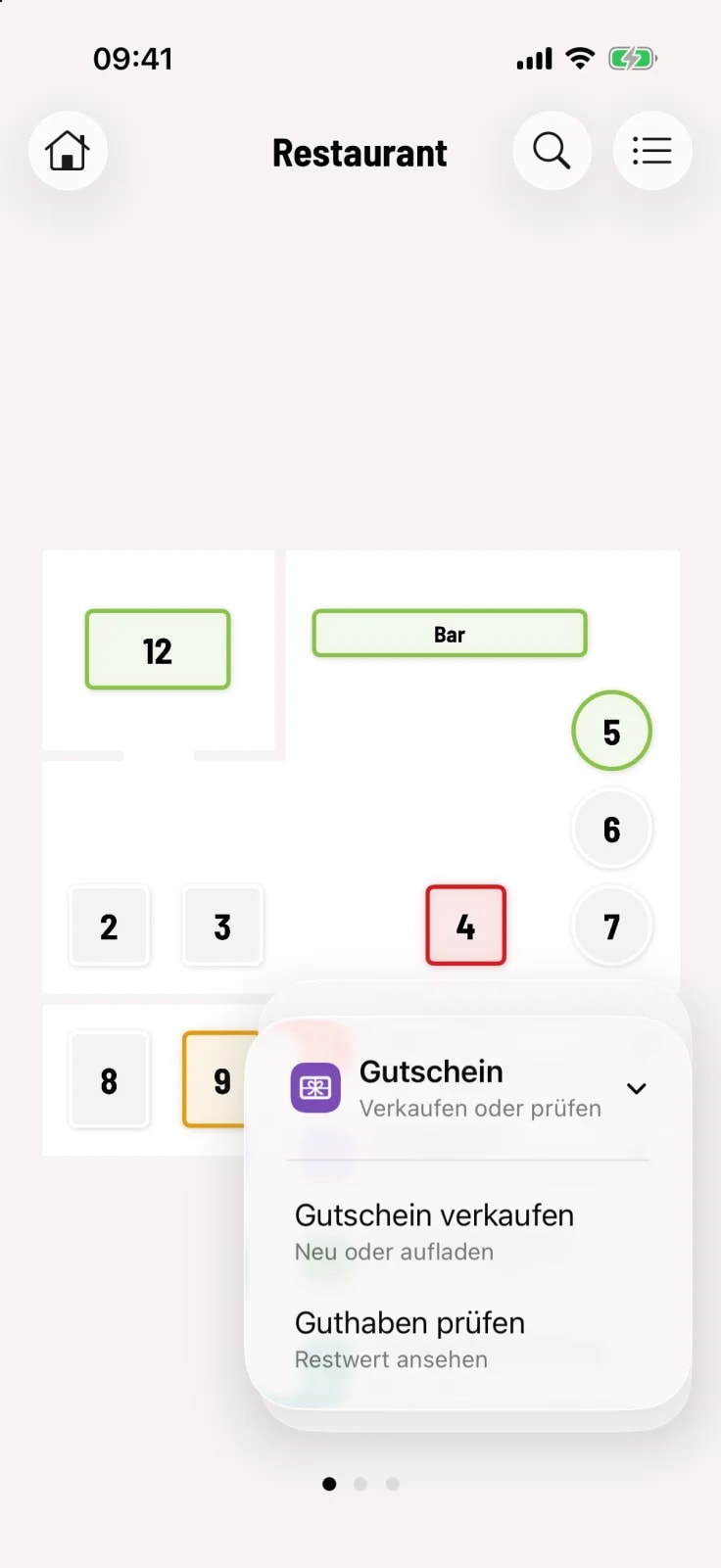
Step 1 of 2
Check balance Open
Tap the round … button, then Voucher and Check balance.
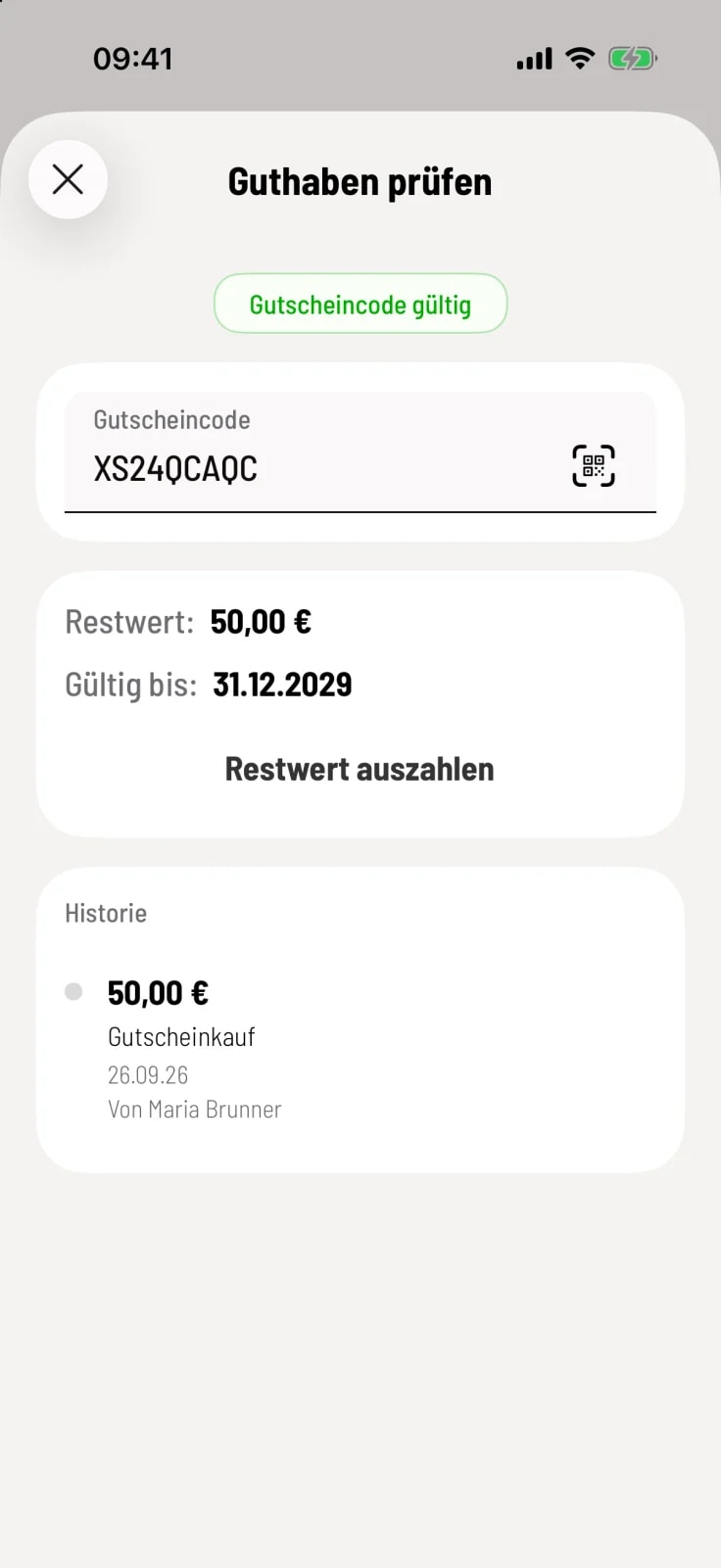
Step 2 of 2
Enter the code
Scan the QR code, read a gift card via NFC, or enter the code. You'll see the remaining value, valid until, and in the history, your purchases and redemptions. Click the X to close.
Pay out residual value
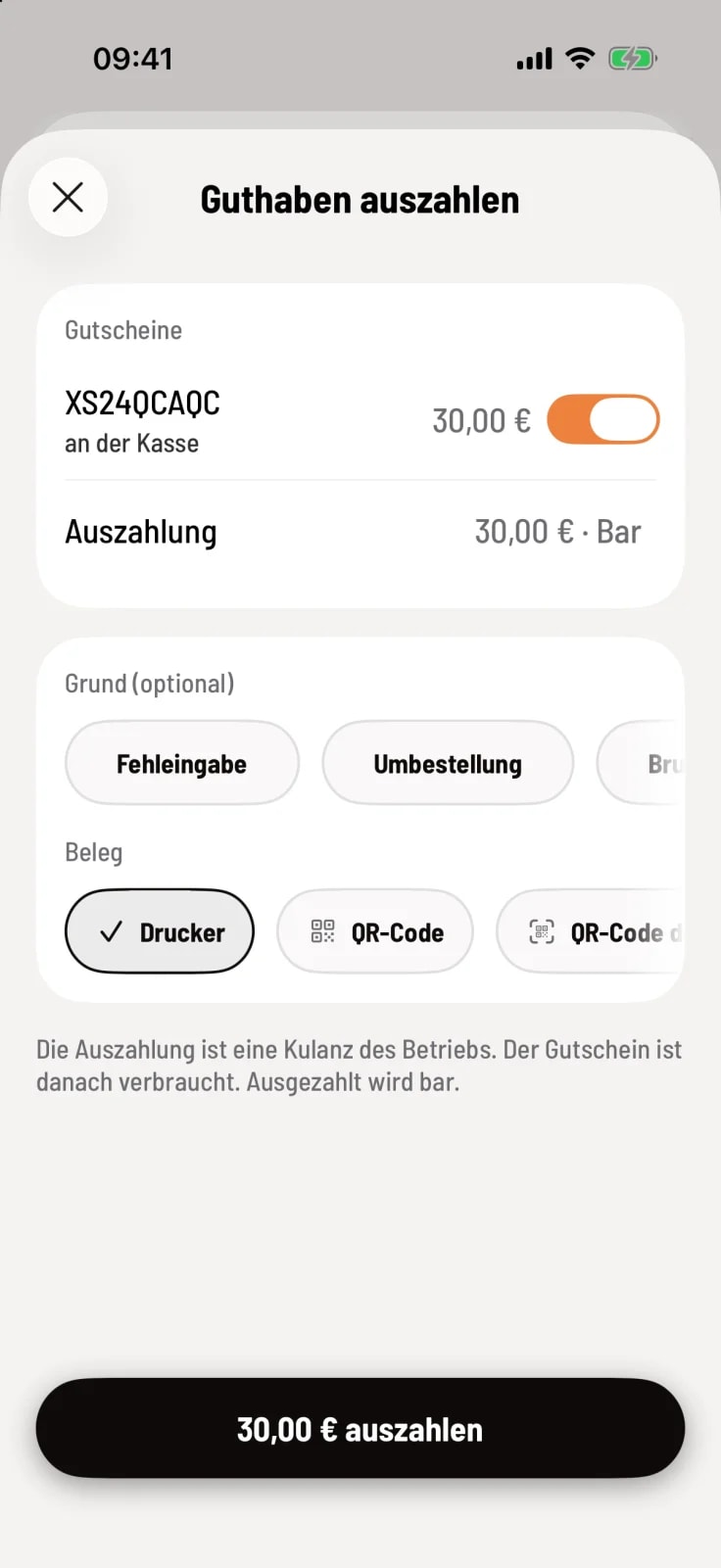
Pay out balance
If the business wants to refund the remaining balance as a gesture of goodwill, tap Pay Out Remaining Balance below the remaining amount. On the Pay Out Credit screen, optionally select a Reason and the Receipt, and tap the button with the amount. Dispense the money from the cash register.
Disbursement requires the "Cancel item " permission and an internet connection. It is only possible with active, unexpired multi-purpose vouchers, and always in cash. With an active cash register, the system checks if there is sufficient cash on hand.
The voucher is then used up. The payout is a separate receipt and cannot be cancelled.
If a voucher has already been redeemed, the sale cannot be canceled. The POS system will then offer the option to refund the balance. With guest management, you can also refund a guest's balance directly from their guest record.
Check balance only appears if the entry Vouchers at checkout is enabled in the Web desk : Set up action button.