
Google Reserve and company profile
This is how you can show your business on Google Maps, let guests make reservations there, and keep your opening hours up to date on Google.
In the Web desk under Settings → Integrations → Google you connect two things: Google Reserve (guests reserve directly from Google Maps, without commission) and your Google Business Profile (opening hours and special times are only maintained in Servire).
Google is in beta and only visible to approved restaurants. For Google Reserve, you need to specify service hours in the reservation settings and provide complete information such as name, address, and phone number. For a business profile, you need a Google account to manage your profile on Google.
The two cards
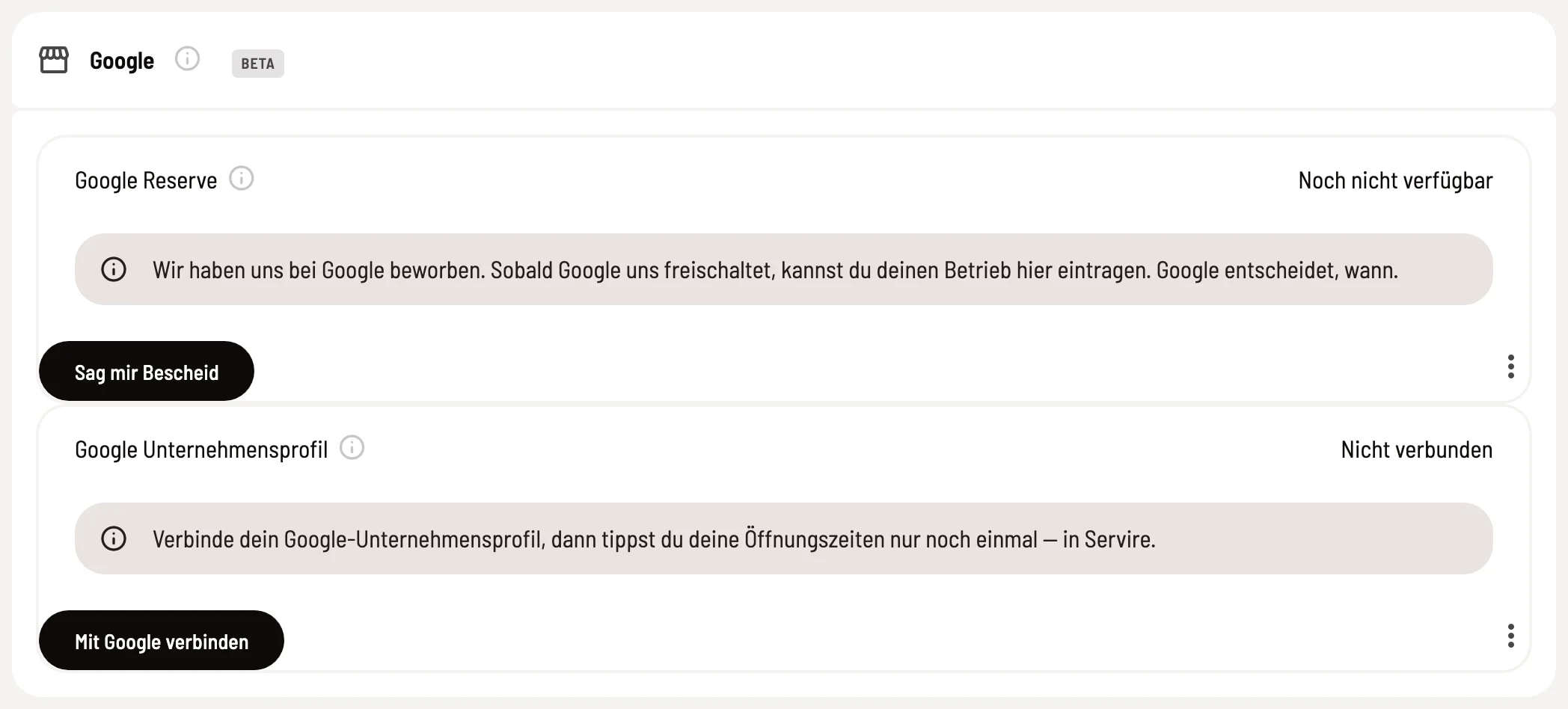
Google Reserve and Google Business Profile
Each card displays its status in the upper right corner and what needs to be done next. Google Reserve – As long as the connection to Google is not yet activated, it will say Not yet available; with Notify me you sign up for notifications. Afterwards, you activate the connection with Turn on. If information is missing, Check details will help; if Google cannot find your business, you select the appropriate listing from Google Maps with Search Google listing. After the transfer, it takes Google up to two weeks for your business to appear. Google Business Profile – With Connect with Google you log in to Google and select your business listing. If someone changes your opening hours on Google, the card will show Google made a change; you decide with Apply or Dismiss. Disconnect ends the synchronization; your Google listing remains as it is.
quota for Google
If your business is visible on Google, open the quota dialog in the menu ⋮ of the Google Reserve map. There you will also find Preview, History, Pause and Turn off.
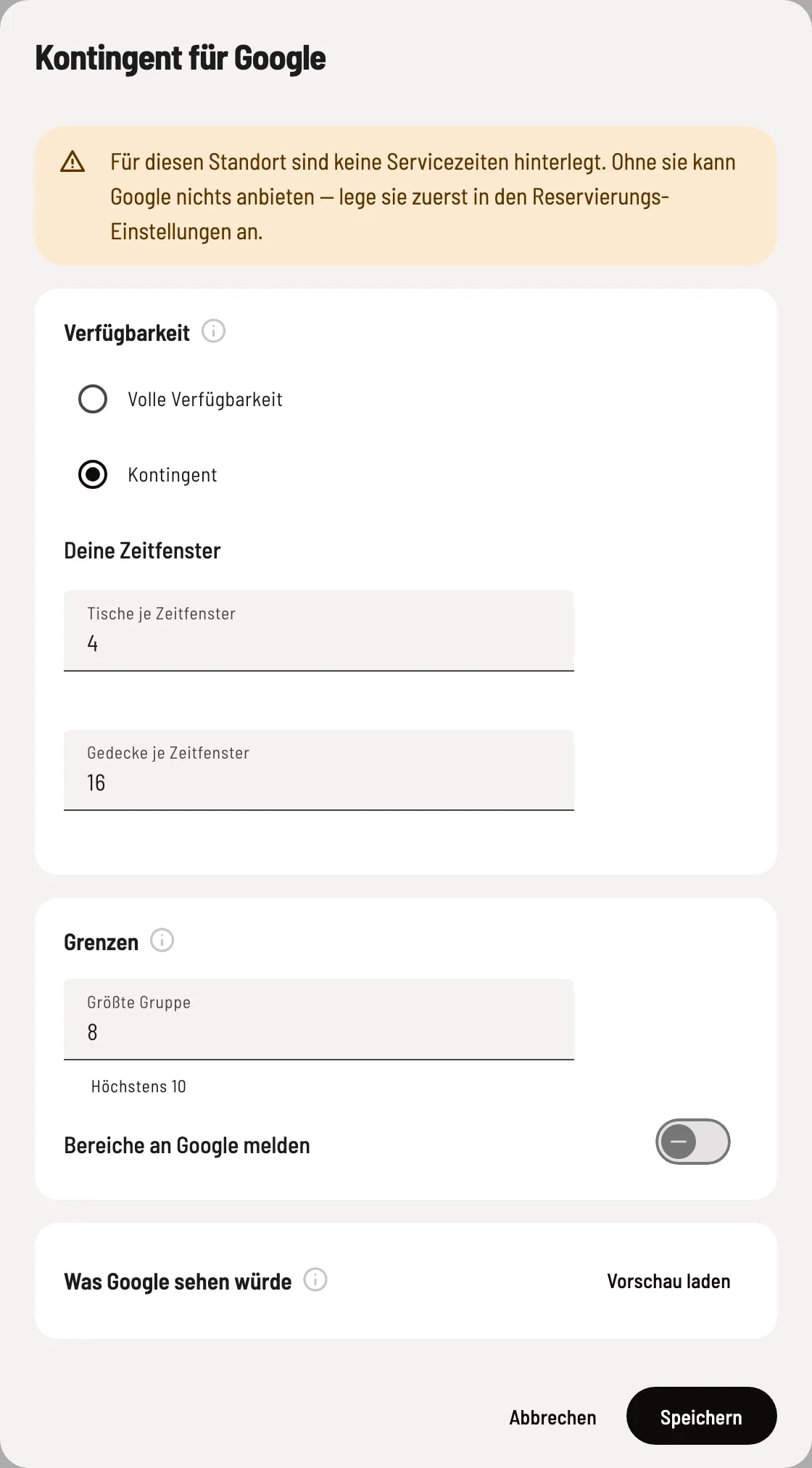
Dialogue quota for Google
Availability determines how much of your property Google is allowed to allocate. The rest remains for phone bookings, walk-ins, and your own website. - Full Availability – Google sees the same information as your own guest page. - Quota – Google sees a maximum of the number of bookings you specify per time slot. Only bookings made through Google are counted. A time slot is a segment of your service hours, e.g., 6:00 PM–6:30 PM. - Tables per Time Slot / Place Settings per Time Slot – the maximum number of bookings or guests allowed through Google. If left blank, only the other number counts; if both are set, the lower limit applies. Limits - Largest Group – Google cannot book larger groups. The maximum is 10, which is Google's limit; if left blank, the maximum is set. The smallest number from this field and your upper limits from the reservation settings apply. - Report Areas to Google – Guests also select the area on Google, e.g., terrace. This is enabled by default. Google recommends leaving it off. What Google would see – Load preview calculates like the nightly check for the coming Friday. The numbers represent available tables per group size. If service times are missing, the dialog box above will indicate this – without them, Google cannot offer any information.
You can set service hours and upper limits for online reservations in the Reservations module ( reservation settings in the Web desk ).