
Connect DATEV Online
Servire sends your bookings directly to the DATEV booking data service and stores cash register data in the DATEV cash register archive online.
With DATEV Online, Servire sends your data directly to DATEV, instead of you downloading and forwarding files. You can find this in the Web desk under Settings → Integrations → DATEV Online. If you prefer to download the files and send them to your tax advisor, use the ** DATEV Export** tab ( Download DATEV files ).
DATEV Online is in beta and only visible to activated restaurants. You need a paid plan, the employee right to Manage Accounting Connections, a DATEV account, and the service ordered from DATEV . For the booking data service, the consultant and client numbers must also be entered in the ** DATEV Export** tab ( Set up DATEV header data and accounts ).
The two services
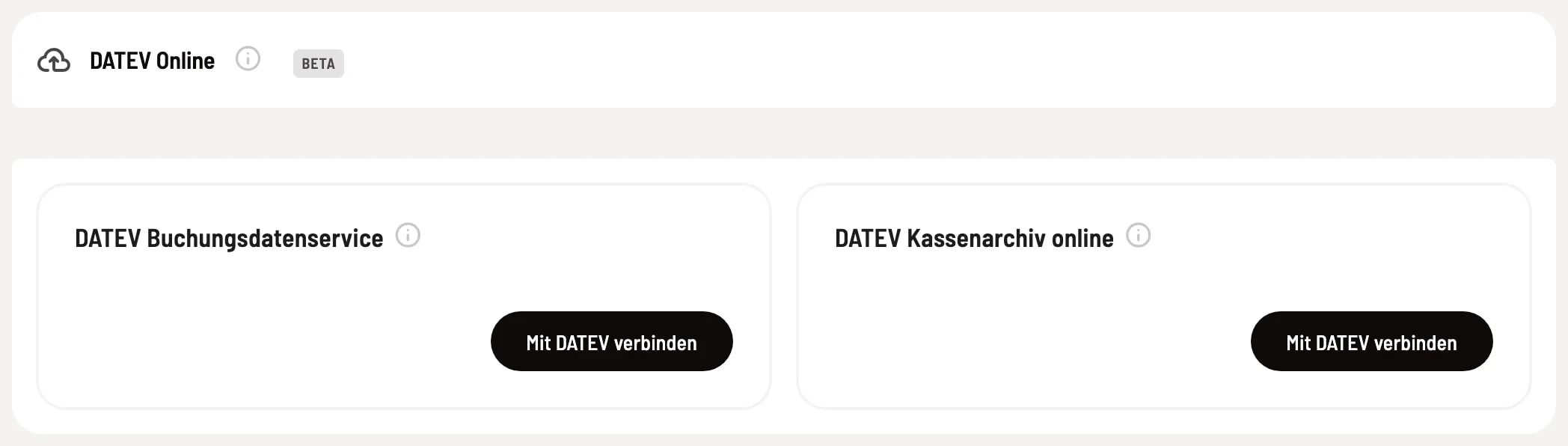
Booking data service and cash register archive
** DATEV Booking Data Service** – sends your completed bookings directly to DATEV: revenues and cash book, plus the Z-report as a PDF. ** DATEV Cash Register Archive Online** – stores your cash register's raw data securely at DATEV for ten years, as required by the tax office. This is a separate service that you order from DATEV ; it costs €90 per cash register per year. After connecting, you select the unit of your archive agreement and create the cash register folder once.
Connect with DATEV
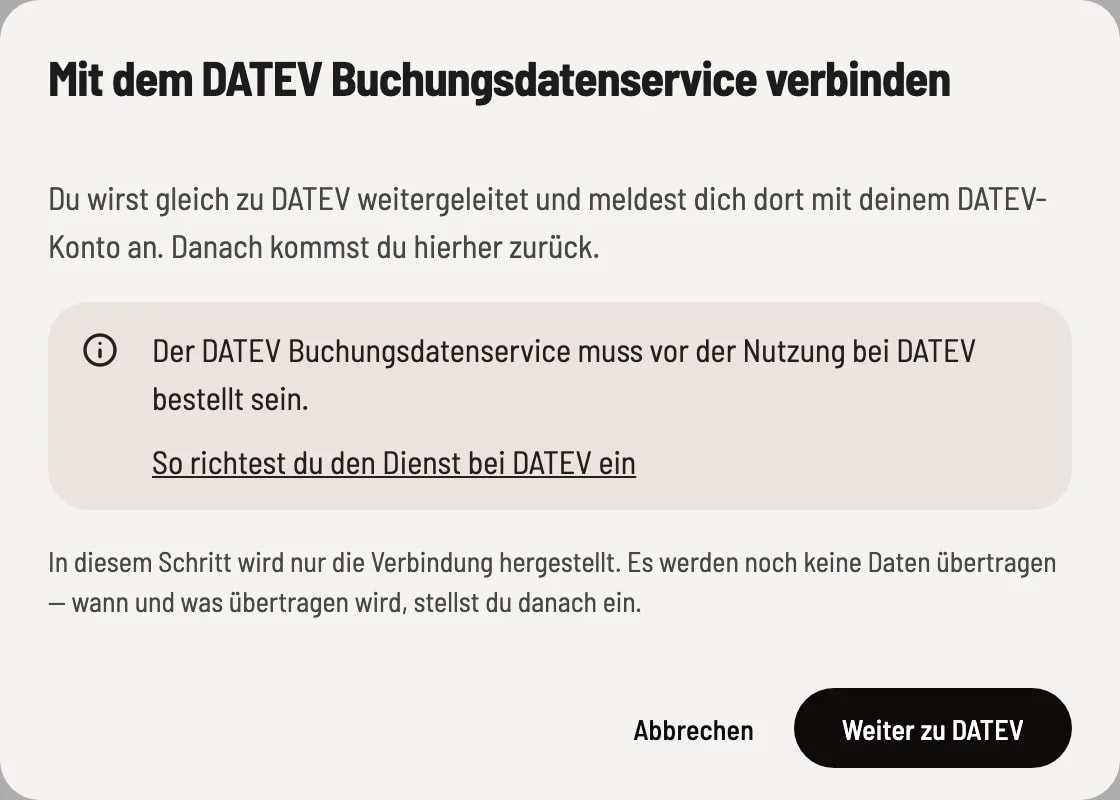
Step 1 of 2
Continue to DATEV
Click on **Connect with DATEV ** on the map. The dialog box reminds you that the service must be ordered from DATEV beforehand and links to the setup instructions. Clicking Continue to DATEV will log you in to your DATEV account and return you to this page. This step only establishes the connection; no data is transferred yet.
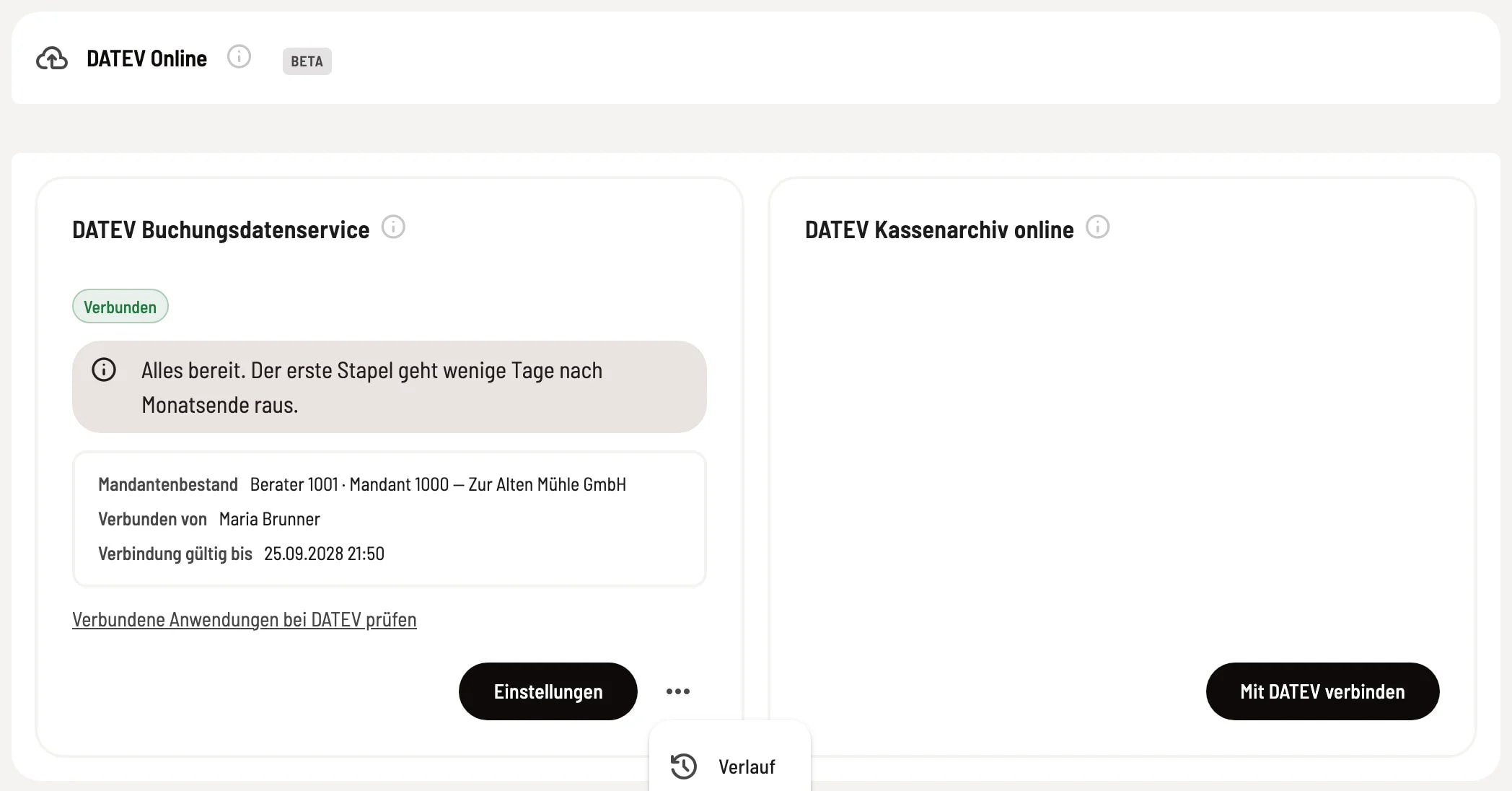
Step 2 of 2
Linked map
The map now shows Connected, the client profile, who is connected, and the connection's expiration date. You can configure the transfer via Settings, and find History and Disconnect in the ⋯ menu. The link **Check connected applications at DATEV ** leads to DATEV, where you can also revoke access.
Set up transmission
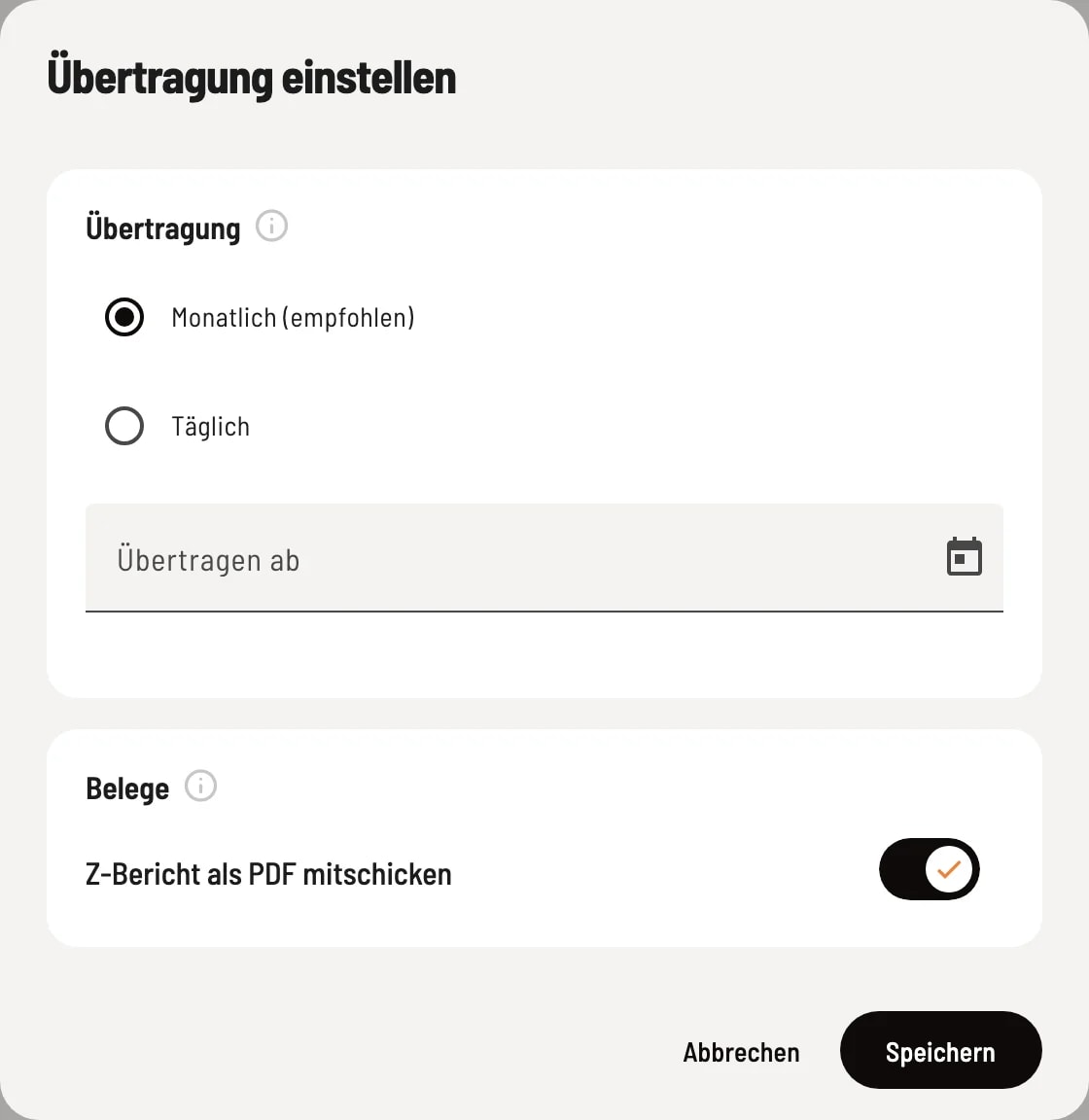
Set up dialog transfer
Monthly (recommended) – one batch per month, three days after the end of the month. This is how most tax offices work. Daily – one batch per business day, the following morning. Your tax advisor sees everything immediately but receives significantly more batches. Transfer from – Servire transfers data starting from this business day; older days are excluded. You define this field during initial setup and cannot change it afterward. Send Z-report as PDF – the Z-report is uploaded as a document to DATEV Unternehmen online and attached to the transactions.
After the initial connection, Monthly and Send Z-report as PDF are pre-selected. Servire checks every morning around 4:40 AM what is due. In daily mode, it catches up on the last seven business days if one is missing.
If something isn't working
The card states the reason, e.g., Connection expired (reconnect), Header data missing (add advisor and client number in the ** DATEV Export** tab), or Transfer failed. The History shows what DATEV objected to for each transfer; you can copy the details for your tax advisor there. If **Please check with DATEV **, first check with DATEV to see if the transaction has been received – transactions cannot be deleted there.