
Set receipt logo and receipt options
Upload your receipt logo and specify what else should appear on the receipt.
Under Settings → Restaurant, at the bottom of the Receipts section, you'll find the Receipt area with two buttons and the receipt logo. Clicking these buttons saves immediately; you can also find them in the dialog box via the pencil icon.
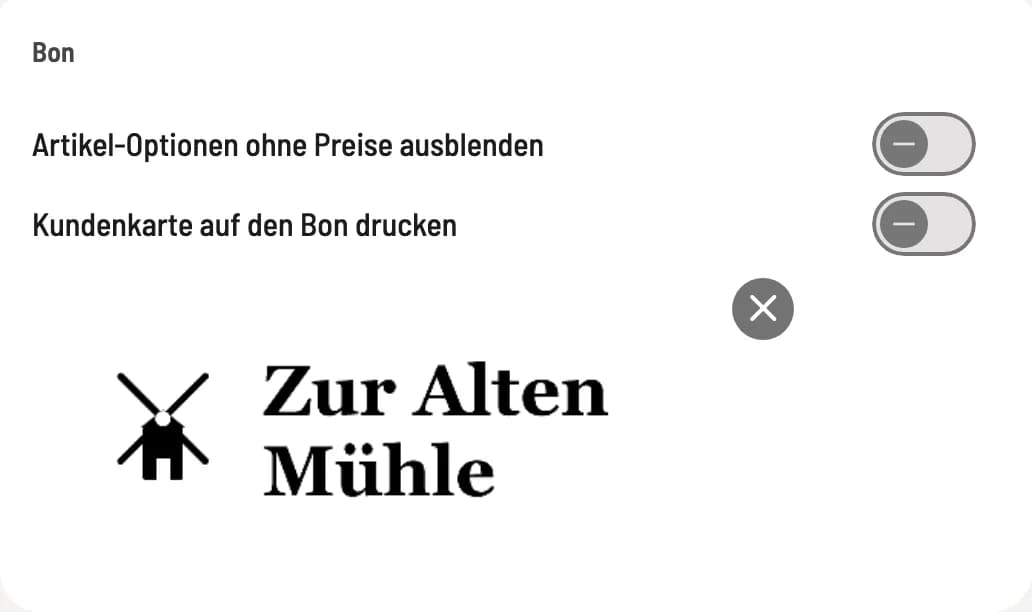
Bon area
The switches are at the top, the receipt logo is below. The X on the logo removes it.
Upload receipt logo
Click on Upload Image or drag an image onto the area; use Replace Image to replace an existing one. It must be at least 500 × 200 pixels. Select the area and confirm. Servire saves the logo in 5:2 format in grayscale and prints it at the top of receipts and invoices, as well as on customer displays and receipts from the hub. No separate save is necessary. A black logo on a white background works best.
You can set the colored logo for your guest pages separately under Branding.
Hide item options without prices
Options without an extra charge, e.g., "without onions," do not appear on the receipt, invoice, or digital receipt. They remain visible on the kitchen slip. Options with an explicitly entered price of €0.00 remain visible. Totals do not change.
Print customer card on the receipt
The switch only appears when guest management is active. When activated, the cash register prints a QR code on the receipt for guests without a guest account, allowing them to create one. If a guest is assigned to the receipt, their punch balance and credit balance are printed instead. You configure the QR code for retrieving the digital receipt separately: Receipt Output and Receipt Additions.