
Setting up a customer display
Set up a screen for the guest to view, displaying items, amount and change due, and offering the digital receipt.
The customer display is the screen facing the guest. While you're processing the transaction in the POS app, they see the items with their individual and total prices, discounts, tip, the bill amount, and, in the case of cash payments, Taken and Change Due.
Prerequisite: A current transaction in the POS app. Without a transaction, the screen will display a placeholder image or "No current transaction".
Furnish
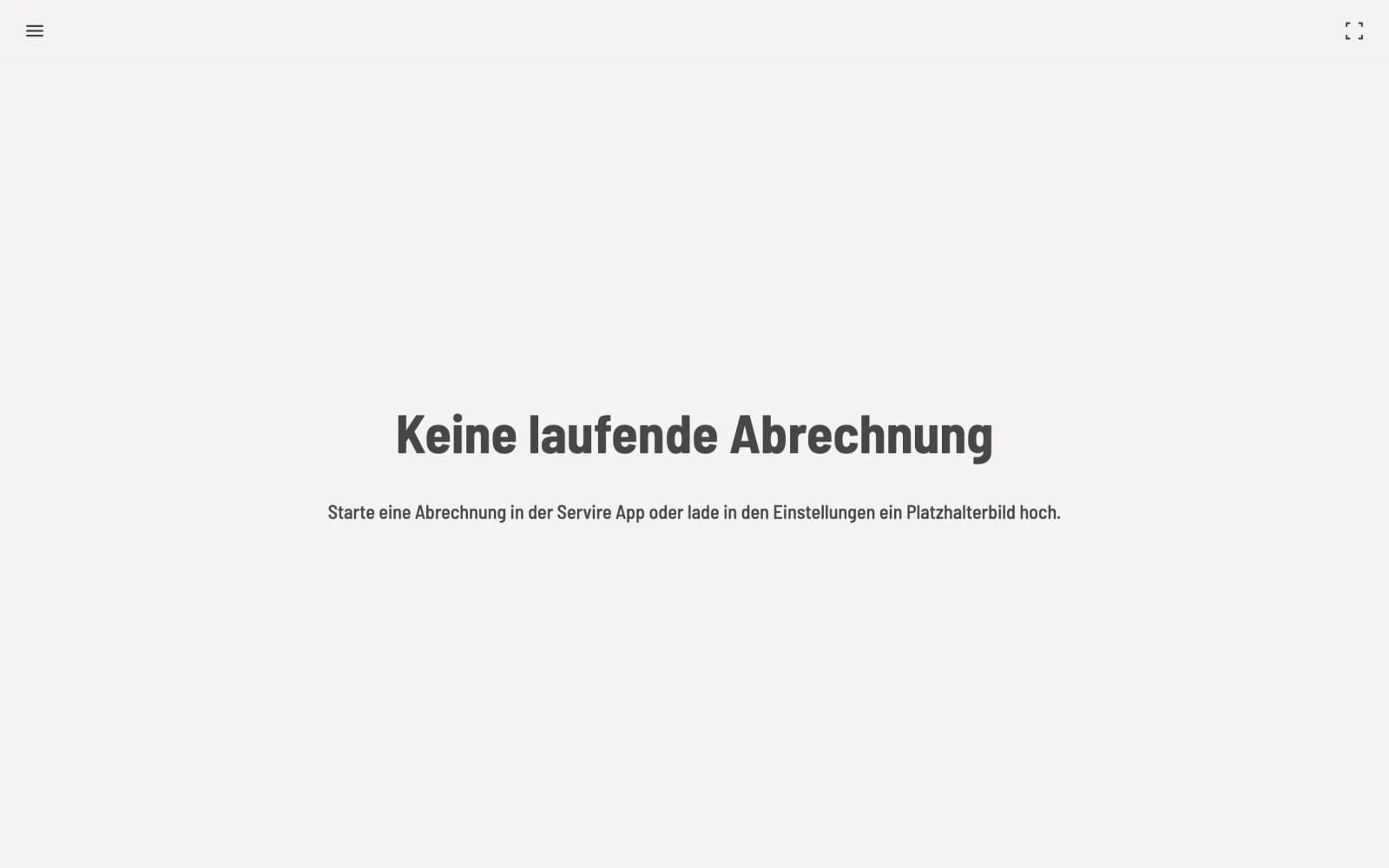
Open customer display
On the guest screen, open hub.service.de, log in, and select Customer Display. Switch to full screen in the top right corner. If you now start a transaction at the checkout, it will appear immediately.
The digital receipt
Once the transaction is complete, a QR code appears with the message "Scan QR code & save receipt." The customer can then download their receipt to their mobile phone as a PDF, and, with the Solo plan, also to their Apple Wallet. Your thank-you message is displayed below. If the order has a pickup number, the screen will show it prominently as Your Pickup Number.
Settings
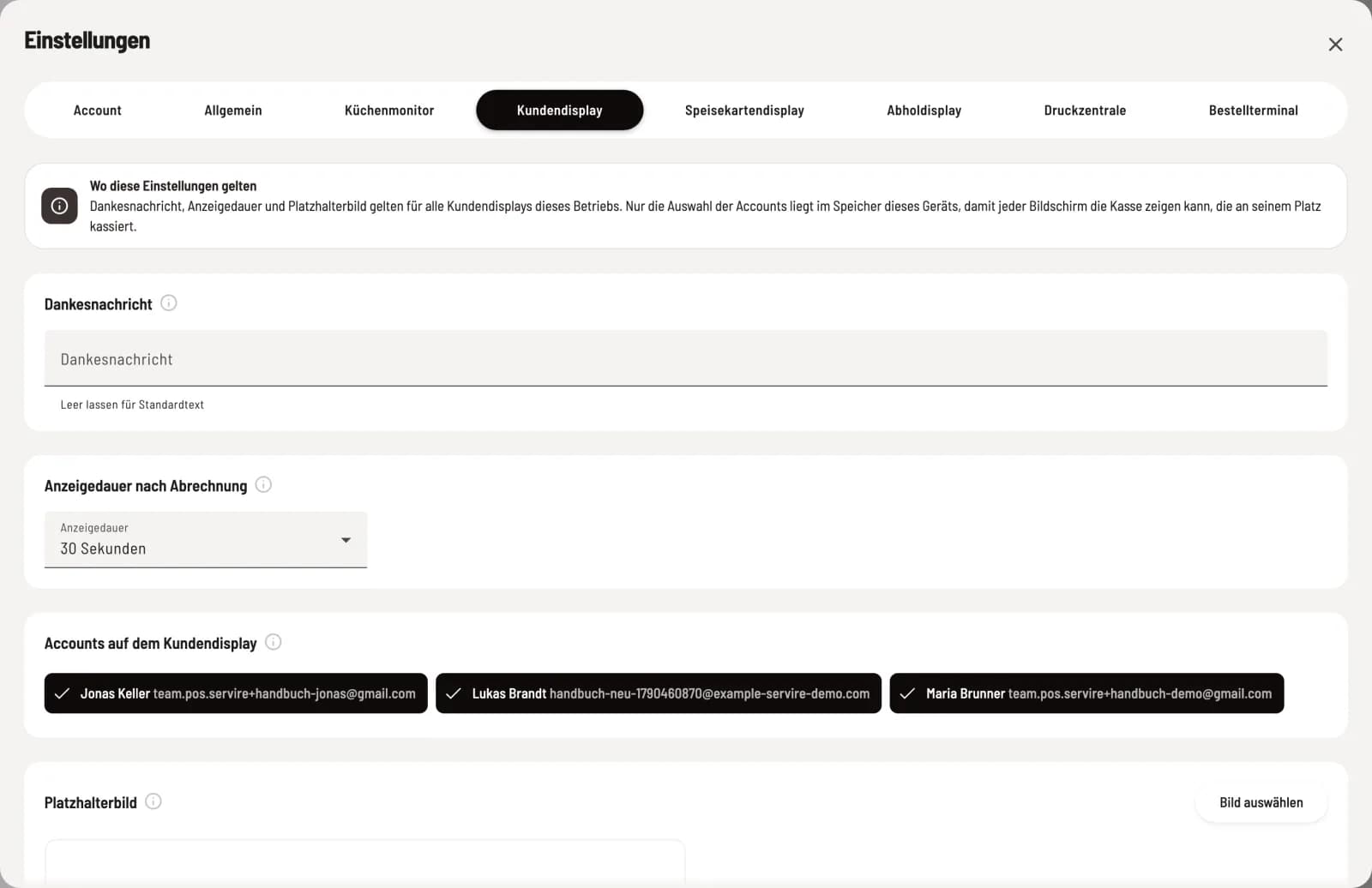
Click on your profile (gear icon) in the sidebar at the bottom and select the Customer Display tab:
Thank you message – leave blank for the standard text “Thank you for your purchase!”.
Display duration after billing – 15 or 30 seconds, 1 or 2 minutes. Default 30 seconds.
Accounts on the customer display – whose statements this screen shows. No selection means: all. You need this if you have two counters, each with its own guest screen.
Placeholder image – what is running during idle time, with Display Fill screen (crop) or Show in full and optional Text over image.
Where these settings apply: The thank-you message, display duration, and placeholder image apply to all customer displays in the restaurant. Only the account selection applies to this device.
If the screen remains blank even though payment is being processed, check the selection under Accounts. A transaction that doesn't progress for one minute is considered canceled and disappears.